
Overview
The WRITEBACK function sends one or more lines of values to the ERP.
The function uses the fields specified in a pre-defined Import Scenario for a specific screen in the ERP.
Related articles
-
Getting started with Writeback - A general article on setting up and using writeback functions.
Syntax
=WRITEBACK(
    ConnectionName,
    ScreenSettings,
    ImportScenarioName,
    DataColumnNames,
    OutputRange,
    RangeOrDataItem,
    ...
)
Arguments
The WRITEBACK function uses the following arguments:
|
Argument |
Required/Optional |
Description |
|
|
Required |
The name of the connection as configured in the Connection Manager This function does not support the multiple connection functionality. |
|
|
Required |
The |
|
|
Required |
The name of the pre-defined Import Scenario that is being used to send data to the ERP. |
|
|
Required |
The names of the fields to which data will be written. Provide these names using one of two methods:
|
|
|
Optional |
An Excel range reference to a cell (or range of cells) for output arguments. If multiple records are expected, the range should include a row for each record. |
|
|
Required |
The first set of data to be sent to the ERP. The values to be written must be specified in the same order as the column/field names specified in the |
|
... |
|
|
The ScreenID parameter can be specified either with or without dots.
e.g.,

or

Zeros in Writebacks with Velixo NX
In order for zero values to be sent to the ERP by Velixo NX, the zeros must either be contained within quotation marks ("0") or be a cell reference to a cell that contains the zero.
Defining the data type in DataColumnNames
Use this method in scenarios where the default behavior would treat values as numbers, and you explicitly want them treated as text, for example, values with trailing or leading zeros (1599.000 would be converted to 1599 by default, and 00123 would be converted to 123).
Use text or string in the second column for values that look numeric but must be treated as text.
Keep cells empty to use the default type assignment.
For example, in the following array, the CostCode column uses values like 610.229, 610.230, or 630.300. Since these values are treated as numbers by default, Excel will convert them to 610.229, 610.23, and 630.3 to eliminate trailing zeros, resulting in discrepancies and Writeback errors.

This translates to {“TaskID”,”CostCode”,”InventoryID”,”AccountGroup”} in the DataColumnNames argument.
In order for the CostCode values to remain unchanged, declare the data type for the CostCode column as text or string in the second row of the array used in the DataColumnNames as follows:
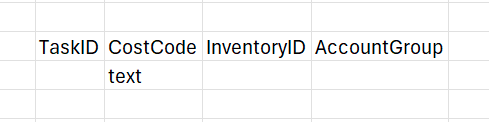
This translates to {“TaskID”,”CostCode”,”InventoryID”,”AccountGroup”;"","text","",""} in the DataColumnNames argument.
This addition will cause the values in the CostCode to be treated as text and prevent alterations. The data types for the remaining columns will remain default, as the remaining cells in the second row of the array are empty.
Example
Given this configuration:
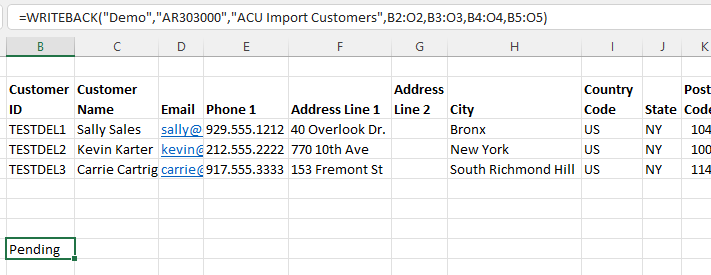
We could create this function:
=WRITEBACK(
    "Demo",
    "AR303000",
    "ACU Import Customers",
    B2:O2,
    B3:O3,
    B4:O4,
    B5:O5
)
Description
As a basic example, will be writing data to the screen with the ID "AR303000".
That ERP contains an active, pre-defined Import Scenario named ACU Import Customers:
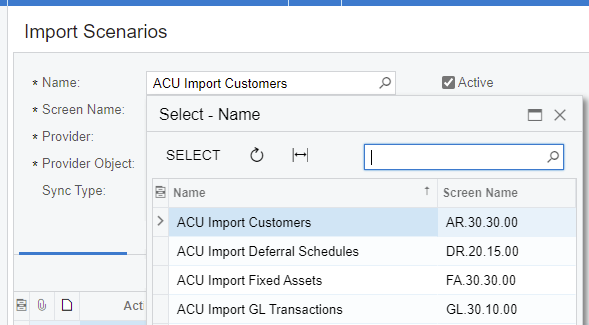
To help us create our worksheet, we can use the WRITEBACKARGUMENTS function to list the name of the fields associated with that specific Import Scenario:
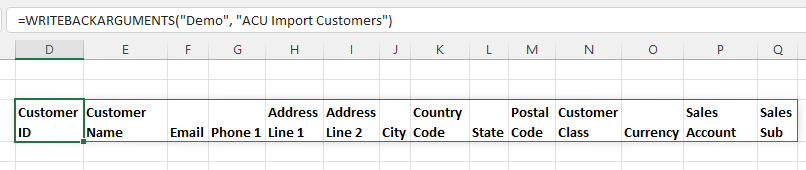
and then fill in the data we want to send to the specified ScreenID:

Empty values cannot be omitted if column names are specified for them in that WRITEBACK formula. The number of values must be equal to the number of column names. Otherwise, an error message will be shown:

Our WRITEBACK function
=WRITEBACK("Demo", "AR303000", "ACU Import Customers", B1:O1, B2:O2, B3:O3, B4:O4, B5:O5)

=WRITEBACK(
    "Demo",
    "AR303000",
    "ACU Import Customers",
    B1:O1,
    B2:O2,
    B3:O3,
    B4:O4,
    B5:O5
)
... can then reference the data we have filled in.
-
B1:O1 references the names of the fields to which we will be sending data
-
B2:O2 references the first line of data we are sending
-
B3:O3 references the second line of data we are sending.
-
etc.
The WRITEBACK function does not require us to use cell references; we could also type information directly into the function.
e.g.,
=WRITEBACK(
    "Demo",
    "AR303000",
    "ACU Import Customers",
    A4#,
    {
        "TESTDEL1", "First", "[email protected]", "79169224455",
        "1-st Ave", "23 bul.2", "New York", "US", "NY",
        "", "LOCAL", "", "", ""
    }
)
The WRITEBACK function also supports importing multiple entries with a single function call. Expanding on the above example, we could send two records to the ERP like this:
=WRITEBACK(
    "Demo",
    "AR303000",
    "ACU Import Customers",
    {"Customer ID", "Customer Name", "Email", "Phone 1", "Address Line 1", "Address Line 2", "City", "Country Code", "State"},
    ,
    {"TESTDEL1", "First", "[email protected]", "79169224455", "1-st Ave", "23 bul.2", "New York", "US", "NY"},
    {"TESTDEL2", "First", "[email protected]", "79169224455", "1-st Ave", "23 bul.2", "New York", "US", "NY"}
)
We are sending data for both TESTDEL1 and TESTDEL2 with a single WRITEBACK function with each set of data contained within its own set of braces { }
See below for additional ways to compose writeback data.
Result
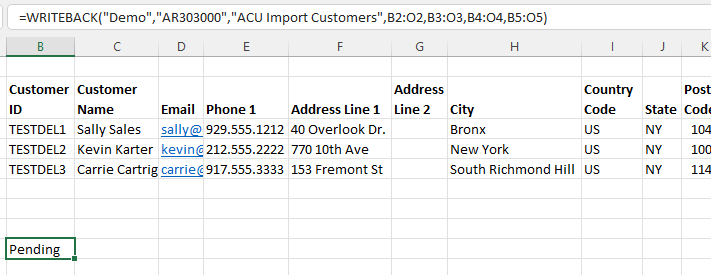
Before the data is sent to the ERP...
...the status of the function is Pending:
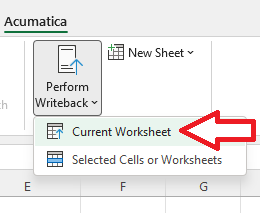
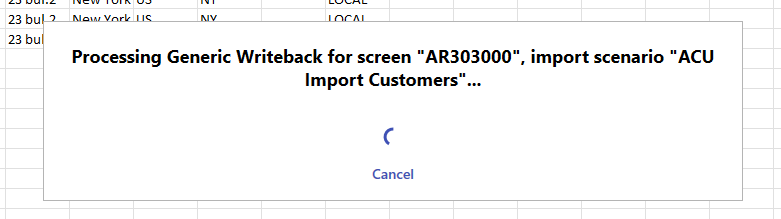
Once we select Import Current Worksheet, the process will start:
Once the process is complete...
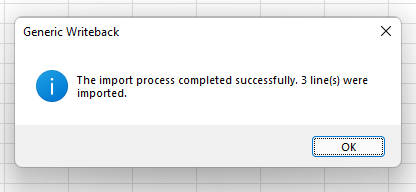
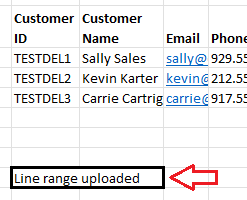
... the status of the WRITEBACK function will change to Line range uploaded...
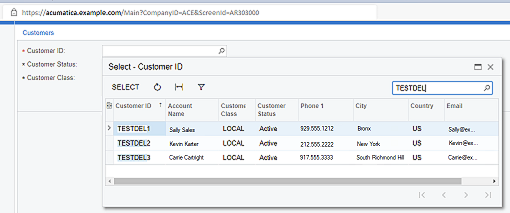
... and, within our ERP, we can visit screen AR303000 and see that the data has been imported:
Ways to build writeback data lines
In this section, let's explore all the different ways how you can compose data for the WRITEBACK function. For your convenience, we made the function very powerful and flexible in that regard.
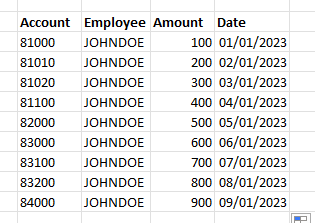
We will be using a hypothetical example where you write back data lines containing an account number, employee ID, a monetary amount, and a date. We'll be using a fictional screen id EX123456 and scenario names "EX Import Lines".
As separate lines - multiple WRITEBACK functions
The first way to write back such a block of data would be to just specify every data line as separate RangeOrDataItem arguments of the WRITEBACK function:
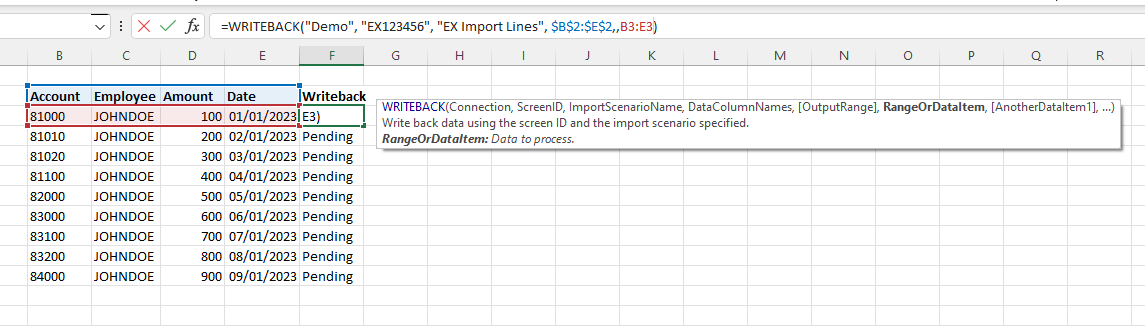
This works great if the number of lines doesn't change over time, or changes relatively infrequently.
The downside is that you need to keep track when the number of lines changes, and not forget to copy down the formula every now and then.
As separate lines - single WRITEBACK function
A slight variation of the above approach is if you want to use just one WRITEBACK function and display the status just once on your worksheet. To specify data items as separate lines in such a case, you can use multiple RangeOrDataItem arguments representing writeback lines:
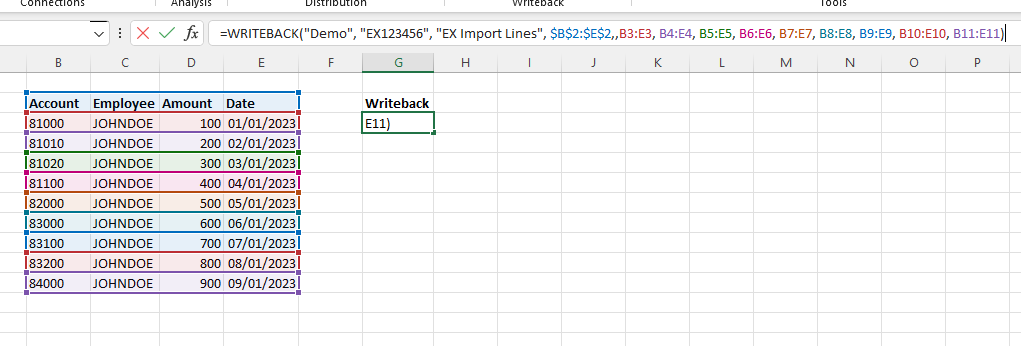
The downside here, again, is when the number of items changes over time, you will need to manually modify your formula.
As a block of data - single WRITEBACK function
Alternatively, you can just put the whole Excel range into the first RangeOrDataItem argument of the WRITEBACK function:
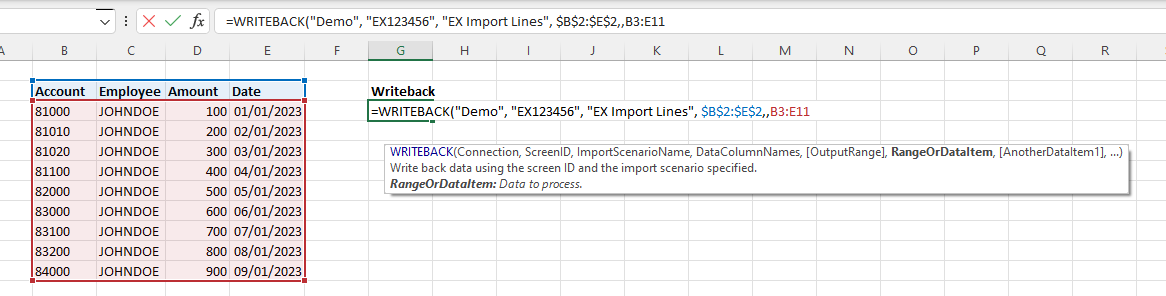
With hard-coded range references, it might be an OK choice when the shape of data and the number of lines stays the same over time. If the shape of data changes, however, there is a risk that you might forget to modify the formula to include the additional data lines.
It is a great choice, though, when the whole block of data is a spilling range:
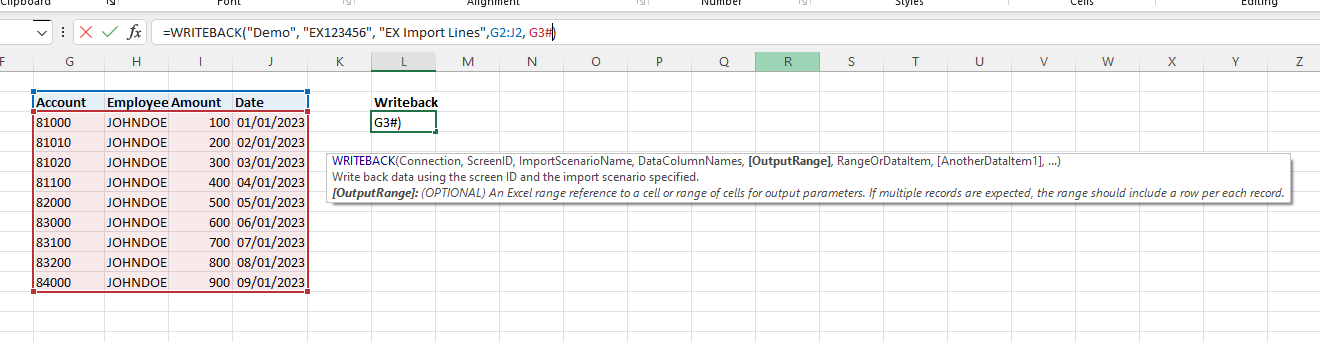
You can use such functions as COLLATE, HSTACK and VSTACK to compose such a dynamic block.
From separate columns of data - single WRITEBACK function
Let's suppose that the employee's name in our example stays the same, no matter what, and the date is the same for every line.
Also, let's suppose that the Account and Amount are Excel spill ranges coming from two different functions or data sources.
Can we compose our writeback data in a more dynamic way without using HSTACK / COLLATE, and also avoid repeating JOHNDOE over every line?
Yes, we can!
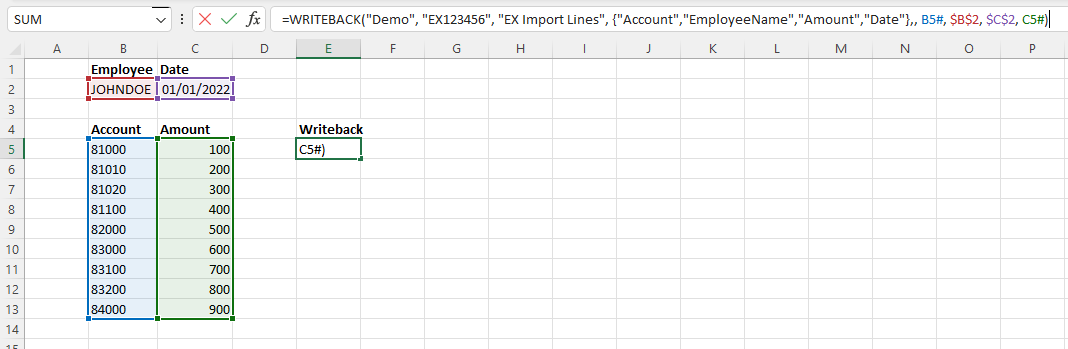
Note how we reference the Account / Amount using the spilling range syntax with "#", and also specify "EmployeeName" and "Date" as a single-cell-reference.
Velixo will be smart enough to internally compose data lines that look like this, where constant single-cell references are internally "copied down" for every row (in bold below):
81000, JOHNDOE, 100, 01/01/2022,
81010, JOHNDOE, 200, 01/01/2022,
81020, JOHNDOE, 300, 01/01/2022 etc.
This saves space on the worksheet, gets rid of unnecessary duplication, and is also completely robust if the spilling ranges of accounts/amounts resize in the future.
In the last example, we still need to specify all relevant data column names in the WRITEBACK function call.
Considerations
Setting BatchSize for the Writeback
To avoid ERP timeouts on large writebacks and to improve responsiveness of the application, data is broken up in batches of 100 records. If you are processing large batches of writebacks and using screens with auto-numbered keys (e.g., Journal Transactions Batch Number, Invoice Number), you can adjust the batch size to ensure your data is not broken up in multiple records.
This is accomplished by specifying the batch size to be used for the specific Screen ID.
Example

In this example, the WRITEBACK function will send 100 rows at a time to the IN202500 screen
You may also decide to perform separate writebacks for the header and detail rows, retrieving the autonumber value and using it for the detail lines, thereby avoiding this problem altogether.
Cash Accounts and Restrict Visibility by Branch
Under default conditions, Universal Writeback does not work for a cash account if the Restrict Visibility by Branch checkbox has been selected (within the ERP) for that account.
If a writeback is attempted on such an account, an error will be returned:


To avoid this issue, the WritebackBranch argument can be added to the screen ID. This argument should only be used if, during writeback, you want to use some Account IDs that have "restrict visibility by branch" enabled, such as with Cash Accounts.
Example
=@WRITEBACK(
    $B$3,
    "AP304000;WritebackBranch=prodwhole",
    "ACU Import AP Cash Purchases",
    {
        "Type", "Reference Nbr.", "Date", "Post Period", "Description",
        "Vendor ID", "Location ID", "Cash Account", "Payment Ref.", "Branch",
        "Line Branch", "Inventory ID (non-stock)", "Line Description", "Quantity",
        "Unit Cost", "Ext. Cost", "Account", "Subaccount"
    },
    ,
    [@Type],
    [@[Reference Nbr.]],
    [@Date],
    [@[Post Period]],
    [@Description],
    [@[Vendor ID]],
    [@[Location ID]],
    [@[Cash Account]],
    [@[Payment Ref.]],
    [@Branch],
    [@[Line Branch]],
    [@[Inventory ID (non-stock)]],
    [@[Line Description]],
    [@Quantity],
    [@[Unit Cost]],
    [@[Ext. Cost]],
    [@Account],
    [@Subaccount]
)