
Symptoms
If you experience any of the following problems:
-
The Velixo installer fails with an error.
-
After you install the product, the Velixo ribbon is not visible in the Excel toolbar.
-
The Velixo ribbon is visible, but none of the Velixo functions are available.
It is recommended that you follow the troubleshooting steps outlined below in the specified order.
Possible causes
Unsuitable Microsoft Office version
Excel 365 is strongly recommended (Velixo Classic includes support for Excel 2010 and later for most features).
Both 32-bit and 64-bit editions are supported.
The installation did not complete properly
Attempt to uninstall and reinstall the product again.
Restart Excel.
The add-in was automatically disabled by Excel
In some cases, the add-in might be automatically disabled by Excel during start-up.
To double-check, open Excel and follow these steps:
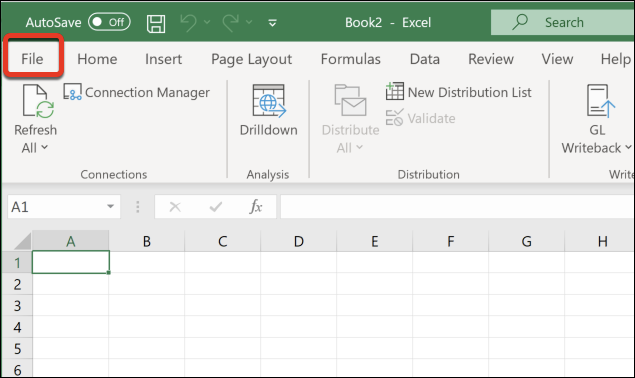
Open the File menu:
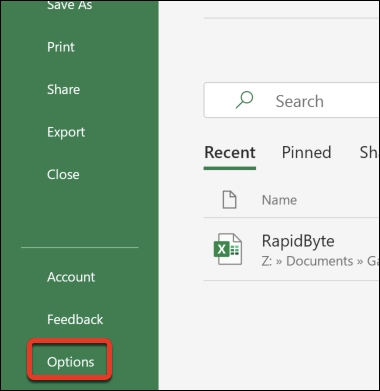
Next, select Options:
On the left, select Add-ins.
You should see two Velixo entries in the Add-ins list.
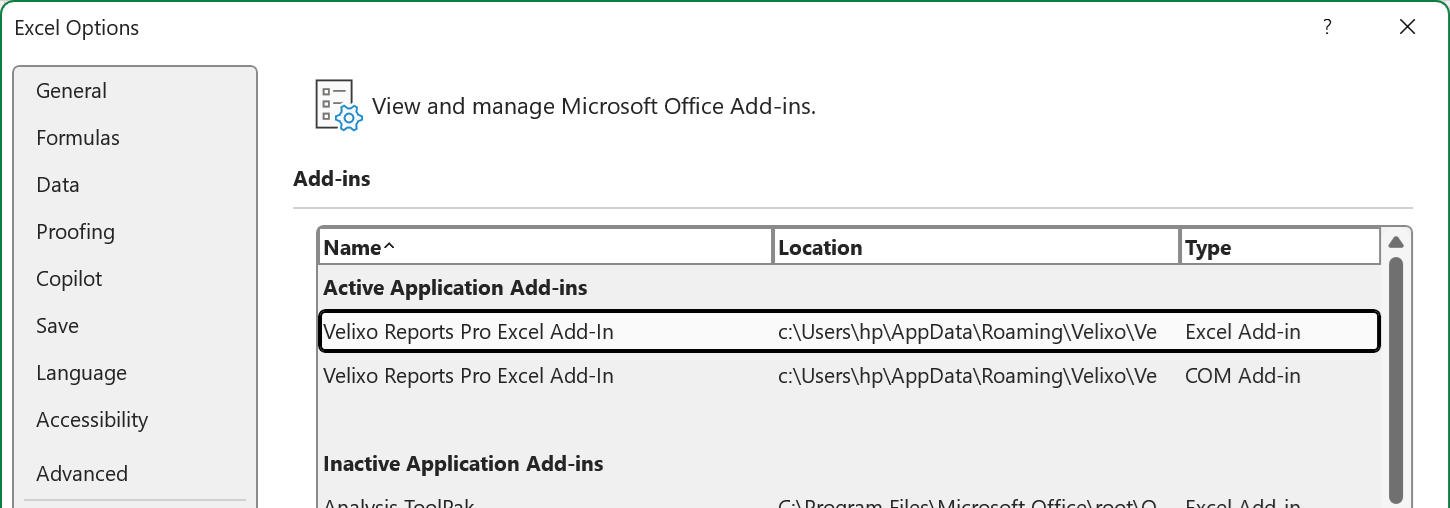
The Velixo add-in will not function properly if either component is disabled.
Choose Disabled Items from the small drop-down menu at the bottom of the window and then press the Go button.
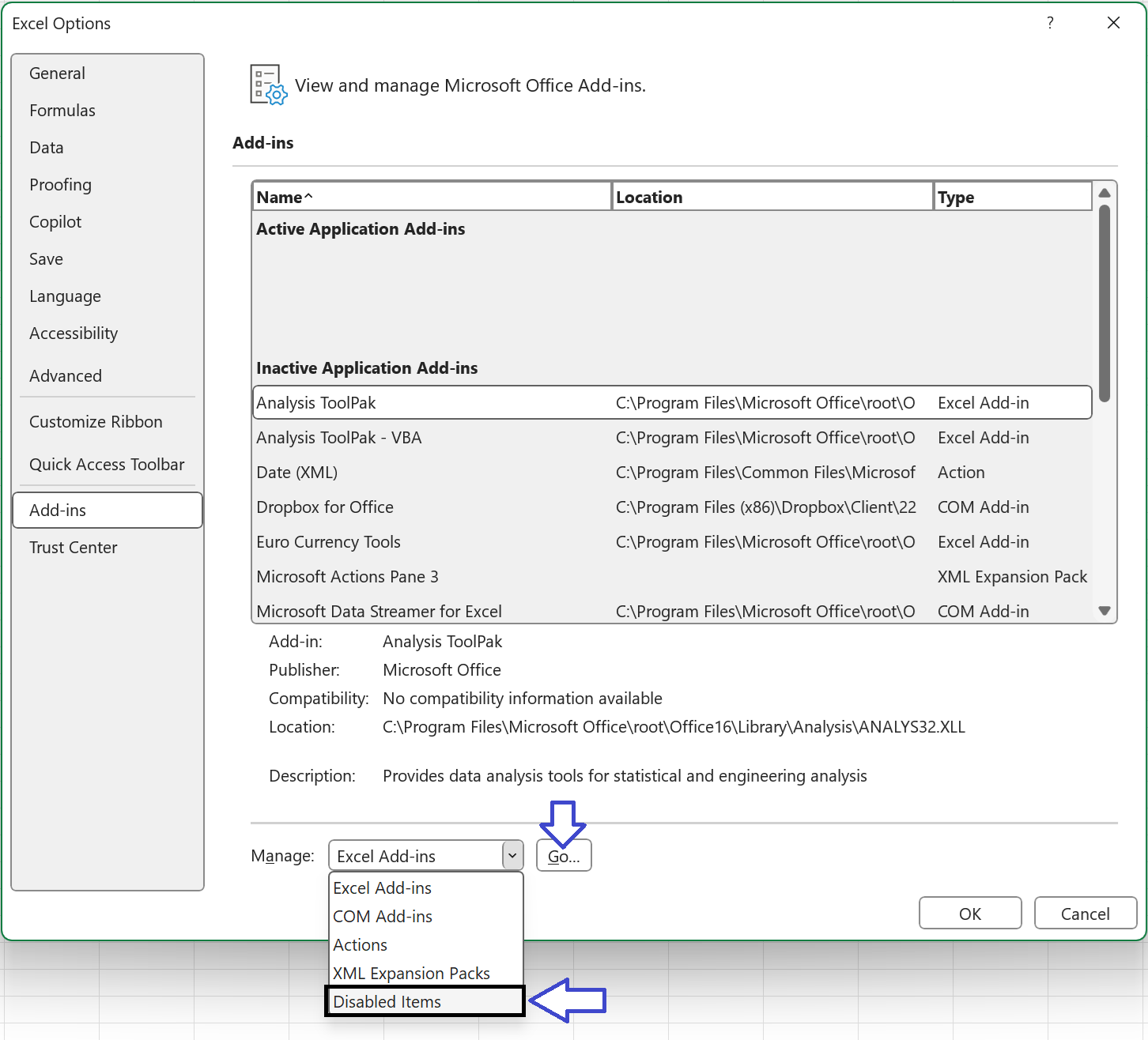
If any item is disabled, it will appear in the popup window:
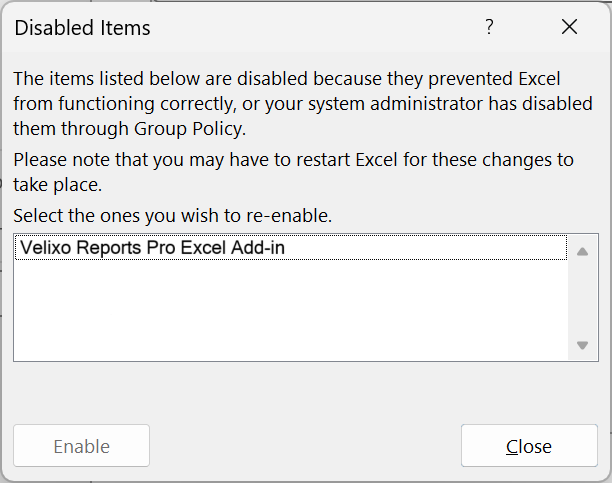
Select any Velixo items and click Enable for each of those.
Restart Excel.
The add-in was disabled by a user
If nothing appeared in the Disabled Items popup window on the previous step, verify that both the Excel Add-ins and COM Add-ins sections contain a check in the box for Velixo.
Back in the File > Options > Add-ins window (see above)...
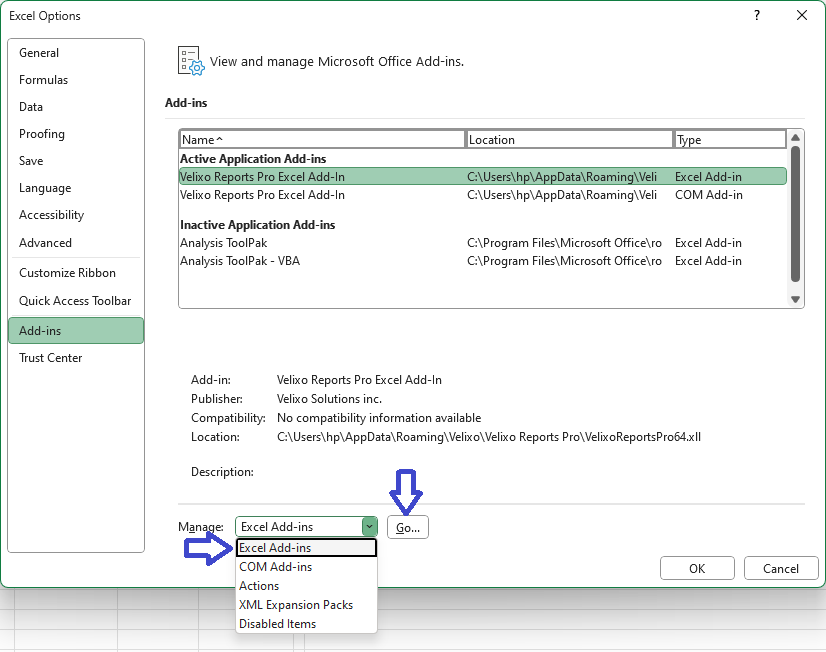
... in the Manage drop-down, select Excel Add-ins and click Go...
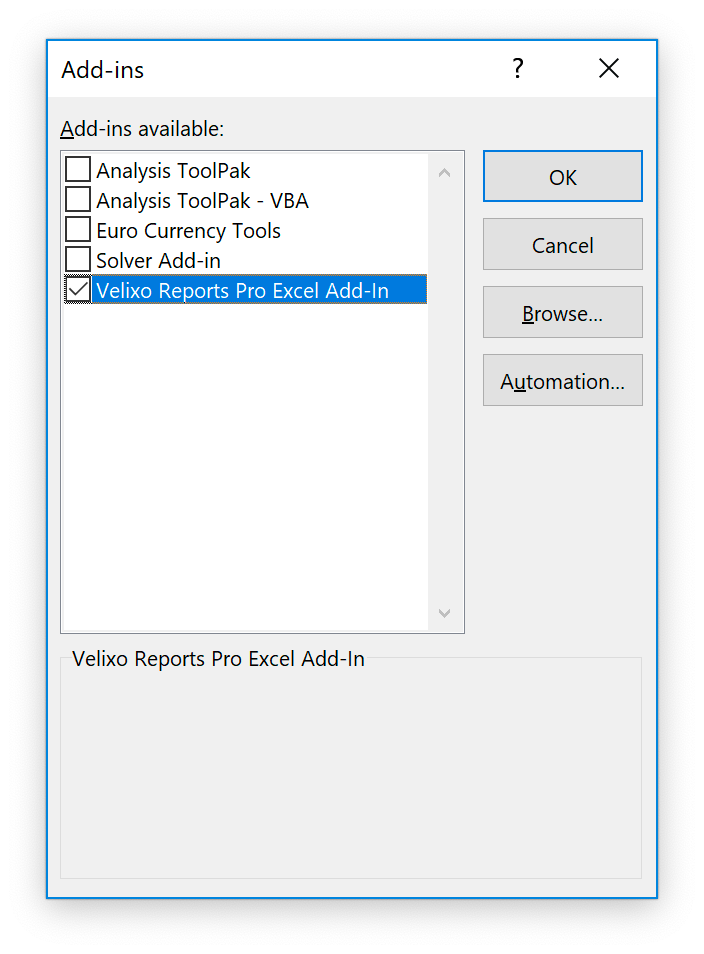
Ensure that the checkbox for Velixo is checked, and click OK.
Then, in the Manage drop-down, select COM-Add-ins and click Go.
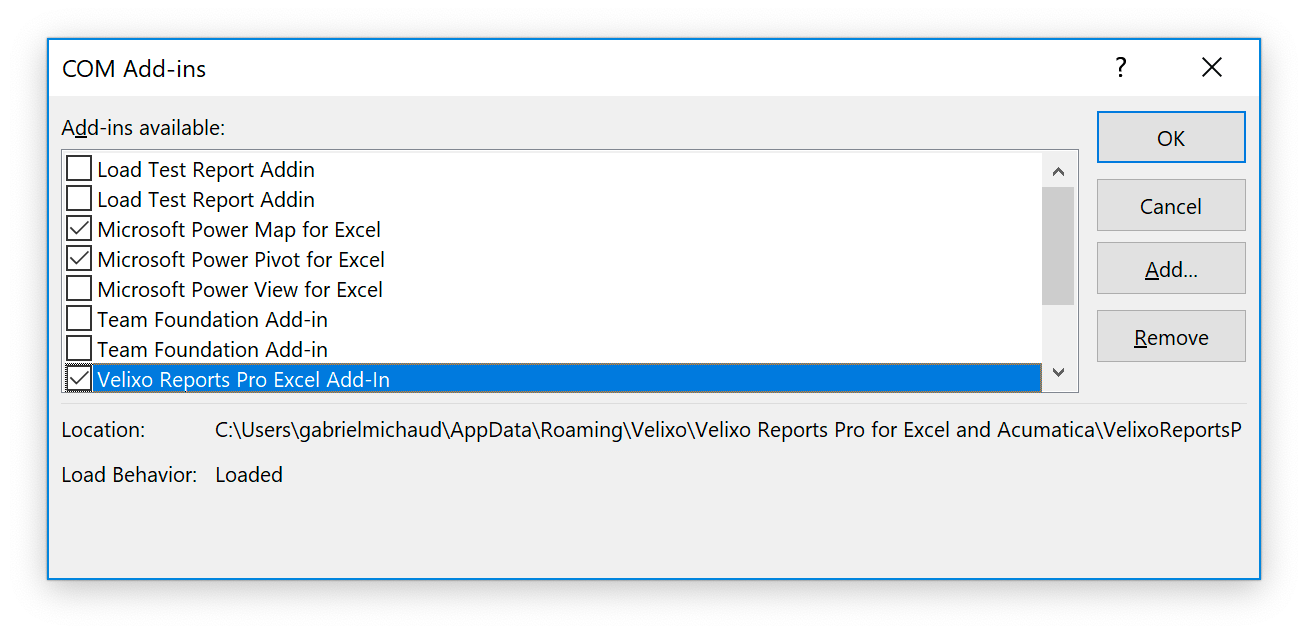
Ensure that the checkbox for Velixo is also checked and click OK.
Restart Excel.
Excel add-ins are forbidden by the Trust Center settings
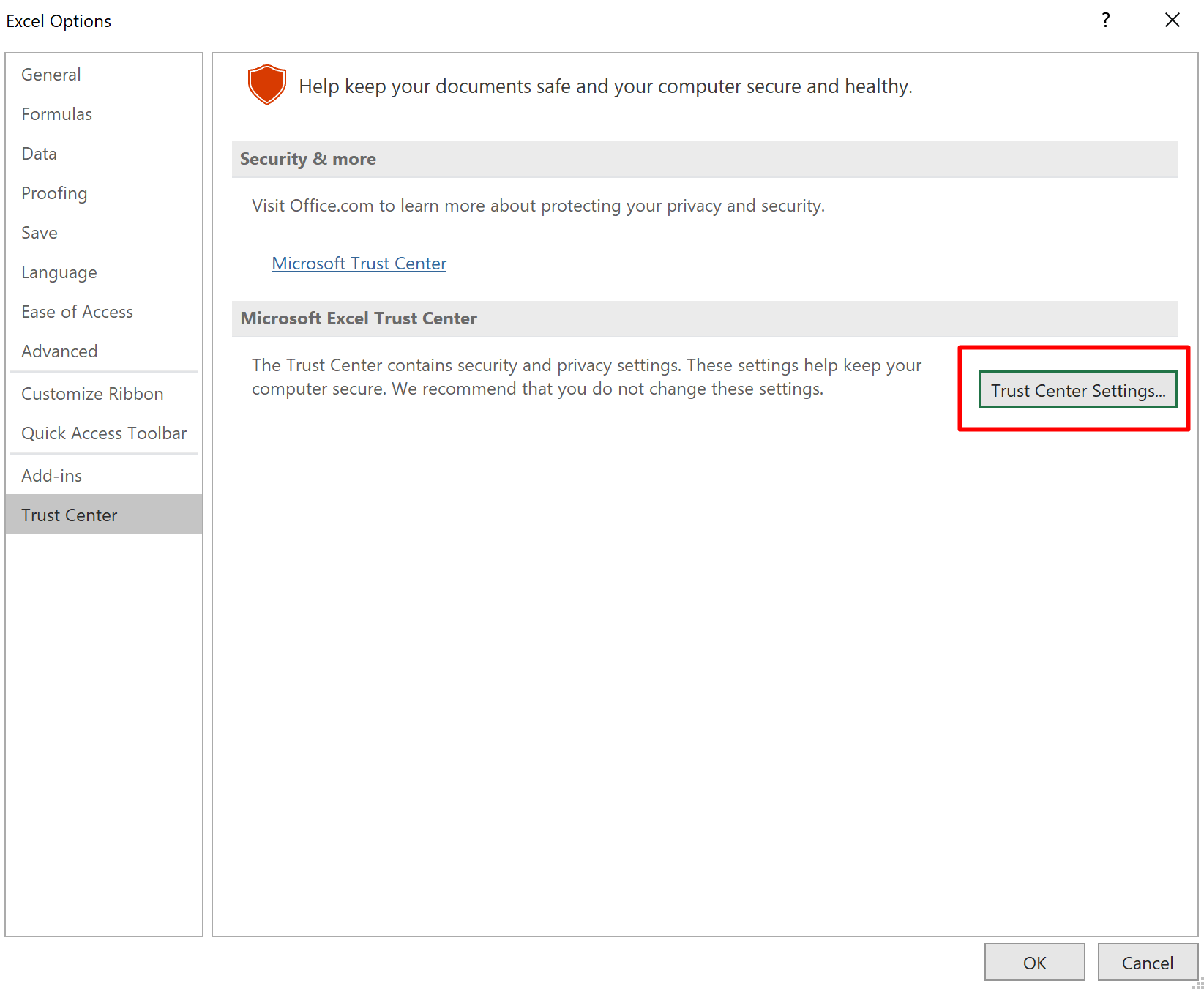
Under File > Options > Trust Center, click Trust Center Settings:
On the left, select Add-ins:
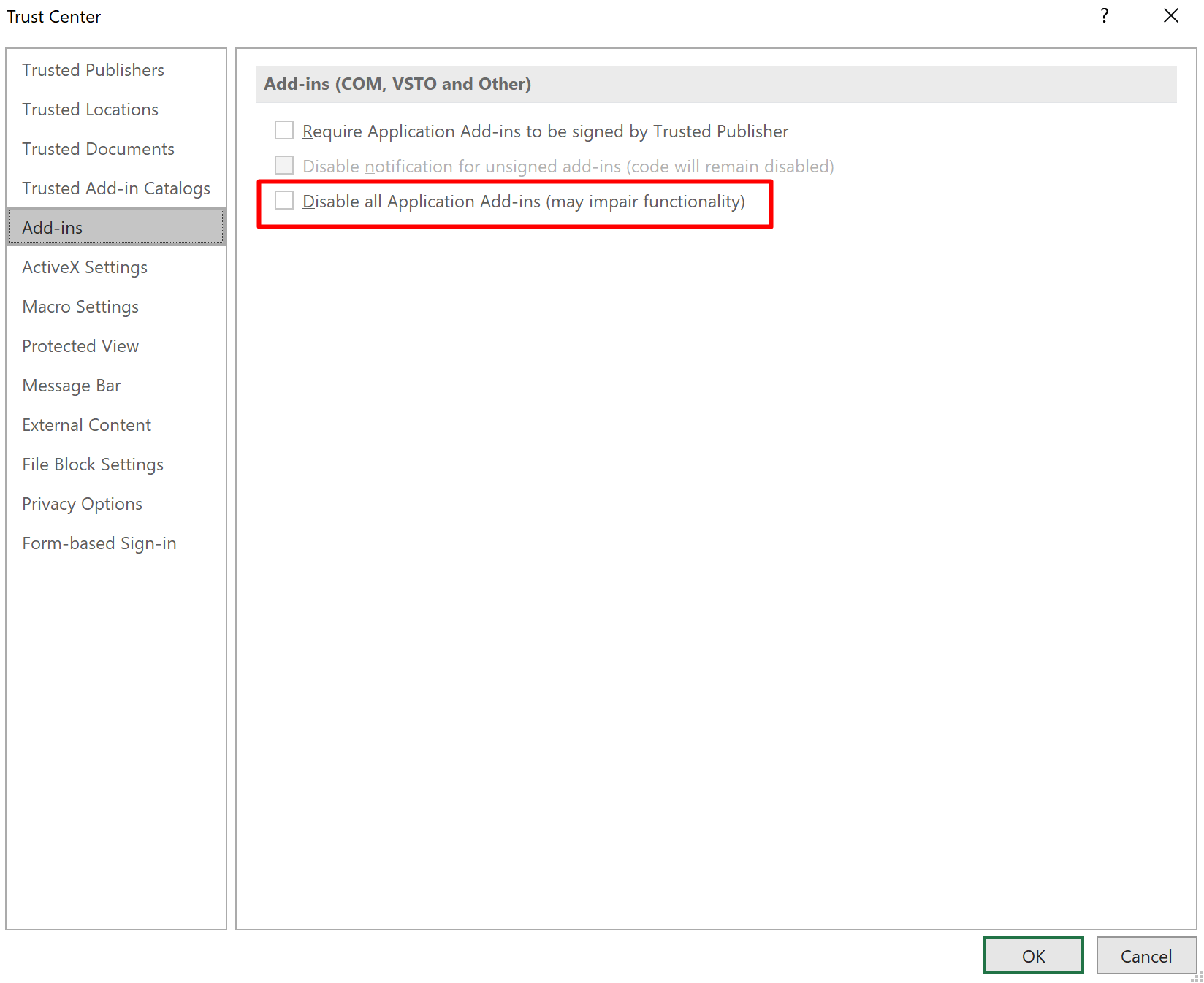
Ensure that the Disable all ... checkbox is not checked and press OK.
Restart Excel.
Advanced Troubleshooting
If following the steps above does not resolve your problem, here are additional troubleshooting steps that you can follow:
Possible causes
Auto-load registry key deletion or corruption
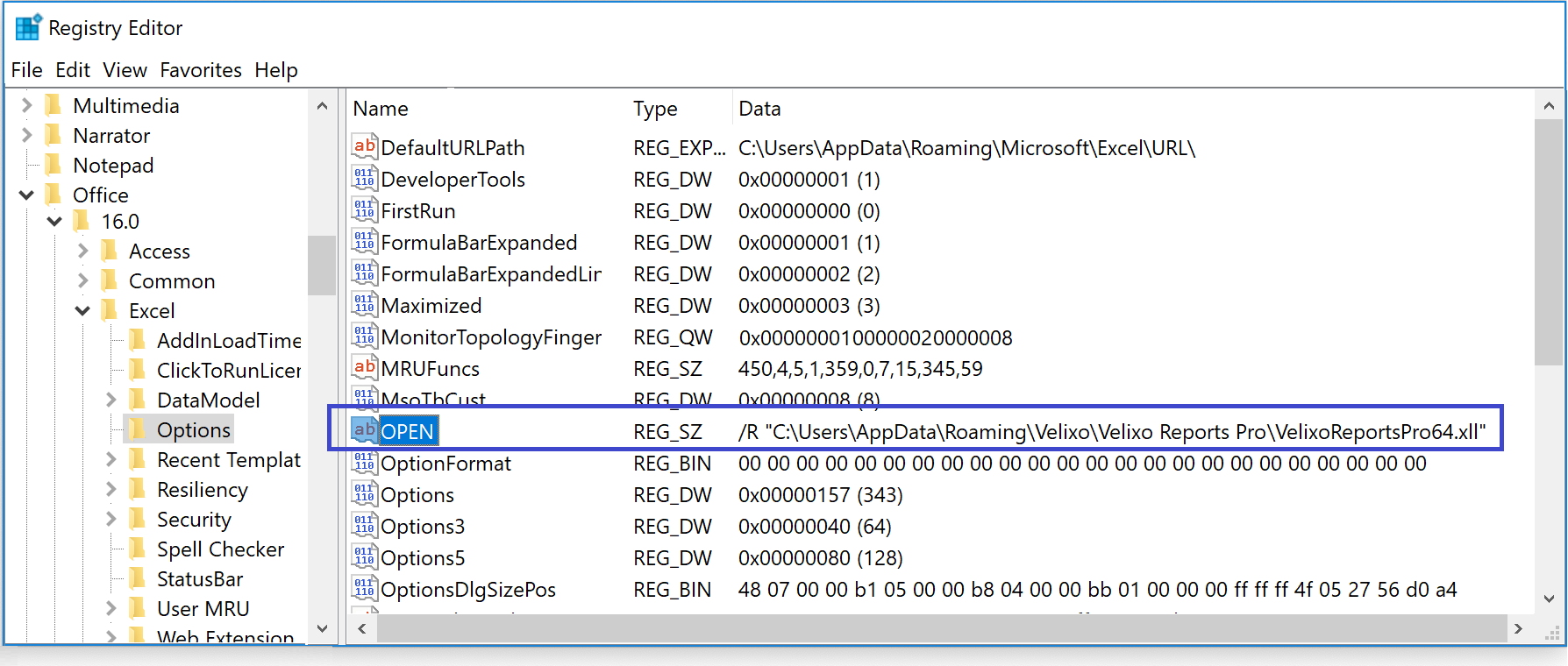
Check registry settings to ensure the XLL file is set to auto-load. The exact path will depend on the version of Excel that you have installed. For Excel 365, the path is:
HKEY_CURRENT_USER\Software\Microsoft\Office\16.0\Excel\Options
In this registry key, you should find a string value named OPEN and pointing to the path where the XLL file is installed:
Users are forbidden from running .MSI installers
We've seen an issue on Windows Server (remote desktop / terminal server) environments where the users were not allowed to run unmanaged application installs.
(This might also be the default behavior on your system, see this Microsoft support article for reference)
Allow unmanaged application installs by adding / setting the following registry key:
[HKEY_LOCAL_MACHINE\SOFTWARE\Policies\Microsoft\Windows\Installer]\
"DisableMSI"=dword:00000000
Attempt to open the add-in manually
If everything else has failed, you can attempt to open the add-in manually from the Windows application data folder:
%APPDATA%\Velixo\Velixo Reports Pro
Look in each of the three AppData folders for your user. In case there is no Velixo folder, it means that the product was not installed at all, and you should contact support.
Double-click VelixoReportsPro32.xll for 32-bit versions of Excel, or VelixoReportsPro64.xll for 64-bit versions. The Velixo installer contains a digital signature which should be trusted by your system. However, depending on your security settings, Excel may prompt you to trust the add-in.