Overview
Occasionally, when troubleshooting an issue, it can be helpful (and you may be directed to do so by Velixo Technical Support) to deactivate the Velixo Classic add-in.
Manually Deactivating the Velixo Classic Excel Add-in
-
In Excel:
-
- Click File
-
- Click Options
-
- Click Add-ins
-
- Select Excel Add-ins in the Manage textbox

-
- Click the Go... button
-
-
On the Add-ins screen, uncheck the box for Velixo Reports Pro Excel Add-In...
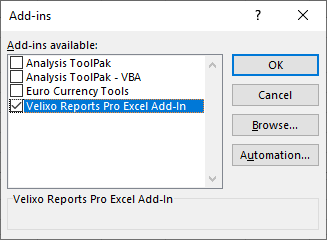
... and then click OK
The Velixo ribbon should now be removed from you Excel toolbar.
Depending on the issue you are working to address, it may be advisable to close and restart Excel to ensure that the Velixo add-in remains deactivated.
Manually Deactivating the Velixo NX Excel Add-in
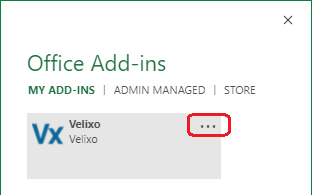
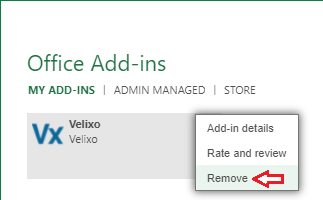
You can uninstall the Velixo NX add-in through the Add-ins button on Excel's Data ribbon.