
Symptoms
You may see one or more of the following in Excel:
-
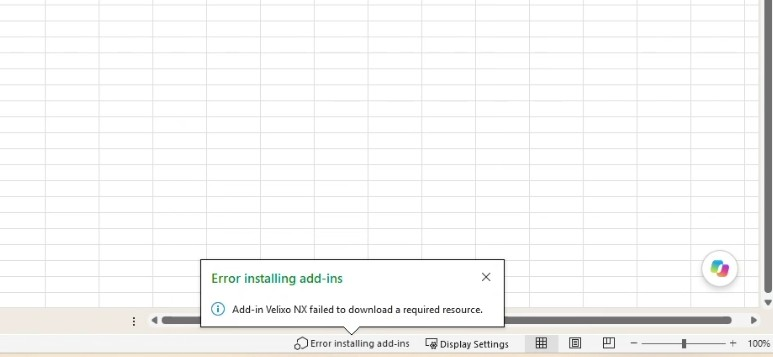
Excel shows the error Add-in Velixo NX failed to download a required resource.
-
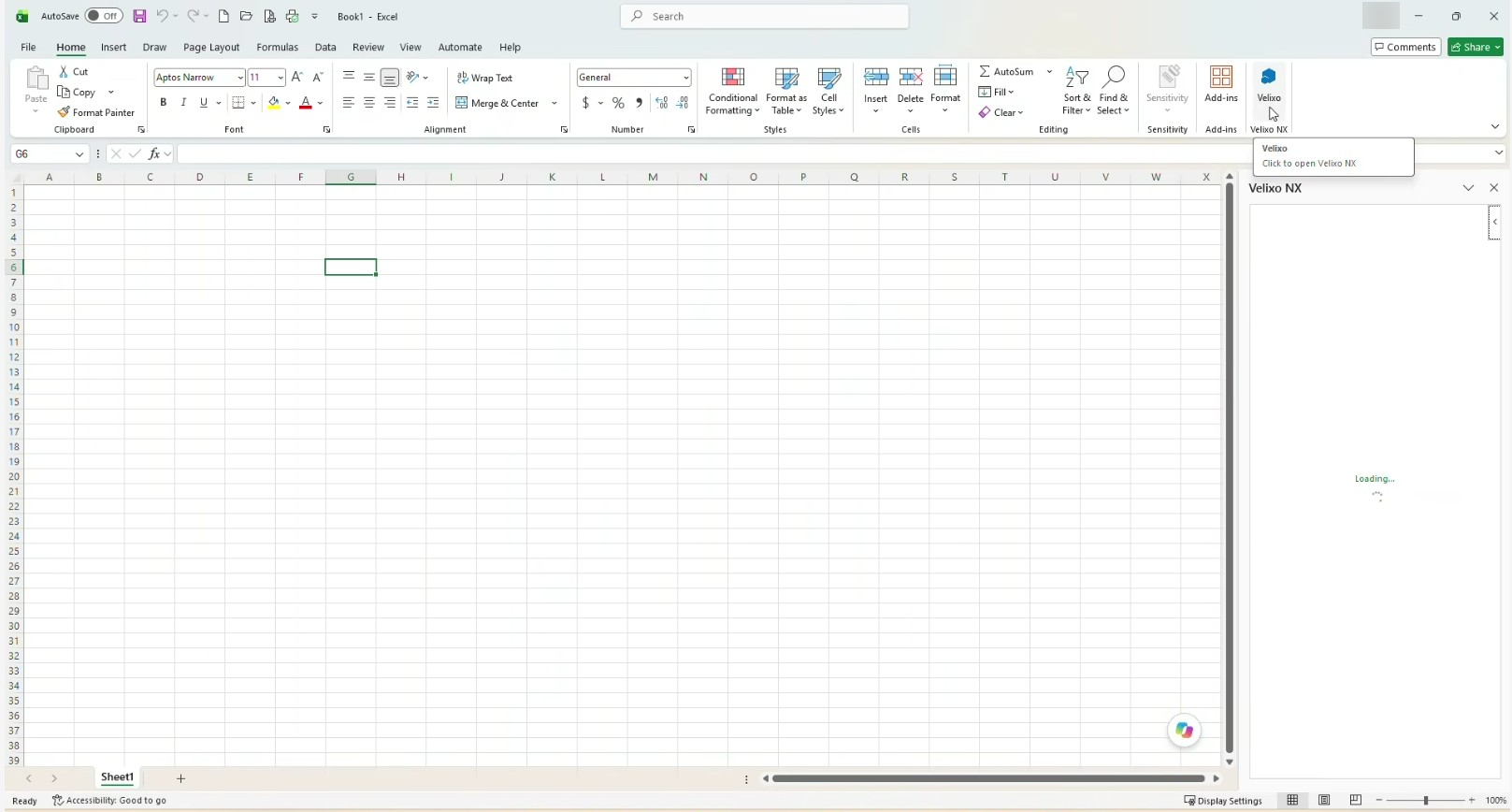
The Velixo NX task pane stays on Loading... and never finishes loading.
-
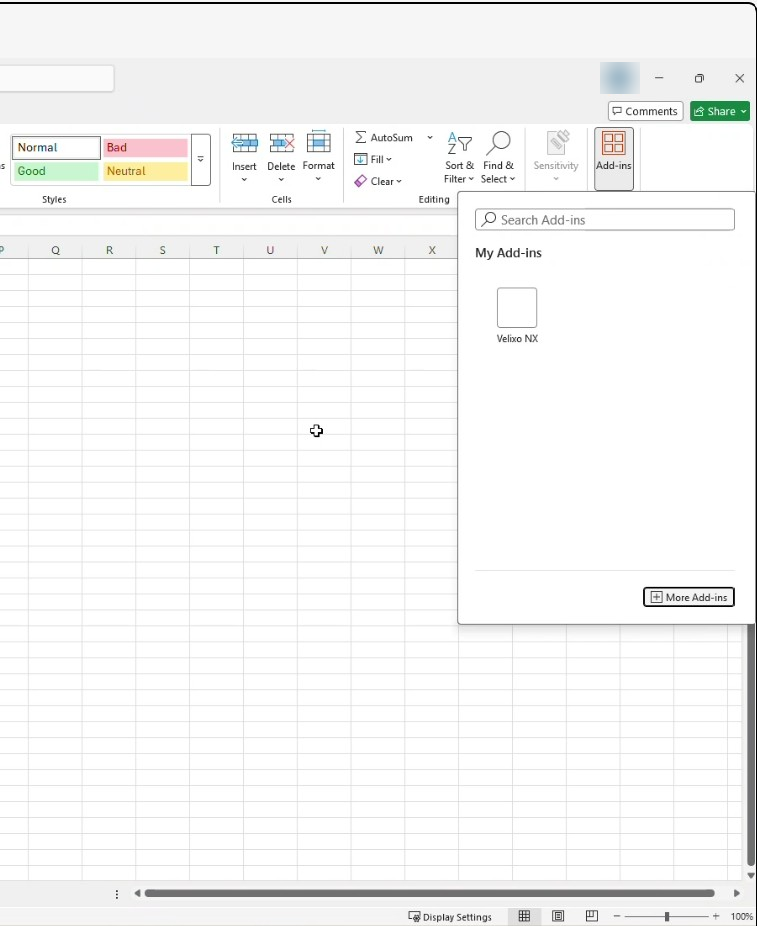
The Add-ins flyout shows a blank tile for Velixo NX instead of its icon.
-
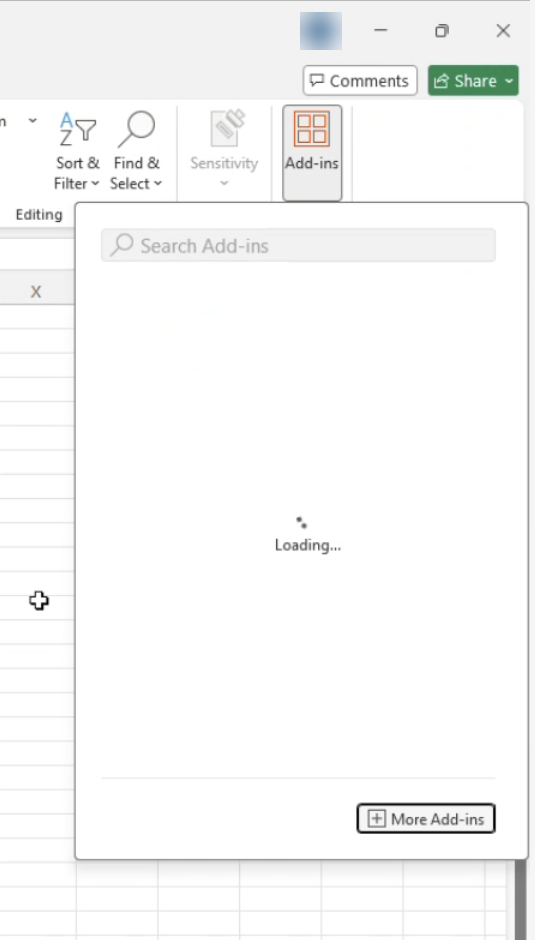
The Add-ins flyout or the Office Add-ins store takes a very long time to load.
-
After you sign out of your Microsoft account in Excel, the sign-in window loads very slowly.
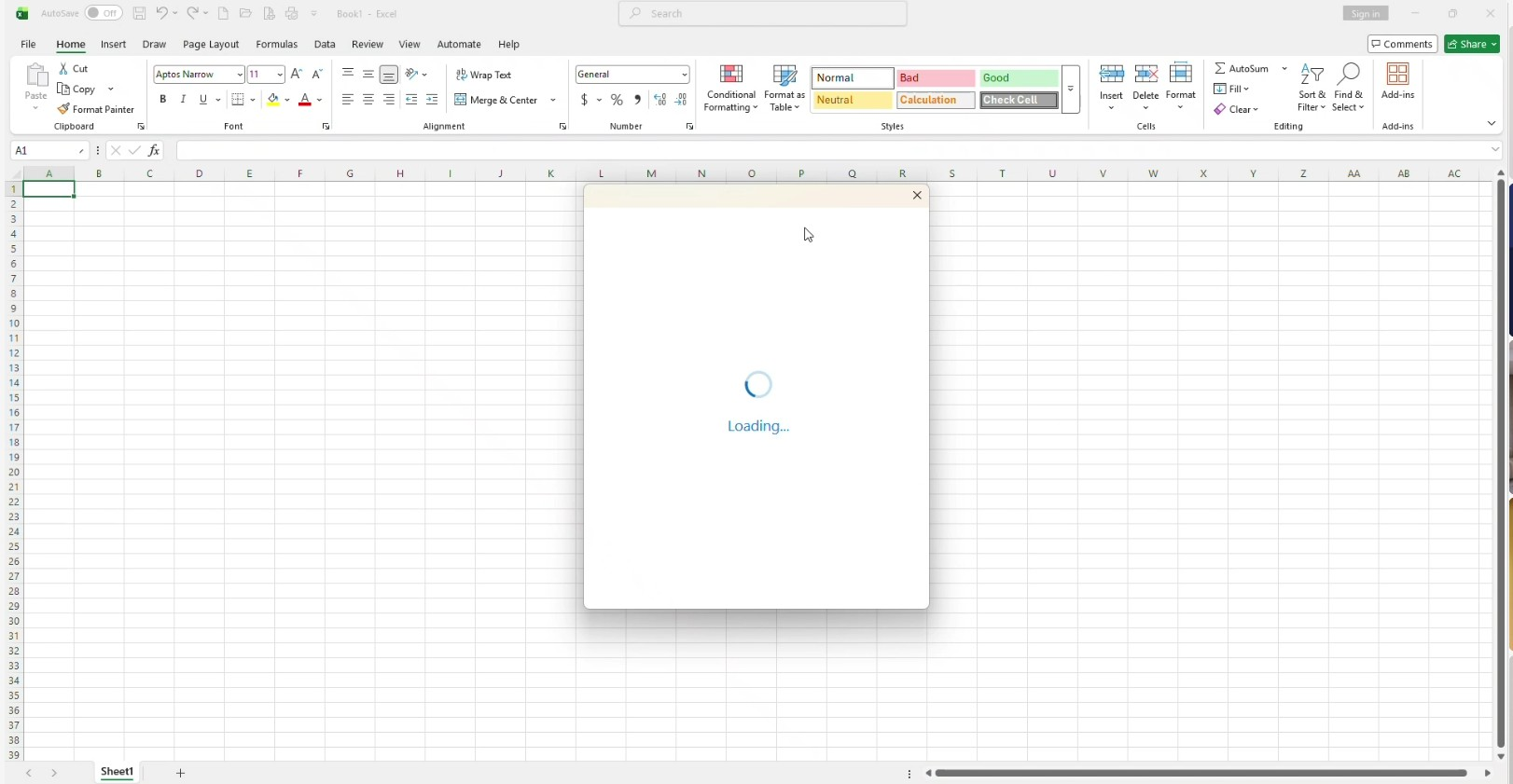
These symptoms can be intermittent. The add-in may work for a while and then stop, even though nothing has changed in Velixo NX or Excel.
If the Office Add-ins store shows "We didn't find any matches" when you search for Velixo NX, see Velixo NX add-in fails to install or load from the Microsoft Office Store instead.
Cause
Some antivirus and endpoint-security products inspect encrypted HTTPS traffic. This feature is often called SSL scanning, HTTPS scanning, or SSL/TLS filtering. To inspect the traffic, the security software intercepts each HTTPS connection and re-encrypts it with its own certificate. This interception can interfere with the requests Excel makes to Microsoft services and to the Velixo cloud service. As a result, the add-in fails to load, loads partially, or responds very slowly, and signing in to Excel becomes slow.
This issue is confirmed with ESET Smart Security and its SSL/TLS filtering feature. The equivalent feature in other security products (e.g., Kaspersky, Bitdefender) can potentially cause the same issue.
Resolution
You don't need to disable your antivirus software. Turn off only its SSL/TLS (HTTPS) scanning feature. Other protection features, such as real-time file scanning and the firewall, can stay on.
If your organization manages your computer's security settings centrally, you may not be able to change this setting yourself. In that case, ask your IT administrator to make the change.
ESET Smart Security and ESET Endpoint products
-
Open ESET Smart Security.
-
Select Setup → Advanced setup, or press F5.
-
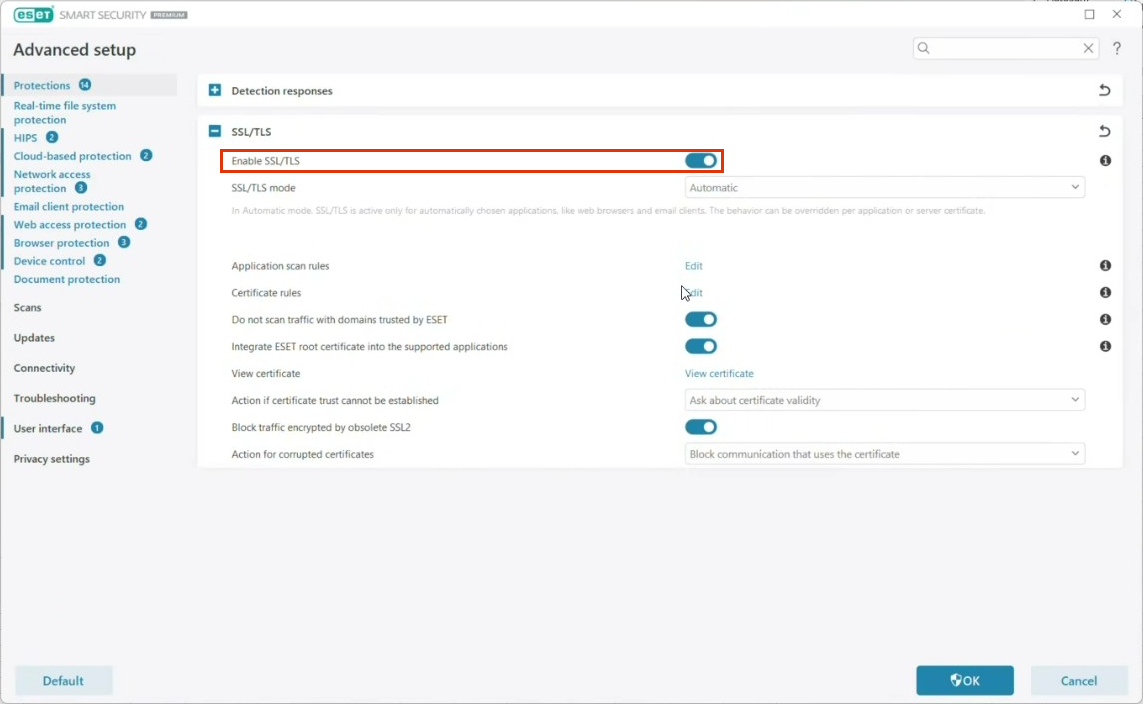
Select Protections, then expand SSL/TLS.
-
Turn off Enable SSL/TLS.
-
Select OK, then restart Excel.
Velixo NX now loads normally, and the Add-ins flyout shows the Velixo NX icon.
Other antivirus and endpoint-security products
Look for a setting named SSL scanning, HTTPS scanning, SSL/TLS filtering, or encrypted traffic inspection. It's usually in a Web protection or Network protection section. Turn it off, then restart Excel. If you can't find the setting, check your security vendor's documentation or ask your IT administrator.
If the issue continues after you turn off SSL/TLS scanning, contact Velixo Support. Include the following:
-
The name and version of your antivirus or endpoint-security software.
-
Whether the issue occurs in Excel for Windows, Excel for Mac, Excel on the web, or several of these.
-
A screenshot of the exact error message.