
Overview
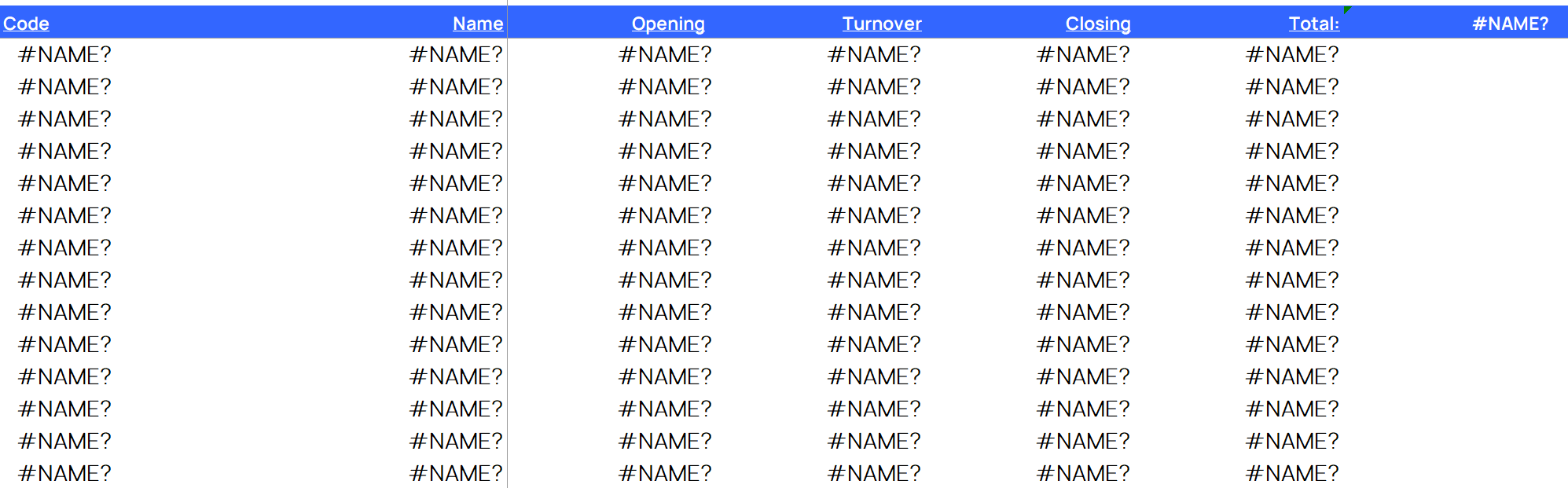
When opening a workbook, all cells containing or referencing Velixo NX functions display Excel's #NAME? error:
Cause
If refreshing All Open Workbooks...
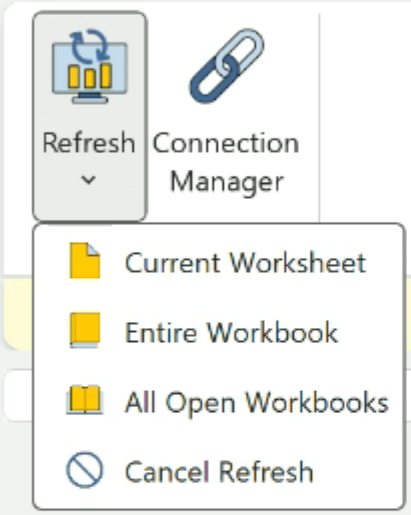
... does not resolve the issue, proceed with the troubleshooting techniques below.
Troubleshooting Techniques
Let's ensure that there is no issue with the specific workbook.
-
Close all Excel windows
-
Reopen Excel
-
Create a NEW, blank Excel workbook
-
Click the Velixo button in the Velixo NX section of Excel's Home ribbon
-
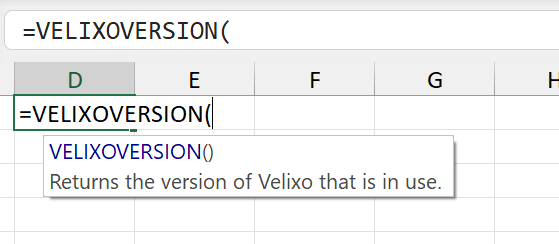
In any cell, start typing:
=VELIXOVERSION
If an informational box for the function is displayed:
and Excel is able to evaluate the function:
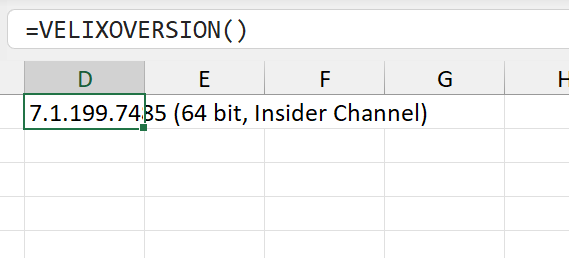
... Excel *is* able to communicate with the Velixo NX add-in.
If this is the case, you can STOP HERE. Please contact Velixo Technical Support with a copy of your original workbook.
If, however, Excel displays no additional information box:
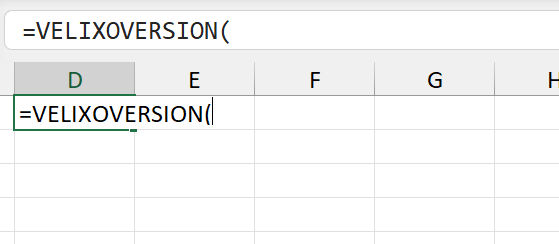
and the full function results in a #VALUE! error
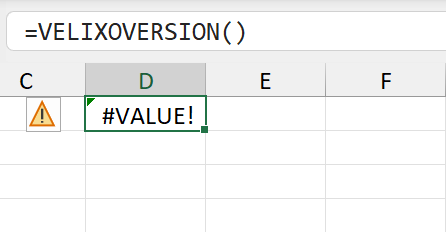
... proceed with the resolution steps below.
Preferred Resolution
Microsoft recommends this technique as a first step.
Even if you already have the Velixo NX icon on the Excel Home ribbon, click the Add-ins button, and then click on Velixo NX in the My add-ins section:
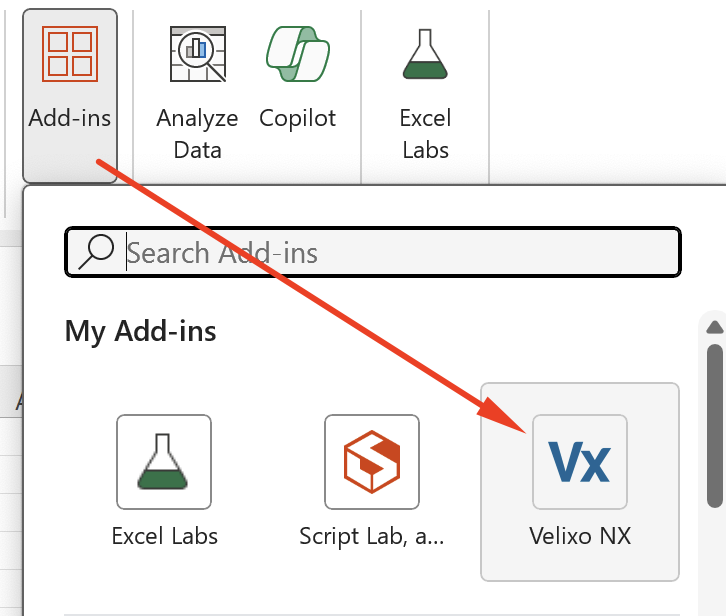
This will result in re-insertion of the Velixo NX add-in into the workbook, and (according to Microsoft) should allow the functions to evaluate without the need for additional steps.
Alternate Resolution
If the Preferred Resolution technique does not resolve the issue, proceed with the following steps.
Step 1 - Within Excel, go the File ribbon and select Options
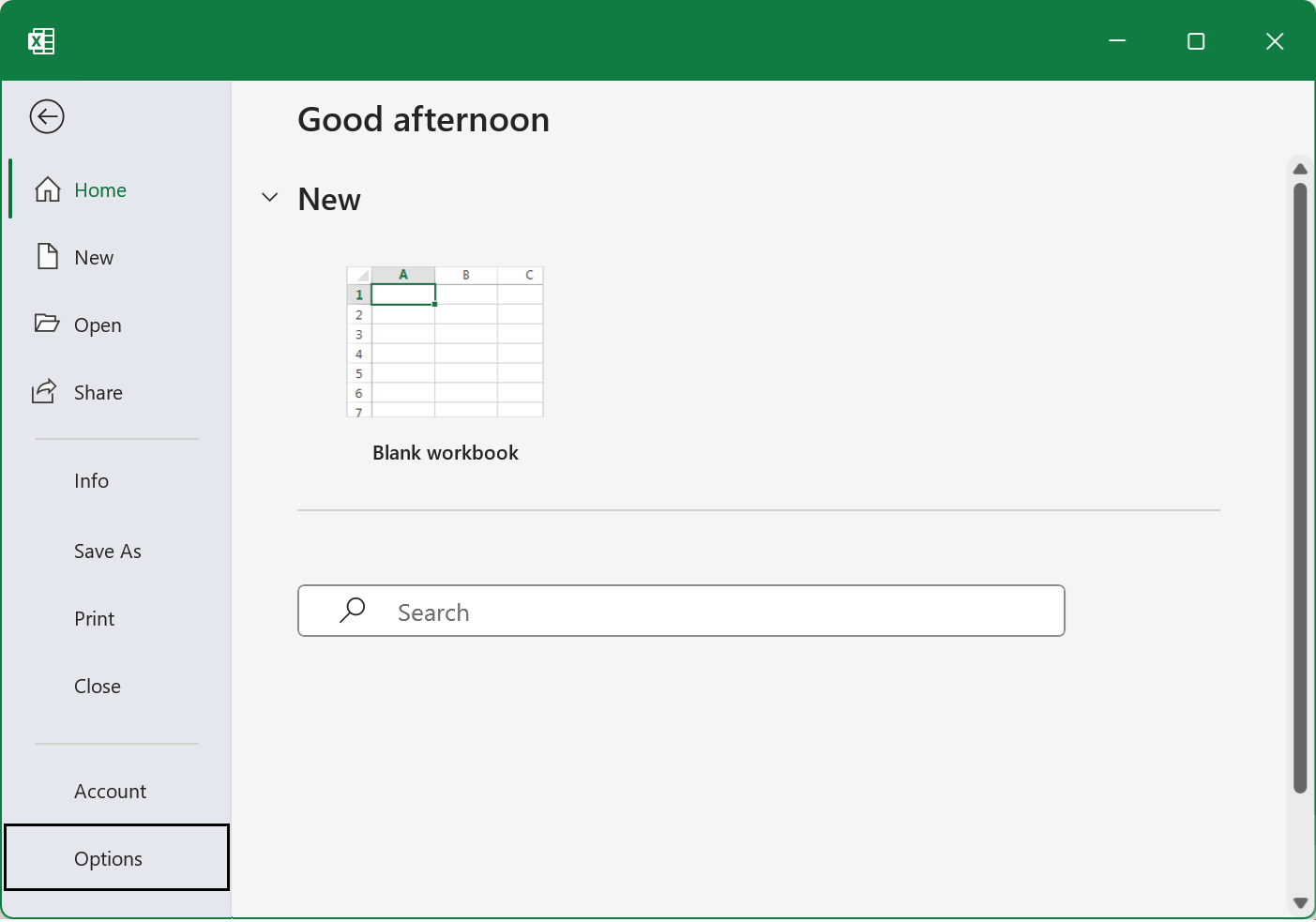
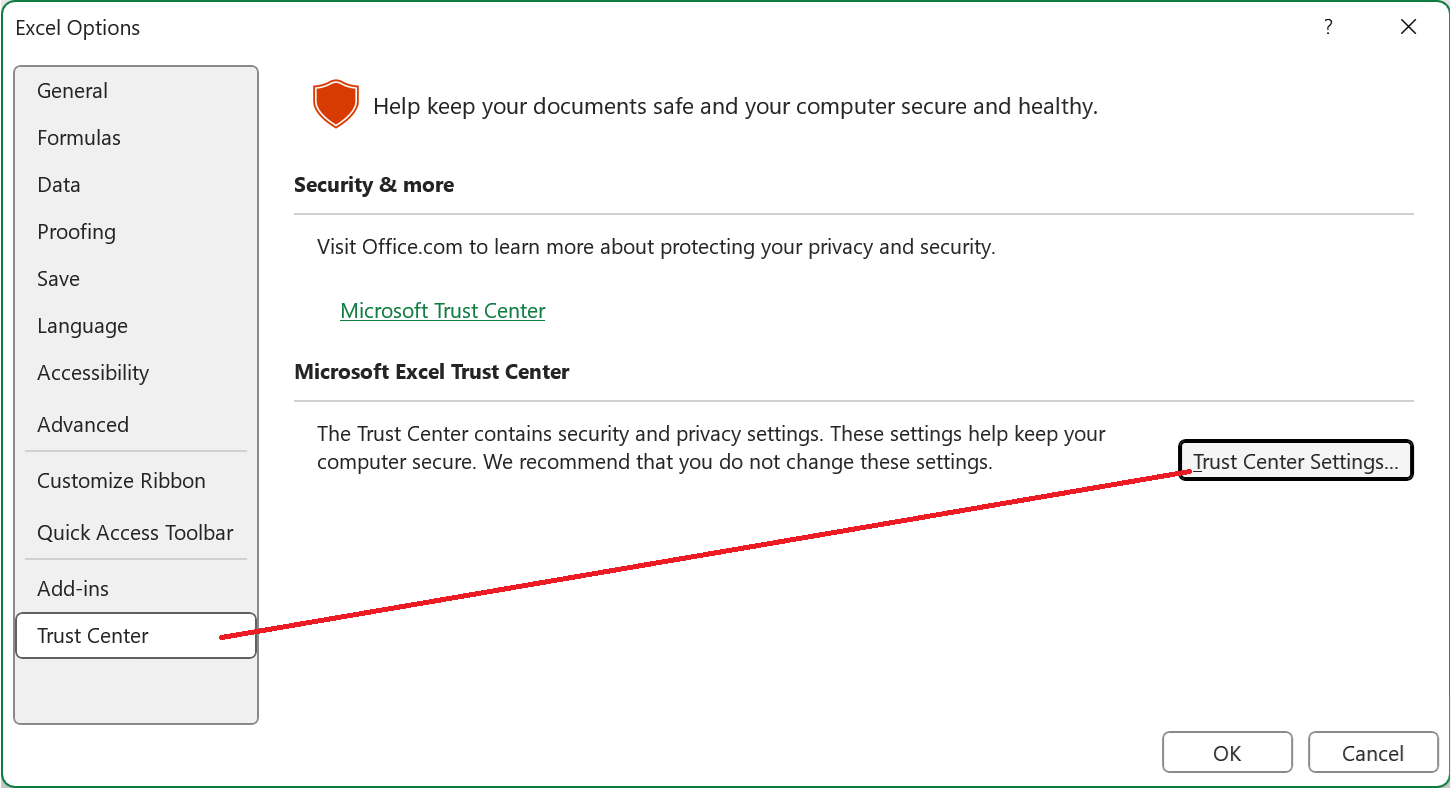
Step 2 - From the Excel Options screen, select Trust Center and then click the Trust Center Settings... button
Step 3 - From the Trust Center screen, select Trusted Add-in Catalogs and then click the option Next time Office starts, clear all previously-started web add-ins cache.
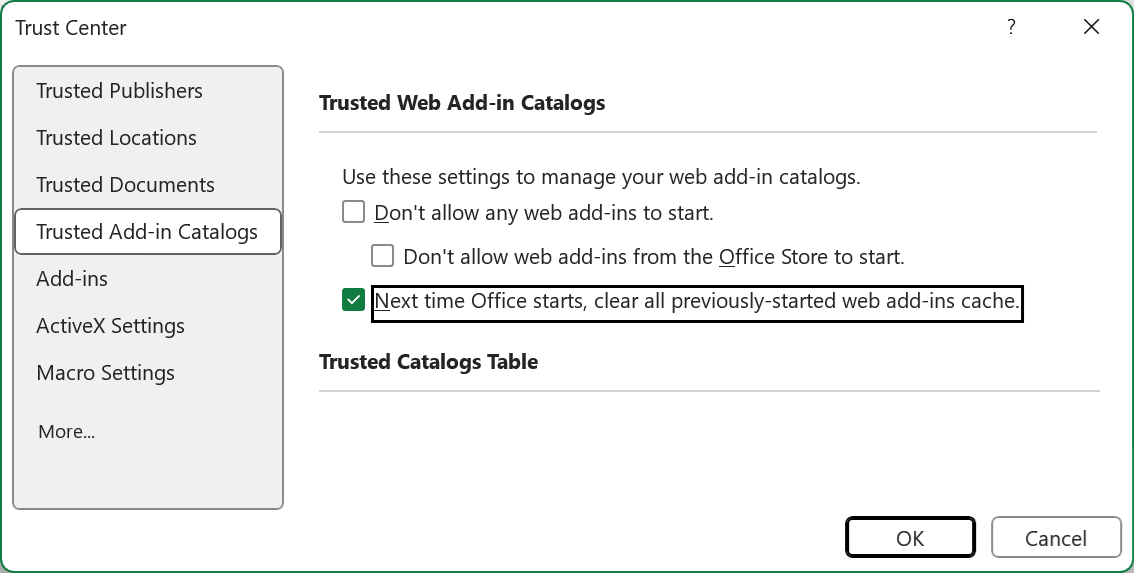
Step 4 - Click OK
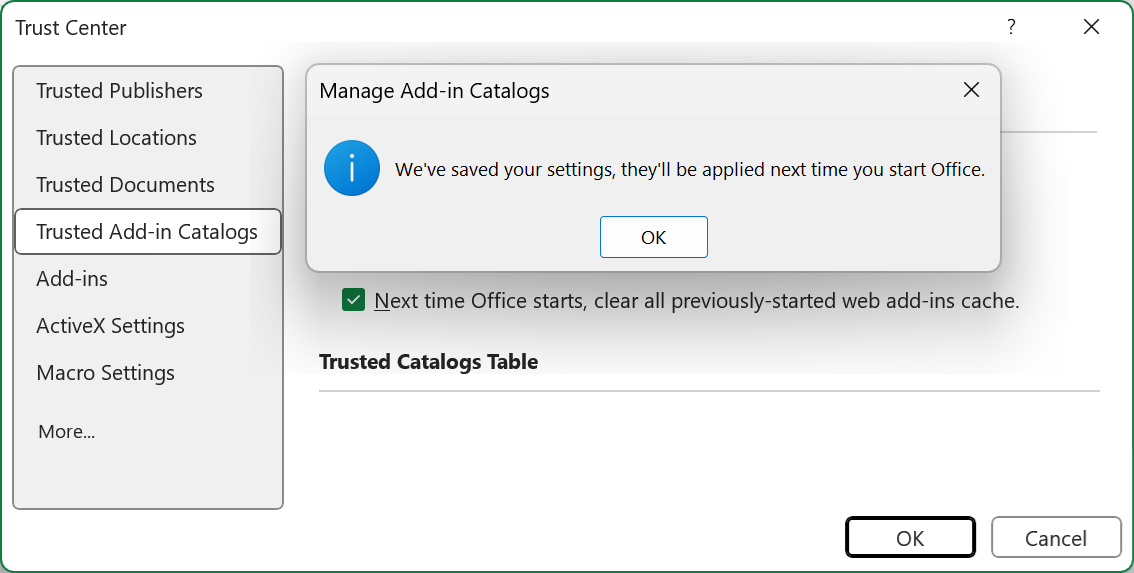
Step 5 - Excel will let you know that your settings have been saved. Click OK again
Step 6 - Click OK to exit the Excel Options screen.
Step 7 - Restart Excel
You can now close and restart Excel for the setting change to take effect.
Excel should now be able to access the Velixo NX add-in.