
Acumatica 2024 R1 and newer require the Velixo customization package.
Instructions in this article require admin privileges in Acumatica.
Overview
The Velixo customization package installs what Velixo needs in Acumatica and Acumatica-based ERPs: the generic inquiries Velixo reads, the single sign-on configuration, the web services and screens used for writeback, and a Velixo workspace.
The VelixoIntelligence package also adds what the Velixo AI Gateway needs to connect Claude, ChatGPT, Microsoft Teams, and Slack to your ERP, plus the Export to Velixo Workbook buttons and Smart Links.
Writeback uses Velixo's own endpoints, so the package is unlikely to conflict with other customization projects.
This article covers:
-
choosing the package for your Acumatica version
-
preparing to publish
-
installing the package for the first time
-
updating the package
-
switching from VelixoCore to VelixoIntelligence
-
assigning the Velixo roles
-
checking the installed version
Choosing the package
Choose the package by your Acumatica version and by whether you use the Velixo AI Gateway:
|
Acumatica version |
Package |
Download link |
|---|---|---|
|
2025 R2 and later (including 2026 R1 and 2026 R2), without the Velixo AI Gateway |
|
|
|
2025 R1, 2024 R2, or MYOB Acumatica 2024 R2 and later |
|
|
|
2024 R1 or earlier (no longer supported) |
Legacy |
|
|
2025 R2 and later (including 2026 R1 and 2026 R2), with the Velixo AI Gateway |
|
The VelixoIntelligence package is available on request during the private preview period.
|
VelixoIntelligence contains everything that VelixoCore provides, plus the Velixo Intelligence components. Publish one or the other, never both.
The Velixo AI Gateway requires Acumatica 2025 R2 or later. On older versions, use the VelixoCore package for your version.
Before you begin
-
Coordinate package installation with your ERP consultant to avoid accidentally unpublishing other existing customization projects.
-
When you publish, keep every other customization project that should stay published selected on the Customization Projects form (SM204505) alongside the Velixo project.
-
Publishing can restart the site and log out active users, especially on versions before 2021 R2 and when you publish with cleanup. Plan the update for a time when you can afford the downtime.
-
If your instance has several tenants, publish to every tenant that Velixo connects to.
For more about customization projects, see the Acumatica documentation listed in at the bottom of this page.
Installing the package for the first time
Use this procedure if no Velixo customization project is published on your instance.
-
Open the Customization Projects form (SM204505).

-
Select Import, and import the downloaded
.zipfile as a new project.
-
Select the checkbox for the Velixo project and for every other project that should stay published.
-
If your instance uses a single tenant, select Publish. Otherwise, select … → Publish to Multiple Tenants.

-
In the dialog that appears, select every tenant that Velixo connects to, and select OK.

When the process completes, the customization project is published to each selected tenant, and a Velixo workspace appears in your ERP. With VelixoCore, the workspace contains the Help, Community, and Videos tiles. In the Modern UI, the Velixo inquiries and writeback screens are not placed in the workspace. Next, assign the Velixo roles: see Assigning the Velixo roles.
Updating the package
Velixo updates the package when new functionality requires changes in Acumatica. Use this procedure to replace an installed Velixo project with a newer version of the same package.
-
Download the latest package for your Acumatica version: see Choosing the package.
-
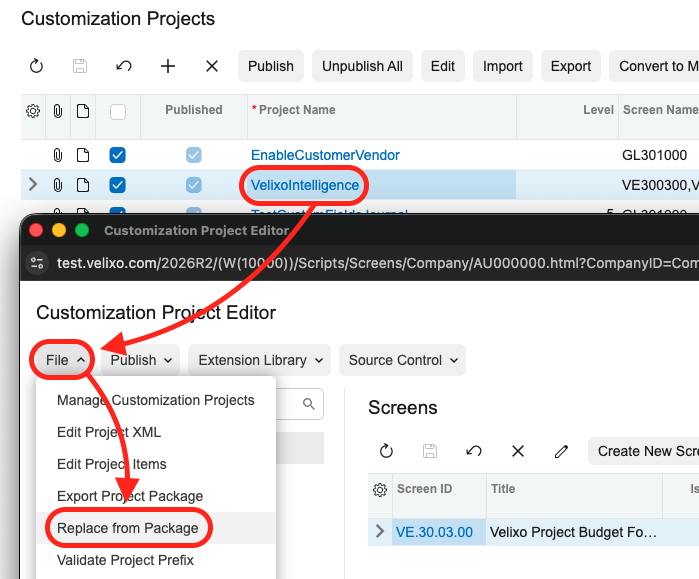
On the Customization Projects form (SM204505), select the Velixo project to open it in the Customization Project Editor. The project's name depends on the file you imported, for example
VelixoConnectedAppConfig,velixo,VelixoCore, orVelixoIntelligence. -
On the File menu, select Replace from Package.
-
In the Open Package dialog, select Choose File, select the downloaded
.zipfile, and select Upload.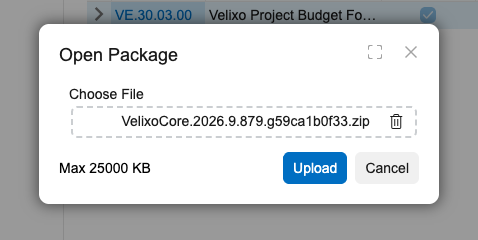
-
Return to the Customization Projects form. Make sure the Velixo project and every other project that should stay published are selected.
-
If your instance uses a single tenant, select Publish. Otherwise, select … → Publish to Multiple Tenants, select every tenant that Velixo connects to, and select OK.
-
Acumatica compiles the project. When you are ready to log out all active users, select Publish.
-
When Acumatica reports that the website has been updated, close the Compilation window.
The customization project is updated and published to every selected tenant.
To update the Velixo inquiries on a live site without restarting it, select Apply changes only to database in the Publish to Multiple Tenants dialog. This updates all Velixo inquiries to their latest versions. Do a full republish (without this option) later when you can afford the downtime.
In Acumatica 2024 R1 and newer, Velixo cannot recreate its inquiries itself. To recreate them, republish the Velixo project with Publish with Cleanup.
Switching from VelixoCore to VelixoIntelligence
Use this procedure if a VelixoCore project is published on your instance and you want to use the Velixo AI Gateway.
-
On the Customization Projects form (SM204505), import the VelixoIntelligence
.zipfile as a new project, as described in Installing the package for the first time. If a project namedVelixoIntelligencealready exists from the earlier Velixo Intelligence add-on, select it and use … → Replace Highlighted Project Content instead. -
Clear the check box of your existing Velixo project. Select the check box of the
VelixoIntelligenceproject and of every other project that should stay published, and select Save. -
On the form toolbar, select Publish.
-
Select the
VelixoIntelligenceproject, select Edit, and in the project editor select Publish → Publish with Cleanup. -
If your instance has several tenants, return to the Customization Projects form, select … → Publish to Multiple Tenants, and select every tenant that Velixo connects to.
Assigning the Velixo roles
In Acumatica 2024 R1 and newer, the Velixo screens, buttons, and inquiries are not accessible to anyone by default, except administrators.
The Customization package includes the following roles:
|
Role |
Package |
Grants |
|---|---|---|
|
Velixo Core |
Both |
Core Velixo functionality: identifying the user in Acumatica, Universal Writeback, generic inquiry functionality |
|
Velixo GL |
Both |
All financial functionality, including GL and budget writeback |
|
Velixo PM |
Both |
All project functionality, including project forecast and cost projection writeback |
|
Velixo Intelligence (Read Only) |
VelixoIntelligence |
The Velixo AI Gateway can read Acumatica data: run queries, read screens and reports, and list and download attachments |
|
Velixo Intelligence (Read and Write) |
VelixoIntelligence |
The Velixo AI Gateway can also change Acumatica data: run actions that change data, run import scenarios, and upload attachments |
Which roles a user needs depends on how they use Velixo:
-
Excel reports need Velixo Core, Velixo GL, or Velixo PM, depending on the data the reports use.
-
The Export to Velixo Workbook buttons need Velixo Core, Velixo GL, or Velixo PM.
-
The Velixo AI Gateway needs Velixo Intelligence (Read Only) or Velixo Intelligence (Read and Write) for the Acumatica user whose credentials the Velixo Portal connection uses. To query the Velixo inquiries through the AI Gateway, that user also needs the Velixo Core, GL, or PM role that grants the necessary inquiry.
In every case, the user also needs ordinary Acumatica access rights to the screens whose data they read. To assign roles, use the Users form (SM201010) or the User Roles form (SM201005). For more information, see Configuring access rights in Acumatica.
When you save an Acumatica connection in the Velixo Portal, Velixo checks the user's roles. If one is missing, the connection is saved and you’re given an appropriate warning.
Permissions per role
Expand the tables below to see each role's access to individual Acumatica screens, writeback screens, and inquiries. Administrators have access to all of them.
Checking the installed version
Check your version to decide whether it is time to update, or whether a Velixo feature you want to use is compatible with your package. The Velixo NX add-in also tells you automatically when a newer package is available.
You can check your Velixo Customization Project version in Acumatica, in the VelixoReportsPro-VelixoCustomizationProjectVersion screen, ScreenID = VE500095.
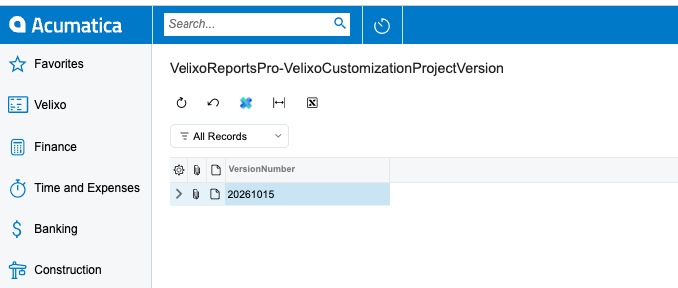
To read the customization project version from Excel, use the GI function with your connection name, for example:
=GI("Acumatica","VelixoReportsPro-VelixoCustomizationProjectVersion",,"VersionNumber")
The function returns the version for the specified connection, for example 20261008.
What an outdated package means
Excel reports keep working with an older package, but you cannot use the features added in newer versions. When a newer package is available, the Velixo NX add-in shows a warning.
To update, follow Updating the package.
The Auto calculation mode of the cost projection writeback requires customization project version 20260806 or later.
The Velixo AI Gateway needs the Velixo Intelligence package, version 2026.9 or later. If it is missing or older, the AI Gateway cannot use the connection. When you save the connection in the Velixo Portal, you see an appropriate warning.
To sign in to Acumatica from the Velixo Portal, for example, to create a predefined connection, Customization project version 20261008 or later is required.
Related articles
-
Acumatica user interface changes after installing Velixo customization
-
The Velixo Intelligence customization is missing or out of date
Acumatica documentation:
-
Acumatica Customization Guide (2020 R2, but the steps are similar for other versions)