Overview
The Velixo customization package adds several integrations to your Acumatica-based ERP that let you move data into Velixo without leaving the ERP. This article covers:
-
The Velixo workspace and its resources
-
Exporting Generic Inquiry data to a Velixo workbook
-
Exporting Import Scenarios to a Universal Writeback workbook
-
Creating a new blank Velixo workbook from the ERP
These integrations require the Velixo customization package. If your organization has not installed it yet, see Installing the Customization Package for Acumatica-based ERPs.
The Velixo workspace
Publishing the customization package adds a Velixo workspace that groups Velixo-related functionality and resources together.
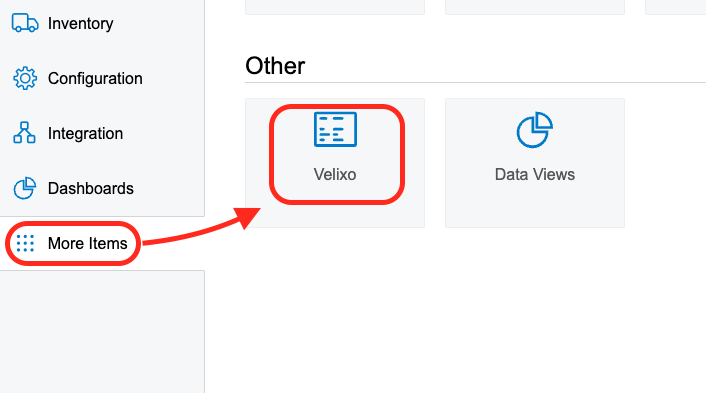
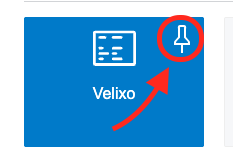
The workspace is not visible in the side panel by default. To keep it available, pin it:
The workspace also includes the Velixo inquiries and graphs published with the package.
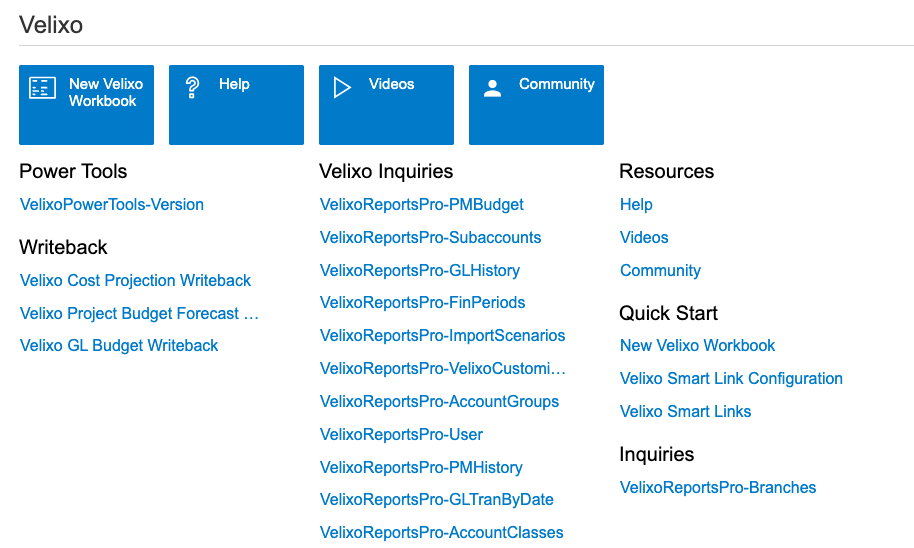
Velixo resources
The Help, Videos, and Community buttons in the workspace open the Velixo Help Center, YouTube channel, and Community Forum.
Clicking any of these buttons navigates you away from the ERP. If your browser blocks pop-ups, a notification appears in the address bar – allow the pop-up and click the button again.
Exporting Generic Inquiry data
Each ERP page that displays data from a generic inquiry includes an Export to Velixo Workbook button:
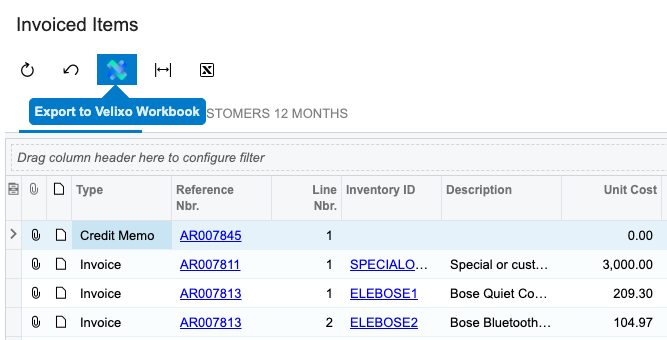
Clicking the button downloads a Velixo workbook with a connection and a fully mirrored GI function linked to that inquiry, and opens it in Excel with Velixo.
The button is available on all ERP screens that are Generic Inquiries – such as Invoices and Memos, AP Bills, or inquiry result sets opened with the View Inquiry button – for users with the Velixo Core, Velixo GL, Velixo PM, or Administrator role.
To work with the exported data in Excel, see Introduction to Generic Inquiries and the GI function reference.
Exporting Scenarios
Each Import Scenario screen includes an Export to Velixo Universal Writeback Workbook button:
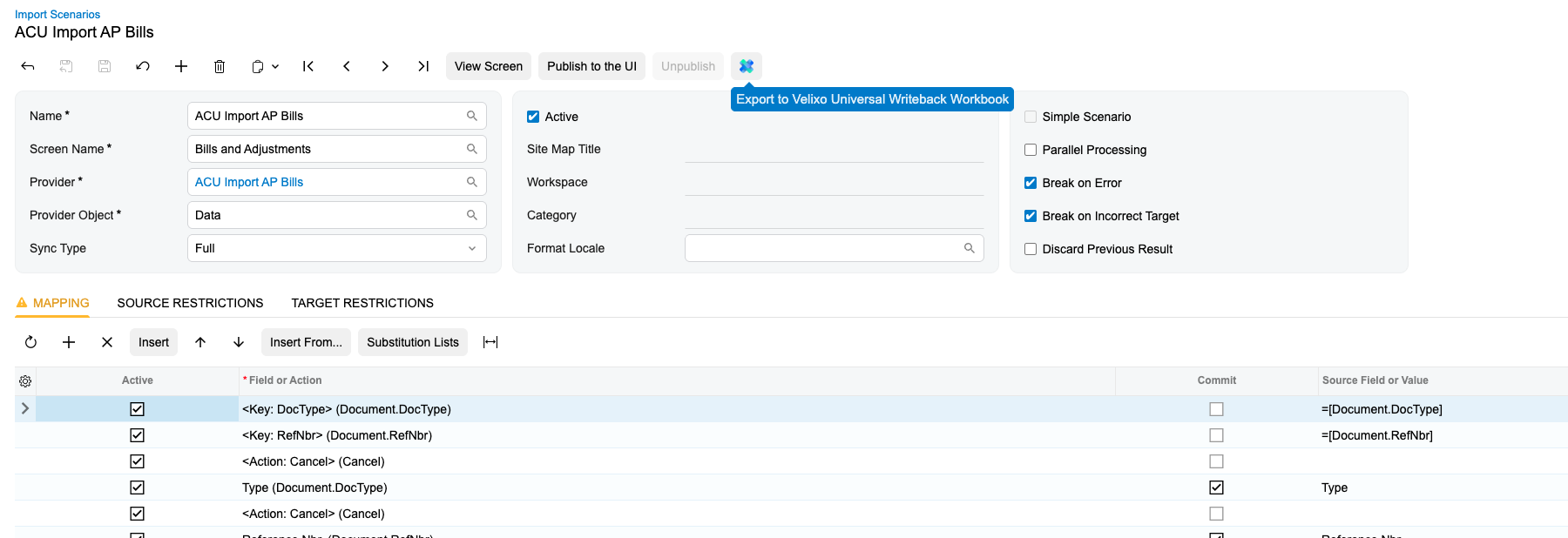
Clicking it downloads a Universal Writeback workbook. Open the downloaded workbook to use it to write back data to the ERP.
Universal Writeback has its own licensing and Import Scenario prerequisites, described in Using Universal Writeback with Acumatica. If a sign-in message consistently appears when you perform the writeback, see Universal/Generic Writeback not able to use two-factor authentication.
Creating a new Velixo workbook
Clicking the New Velixo Workbook button downloads a blank workbook with a pre-configured Velixo connection and opens it in Excel.
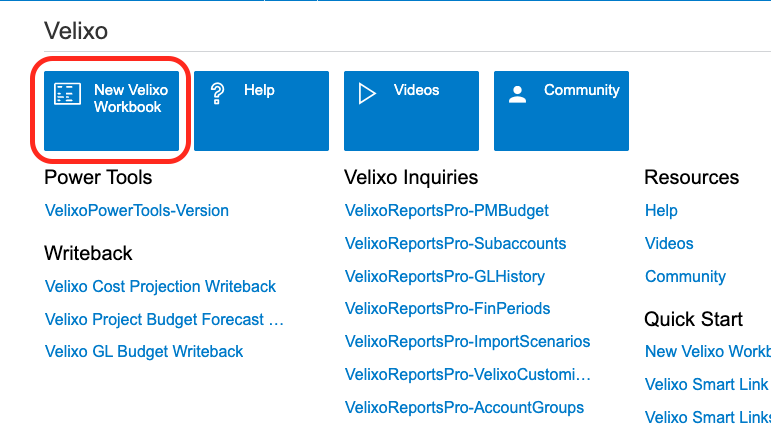
If you previously saved credentials for the same connection within Velixo, the file is immediately usable.
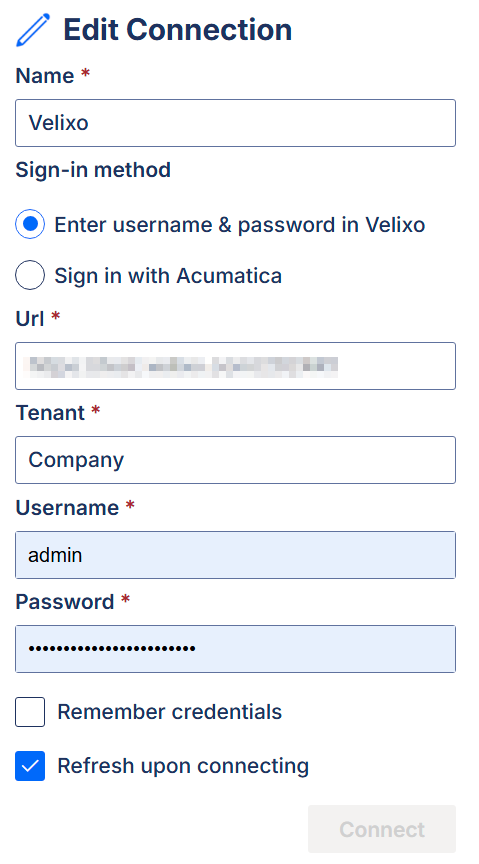
If this is your first time using the connection, enter your credentials in the Connection Editor that opens automatically, then click Connect: