Overview
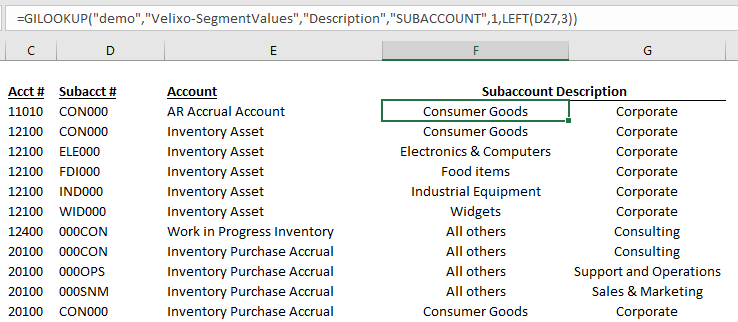
It is very common to design reports which show both accounts and subaccounts. It can definitely help to include the names of the accounts, so as to increase readability of the report.
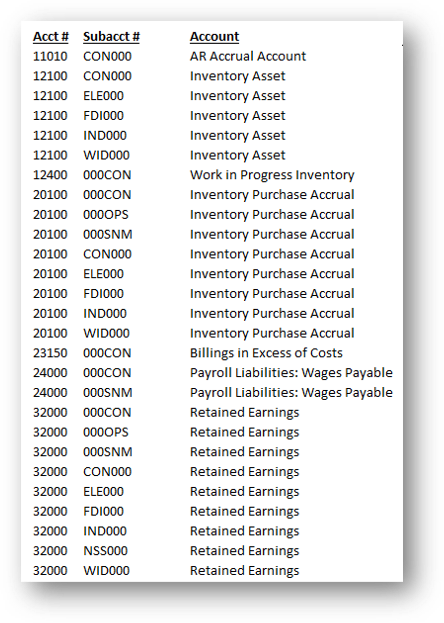
Likewise, it would be convenient to also display the names of one or more subaccount segments, as they are defined in the ERP:
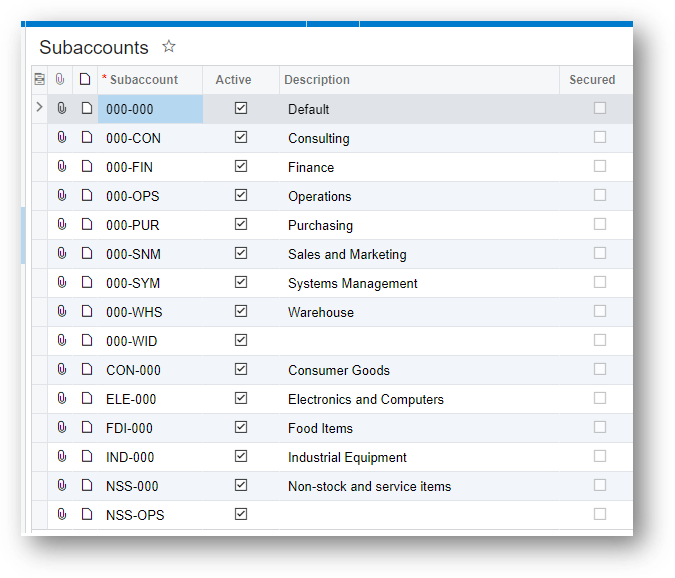
Follow the guide below to set this up.
Step-by-Step
-
Import the custom Generic Inquiry
Import the attached Generic Inquiry to your ERP instance (it returns the contents of ERPs SegmentValue table):
Velixo-SegmentValues.xml
-
Configure the Generic Inquiry Keys
The first time you add a reference to the new Generic Inquiry to your spreadsheet, you will receive an error message letting you know that the Generic Inquiry keys have not been configured:
On the Velixo ribbon of the Excel toolbar, click the Options button:
Next, double-click on the name of the Generic Inquiry:
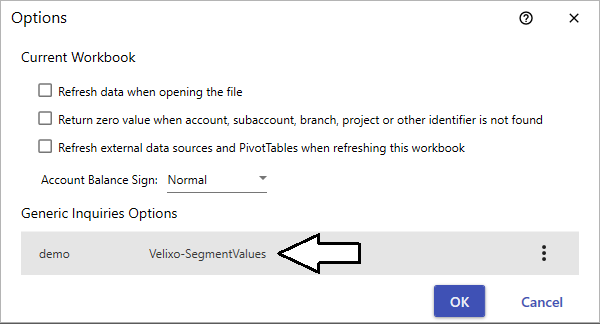
and then click on the button to edit the key fields for the inquiry:
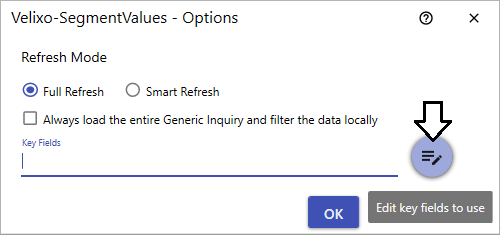
Use the >> button to move (in order)SegmentedKeyID,SegmentID, andValuefrom the Available Fields to the Key Fields:
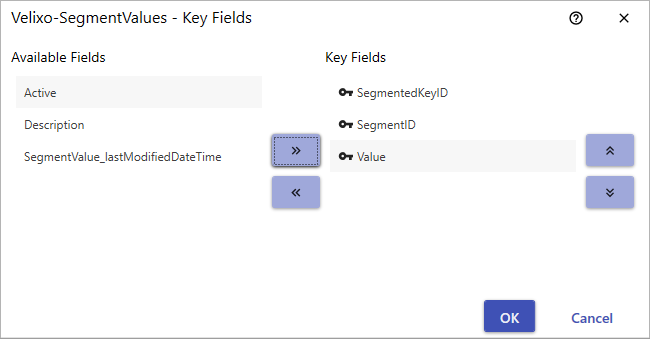
and then press the OK button.
Press OK on the Velixo-SegementValues Options dialog:
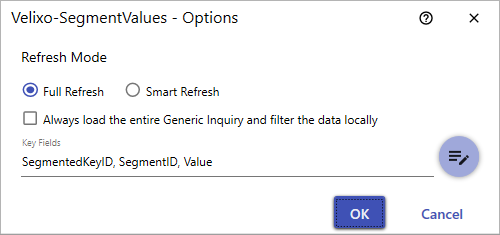
and press OK on the Options dialog.
Your report will refresh and your GILOOKUP function will now return a value.
-
Enter the GILOOKUP function
Let's assume that we want the description of the first segment "ELE" from the above example.That function would look like this:
=GILOOKUP("Demo","Velixo-SegmentValues","Description","SUBACCOUNT",1,"ELE")
-
Demo - would be replaced by the name of your connection
-
1 - indicates that we are interested in the first segment
-
ELE - indicates the specific subaccount first segment for which we want the description
Since in our example the subaccount is listed in a cell, we can use Excel's text manipulation capabilities to extract it:
=GILOOKUP("Demo","Velixo-SegmentValues","Description","SUBACCOUNT",1,LEFT(D27,3))
-
-
Complete the Report
We can now add the GILOOKUP functions to the rest of our report: