
Overview
Several of the Velixo templates require the use of pre-defined generic inquiries. Before using a template, it is necessary to import the supporting generic inquiry into your ERP.
Process
Download
First, download the generic inquiry that is to be used with the template report you are interested in using:
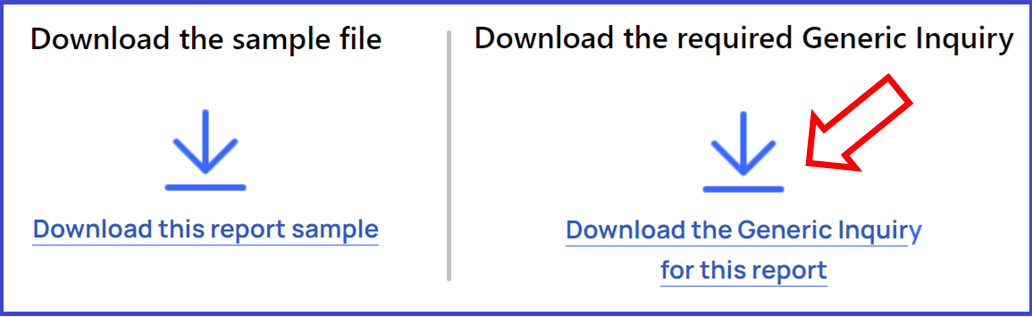
This will be a file with an .XML extension. You will need to know the location where you saved the downloaded file.
Import
Within your ERP, navigate to the Generic Inquiry page.
On that page, select the Import from XML option available from the Generic Inquiry toolbar:
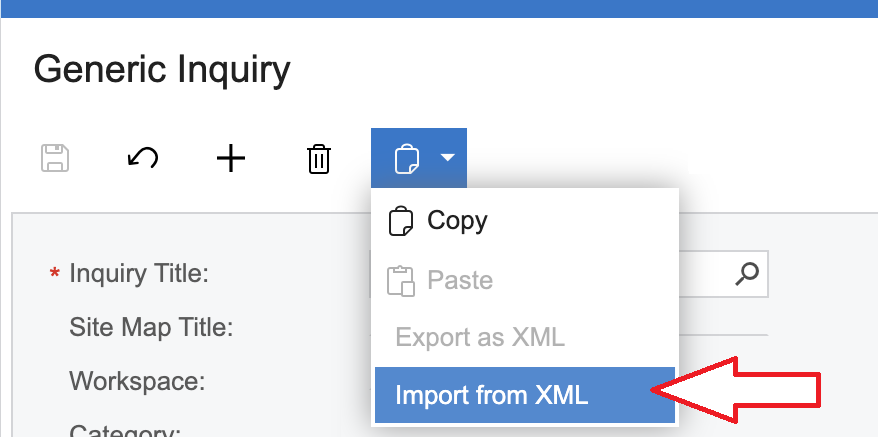
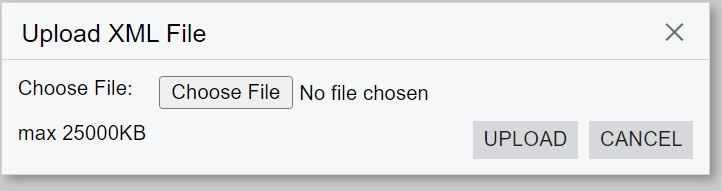
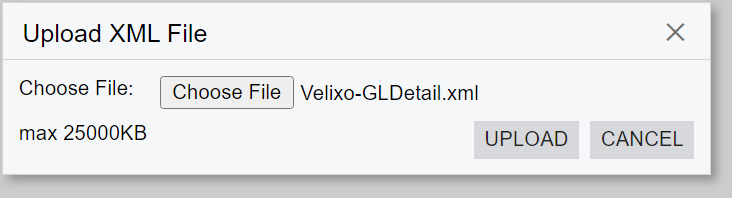
On the Upload XML File dialog and click the Choose File button.
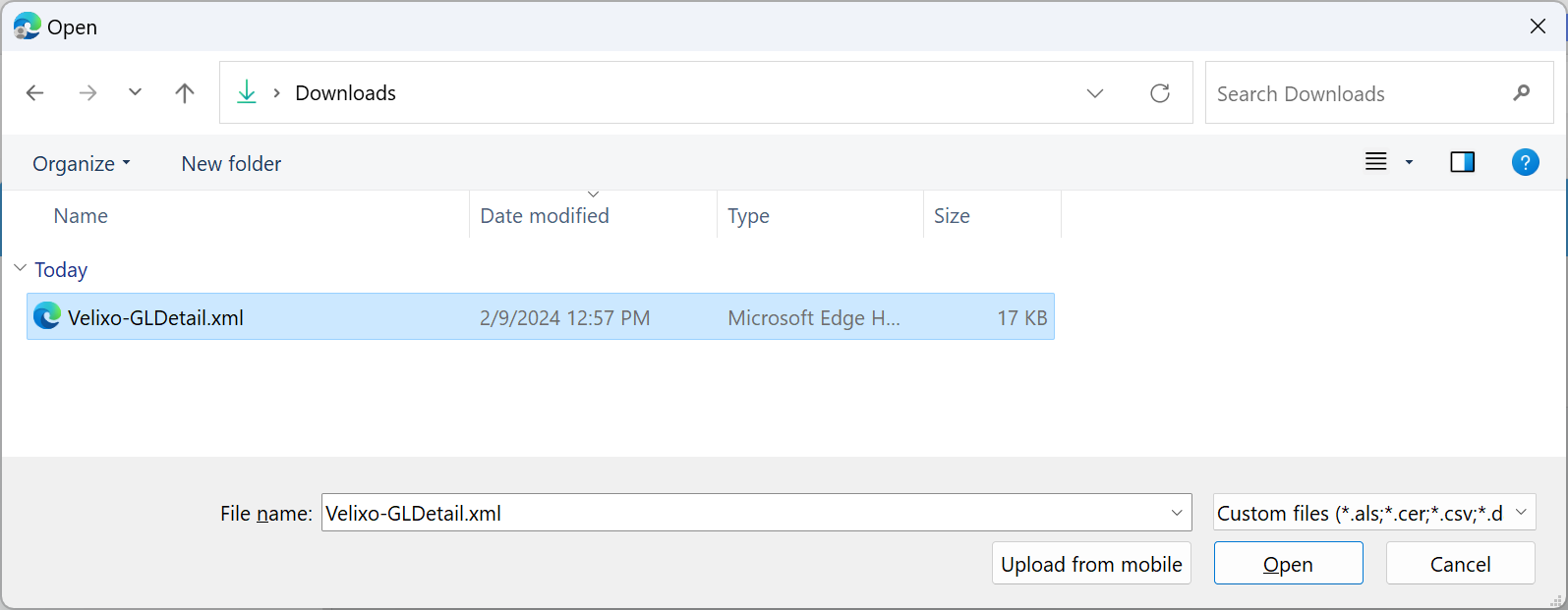
Navigate to where you saved the downloaded file, select that file and click the Open button.
The file name will now appear on Upload XML File dialog.
Click the UPLOAD button.
Once the generic inquiry is loaded, you can click the Save icon:
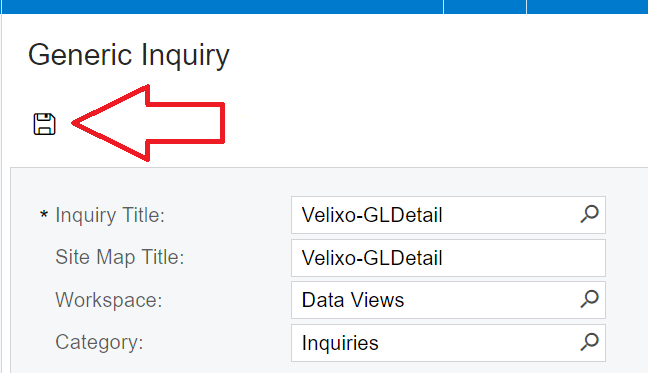
The generic inquiry will be saved and be available for use by the template report.