Overview
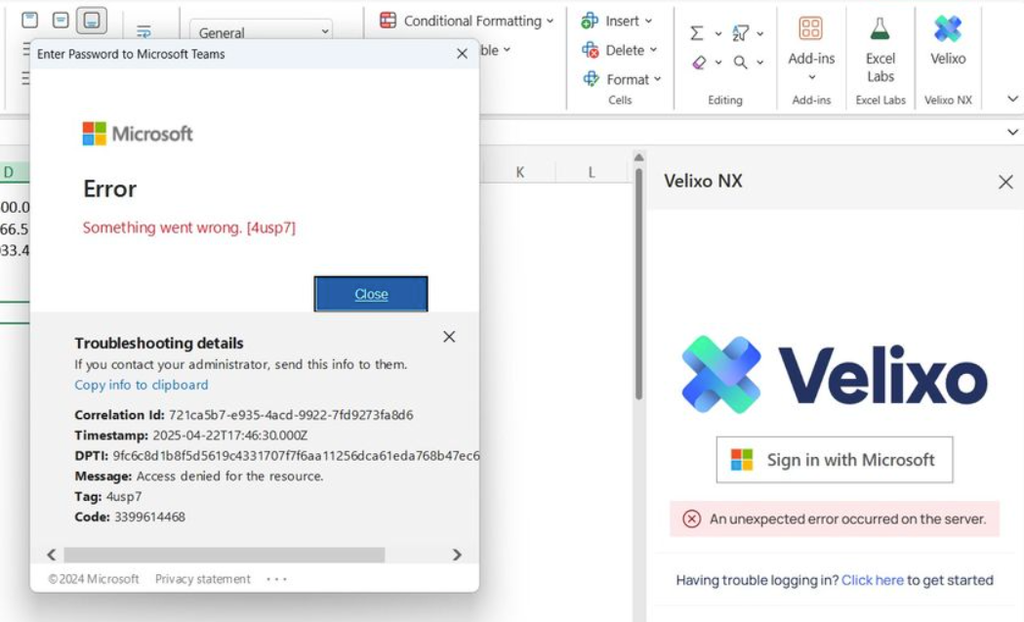
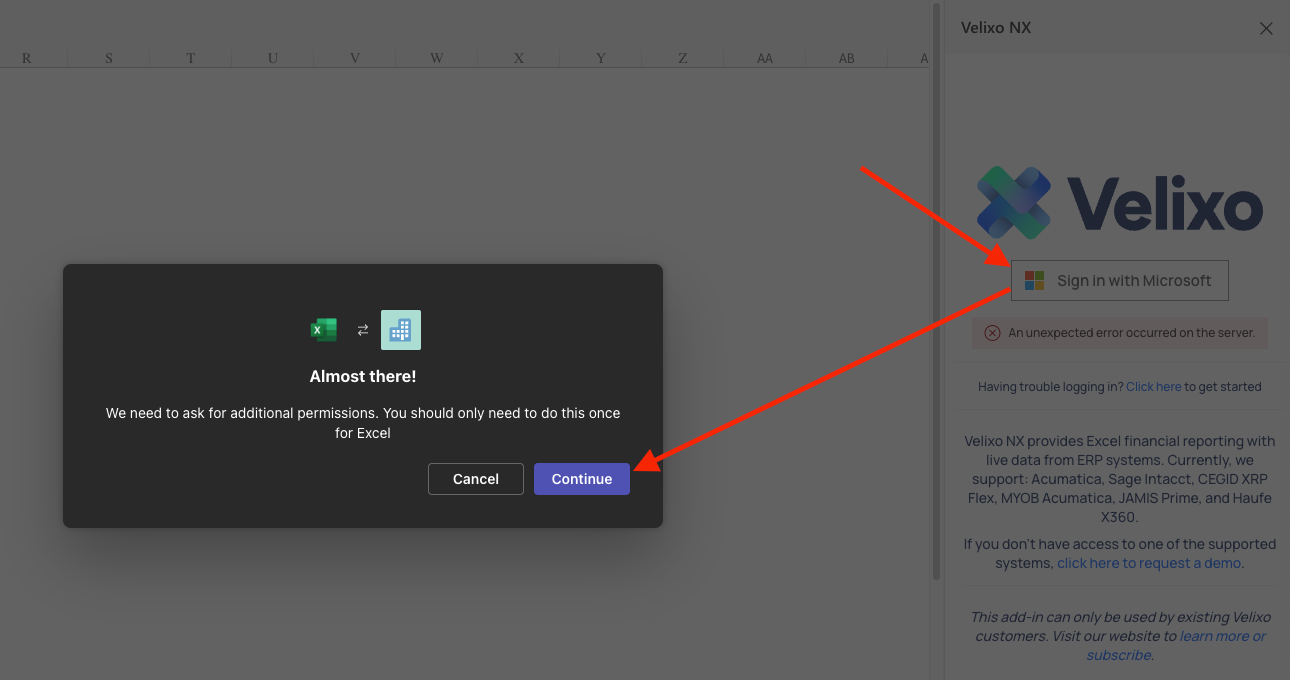
With an Excel workbook open in Microsoft Teams, the Sign in with Microsoft button returns an error, preventing access to the Connection Manager:
Causes
There is a bug in Microsoft Excel that prevents certain functionalities of modern add-ins (such as Sign in with Microsoft) from working properly when the file is opened inside Microsoft Teams.
Workarounds
Open workbooks in app or in browser
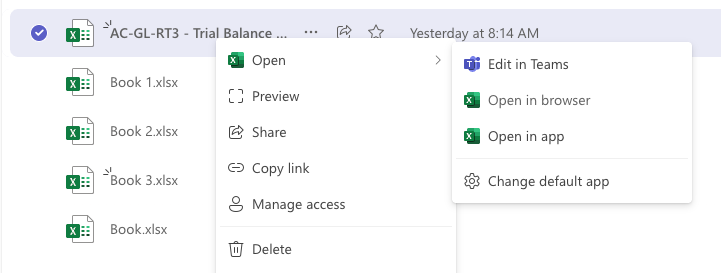
Use the Open in app (recommended) or Open in browser options, rather than Edit in Teams, to open the workbook:
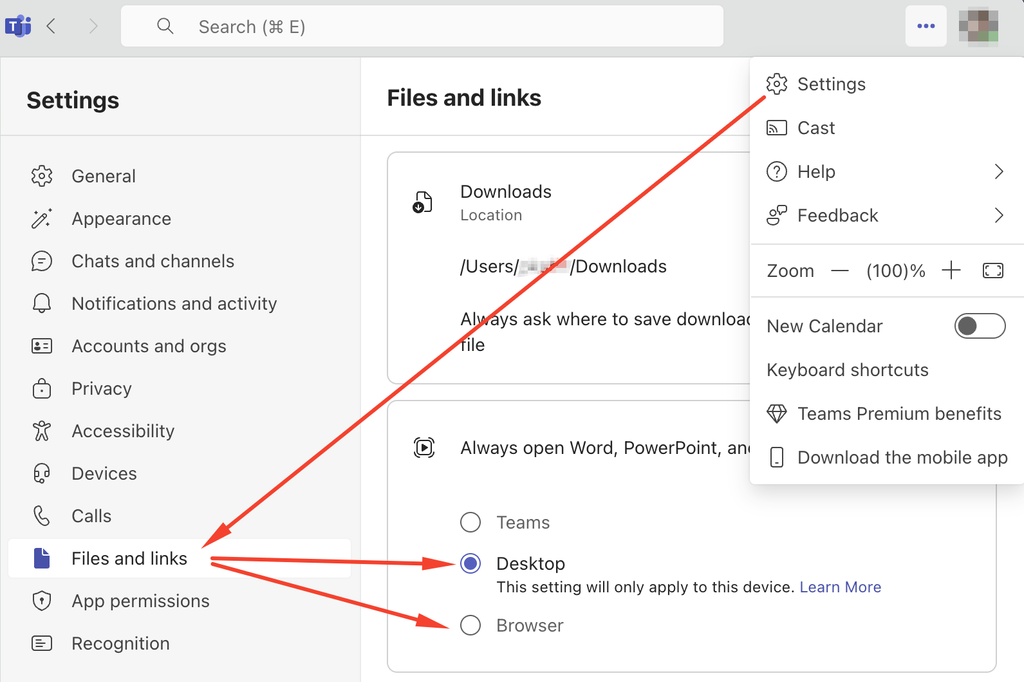
We also recommend changing the default Teams settings to open all workbooks using either the desktop version of Excel or Excel for the web in your browser:
-
Navigate to Teams settings (the ... menu in the top right corner of the Teams window > Settings)
-
In the Files and links menu, select the Desktop or Browser option in the Always open Word, PowerPoint, and Excel files in: section
Use a one-time code to log in to Velixo
Click the Sign in with Microsoft button in the Connection Manager, then click Continue on the Almost there! pop-up window:
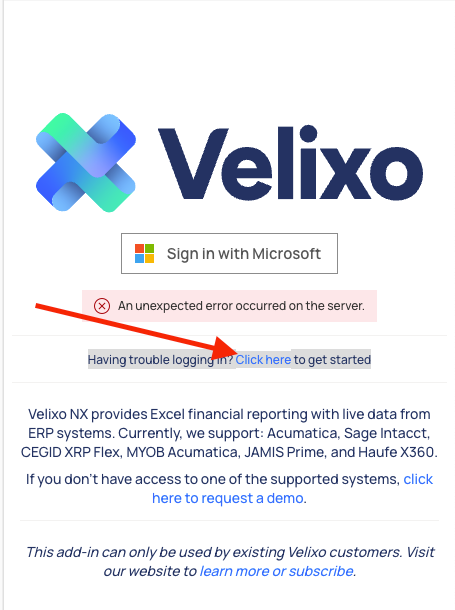
Use the Click here link in the Having trouble logging in? Click here to get started text in the Connection Manager:
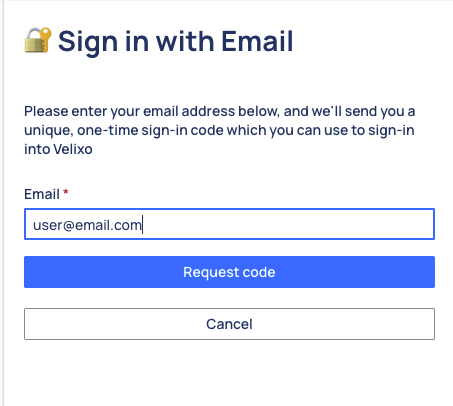
Provide the email address you use to sign in to Velixo and click Request code:
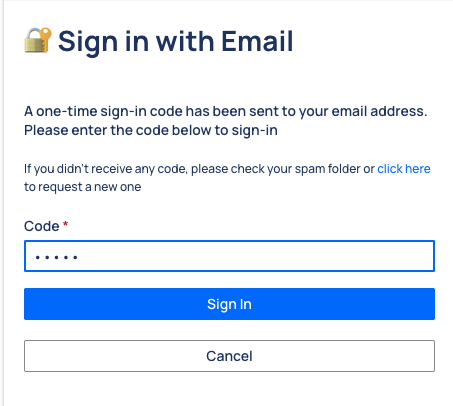
Enter the one-time sign-in code that has been sent to your email address and click Sign In: