
Overview
You can save connection information in an Excel template instead of creating a new connection each time you begin work on a new Excel workbook. This template will then be available whenever you want to create a new file for use with Velixo.
This simple technique is especially useful if you often use the same layout or data in your workbooks, or you need to consolidate multiple tenants/instances and frequently create multiple connections in new workbooks.
Follow the steps below to create such templates.
1. Create a Velixo connection
Click the Connection Manager button in the Velixo ribbon, then click Add Connection. Enter a unique Name for the connection (you will use this name later when building formulas).
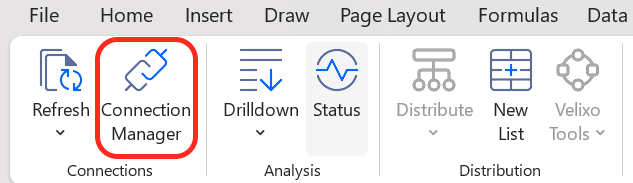
Learn how to create connections in the Connection Manager article.
Check the Remember credentials box when creating a connection to prevent being prompted for your username and password when you reopen the workbook.
2. Assign the default template folder
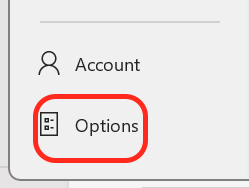
Go to File → Options in Excel.
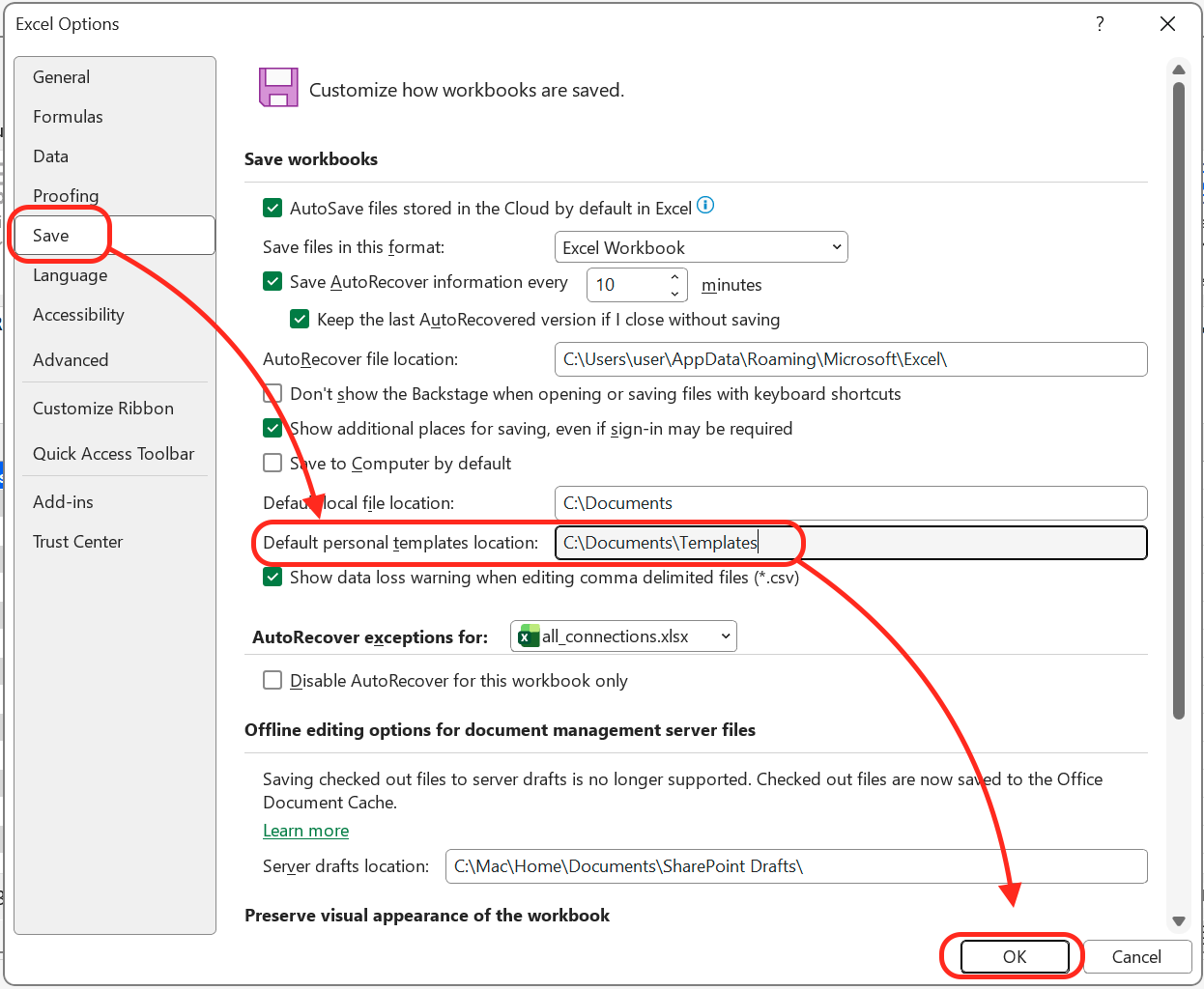
Select Save, add the path to a folder where you wish to save your templates, for example, C:\Documents\Templates. Confirm by clicking OK.
3. Create an Excel Template
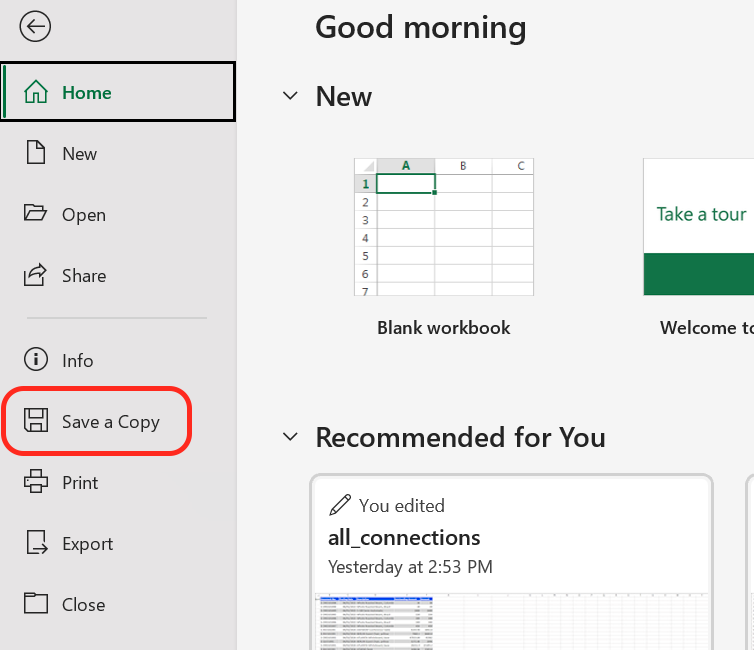
Select Save a Copy (Save As in older Excel versions) from Excel's File menu (or the Office button in Excel 2010):
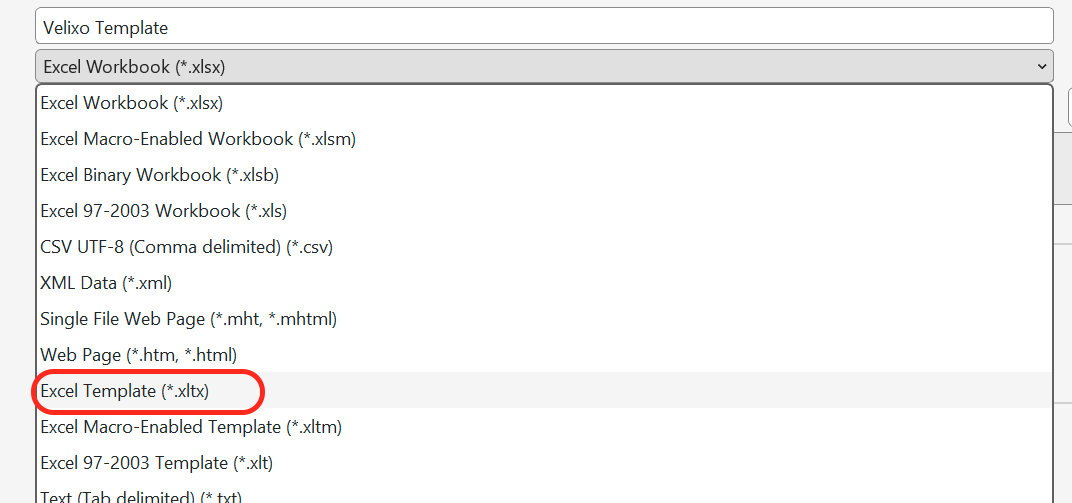
In the Save As dialog, give your new Template a descriptive name (such as "Velixo Template"), and select Excel Template (*.xltx) from the pulldown list…
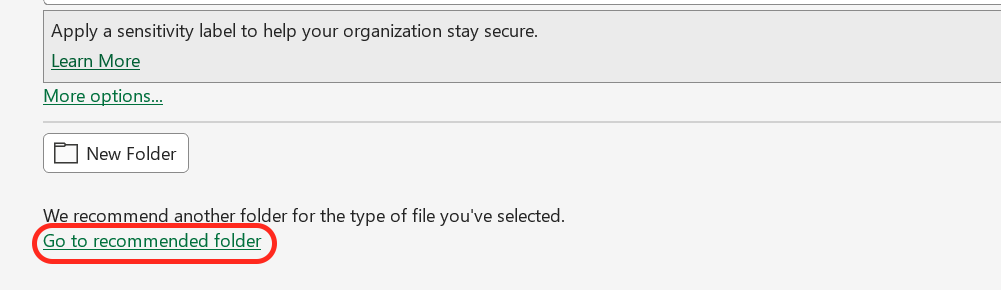
Click the Go to recommended folder link (this step may be missing in older Excel versions).
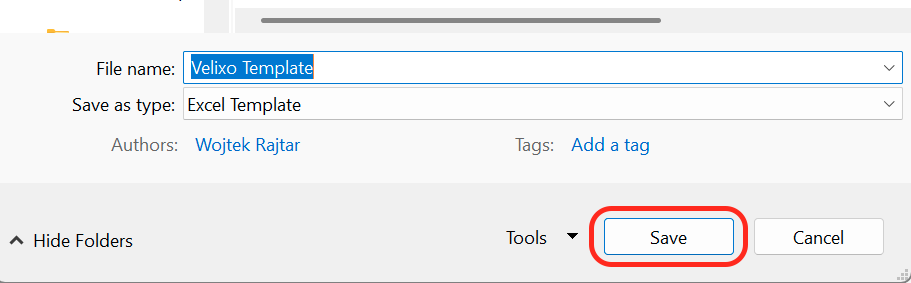
And click Save.
4. Open the created template
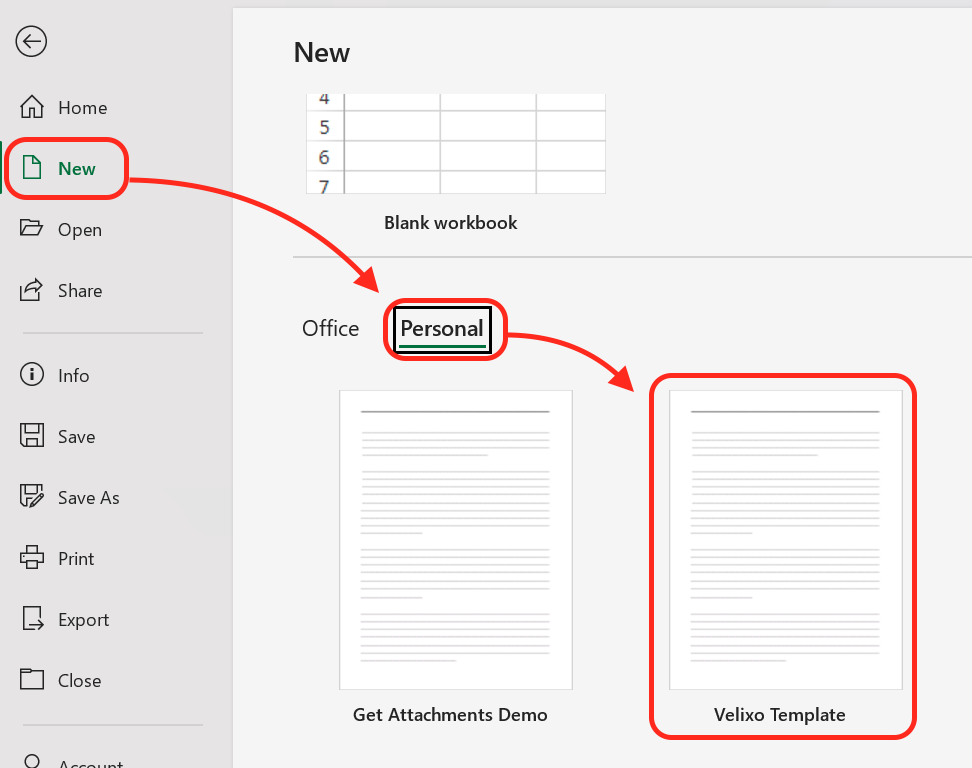
Now, when you select New from Excel's File menu, the Template is available in the Personal list...
Click the pushpin button to pin the template to the New list:
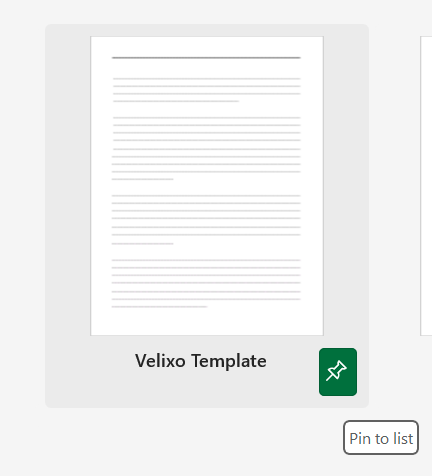
Now, when you select the saved template, Excel will open a new workbook and Velixo will automatically establish the saved connections.