Overview
The ACU.GIQL function runs a GIQL query against Acumatica and returns the resulting dataset in Excel.
GIQL (Generic Inquiry Query Language) is an SQL-like query language available in Acumatica 2025 R2 and later. Instead of Generic Inquiries configured in Acumatica, GIQL queries reference Acumatica DACs (data access classes) and their fields, and can use other generic inquiries as data sources. This makes ACU.GIQL suited for datasets that join multiple objects or that need complex filtering, sorting, and grouping. For the GIQL syntax reference, see GIQL: General Information in the Acumatica documentation.
Unlike the GI function, ACU.GIQL does not read an existing generic inquiry. Instead, Acumatica creates a temporary inquiry from your query, returns the results, and discards the inquiry – no generic inquiry is saved in your Acumatica instance.
Using ACU.GIQL requires the following:
-
Acumatica 2025 R2 or later,
-
the Acumatica GIQL feature enabled for your organization in the Velixo Portal.
Velixo does not validate the GIQL query you provide – validation is performed by Acumatica, and any query errors are returned from the Acumatica side.
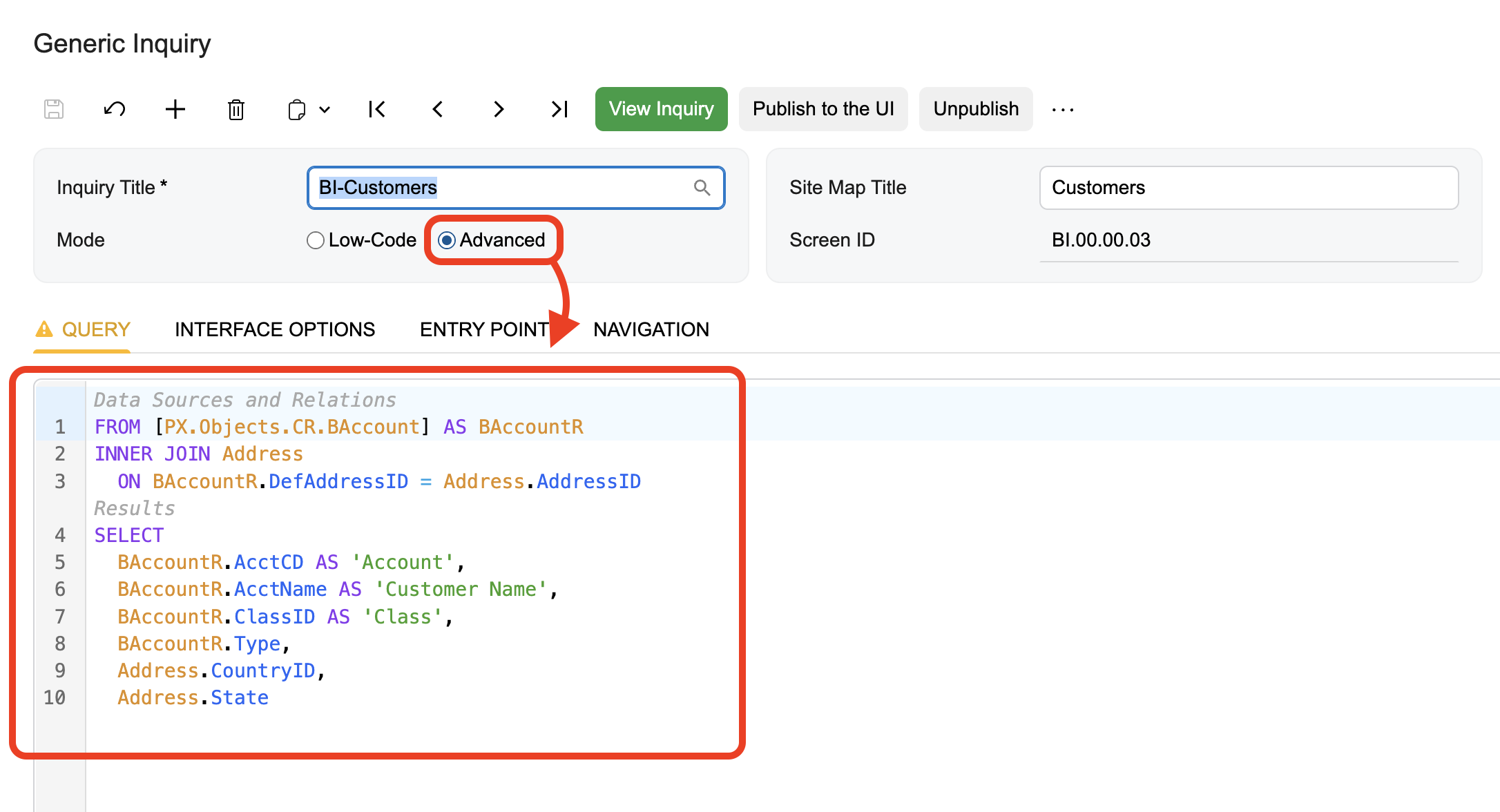
To check the GIQL query for any of the configured Generic Inquiries in Acumatica, navigate to the Generic Inquiries screen (SM208000) and switch the Mode toggle to Advanced.
Limitations
-
ACU.GIQL does not currently support Smart Refresh.
-
Filtering by aggregated fields is not possible.
-
A single query parameter cannot accept a list of values. To filter by several values, use multiple
ORexpressions, each with its own parameter. -
To limit the number of rows in the query itself, use the
TOPexpression in theSELECTclause. GIQL has noOFFSET-like expression; to skip rows, use theOffsetkey of theSettingsargument.
Syntax
=ACU.GIQL(
    Connection,
    Query,
    Parameters,
    Settings,
    IncludeHeader,
    TableOutputCell
)
Arguments
|
Argument |
Required/Optional |
Description |
|
|
Optional |
An optional filter by connection name. Provide one of the following values:
Multiple connections are not supported if the |
|
|
Required |
A GIQL query used to extract data from the ERP. For the GIQL syntax, refer to the Acumatica documentation. |
|
|
Optional |
A two-column Excel range or array containing values for the parameters declared in the GIQL query. The first column must contain the names of the declared parameters, and the second column their values. Add one row for each declared parameter. For example, the parameter declared in the query line Velixo does not validate the parameter names; validation is performed by Acumatica. We recommend building the range using the VX.SETTINGS function. |
|
|
Optional |
You can either enter a number (e.g. Two-dimensional array:
|
|
|
Optional |
Indicates whether the column headers are included in the results. Accepted values: Default value: The header row contains the column captions from Acumatica rather than the field names used in the query. For example, |
|
|
Optional |
The destination cell for the result set output as an Excel table using Table Mirroring. If omitted, the results are spilled from the cell containing the formula. |
Examples
Running a simple GIQL query
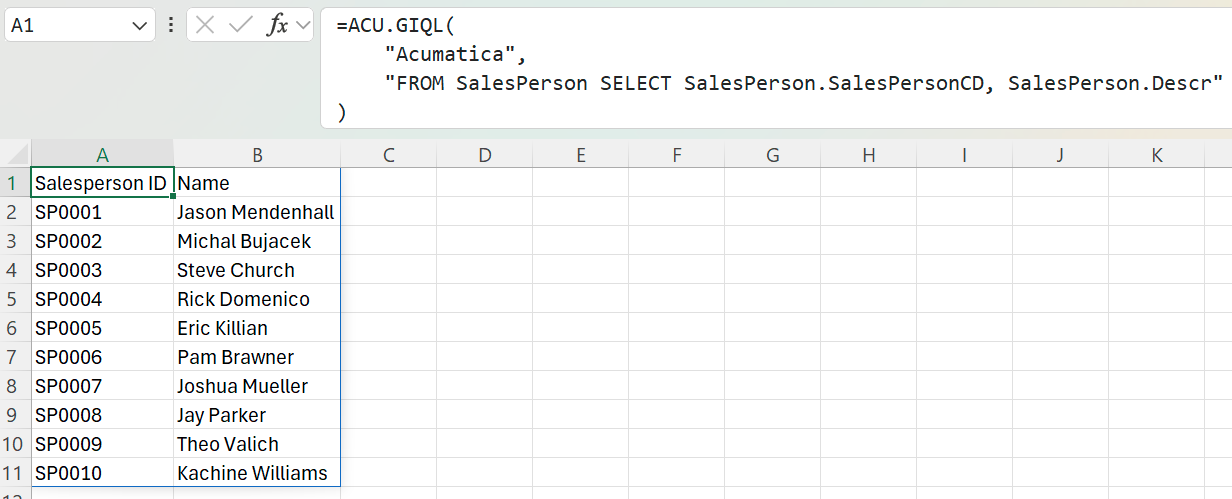
=ACU.GIQL(
    "Acumatica",
    "FROM SalesPerson SELECT SalesPerson.SalesPersonCD, SalesPerson.Descr"
)
Description: Returns the salesperson IDs and descriptions from the Acumatica connection. The columns of the result set are determined by the SELECT clause. For longer queries, enter the query in a cell and reference that cell in the Query argument.
Result:
Passing parameter values to the query
The query in cell A1 declares a required parameter named ID:
DECLARE ID SCHEMA [PX.Objects.GL.AccountClass].AccountClassID REQUIRED
FROM AccountClass
WHERE AccountClass.AccountClassID = ID
SELECT AccountClass.AccountClassID, AccountClass.Descr
You can enter parameter values directly or using the VX.SETTINGS function.
Entering the values directly in cells
Enter the parameter name in cell C1 and the value to filter by in cell D1 — ID in C1 and an account class that exists in your instance, for example EXTRAVEL, in D1. The name in the first column must match the DECLARE statement exactly. Because the parameter is declared REQUIRED, an empty value returns an error.
To supply more than one parameter, add a row for each and extend the range accordingly — two parameters occupy C1:D2.
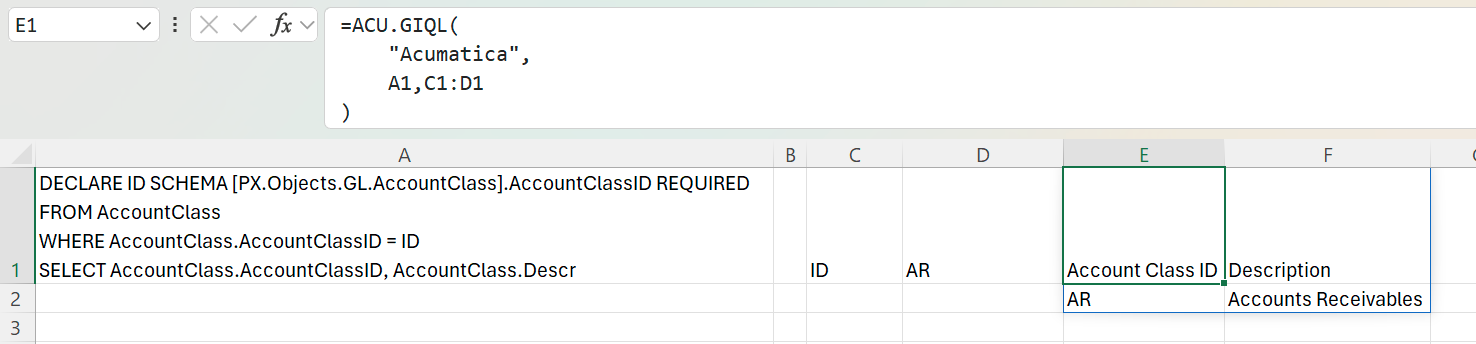
=ACU.GIQL(
    "Acumatica",
    A1,
    C1:D1
)
Description: Runs the query from cell A1 and applies the parameter value from the range C1:D1 to the declared ID parameter.
Result:
Building the range with VX.SETTINGS
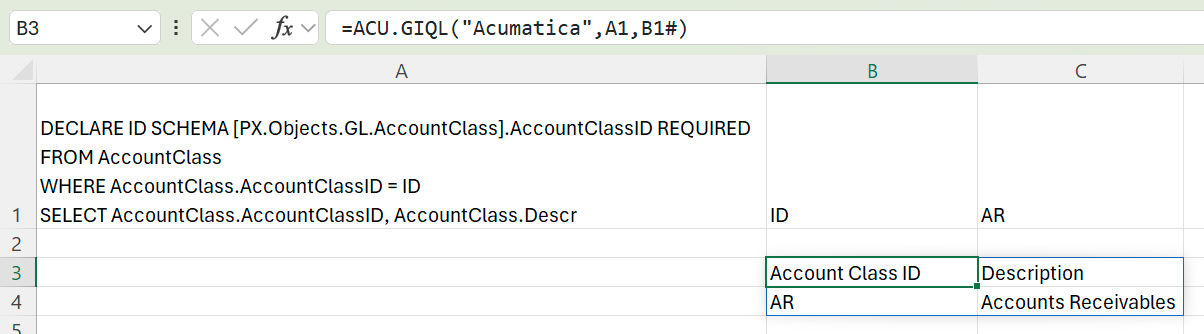
The VX.SETTINGS function builds the same two-column range from a list of names and values. Enter it in cell B1, giving each parameter name followed by its value:
=VX.SETTINGS("ID", "AR")
The result spills across B1:C1. Reference it with a spill reference so the range keeps matching the number of parameters:
=ACU.GIQL(
    "Acumatica",
    A1,
    B1#
)
Use this method to keep the parameter definitions in a single formula rather than spread across cells.
Description: Both formulas run the query from cell A1 and apply AR to the declared ID parameter. They return the same result.
Result: