Overview
The SI.WRITEBACKBUDGET function defines a Sage Intacct Budget Item (consisting of one or more GL budget values) to be uploaded to the ERP.
Related articles
-
Getting started with Writeback - A general article on setting up and using writeback functions.
Syntax
=SI.WRITEBACKBUDGET(
    ConnectionName,
    BudgetID,
    Description,
    ShouldUseAsDefaultCompanyBudget,
    ConsoldationSettings,
    Account,
    LocationID,
    Dimensions,
    UserDefinedDimensions,
    ReportingPeriod,
    Amount,
    Note
)
Arguments
The SI.WRITEBACKBUDGET function uses the following Header and Item arguments:
Header Info
|
Argument |
Required/Optional |
Description |
|
|
Required |
The name of the connection as configured in the Connection Manager. This function does not support the multiple connection functionality. |
|
|
Required |
The |
|
|
Optional |
A textual description of the budget |
|
|
Optional |
Determines if these budget values should be used as the default company budget values |
|
|
Optional |
An optional array of the following settings:
|
Item Info
|
|
Optional |
The GL account number for which a budget is being established/modified |
|
|
Optional (Required if muti-entity is enabled) |
ID code for the Sage Intacct location to be used for the budget |
|
|
Optional |
A two-column (or two-row) Excel range, where the first column/row contains the name of a predefined analytical dimension (e.g. department, customer, project etc.), and the second column/row contains the semicolon-separated list of values or that dimension. For more in-depth information about using Sage Intacct dimensions in Velixo NX, see Using Dimensions. For user-defined dimensions, use the |
|
|
Optional |
A two-column (or two-row) Excel range, where the first column/row contains the name of a user-defined analytical dimension, and the second column contains the respective value (or a semicolon-separated list of values) for that dimension. For more in-depth information about using Sage Intacct dimensions in Velixo NX, see Using Dimensions. For predefined analytical dimensions like customer, project etc., use the |
|
|
Optional (Required if AccountCode is defined) |
One or more Sage Intacct reporting periods to which budget values are to be applied |
|
|
Optional (Required if AccountCode is defined) |
The budget amounts to be applied to the specified reporting periods |
|
|
Required |
Note(s) to add to the budget lines.
|
Examples
Example 1
Given this configuration on the budget writeback worksheet:
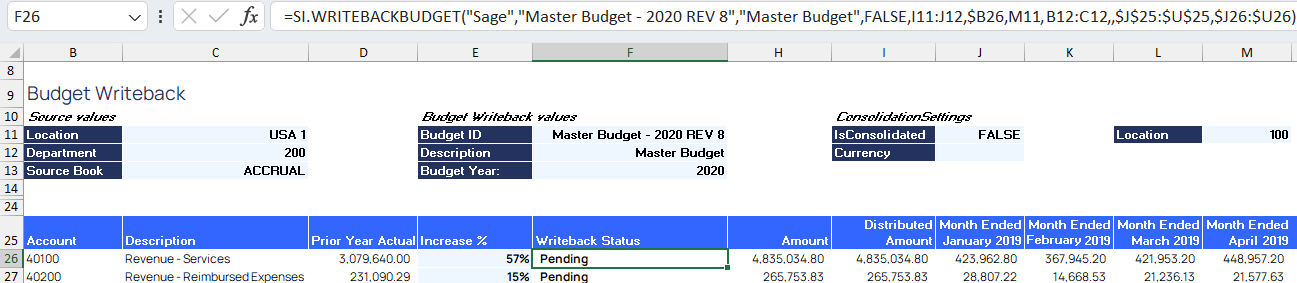
This function...
=SI.WRITEBACKBUDGET(
    "Sage",
    "Master Budget - 2020 REV8",
    "Master Budget",
    FALSE,
    $I$11:$J$12,
    $B26,
    M11,
    B12:C12,
    ,
    $J$25:$U$25,
    $J26:$U26
)
...creates a budget with the following properties:
-
has a budget ID of Master Budget - 2020 REV8
-
has the description of Master Budget
-
will not be used as the default budget for the company
-
will use the consolidation settings defined in cell I11 through J12 (in this example, none)
-
will be created for GL account #40100
-
will be created in location 100
-
will be created for department 200 (specified in the Dimensions argument using cells B11 and C11)
-
will be created for the reporting periods specified in cells J25 through U25
-
will have the amount of specified in cells J26 through U26

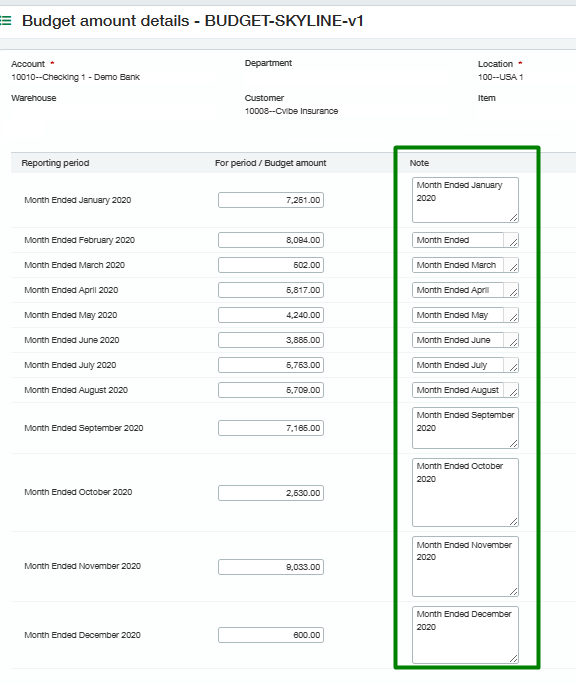
And the budget values now appear within Sage Intacct:
Example 2 - Consolidation Settings
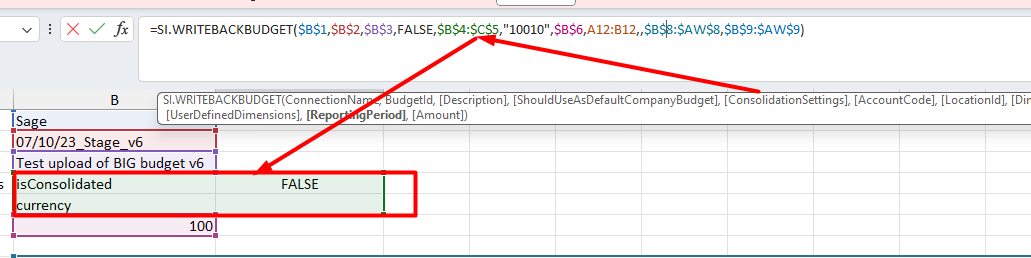
When specifying the ConsolidationSettings argument, be sure to use an Excel array or a range of cells (not an individual value or cell reference).
Example 3 - Disabled Dimensions
If your organization has disabled one or more of Sage Intacct's pre-defined dimensions, you may see a #VALUE! message in the Writeback Status column of the worksheet. If you select that cell and hover over the yellow triangle that is displayed, a message such as the following will be displayed:

Example message
Predefined dimensions 'projectid', 'vendorid', 'warehouseid' do not exist or are disabled in your company
Workaround
You can either:
-
make sure all disabled dimensions in the Velixo function are referring to empty cells
-
or ensure that the disabled dimensions are removed from the function
Example 4 - Budget lines with all the same Note
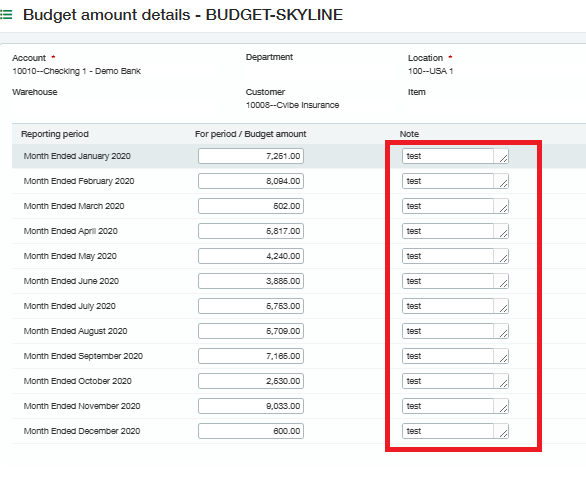
A single piece of text can be specified to be placed as the note for each line in the budget.
This function...
=SI.WRITEBACKBUDGET(
    "Sage",
    "BUDGET-SKYLINE",
    "test budget",
    FALSE,
    ,
    A15,
    C15,
    ,
    ,
    $D$2:$O$2,
    D15:O15,
    "test"
)
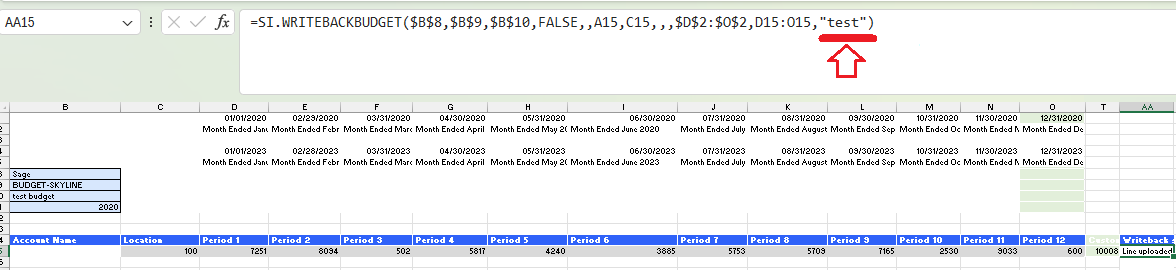
uses the word "test" as the note for each budget line created.
Result:
Example 5 - Budget lines with different Notes
A range of cells can be specified for sending a separate note to each line of the budget.
This function...
=SI.WRITEBACKBUDGET(
    "Sage",
    "BUDGET-SKYLINE",
    "test budget",
    FALSE,
    ,
    A15,
    C15,
    ,
    ,
    $D$2:$O$2,
    D15:O15,
    $D$2:$O$2
)

uses the contents of cell D2 through O2 as the notes for the corresponding budget lines.
Result: