
Overview
Dimensions in Sage Intacct are analytical tags (for example, a department, customer, location, or project) attached to transactions, allowing you to filter, group, and analyze financial data across multiple perspectives without needing separate accounts for each breakdown.
To filter Velixo function results by dimensions, use the Dimensions argument of the function. The argument is available in balance and budget functions, for example, SI.TURNOVER, SI.OPENINGBALANCE, SI.CLOSINGBALANCE, or SI.BUDGETTURNOVER.
For user-defined dimensions (UDDs), Velixo NX uses a separate argument, UserDefinedDimensions, that works the same way.
This article describes the following aspects of working with Sage Intacct dimensions in Velixo NX:
-
How Velixo uses Sage Intacct dimension structures (built-in dimensions, user-defined dimensions, and dimension groups).
-
How to find dimension information via Velixo NX and the Sage Intacct interface.
-
How to filter results using the
DimensionsandUserDefinedDimensionsarguments, including common filtering scenarios (including empty, excluding empty, etc.). -
How to use dimensions in SI.QUERY and writeback functions.
How Velixo uses Sage Intacct dimension structures
Sage Intacct has two categories of dimensions, both of which Velixo supports through dedicated function arguments.
Built-in dimensions
Sage Intacct provides a set of built-in dimensions such as Department, Location, Customer, Vendor, Project, Item, and others. These are passed via the Dimensions argument.
Some dimensions may not be available in your ERP instance due to its configuration.
The supported dimension names for the Dimensions argument are as follows:
|
Dimension name |
Supported values |
|---|---|
|
|
Both Class IDs and Class Group IDs |
|
|
Both Contract IDs and Contract Group IDs |
|
|
Both Customer IDs and Customer Group IDs |
|
|
Department ID values |
|
|
Both Employee IDs and Employee Group IDs |
|
|
Both Item IDs and Item Group IDs |
|
|
Both Project IDs and Project Group IDs |
|
|
Task ID values |
|
|
Both Vendor IDs and Vendor Group IDs |
|
|
Both Warehouse IDs and Warehouse Group IDs |
For your convenience, the dimension names are not case-sensitive.
Sage Intacct expects the ID of a record, not its Name, in the filter. For example, if there is a customer record with ID "10003" and the name "Uplift Services", you must specify "10003" in the dimension filter.
User-defined dimensions (UDDs)
User-defined dimensions are passed via a separate UserDefinedDimensions argument, which uses the same syntax as Dimensions.
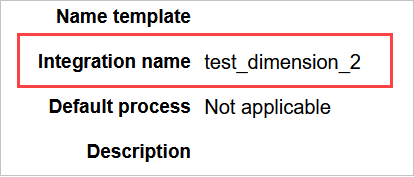
When specifying a UDD in your Velixo functions, you must use the Integration Name (not the display label). To find the Integration Name, open the dimension configuration in Sage Intacct under Platform Services > Custom dimensions.
For example, given a UDD with the label "Test Dimension 2" and the Integration Name test_dimension_2, use test_dimension_2 in your Velixo functions:
Dimension groups
Sage Intacct supports dimension groups, which are pre-defined collections of dimension values. Velixo lets you reference a group in two ways:
-
Use the dedicated group dimension name in place of the dimension name (e.g.
Location Group,Customer Group) in the SI.DIMENSIONS function. -
Use the standard dimension name (e.g.
Location,Customer) and prefix the group name with#. This method also enables you to reference multiple dimension groups, e.g."Location", "#West Coast"; "#Midwest").
For example, to filter by a location group named "West Coast", both of the following are equivalent:
SI.DIMENSIONS("Sage", "Location Group", "West Coast")
SI.DIMENSIONS("Sage", "Location", "#West Coast")
Finding information about dimensions and dimension groups
Sage Intacct web interface
To check available dimensions and their values in Sage Intacct, use:
-
Built-in dimensions: Navigate to the corresponding module. For example, Departments are under Company > Setup > Departments, Locations under Company > Setup > Locations, Customers under Accounts Receivable > Customers, and so on.
-
User-defined dimensions (UDDs): Go to Platform Services > Objects to see the list of custom objects, including UDDs and their integration names.
-
Dimension groups: Navigate to Applications > Reports > Setup > Dimension groups to see your pre-defined groups.
Velixo NX
To discover information about dimensions using Velixo NX, use:
-
SI.EXPANDUDDVALUERANGE to list values from a user-defined dimension.
-
SI.UDDVALUEID to retrieve UDD value IDs (useful for SI.QUERY and SI.WRITEBACK functions).
-
Functions that return IDs for all items in specific dimension groups:
-
SI.EXPANDCLASSGROUPRANGE to expand Class group names.
-
SI.EXPANDCONTRACTGROUPRANGE to expand Contract group names.
-
SI.EXPANDCUSTOMERGROUPRANGE to expand Customer group names.
-
SI.EXPANDDEPARTMENTGROUPRANGE to expand Department group names.
-
SI.EXPANDEMPLOYEEGROUPRANGE to expand Employee group names.
-
SI.EXPANDITEMGROUPRANGE to expand Item group names.
-
SI.EXPANDLOCATIONGROUPRANGE to expand Location group names.
-
SI.EXPANDPROJECTGROUPRANGE to expand Project group names.
-
SI.EXPANDVENDORGROUPRANGE to expand Vendor group names.
-
SI.EXPANDWAREHOUSEGROUPRANGE to expand Warehouse group names.
-
Building the Dimensions argument
The Dimensions and UserDefinedDimensions arguments accept:
-
a two-column/two-row Excel range(or equivalent structure) where:
-
the first column/row contains the dimension name, and
-
the second column/row contains a delimiter-separated list of dimension values for that dimension.
-
-
or a multicolumn array where:
-
the first column/row contains the dimension name, and
-
each subsequent column/row contains a dimension value for that dimension.
-
To configure the delimiter character, head to the Velixo NX Excel menu → Options → Search and filtering. See the Options reference article.
Method 1 – The SI.DIMENSIONS function (recommended)
The most versatile method is using the SI.DIMENSIONS function. It converts a sequence of dimension name/value pairs into the matrix format expected by other Velixo functions.
Example
The following formula returns account turnover for GL account 10010 in December 2019, filtered to Department 200 and Customers 10003 or 10004:
=SI.TURNOVER(
  "Sage",
  ,
  "10010",
  "2019-12-01",
  "2019-12-31",
  ,
  "*",
  SI.DIMENSIONS("Sage", "Department", "200", "Customer", "10003;10004")
)
See the SI.DIMENSIONS function reference for more information.
Method 2 – Two-column (or two-row) Excel range
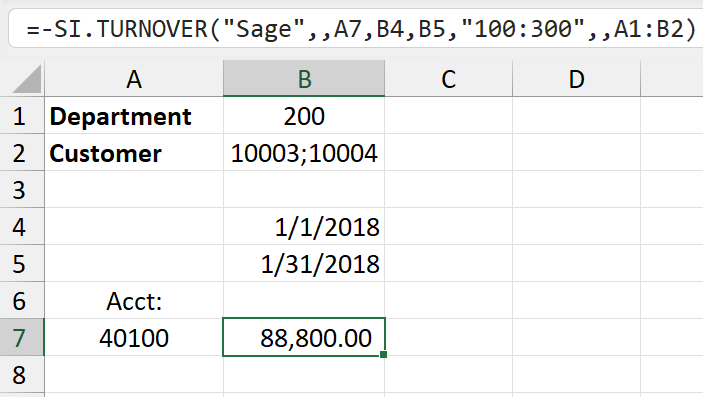
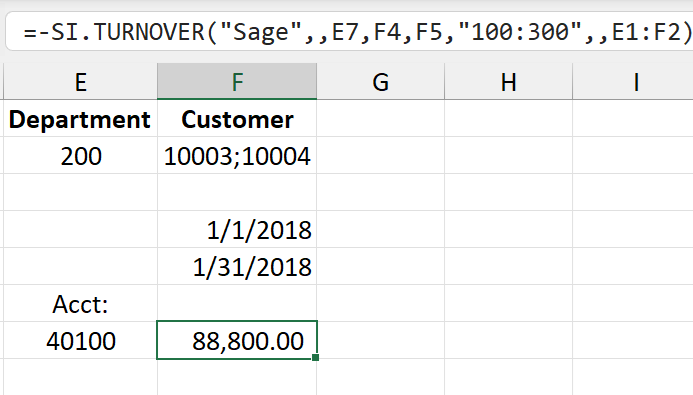
You can pass a two-column or two-row Excel range directly to the Dimensions argument. The first column (or row) contains the dimension name, and the second column (or row) contains semicolon-separated values.
Example
Assume the following range A1:B2:
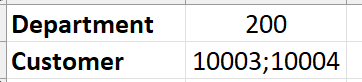
Use it directly in the formula:
=SI.TURNOVER(
  "Sage",
  ,
  "10010",
  "2019-12-01",
  "2019-12-31",
  ,
  "*",
  A1:B2
)
This returns turnover where Department = 200 and Customer = 10003 or 10004.
The same range can be laid out horizontally (two rows instead of two columns) — Velixo accepts both orientations, for example:
|
Two-column example |
Two-row example |
|
|
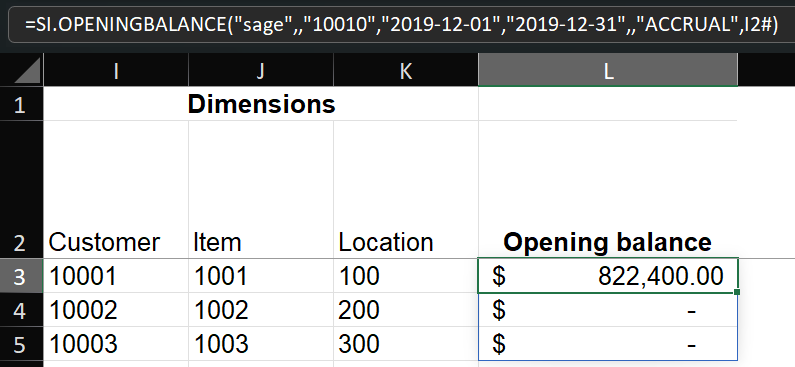
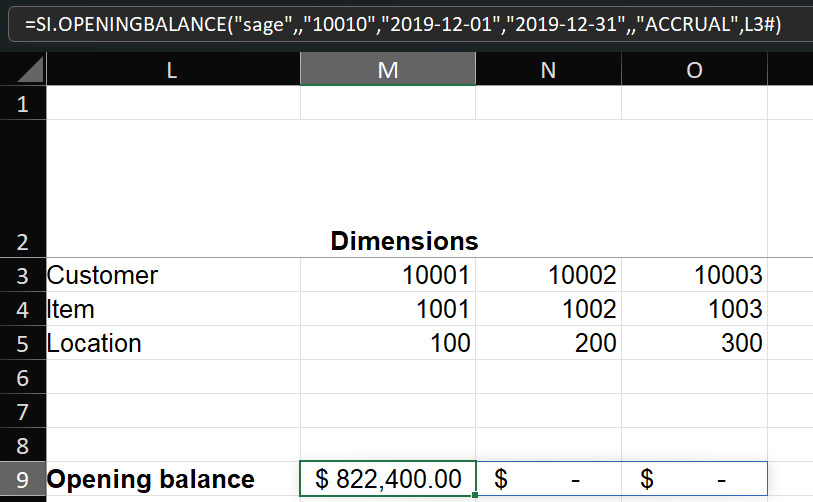
Method 3 - Excel array
The dimension argument can be a multi-column array where the first row (or column) of the array contains the name of a user-defined analytical dimension, and the remaining rows (or columns) contain the individual values for that dimension.
Example A - Vertical
Dimension name in first row
Example B - Horizontal
Dimension name in the first column
Method 4 – Inline Excel array
For quick tests and simple filters, pass an inline array directly:
=SI.TURNOVER(
  "Sage",
  ,
  "10010",
  "2019-12-01",
  "2019-12-31",
  ,
  "*",
  {"Department","200";"Customer","10003;10004"}
)
In an inline array, the first row (or column) of each pair is the dimension name, and the remaining element is the value(s).
Dimension filtering scenarios
You can combine dimension values with Velixo range expressions and wildcards. For full syntax, see the article dedicated to Velixo filtering techniques.
Below are the most common scenarios involving dimensions.
Include all values, including empty (*?)
Use *? to include transactions with any dimension value, including those where the dimension is empty.
=SI.TURNOVER(
  "Sage",
  ,
  "10010",
  "2019-12-01",
  "2019-12-31",
  "100",
  "Accrual",
  {"customer";"*?"}
)
This formula includes all transactions regardless of their Customer dimension value, including those with no Customer assigned.
You can combine *? with subtractive expressions. For example, *?;-40600 retrieves data for all values (including empty), except value 40600.
Combining *? operators via intersections (^) is not supported.
Exclude empty values only (*)
Use * to include only transactions with a non-empty dimension value.
=SI.TURNOVER(
  "Sage",
  ,
  "10010",
  "2019-12-01",
  "2019-12-31",
  "100",
  "Accrual",
  {"customer";"*"}
)
This formula includes only transactions that have a non-empty Customer value.
Include ONLY empty values (null)
Use null to include only transactions where the dimension value is empty.
=SI.TURNOVER(
  "Sage",
  ,
  "10010",
  "2019-12-01",
  "2019-12-31",
  "100",
  "Accrual",
  {"customer";"null"}
)
This formula includes only transactions with no Customer assigned.
The null syntax is not supported with the following dimensions: Customer Type, Vendor Type, Project Type, Cost Type, Employee Type, Product Line.
Only one null filter is allowed per dimension range expression.
Exclude specific values (-)
Use the subtractor operator (-) to remove values from the result.
Examples for the second column (dimension values):
-
*;-HOME— all non-empty values exceptHOME. -
110:175;-155— range110to175, excluding155.
Querying dimensions with SI.QUERY
The SI.QUERY function can retrieve data from Sage Intacct objects, including dimension information attached to records. Dimensions are typically available as fields on Sage Intacct objects (e.g. DEPARTMENTID, CUSTOMERID, LOCATIONID on GLENTRY).
When querying objects like GLENTRY or GLDETAIL, you can select dimension fields directly and use filters to narrow results by dimension values.
In case you need to use UDD values in SI.QUERY, you can retrieve the UDD value IDs using the SI.UDDVALUEID function.
Using Writeback with dimensions
Velixo's Writeback functions for Sage Intacct let you assign dimension values to the data you write back. There are three writeback functions, and each handles dimensions slightly differently.
For general information about setting up and using writeback functions, see Getting started with Writeback.
For formula examples, see the SI.WRITEBACKJOURNAL, SI.WRITEBACKBUDGET, and SI.WRITEBACK function references.
SI.WRITEBACKJOURNAL and SI.WRITEBACKBUDGET
The SI.WRITEBACKJOURNAL and SI.WRITEBACKBUDGET functions use the Dimensions and UserDefinedDimensions arguments to determine Dimension values for writeback.
Unlike the Dimensions argument in balance functions (which supports filtering expressions such as ranges and wildcards), the writeback Dimensions and UserDefinedDimensions arguments expect a single dimension value per dimension — you are assigning a specific value, not filtering.
If your Sage Intacct company has one or more predefined dimensions disabled, budget Writeback will return a #VALUE! error listing the disabled dimensions. To resolve this, make sure the disabled dimensions in your function refer to empty cells, or remove them from the function entirely.
SI.WRITEBACK
The SI.WRITEBACK function writes to arbitrary Sage Intacct objects using field names. Dimension fields in SI.WRITEBACK correspond to the Sage Intacct field names of the target object (e.g. DEPARTMENTID, LOCATIONID, CUSTOMERID) rather than the dimension names used in the Dimensions argument of other functions.
To check field names, use the SI.OBJECTDEFINITION function.