Overview
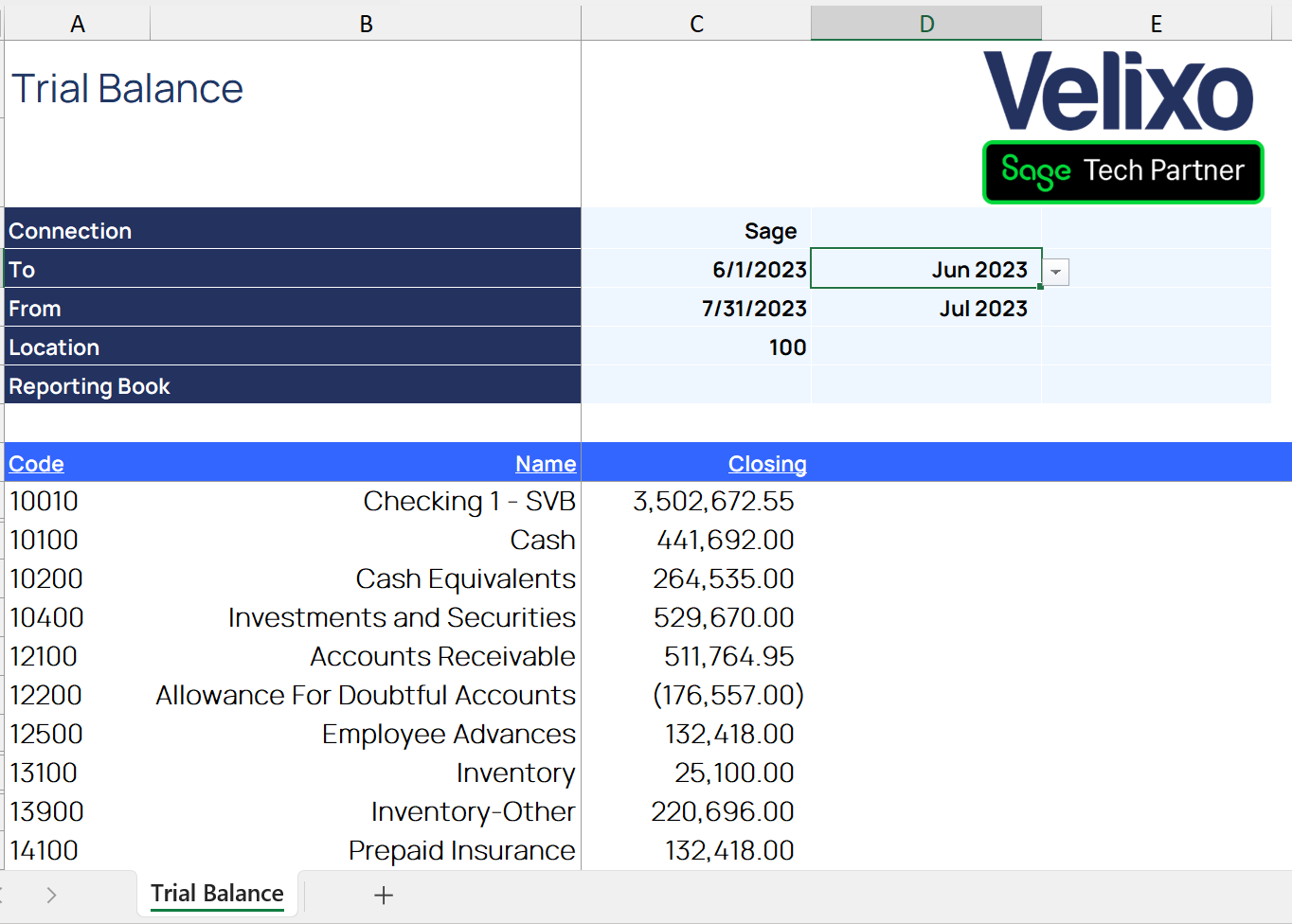
Specifying a date range is a common aspect of many reports:
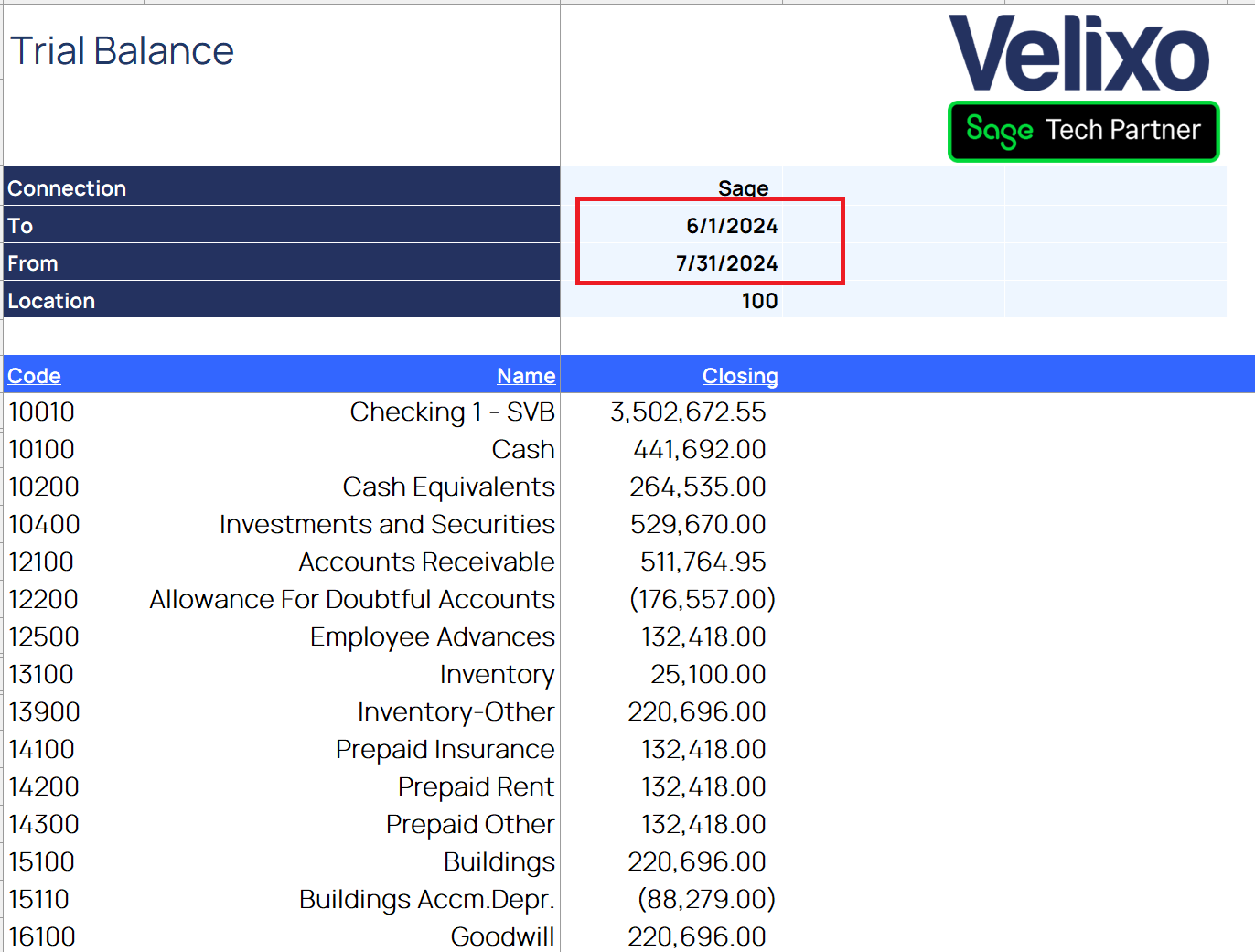
When we want data for a different range of dates, we simply change the date values, and our report reflects the data based on those parameters.
There are times, however, when it is needed to restrict a report viewer to only being able to refresh the report for certain time periods.
Getting time period info from Sage Intacct
One easy way to accomplish this is for the report designer to start by specifying the valid date limits and then getting the available data from within Sage Intacct.
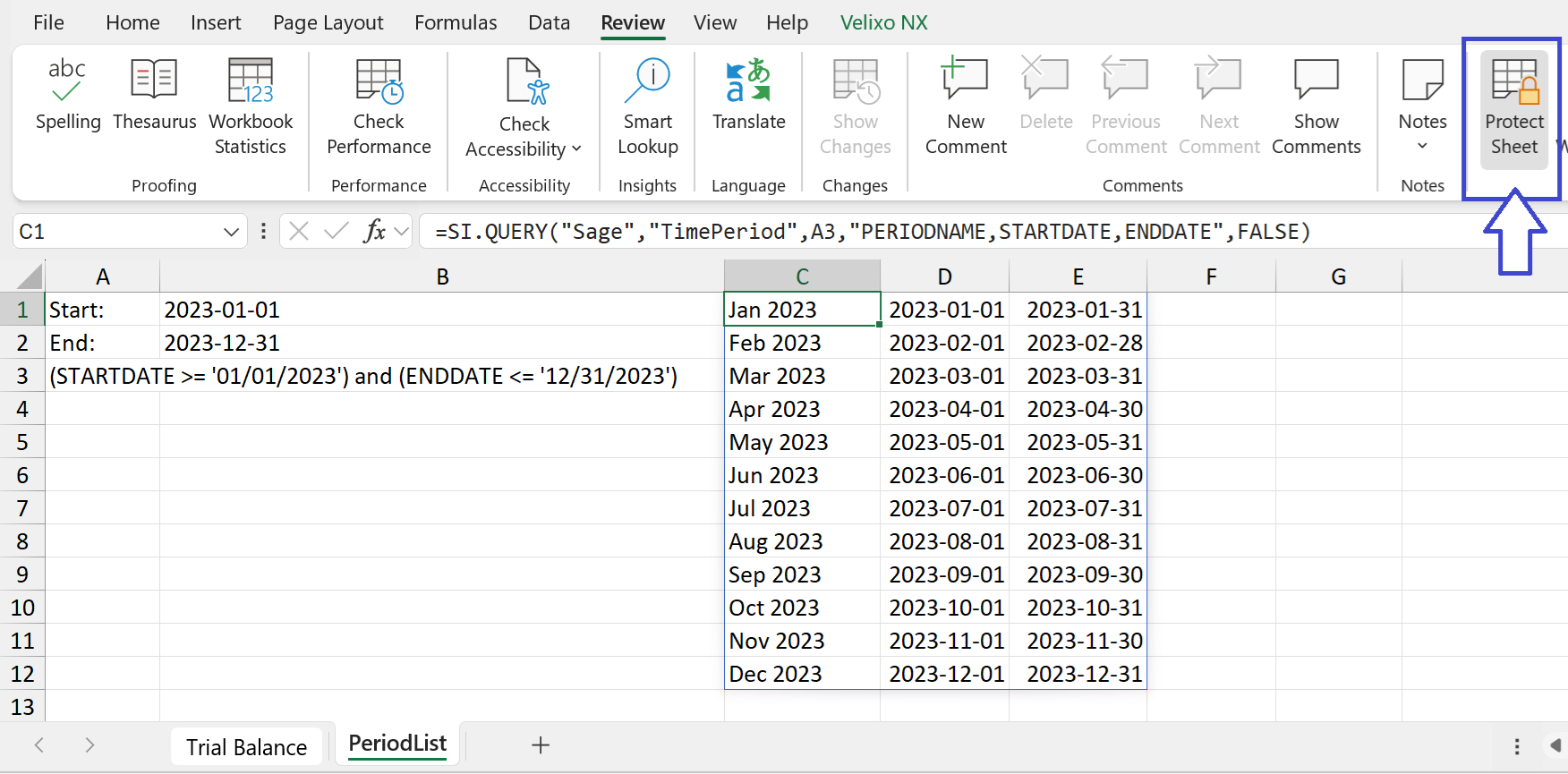
We've created a new worksheet (named PeriodList) and have specified a limit on our report to using dates from a prior year:

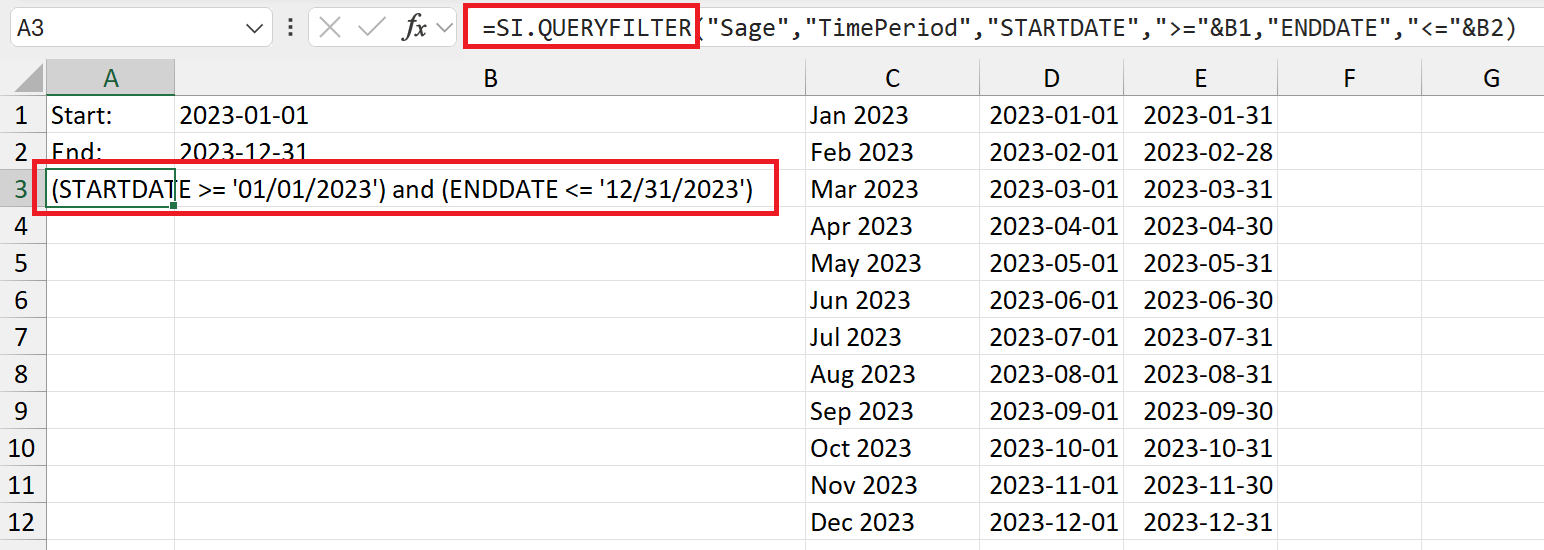
We then use the Velixo SI.QUERYFILTER function...
... and SI.QUERY function...
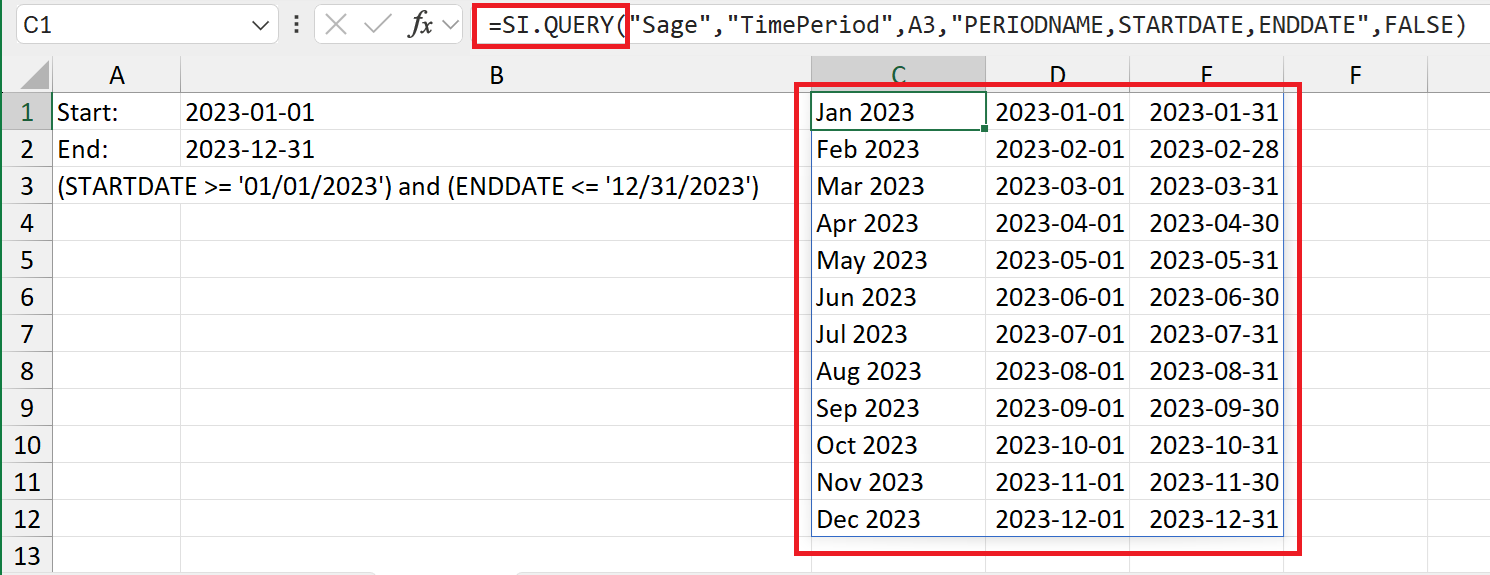
... to retrieve (from Sage Intacct) the valid date ranges for all periods within the valid date limits.
Modify the report
Listing the available periods
In our report, we can then define an area where we want to access our time period information, and use Excel's Data Validation feature...
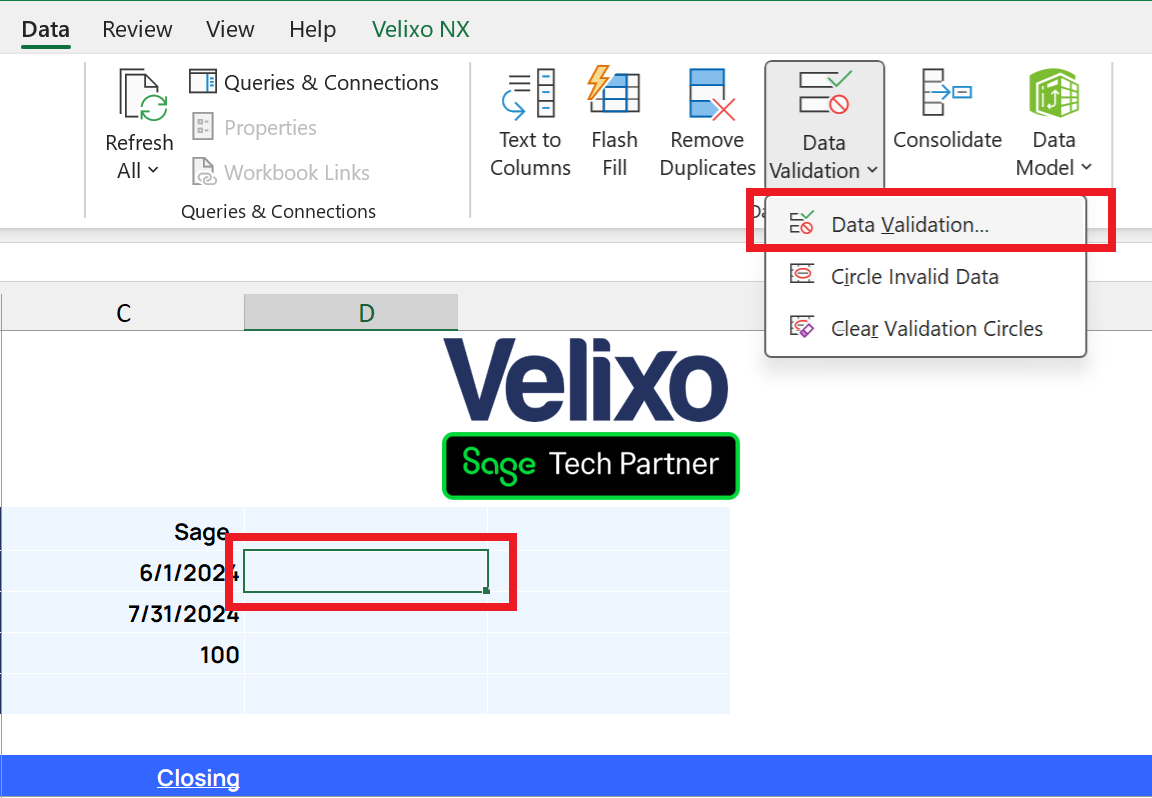
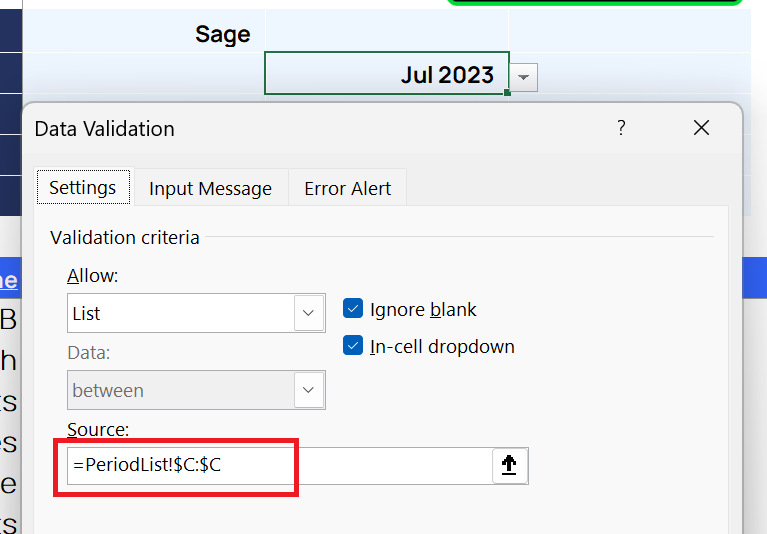
... and define where to find the period name in column C of our PeriodList worksheet:
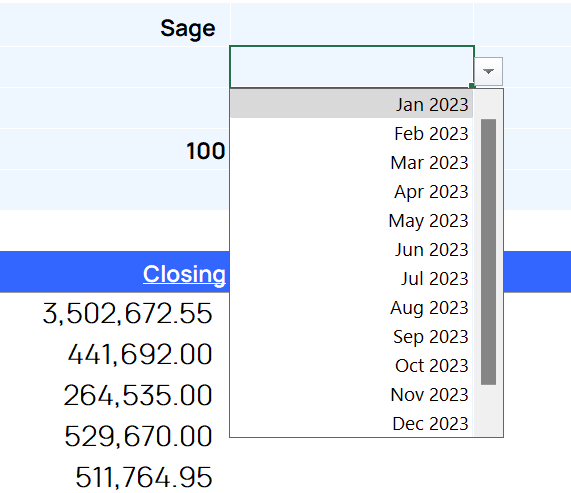
Our report now displays a list of only the available periods we can access:
Looking up the dates
We can next change the date parameters in our report to lookup the correct Start Date and End Date values from the list of valid dates on our PeriodList worksheet
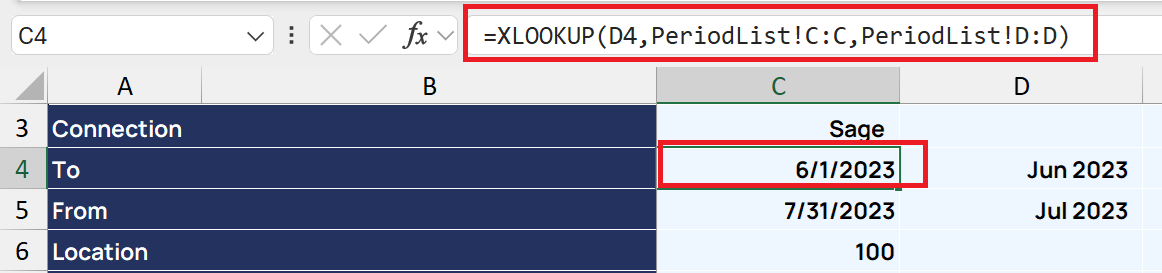
Now, when a period is chosen from the list, the corresponding Start or End date is filled in, automatically.
Protecting the report
To avoid our end viewer being able to change the dates to a non-valid period or adjust the valid date range limits for the report, we would want to protect our worksheets.
We'll want to ensure that the end user cannot change the date (expect through the list of valid periods).
We do this by, first, ensuring that the viewer CAN change period selection. We select those cells and use Excel's Format Cells feature...
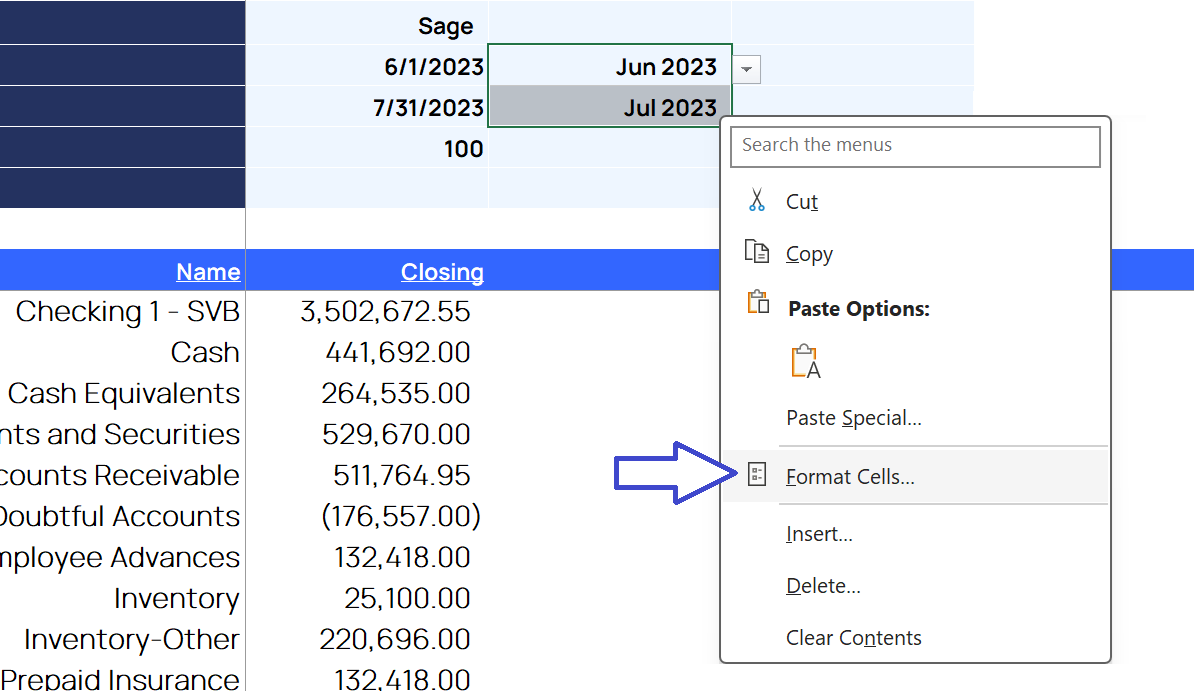
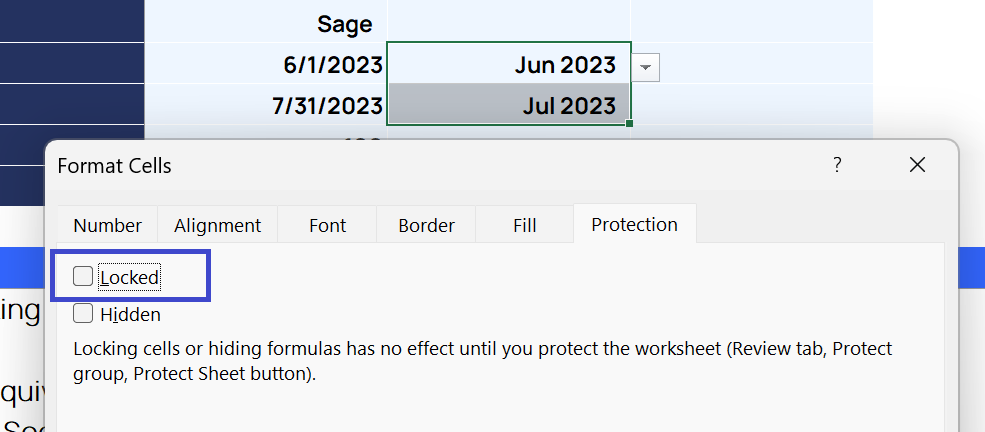
... and ensure that those cells are NOT locked:
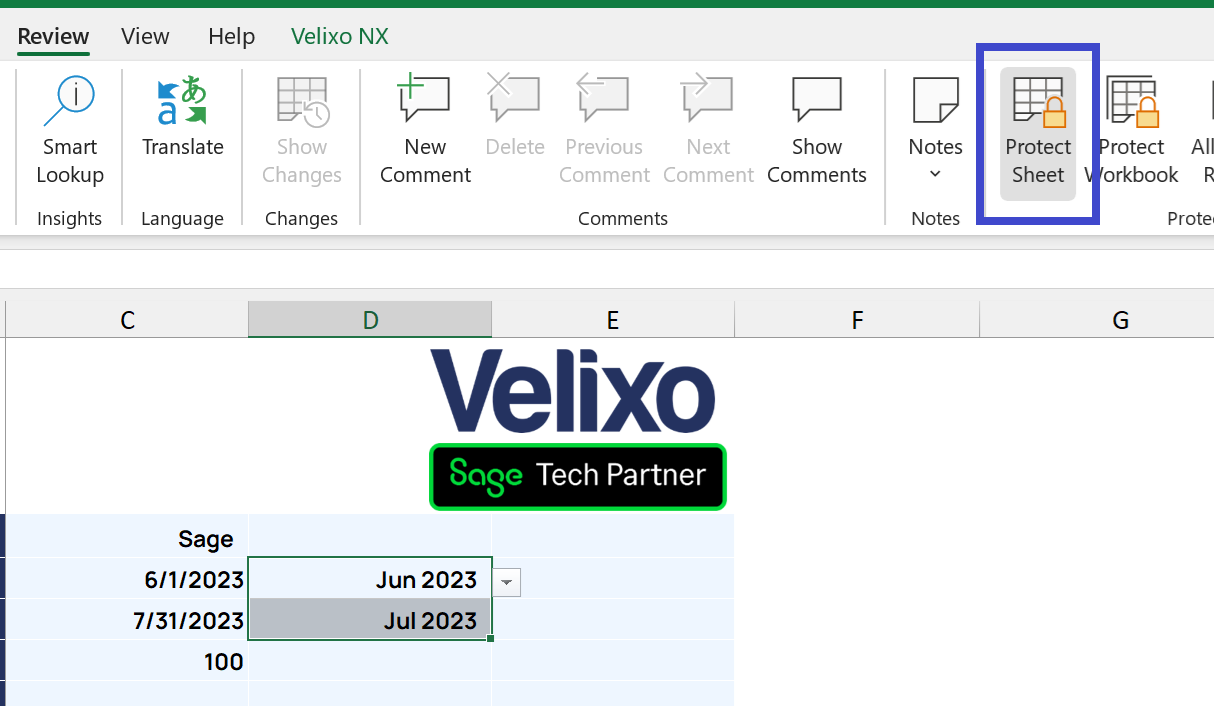
and then protecting the entire worksheet:
Now, only the pulldown lists will be available:
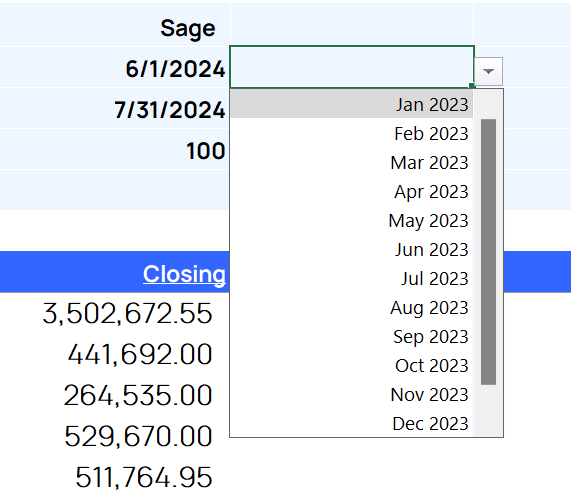
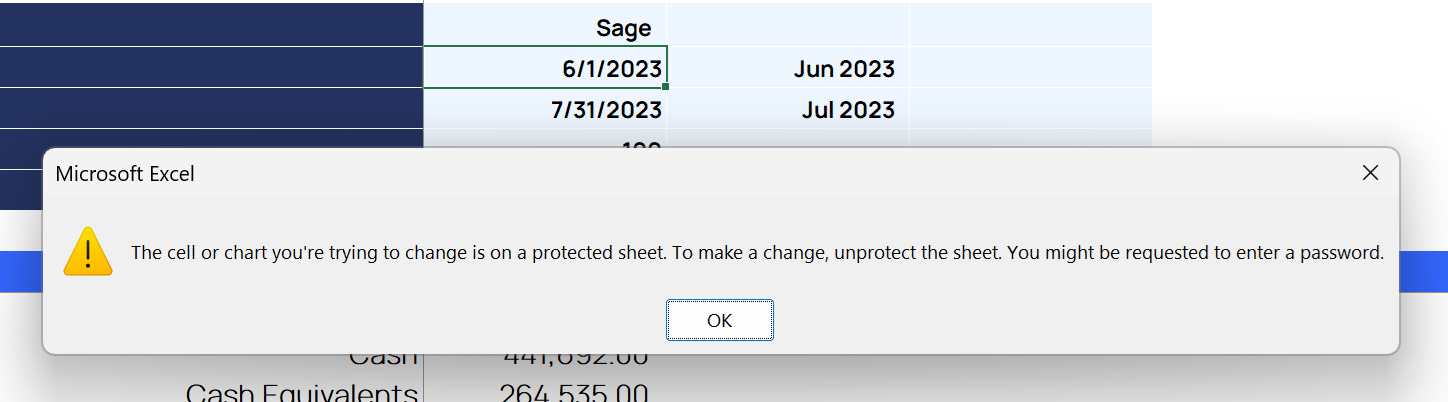
But if the viewer would be prevented from changing the dates directly:
Protecting the lookup data
We'll also want to protect the lists that are used by the Data Validation and lookup functions.
We'll start by protecting that worksheet:
and since there is no reason for the viewer to even see that worksheet, we can hide it:
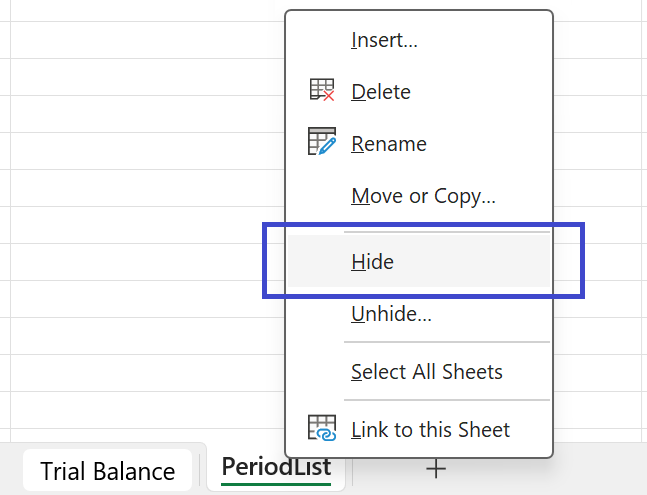
Now, our workbook only shows our protected report: