
Overview
To get the data from your Intacct instance into your workbook, you can use the SI.QUERY function, which returns the contents of the specified Sage object (as either an Excel array or - optionally - as an Excel table).
You can use the Query Builder functionality to construct formulas visually.
For querying individual fields from objects, we recommend using the SI.QUERYLOOKUP function instead for better resource efficiency.
Syntax
=SI.QUERY(
    ConnectionName,
    Object,
    Filter,
    Select,
    IncludeHeader,
    Settings,
    OutputColumn1,
    ...
)
Arguments
|
Argument |
Required/Optional |
Description |
|
|
Optional |
Provide one of the following values:
OR Omit the argument to return results for all compatible connections with default aggregation settings. |
|
|
Required |
Sage Intacct object name to query (e.g., Use the SI.EXPANDOBJECTRANGE function to retrieve the list of available objects. Not all objects listed via the SI.EXPANDOBJECTRANGE function can be queried. See the Unsupported objects section below. |
|
|
Optional
|
SQL-like query based on fields on the object. The following operators are supported: You can use the SI.QUERYFILTER function to generate filters ready to use with SI.QUERY. |
|
|
Optional |
Comma-separated list of columns to be included in the resulting dataset. If this argument is empty, all the columns from the object will be returned. Supports Sage Intacct aggregation operators:
Objects that do not use either the Rows where all selected columns have no value are excluded from the results - see Rows with no value in selected columns. |
|
|
Optional |
|
|
|
Optional |
You can either enter a number to set how many rows you want or use a list of settings (key-value pairs) to specify advanced query settings.
Example:
|
|
|
Optional |
Optionally, specifies the cell on the worksheet where the data of the first column specified in the Select argument is to be displayed as part of an Excel table. |
|
... |
|
|
Excel Online
Loading large datasets with the function is not performant in Excel Online due to the limitations of the Excel platform in the browser. If your dataset contains more than approximately 100,000 records, we strongly recommend using a desktop version of Excel 365 for Windows or Mac OS.
Querying subtypes of objects
The SI.QUERY function can retrieve data for specific subtypes of objects in Sage Intacct. This is particularly useful for template objects with multiple variations, such as:
-
SODOCUMENT (Contract Change Order, Project Contract Invoice)
-
PODOCUMENT (Purchase Order, Subcontract Invoice)
-
INVDOCUMENT (Adjustment Decrease, Inventory Receipt)
Querying custom objects
Sage Intacct lets administrators extend their company with custom objects – objects built in Platform Services to capture data that the standard Sage Intacct objects don't cover. Velixo treats these custom objects the same way it treats built-in objects: once a custom object exists in your Sage Intacct company, you can discover it and query it in Excel with no special syntax.
Before you can query custom objects, the following conditions must be met:
-
The custom object must already exist in your Sage Intacct company. Custom objects are created by a Sage Intacct administrator in Platform Services, not in Velixo.
-
Your Sage Intacct user must have permission to view the custom object. Objects you cannot access won't be returned.
-
Like all built-in objects, a custom object is only queryable if it uses the
IDorRECORDNOfield. See SI.QUERY for the full list of unsupported objects.
Rows with no value in selected columns
Unlike other Velixo query functions, the function excludes rows where none of the selected columns has a value. When no rows remain after the exclusion, the function returns #N/A with the message "The query returned no results".
The exclusion applies only when all selected columns are empty for a record. For example, selecting CUSTOMERID,PARENTID from the CUSTOMER object returns every customer and leaves PARENTID blank for customers without a parent, while selecting PARENTID alone returns only the customers that have a parent. Two formulas that query the same object with a different Select argument can therefore return a different number of rows.
The exclusion does not remove rows when the Select argument is omitted or contains an aggregation. In both cases at least one returned column always has a value: system columns such as RECORDNO when Select is omitted, and the aggregation itself in grouped results. A group whose grouping column is empty is returned with an empty value in that column.
The spilled range sizes to the number of rows remaining after the exclusion.
Examples
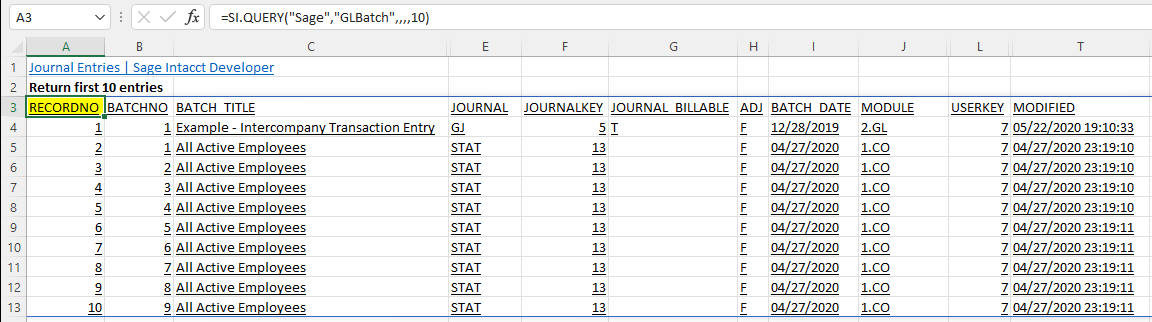
First 10 records
=SI.QUERY(
    "Sage",
    "GLBatch",
    ,
    ,
    ,
    10
)
Description:
Returns the top 10 records returned by the GLBatch object (after any filtering is applied).
Result:
Filter example 1
=SI.QUERY(
    "Sage",
    "TaxSolution",
    "TaxMethod='VAT or GST'",
    "SolutionID,TaxMethod"
)
Description:
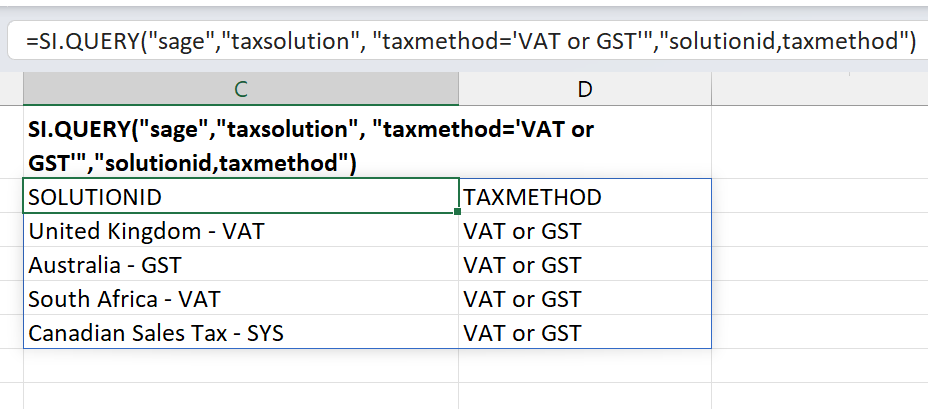
Returns the SolutionID and TaxMethod fields from the TaxSolution object where the TaxMethod field is set to VAT or GST:
Result:
Filter example 2
=SI.QUERY(
    "Sage",
    "TaxDetail",
    "DESCRIPTION LIKE('%Sales%')", "RecordNo,DetailID,Description,TaxType,Value,Include,GLAccount,TaxAuthority,Status"
)
Description:
Returns the specified fields (in the order specified) from the TaxDetail object where the Description field contains the case-sensitive substring Sales
Result:

Include columns from related objects
=SI.QUERY(
    "Sage",
    "Project",
    (PROJECTID='22-002'),
    "PROJECTID,NAME,MANAGER.EMPLOYEEPOSITION.NAME"
)
Description:
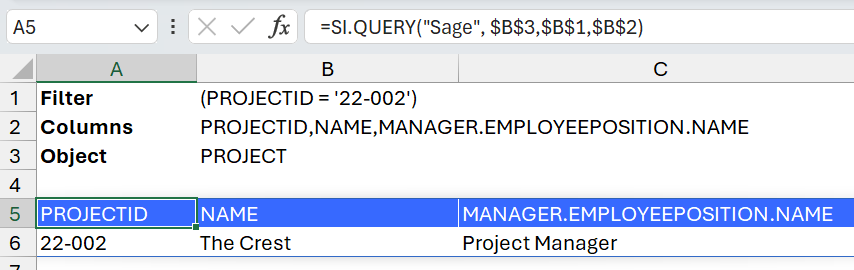
This SI.QUERY example queries the PROJECT object and returns 3 columns for a single, specified ProjectID.
The third specified field (NAME) originates from the EMPLOYEEPOSITION object that is related to the MANAGER object which is then related to the PROJECT object (demonstrating multi-level "lookups").
-
The above formula is equivalent to the formula in the screenshot, demonstrating the use of cell references for function arguments.
-
The query automatically understands which relationships to use when specifying prefixed column names with related object names.
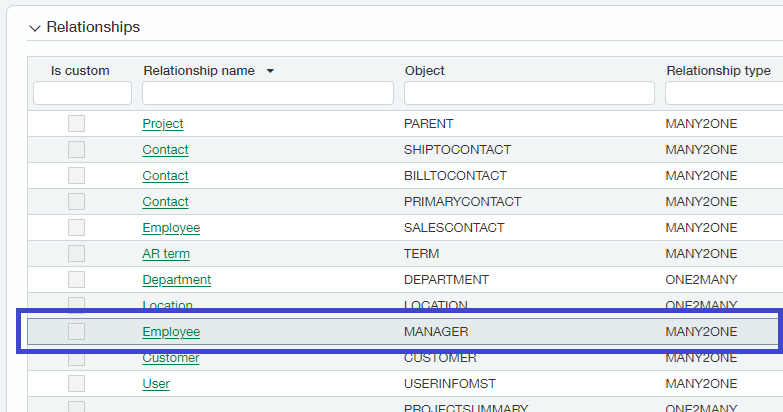
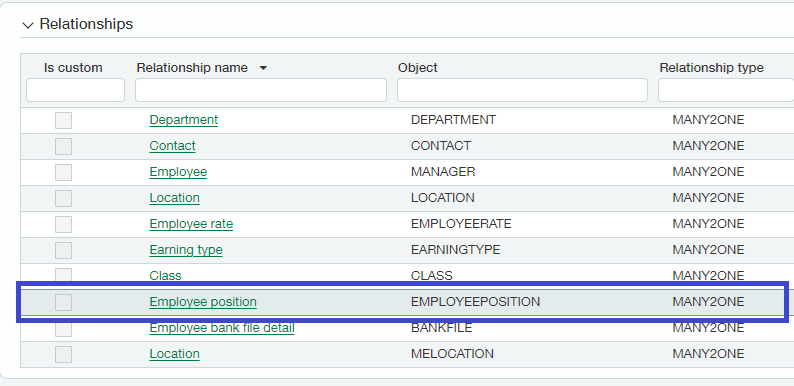
Here are the relationships of the related objects for the above example:
-
From the PROJECT object, the Employee relationship relates to object: MANAGER
-
From the MANAGER object: the Employee position relationship relates to the
EMPLOYEEPOSITIONobject
-
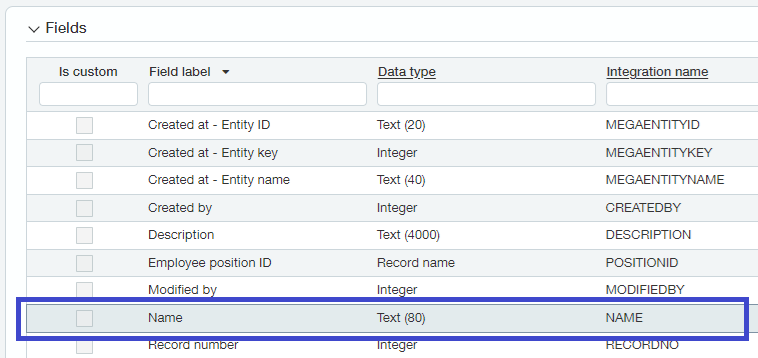
The field NAME is then used from the
EMPLOYEEPOSITIONObject to return the name of the Employee Position
Send output to an Excel table
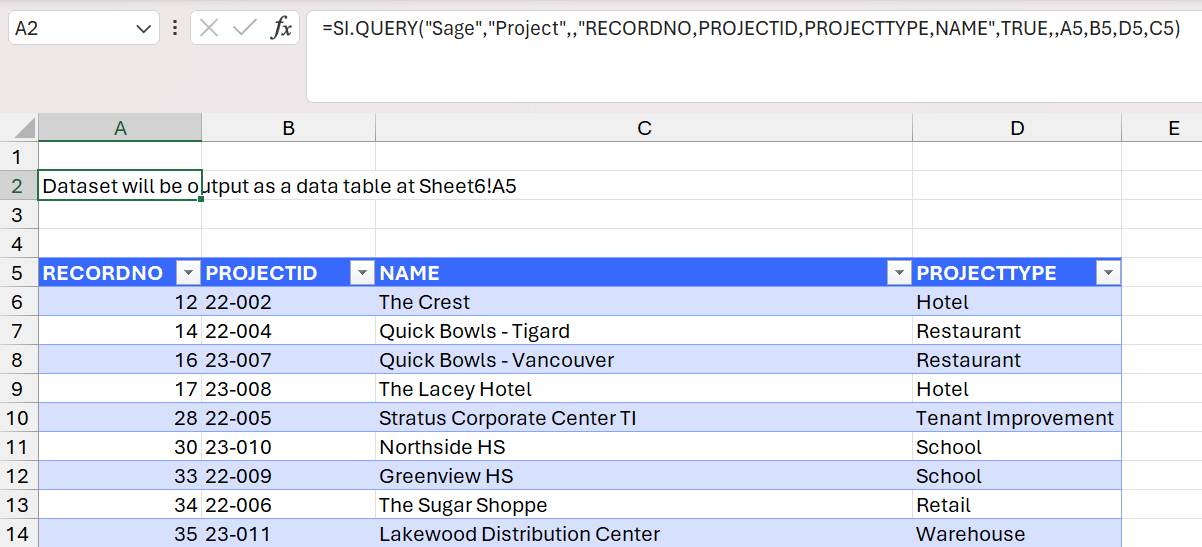
This and other examples of creating Excel tables can be found in Table Mirroring.
=SI.QUERY(
    "Sage",
    "Project",
    ,
    "RECORDNO,PROJECTID,PROJECTTYPE,NAME",
    TRUE,
    ,
    A5,
    B5,
    D5,
    C5
)
Description:
Instead of displaying the results of the query starting in the cell containing the SI.QUERY function, the function Cell A2 displays the specified fields from the Project object in an Excel data table located in the cells specified by the OutputColumns arguments (cells A5, B5, D5, and C5)
Aggregation examples
Aggregate a single field
=SI.QUERY(
    "Sage",
    "Project",
    ,
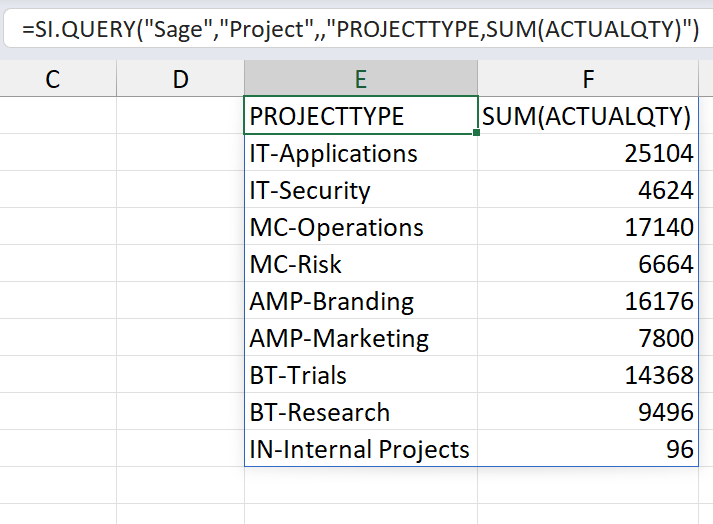
    "PROJECTTYPE, SUM(ACTUALQTY)"
)
Displays a sum of ACTUALQTY grouped by PROJECTTYPE
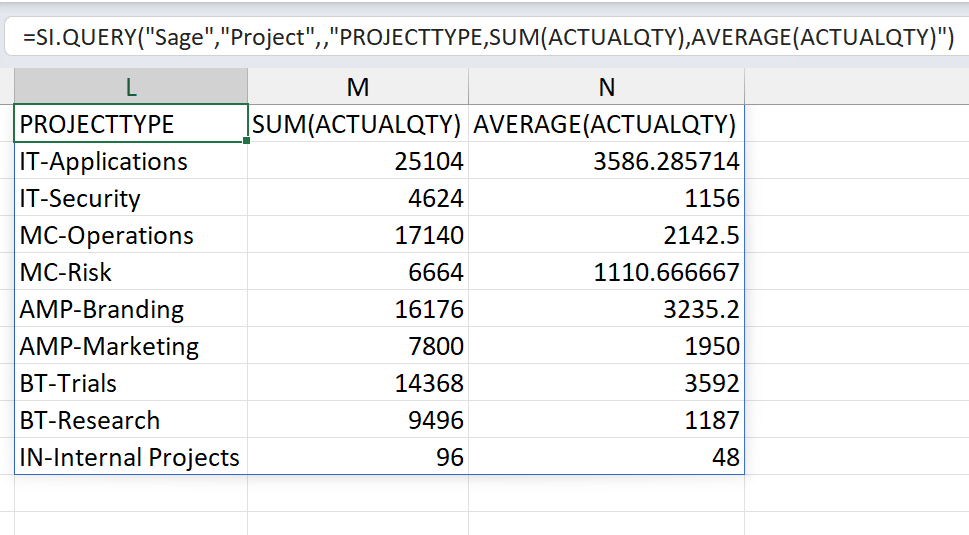
Multiple aggregations for a single field
=SI.QUERY(
    "Sage",
    "Project",
    ,
    "PROJECTTYPE, SUM(ACTUALQTY), AVERAGE(ACTUALQTY)"
)
Displays a sum and average of ACTUALQTY grouped by PROJECTTYPE
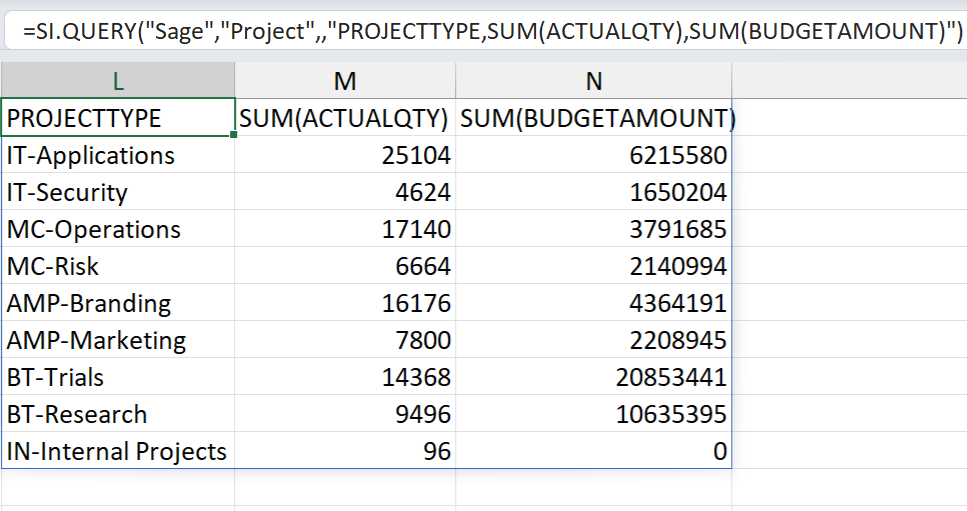
Aggregations for multiple fields
=SI.QUERY(
    "Sage",
    "Project",
    ,
    "PROJECTTYPE, SUM(ACTUALQTY), SUM(BUDGETAMOUNT)"
)
Displays a sum of both ACTUALQTY and BUDGETAMOUNT grouped by PROJECTTYPE
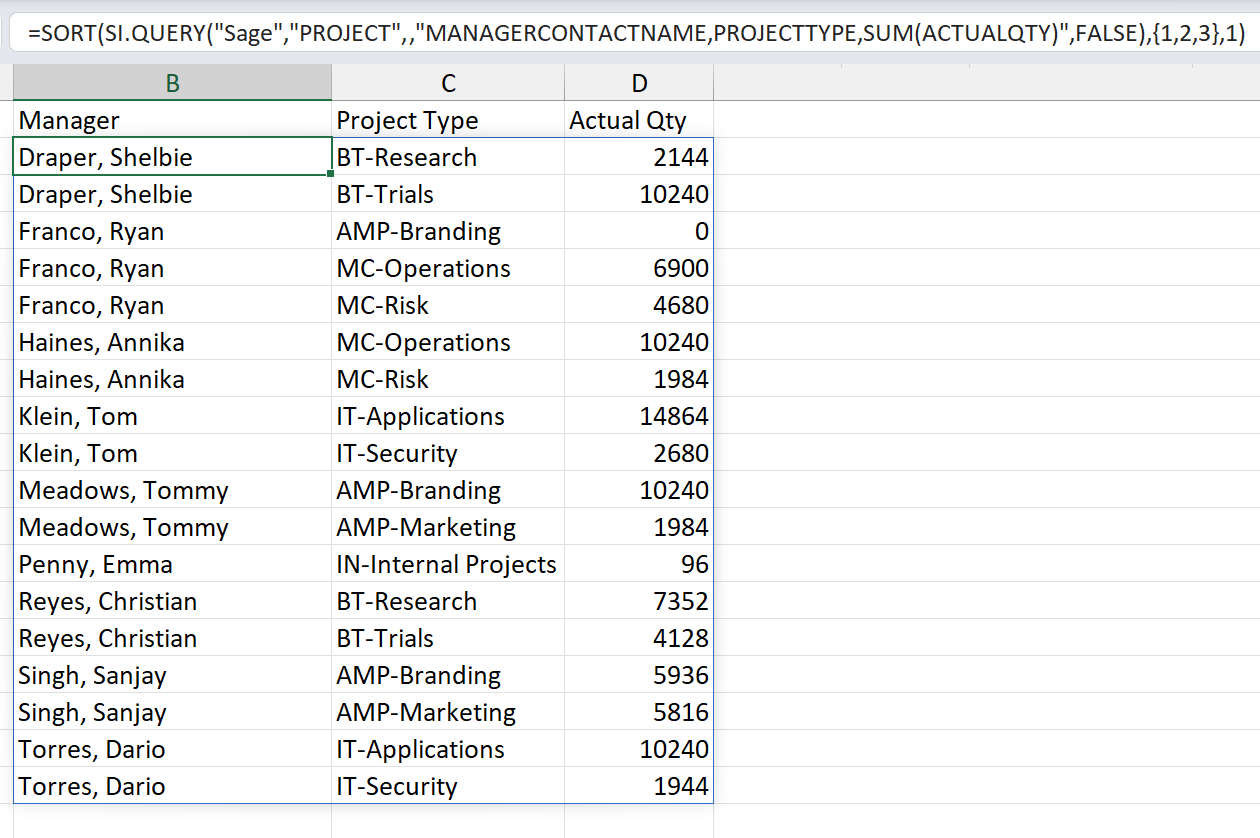
Aggregation with multiple levels of grouping
=SORT(
    SI.QUERY(
        "Sage",
        "PROJECT",
        ,
        "MANAGERCONTACTNAME,PROJECTTYPE,SUM(ACTUALQTY)",
        FALSE
    ),
    {1,2,3},
    1
)
Displays a sum of ACTUALQTY grouped first by MANAGERCONTACTNAME and then by PROJECTYPE. The Excel SORT function is used to combine the grouped aggregations.
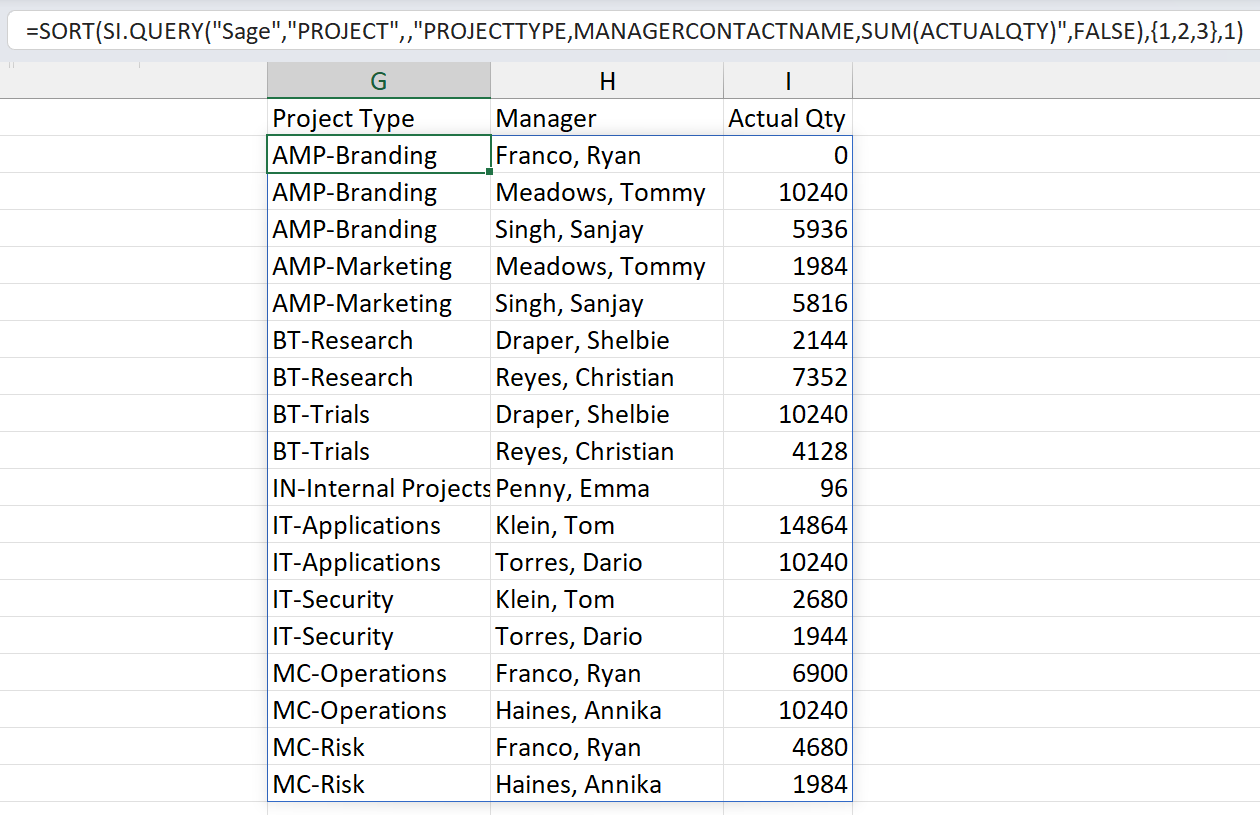
You can change the order of the fields being retrieved in order to change how the data is grouped.
=SORT(
    SI.QUERY(
        "Sage",
        "PROJECT",
        ,
        "PROJECTTYPE, MANAGERCONTACTNAME, SUM(ACTUALQTY)",
        FALSE
    ),
    {1,2,3},
    1
)
Displays a sum of ACTUALQTY grouped first by PROJECTYPE and then by MANAGERCONTACTNAME.
Unsupported objects
The objects listed below do not use the ID or RECORDNO field, and consequently cannot be queried using the SI.QUERY function.
Other objects may not be queryable, depending on your account's permissions.
-
ACCOUNTLABEL
-
APCLOSESUMMARY
-
APDETAIL
-
APOPENSUMMARY
-
APPOSTEDADVANCEENTRY
-
APPYMTENTRY
-
APRECORD
-
ARCLOSESUMMARY
-
ARDETAIL
-
AROPENSUMMARY
-
ARPOSTEDOVERPAYMENTENTRY
-
ARPYMTENTRY
-
ARRECORD
-
ASSIGNENTITYTOBANKTRANSACTION
-
BANKTXNRULERUN
-
BASEACCOUNT
-
BILLABLEEXPENSES
-
BILLBACKTEMPLATE
-
BUDGETHEADER
-
CHECKLAYOUT
-
CMDETAIL
-
CMRECORD
-
COGSCLOSEDJE
-
COMPANY
-
COMPLIANCEDEFASSOCIATIONS
-
COMPLIANCERECORDDETAIL
-
CONTRACTPAYMENTSCHEDULE
-
CONTRACTRSLVADDLDATA
-
CONTRACTSCHEDULESRESOLVE
-
CONTRACTSCHFORECAST
-
COSTTYPENGROUPPICK
-
COSTTYPEPICK
-
CREDITACCTRECON
-
CUSTOMERCREDITCARD
-
DEGLPOSTING
-
DEGLSUBTOTALPOSTING
-
DEPRSCHRUNSUMMARY
-
DOCRECALLS
-
DOCUMENT
-
DOCUMENTENTRYTRACKDETAIL
-
DOCUMENTPARINVGL
-
DOCUMENTPARPRGL
-
DOCUMENTPARSUBTOTAL
-
DUNNINGCUSTOMER
-
DUNNINGNOTICE
-
EEDETAIL
-
EERECORD
-
ENTITYGLGROUP
-
EXPENSESAPPROVAL
-
FILE1099
-
FINANCIALINSTITUTION
-
FIXEDASSET
-
GCCONSOLIDATIONENTRY
-
GENERATERECEIPT
-
GIRUNSUMMARY
-
GLBUDGET
-
GLIETPOSTING
-
GLOBALRUNOBJECTSUMMARY
-
GLRESTRICTIONRELEASE
-
INTEGRATIONDETAIL
-
INVRECURDOCUMENT
-
INVRECURSUBTOTALS
-
ITEMVENDOR
-
KITCOSTING
-
OAUTHUSER
-
PCLTASK
-
PODOCUMENTAPPROVAL
-
PRENTRY
-
PRENTRYCURRDETAIL
-
PRGLPOSTING
-
PRIORPERIODCOGSPOSTING
-
PROJECTTOTALS
-
PRRECORD
-
PRTAXENTRY
-
RUNOBJECTSUMMARY
-
SUBSIDIARY
-
SUMMARYBYENTITY
-
TASKNGROUPPICK
-
TASKPICK
-
TASKRESOURCEBILLINGRATE
-
TSVARGLRESOLVE
-
WIPACTUALSDRILLDOWN
-
WIPPROJECTMANAGERFORECAST
-
WIPSETUP
-
WIPSETUPACCOUNT