
Overview
Global Object Filters is an option menu that lets users specify filters that will apply to all queries that Velixo makes for any Sage Intacct object.
This gives users the flexibility to set up their workbook according to their business needs by allowing them to freely input a query, solving the issue of potentially loading millions of records simply to validate, for example, project IDs.
Active Global Object Filters affect the results of the following Velixo functions:
To improve performance for large databases, you can also use the Granular Balance Loading functionality to limit ERP requests to specified dimensions.
Usage
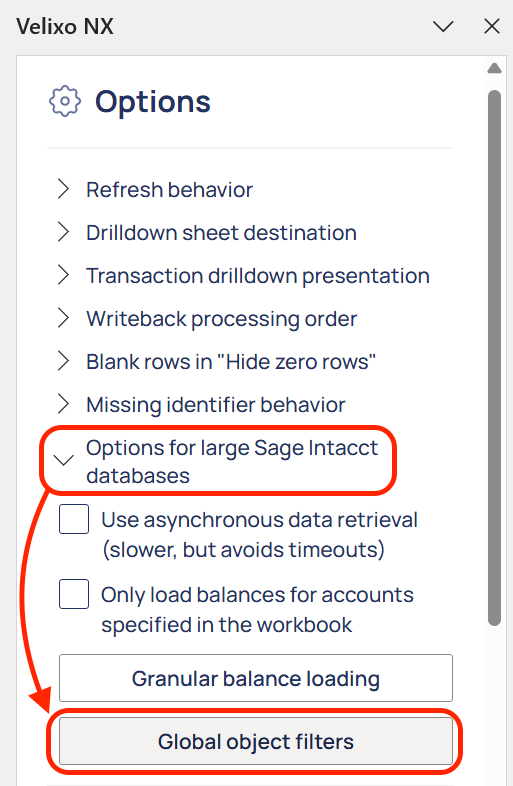
To access the Global Object Filters menu, go to Options in the Velixo NX menu.

Expand Options for large Sage Intacct databases and click the Global Object Filters button.
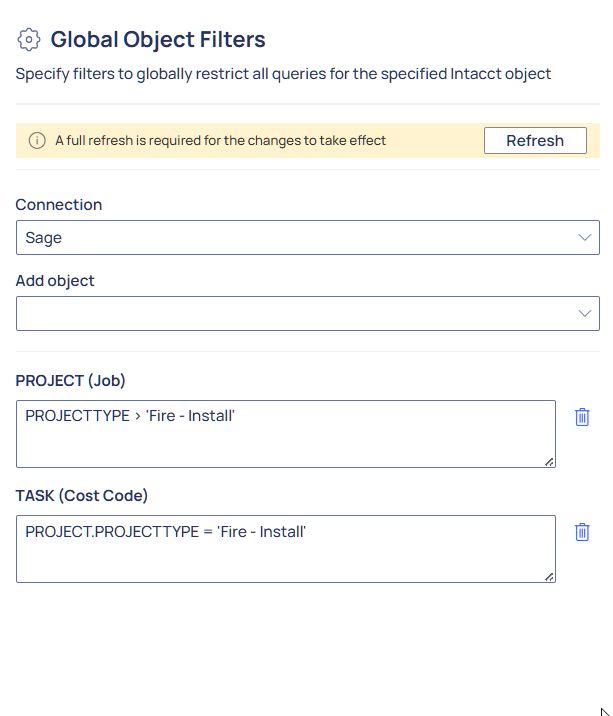
In the Global Object Filters menu, you can:
-
Choose the Sage Intacct connection for which you want to apply filters in the Connection drop-down list
-
Search for Sage Intacct objects to filter in the Add object pop-up panel. All Sage Intacct objects are supported and may be searched for.
-
Add filters for each selected object using the following operators: <, >, >=, <=, =, like, not like, in, not in, IS NOT NULL, IS NULL, AND, OR.
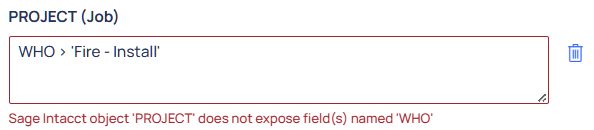
The filters are validated during typing, resulting in error messages for invalid queries.
For the changes introduced in the Global Object Filters menu to take effect, refresh the entire workbook by choosing Full refresh from the Refresh drop-down in the Velixo NX menu or by clicking the Refresh button in the Global Object Filters menu.
