Overview
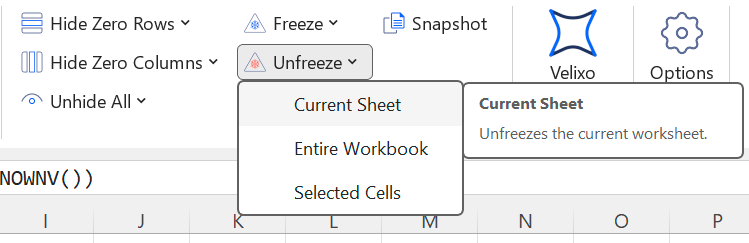
The Velixo NX ribbon includes buttons for Freeze and Unfreeze:

When a worksheet (or entire workbook) is frozen, cells with present Velixo functions will be temporarily converted to the values returned by these functions. The user can use the Unfreeze feature to re-enable the Velixo functions.
The Velixo NX Freeze feature allows us to temporarily disable the Velixo functions. The cases where this functionality is useful include:
-
Working offline (on a flight, for instance, where Velixo cannot reach the ERP)
-
Collaborating with colleagues who do not have a Velixo license without the necessity to remove all Velixo functions from the worksheet
-
If you don't need to Unfreeze the worksheet later, consider using the Snapshot functionality
-
-
Freezing selected worksheets in a workbook to speed up updates
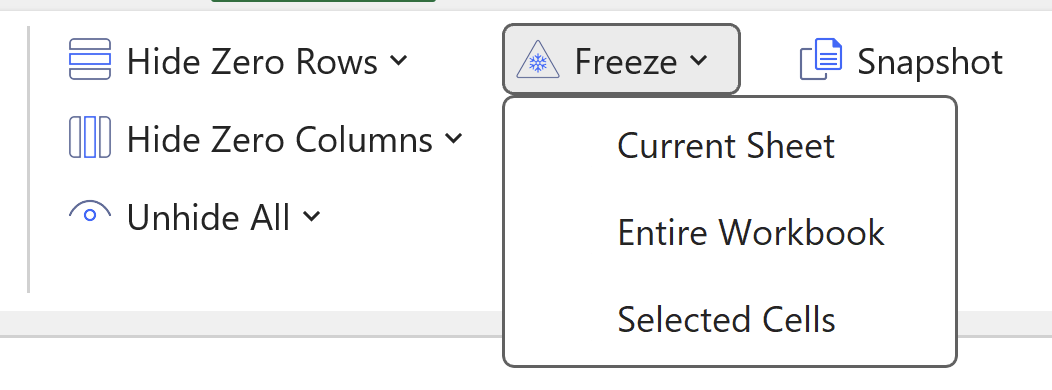
A Freeze can be applied to the entire workbook, the currently active worksheet, or selected cells.
When a frozen worksheet is active, Velixo will display a message in the side panel:

Example
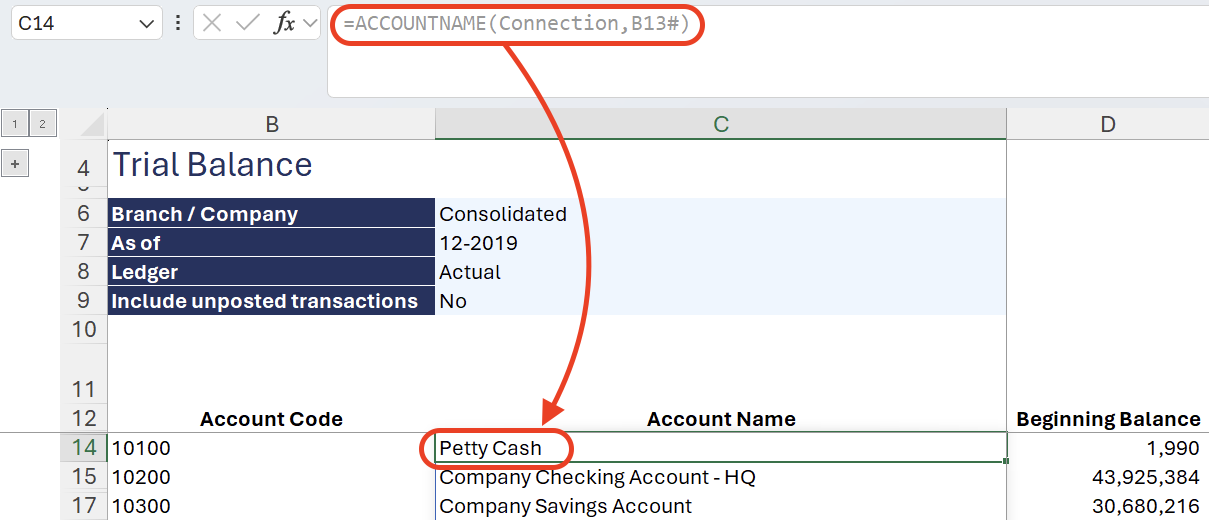
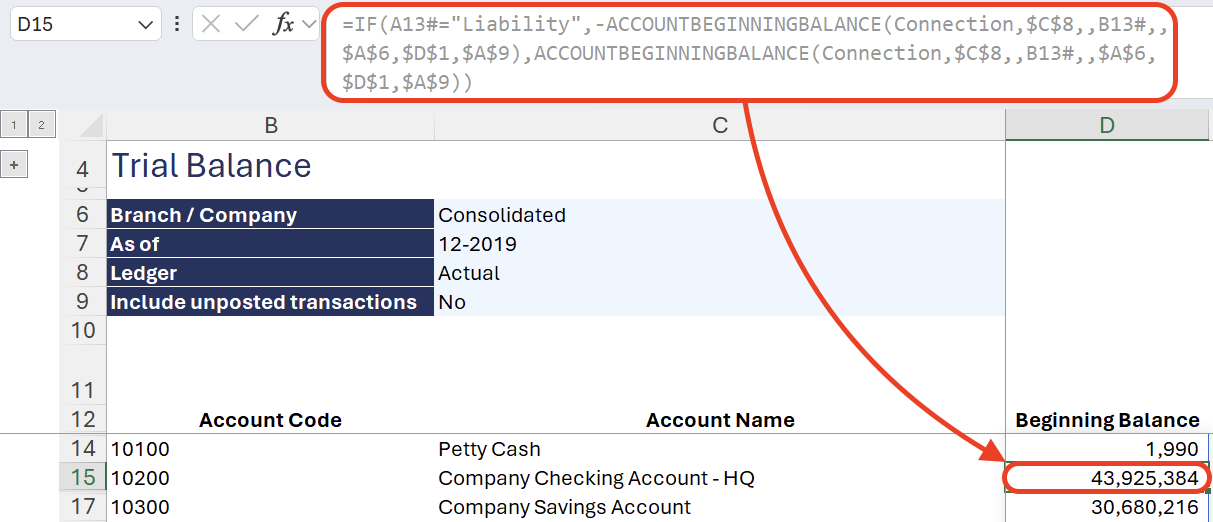
This sample Trial Balance worksheet contains Velixo functions that return data from an ERP instance, for instance:
-
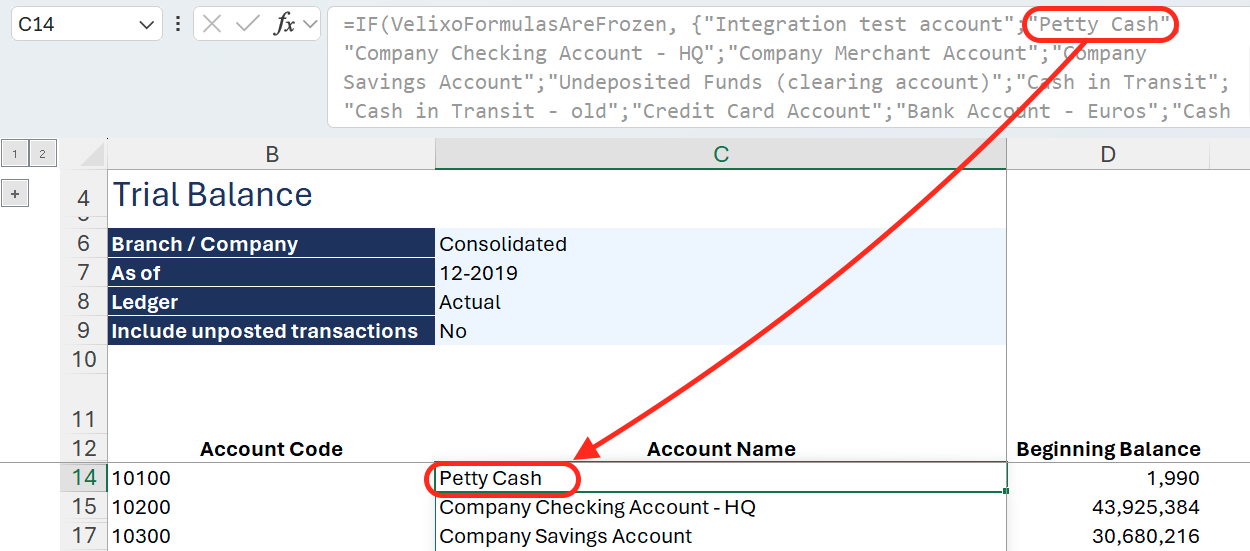
The account name Petty Cash in C14 is returned by the ACCOUNTNAME function
-
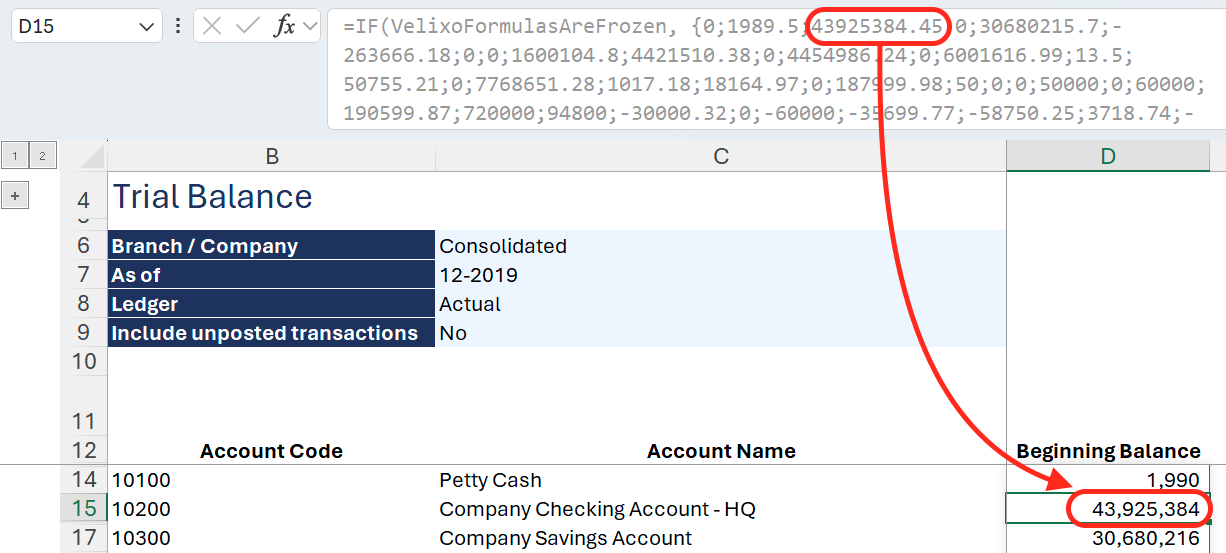
The Beginning Balance value in D15 is returned by a combination of an Excel function and Velixo functions
If you want to share this Trial Balance worksheet with someone who doesn't have Velixo NX, you can Freeze the worksheet by clicking Freeze → Current Sheet in the Tools section in the Velixo NX menu.
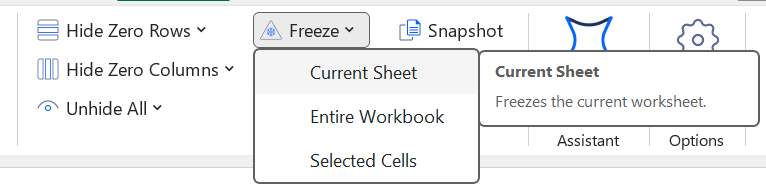
This will temporarily disable all Velixo functions in the worksheet and substitute them with the values they returned when last calculated.
-
The values in the spill range returned by the ACCOUNTNAME function are now stored as strings in the formula, with the function name and its parameters at the end

-
The Beginning Balance values in the spill range returned by the combination of Excel an Velixo functions are now stored as strings in the formula, with the original functions and parameters at the end

Now, the worksheet can be edited offline or without a Velixo license.
You can then Unfreeze the worksheet to bring back Velixo functions.