
Overview
The Velixo Portal is a web application where you manage your Velixo account and predefined ERP connections, and access Report Templates. If you are an Organization admin, you also manage your organization's users and settings there.
You can reach the Portal at https://app.velixo.com/portal/
This article covers:
-
the roles in the Portal and what each role can do,
-
the main areas of the Portal and how to reach them,
-
the Home page,
-
Report Templates.
Roles
You have a role in each organization you belong to. The role determines what you can see and do in the Portal while that organization is selected. Your current role appears under your name in the top-right corner of the Portal.
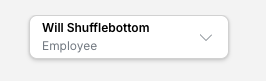
-
Employee – manages their own account and their own connections, and uses shared connections.
-
Organization admin – can do everything an Employee can, and also manages the organization's users, shared connections, and settings.
-
Owner – an Organization admin whose role cannot be changed, and who cannot be deactivated, by other Organization admins. The first Portal user in an organization becomes its Owner. Only the Owner can transfer ownership to another Organization admin.
The following table summarizes tasks available to each role.
|
Task |
Employee |
Organization admin |
|---|---|---|
|
Update your name and language |
Yes |
Yes |
|
Switch between your organizations |
Yes |
Yes |
|
Create, edit, and delete your own private connections |
Yes |
Yes |
|
Enter your own credentials for a Shared - Individual connection |
Yes |
Yes |
|
Share a connection, or edit or delete a shared connection |
No |
Yes |
|
View the user list |
Yes |
Yes |
|
Invite users, cancel invitations, change roles, deactivate users |
No |
Yes |
|
Transfer ownership |
No |
Owner only |
|
Open Organization settings |
No |
Yes |
|
Browse Report Templates |
Yes |
Yes |
Finding your way around
Sidebar
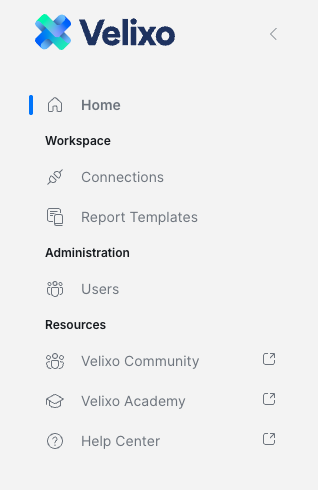
The sidebar on the left is the same for Employees and Organization admins. It contains:
-
Home – the Portal home page.
-
Connections – your predefined ERP connections (feature in public preview). This item appears only when connection management is enabled for you.
-
Report Templates – opens the Velixo report template gallery, where you can find pre-built reports.
-
Administration → Users – the users in your organization.
-
Resources – links to Velixo Community, Velixo Academy, and the Help Center, which are outside the Portal.
Top bar
-
Organization selector (top left) – shows the selected organization. Select it to switch to another organization. See Working with multiple organizations (coming soon).
-
Notifications (bell icon, next to the organization selector) – shows notifications such as invitations to join an organization.
-
Profile menu (top right) – shows your name and your role in the selected organization. Select it to open My account or Sign out. Organization admins also see Organization settings.

Home
The Home page contains the following sections:
-
What's new? – a carousel of Velixo announcements. Use the arrows to move between items.
-
Connections – a summary of your connections: Active connections, connections that Need attention, and connections Pending setup. Select Manage connections to open the Connections page. This section appears only when connection management is enabled for you.
-
Resources – tiles that open Velixo Community (discuss with other users), Velixo Academy (self-paced training), the Help Center (guides and references), and Report Templates (pre-built reports).
-
Help & support – contact Velixo Support with Open ticket, or open the Help Center with Visit Help Center. The card also shows the average support response time.
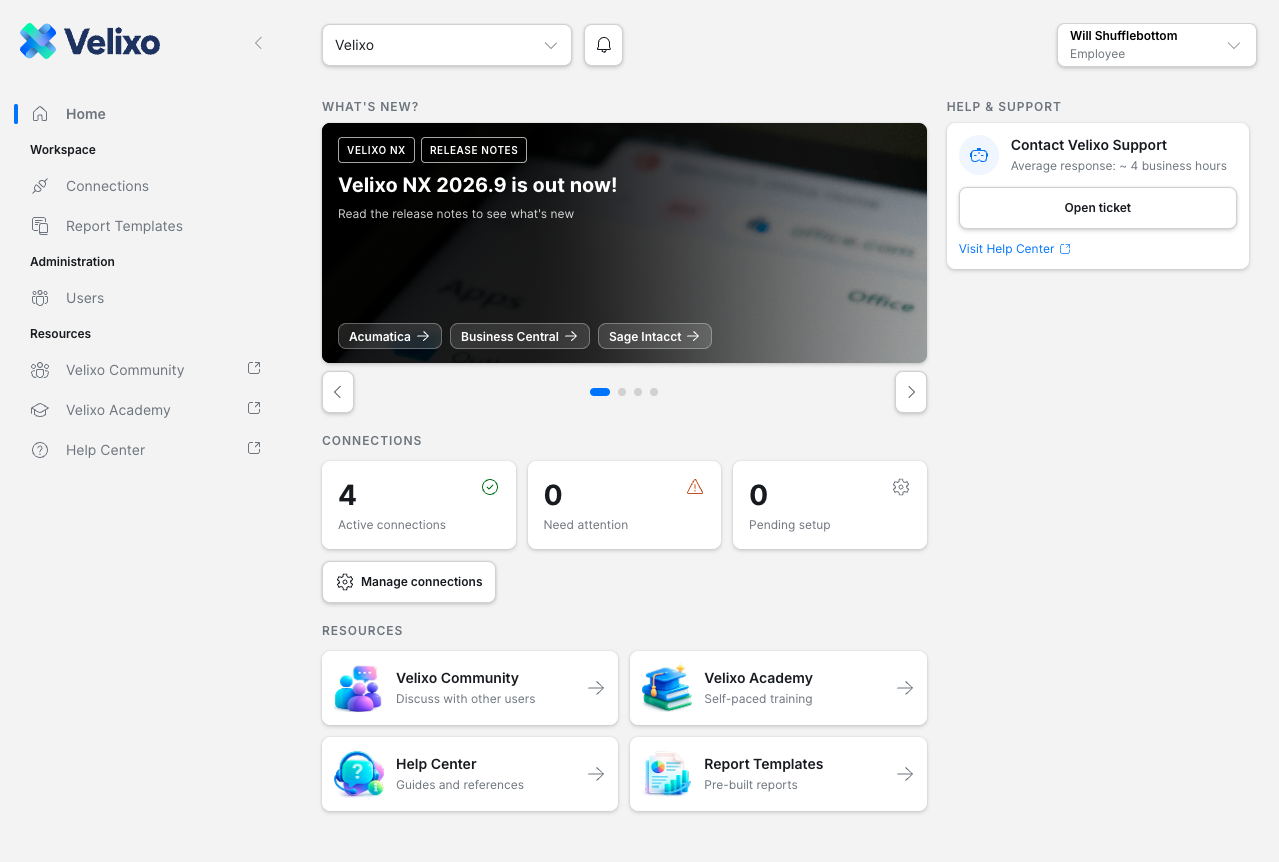
The Home page is also shown before you sign in, with a Sign In button in the top-right corner.
Report Templates
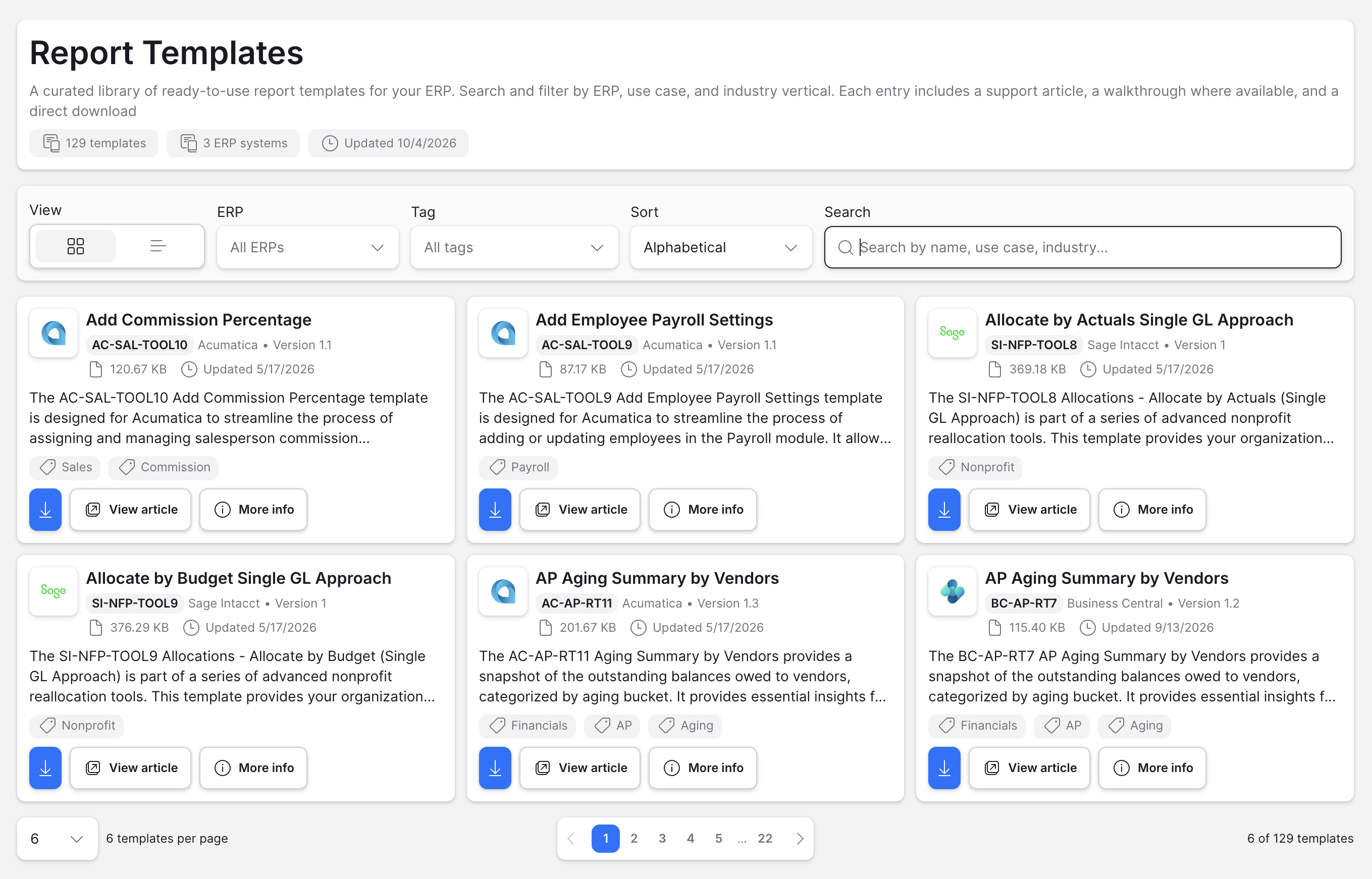
The Report Templates page is a library of ready-to-use report templates for your ERP. To open it, select Report Templates in the sidebar.
Each template shows its code, ERP, version, file size, last update date, a short description, and tags. For each template, you can:
-
download it with the download button,
-
open its support article with View article,
-
open its details panel with More info.
To find a template, filter the list by ERP or Tag, change the Sort order, or search by name, use case, or industry. Use the View buttons to switch between grid and list layouts.
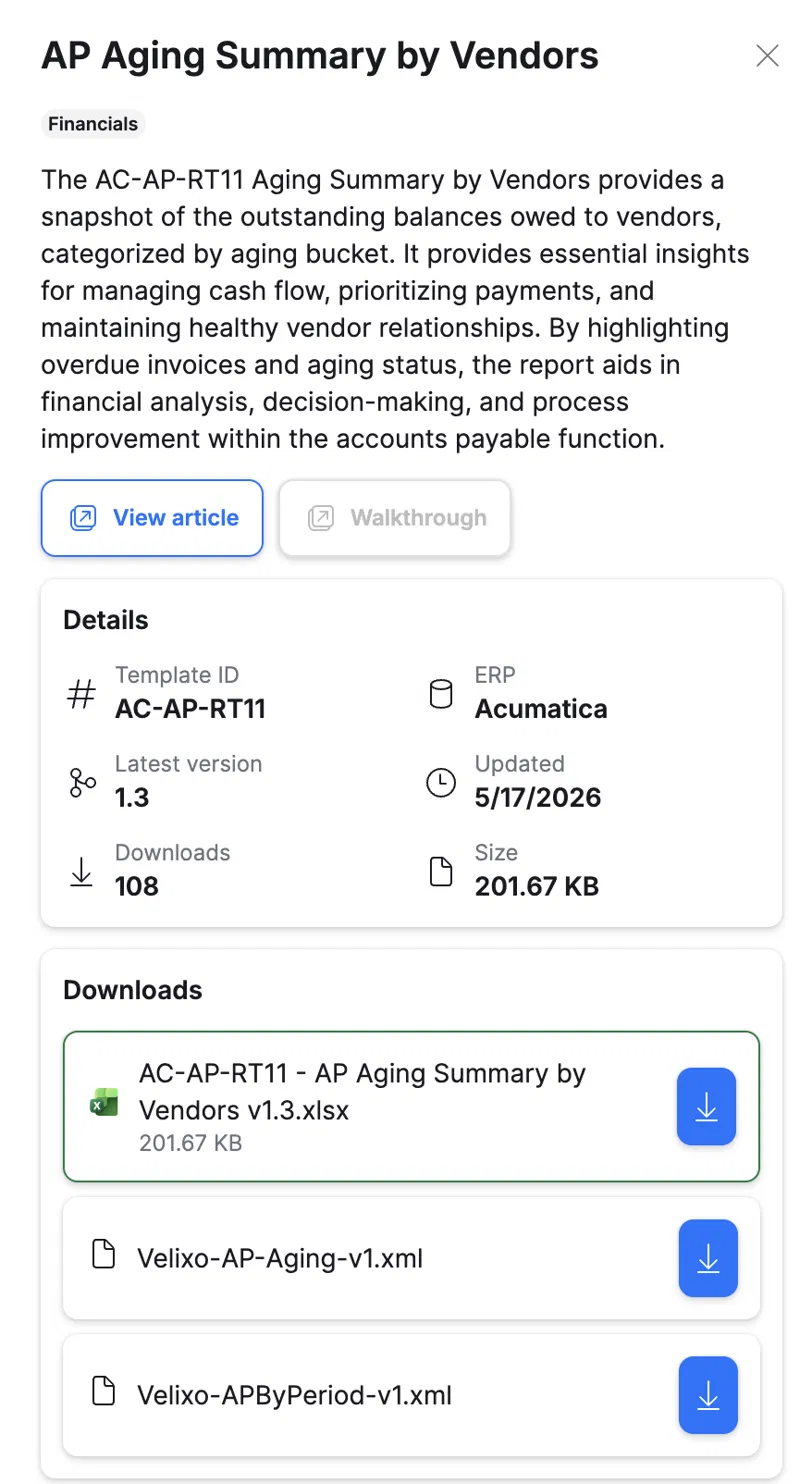
The More info panel opens on the right. It shows the template's description, its details (template ID, ERP, latest version, last update date, number of downloads, and file size), and every file you can download for the template, such as the Excel workbook and any related XML files. From the panel, you can also open the support article with View article and, where available, a Walkthrough.
Related articles
-
Working with multiple organizations (coming soon)