Overview
If you belong to more than one organization, the Velixo Portal and Velixo NX each show one organization at a time. You can switch between your organizations at any time, separately in each.
This article covers:
-
how organizations and roles work in the Portal,
-
switching to another organization,
-
switching organizations in Velixo NX,
-
setting your default organization.
How organizations and roles work
You have a separate role in each organization you belong to. For example, you can be an Organization admin in one organization and an Employee in another.
The selected organization determines which role applies and what you see: the connections, users, and settings on each page belong to that organization. Your role in the selected organization appears under your name in the top-right corner of the Portal.
The organization you select in the Portal does not change the organization in Velixo NX. To switch organizations in Velixo NX, see In Velixo NX below.
Switch organizations
Using the organization selector
-
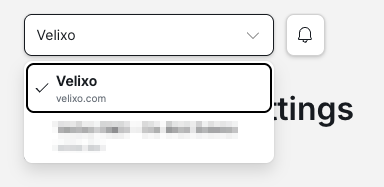
Select the organization selector at the top left of the Portal, next to the notifications bell. The selector is available on every page. The list shows each organization you belong to, with its domain. A check mark shows the selected organization.
-
Select the organization you want to switch to.
The Portal shows a loading indicator while it switches. The page then shows the selected organization and your role in it.
From My account
-
Select your name in the top-right corner, then select My account.
-
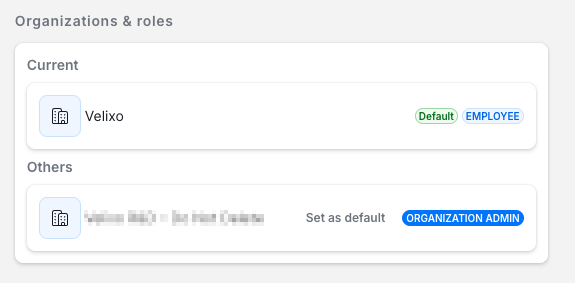
In Organizations & roles, select the role of the organization you want to switch to.
The Portal switches to that organization and you stay on the My account page.
In Velixo NX
Velixo NX has its own organization selection, separate from the Portal. Switching organizations in the Portal does not affect Velixo NX, and vice versa.
-
In Velixo NX, open the Connection Manager.
-
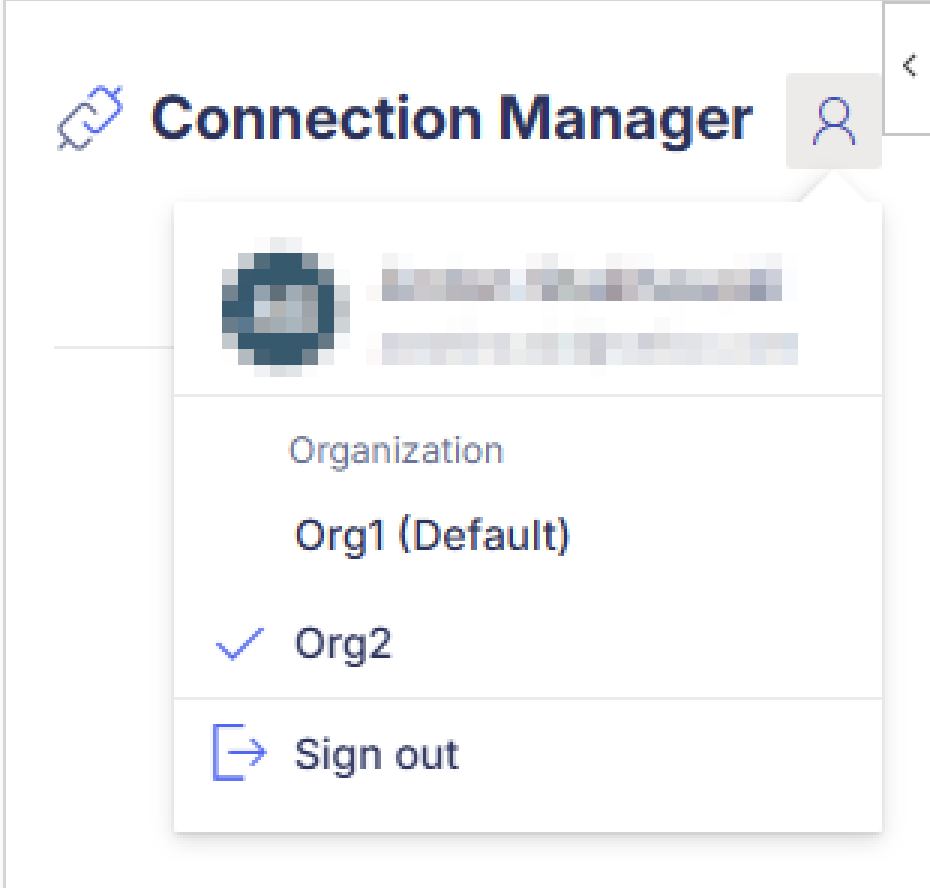
Select the profile icon at the top of the panel.
-
Under Organization, select the organization you want to switch to. A check mark shows the selected organization, and your default organization is marked (Default).
Set your default organization
Your default organization is the organization you start in when you sign in. Each time you sign in, the Portal opens in your default organization, and that organization's settings, feature switches, and options apply until you switch. Switching organizations does not change your default.
In My account → Organizations & roles, your default organization is marked Default. To make another organization your default, select Set as default next to it.