
Overview
You can sign in to the Velixo Portal with a Microsoft work or school account, or with a one-time code that Velixo sends to your work email address. Signing in with a code does not require a password.
This article covers:
-
signing in with Microsoft,
-
signing in with a one-time code,
-
what happens the first time you sign in,
-
accepting an invitation to join an organization,
-
signing out.
Sign in with Microsoft
-
Go to https://app.velixo.com/portal/. If you see the Portal home page, select Sign In in the top-right corner.
-
Optionally, to change the language of the sign-in page, select a language from the list at the top of the page.
-
Select Sign in with Microsoft.
-
Sign in with your Microsoft work or school account (Microsoft Entra ID). Personal Microsoft accounts are not supported.
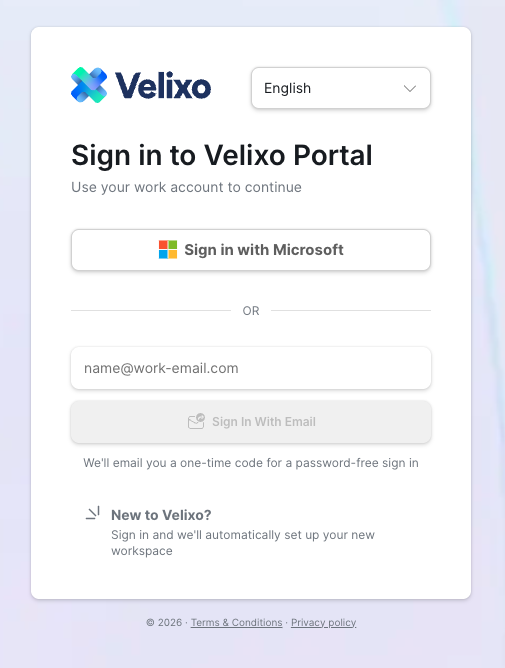
The Portal shows Signing in… while it sets up your session, then opens. If this is your first sign-in, the Portal first asks you to complete your profile, as described in Complete your first sign-in below.
Sign in with a one-time code
-
Go to https://app.velixo.com/portal/. If you see the Portal home page, select Sign In.
-
Enter your work email address in the email field below Sign in with Microsoft.
-
Select Sign In With Email. Velixo emails a one-time code to that address.
-
Open the email from Velixo and copy the code.
-
Enter the code in the Code field and select Sign In.
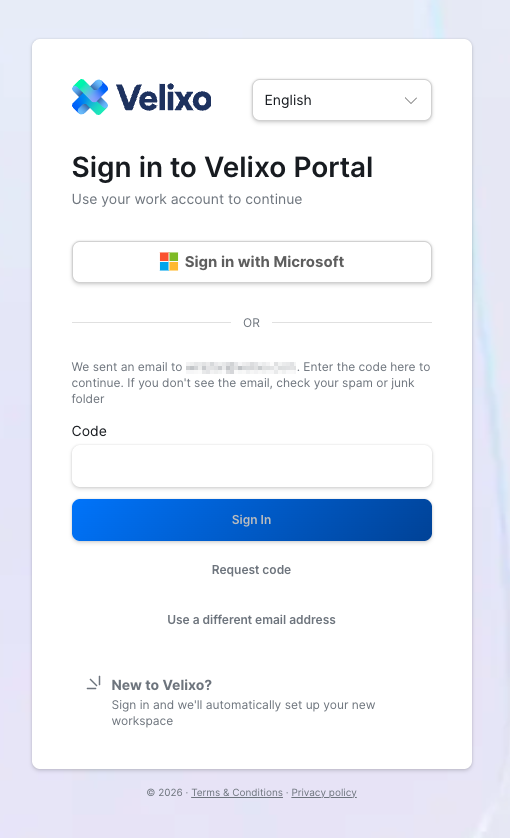
If the code does not arrive:
-
Check your spam or junk folder.
-
Select Request code to get a new code. You may need to wait for a short countdown before you can request one.
-
To use another address, select Use a different email address.
If the address is not in a valid format, the page shows Please provide a valid email address and you cannot request a code.
Complete your first sign-in
The first time you sign in to the Portal, the Welcome to Velixo form asks you to set up your account:
-
Enter your Name. Your Email is filled in from your sign-in and cannot be changed.
-
Optionally, select your Language.
-
Select I accept the Terms of Service and Privacy policy. The form links to both documents.
-
Select Continue. The button is available only after you enter a name and accept the terms.
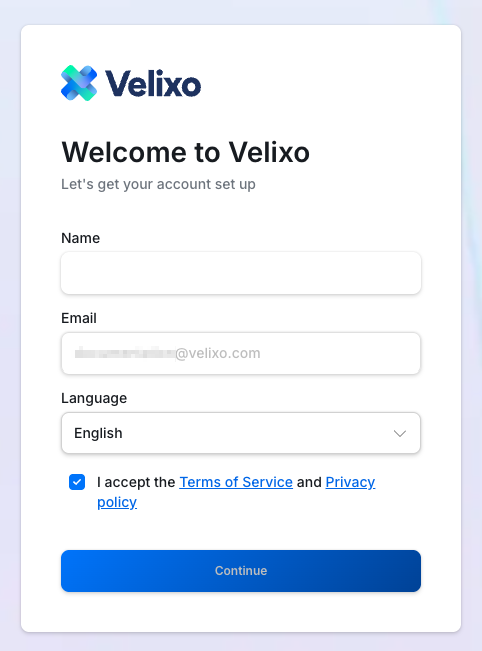
The Portal home page opens. If you are new to Velixo, your workspace is set up automatically when you first sign in. Users who used the previous version of the Portal also complete this form once.
Accept an invitation
When an Organization admin invites you to their organization, you receive an invitation email and a notification in the Portal. You can accept the invitation from either one. An invitation expires 14 days after it is sent.
From the invitation email
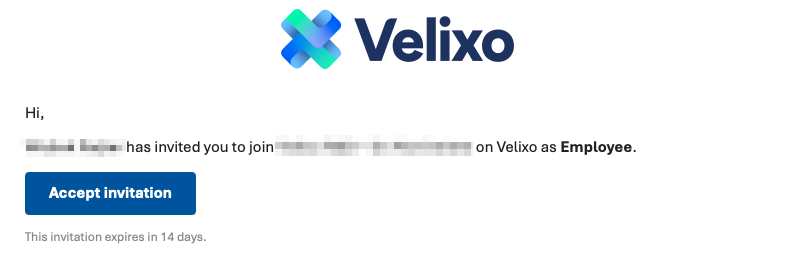
The email shows who invited you, the organization, and the role you are invited with.
-
Open the invitation email and select Accept invitation.
-
The Portal sign-in page opens. Sign in to the Portal.
-
If this is your first sign-in, complete the Welcome to Velixo form, as described in Complete your first sign-in above.
-
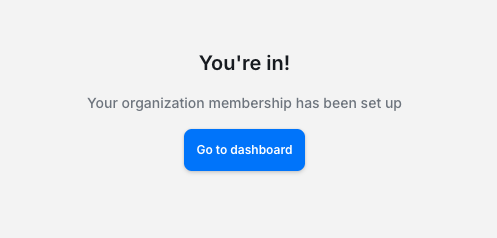
On the You're in! page, select Go to dashboard.
From the Portal
-
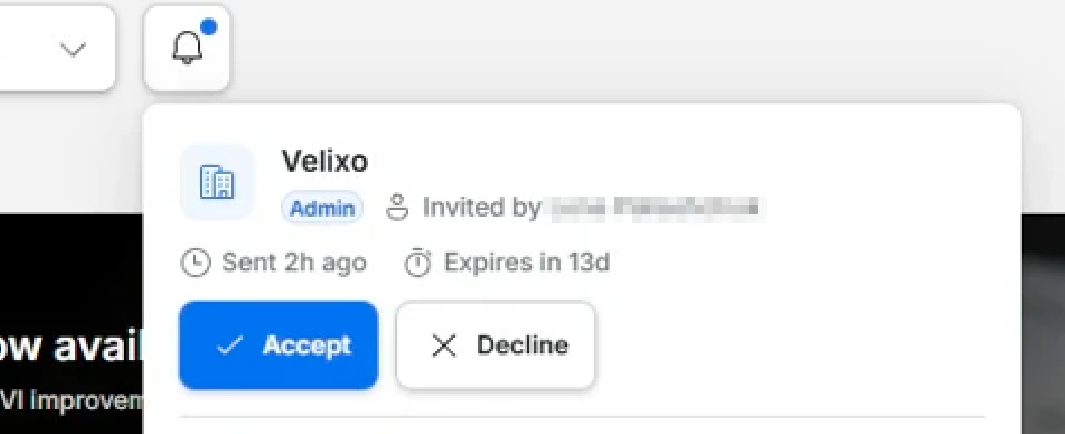
Select the notifications bell in the top bar. Each pending invitation shows the organization, your role, who invited you, when it was sent, and when it expires.
-
Select Accept to join the organization, or Decline to reject the invitation.
Once you accept, you are added to the organization.
Sign out
-
Select your name in the top-right corner of the Portal.
-
Select Sign out.
Related articles
-
Working with multiple organizations (coming soon)