
Overview
While using the Velixo Snapshot feature or distributing reports where formulas are being removed, the following error message is displayed:

Most likely cause
The error message is very accurate. Excel has run out of memory while trying to create the requested copy of the workbook.
The most likely cause of this error is that somehow MANY (often hidden) named regions have been created within the workbook.
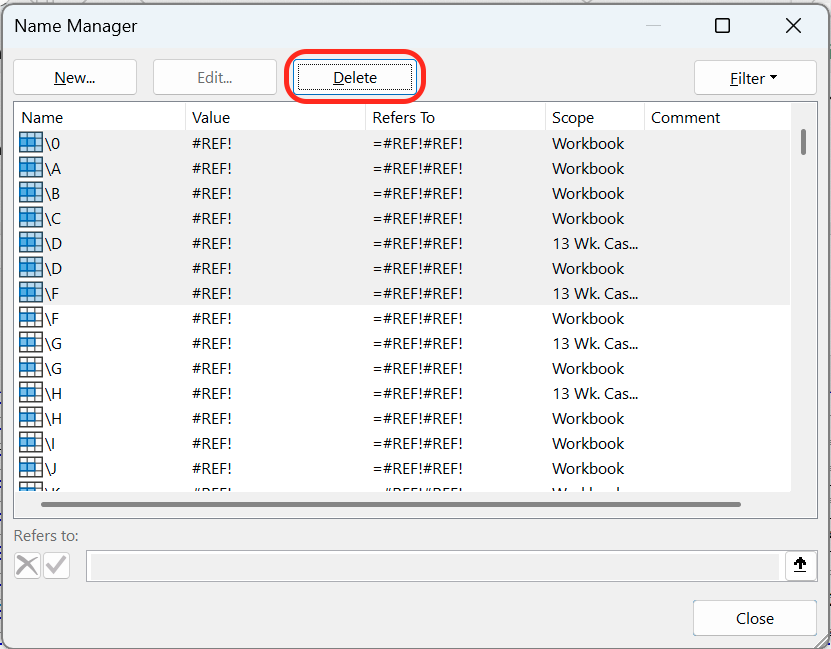
When this occurs, it is typical that the Excel Name Manager...

... is not even able to open to process them all (this is an effective first step in identifying the issue).
Resolution
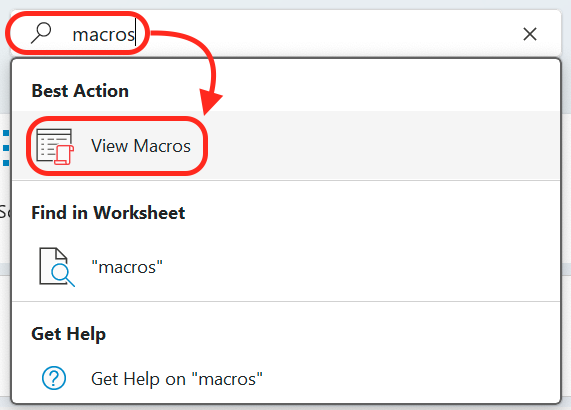
To clean up the named references, we prepared an Excel macro you can use in your problematic workbook. Start by typing "macros" in the Excel help search and open the View Macros menu.
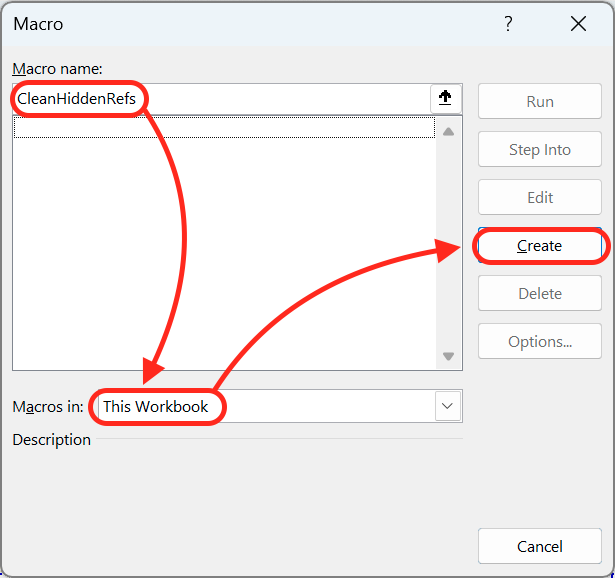
Name your macro, e.g. "CleanHiddenRefs", select to apply it in This Workbook only in the Macros in: dropdown and click Create.
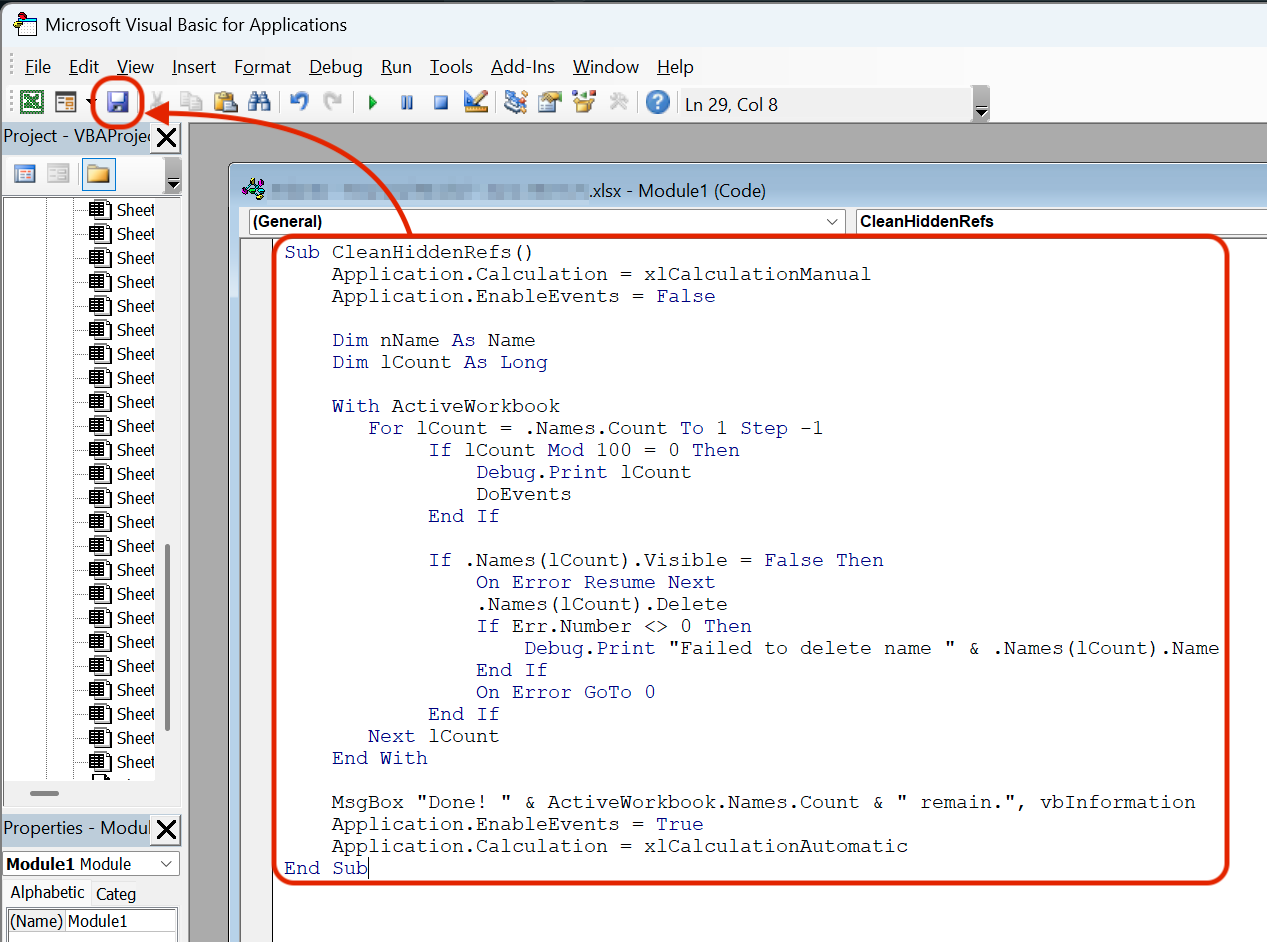
In the Visual Basic editor that appears, paste the following code:
Sub CleanHiddenRefs()
    Application.Calculation = xlCalculationManual
    Application.EnableEvents = False

    Dim nName As Name
    Dim lCount As Long

    With ActiveWorkbook
       For lCount = .Names.Count To 1 Step -1
            If lCount Mod 100 = 0 Then
                Debug.Print lCount
                DoEvents
            End If

            If .Names(lCount).Visible = False Then
                On Error Resume Next
                .Names(lCount).Delete
                If Err.Number <> 0 Then
                    Debug.Print "Failed to delete name " & .Names(lCount).Name
                End If
                On Error GoTo 0
            End If
       Next lCount
    End With

    MsgBox "Done! " & ActiveWorkbook.Names.Count & " remain.", vbInformation
    Application.EnableEvents = True
    Application.Calculation = xlCalculationAutomatic
End Sub
Make sure it looks as follows and click the Save button:
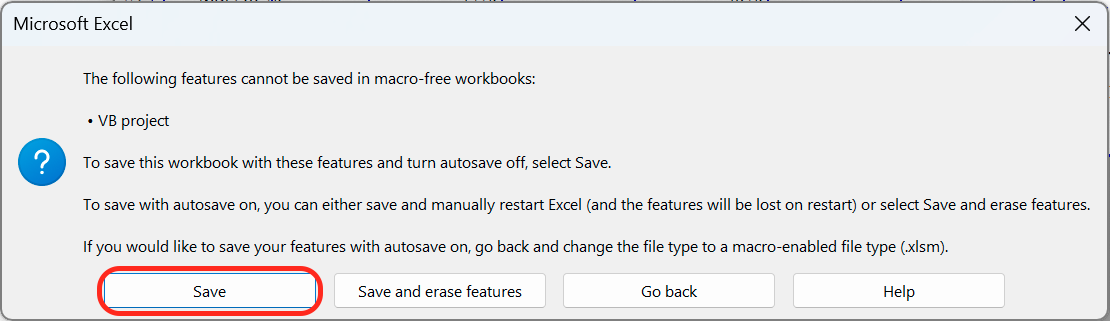
Click Save in the window that pops up.
Click Run in the Microsoft Visual Basic window.

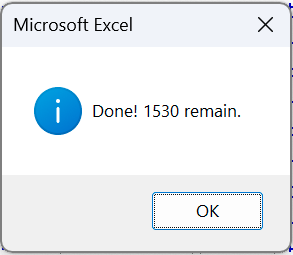
The macro will now remove (most) of the hidden references in your workbook. This part may take up to several minutes, depending on the number of references to be removed. Once done, Excel will display a message similar to the one below.
Now, you should be able to view the remaining references in the Name Manager and remove broken ones by selecting them and using the Delete button.
At this point, you should be able to use the Snapshot feature or distribute reports without formulas.
If the issue persists after applying the resolution above, it may indicate that your machine does not have enough available RAM for the features to work properly.