
Overview
When opening a workbook, the following message can be displayed:

Text of Message
Because of your security settings, macros have been disabled. To run macros, you need to reopen this workbook, and then choose to enable macros.
Resolutions
Situation 1 - Macros are not enabled
You can enable Excel macros by navigating to File → Options → Trust Center → Trust Center Settings → Macros Settings:
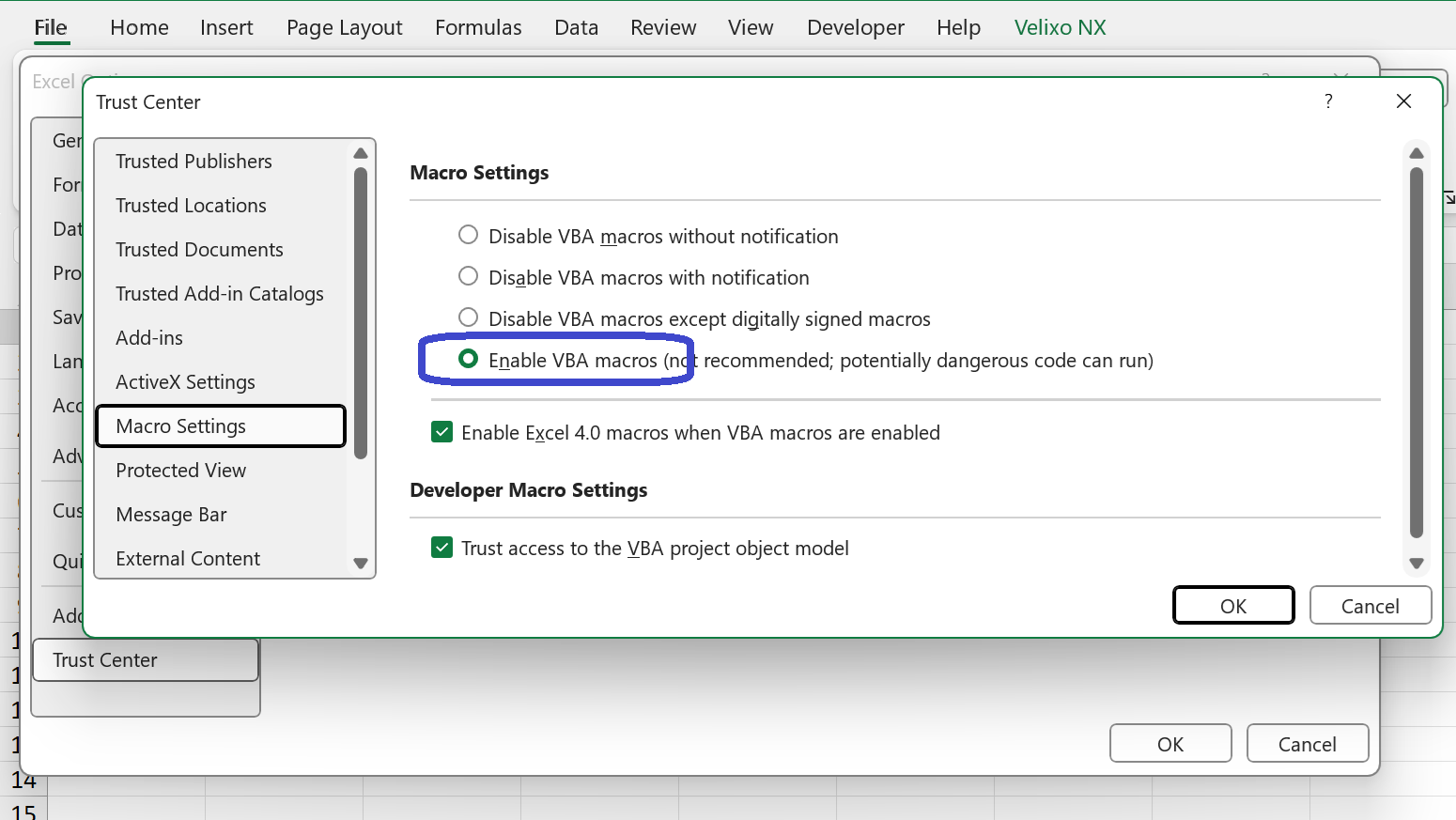
and then ensuring that macros are enabled.
After changing this setting, you will need to close and restart Excel before attempting to open your file.
Situation 2 - The file is saved in a location that is not trusted
Check if the workbook is stored in a trusted location. Files in trusted locations bypass macro security restrictions.
Go to File → Options → Trust Center → Trust Center Settings → Trusted Locations and ensure the folder containing your workbook is listed:
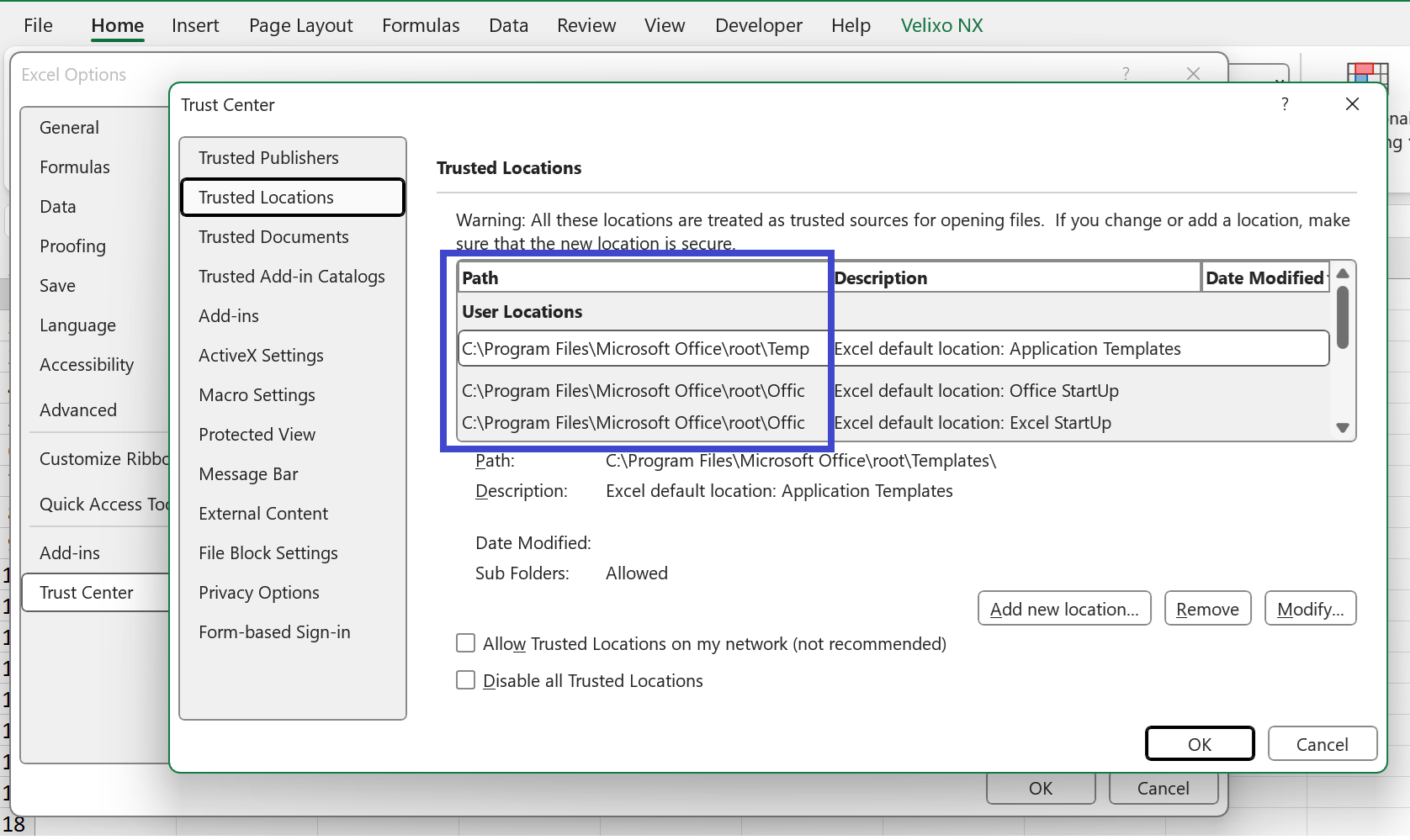
You can also more the file to a location which is already in the trusted locations list and then attempt to open it within Excel.
After changing this setting, you will need to close and restart Excel before attempting to open your file.
Situation 3 - The file is blocked
If the file was downloaded from the internet or an email, Windows might mark it as unsafe.
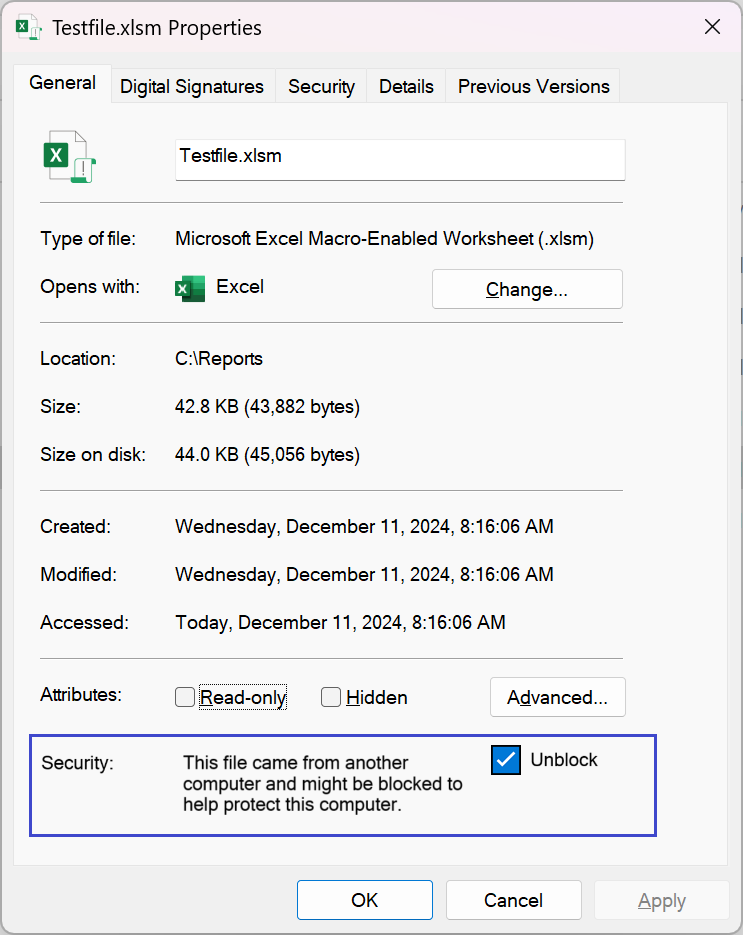
With the file closed, right-click on the file in File Explorer, select Properties, and look for an Unblock checkbox. Check that box and click OK.
Situation 4 - organization group policy is blocking the file
In some corporate environments, IT administrators may enforce restrictions via Group Policy that override individual Trust Center settings. Contact your IT department to verify if such policies are in place.