
Overview
Having multiple Excel workbooks open at a time is a common scenario. This article provides examples of how Excel's UNDO feature behaves in such circumstances.
Example
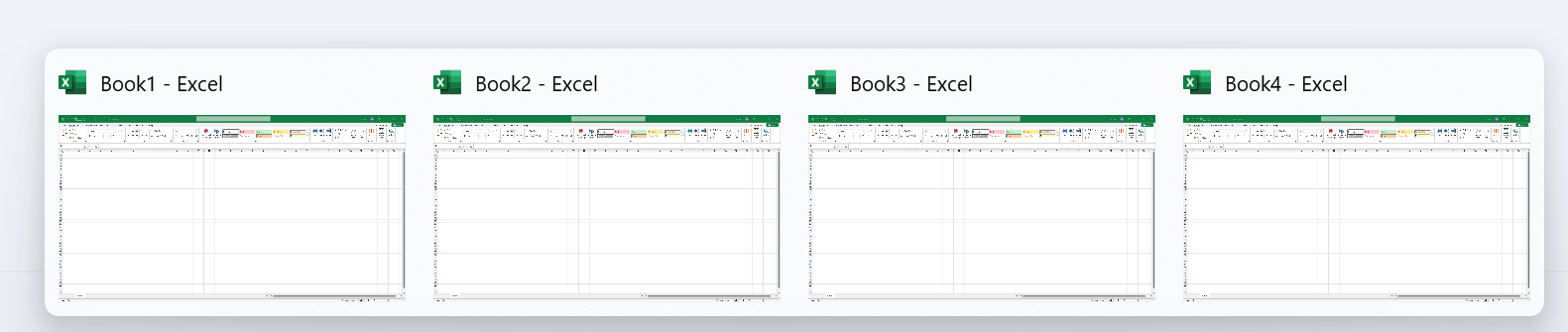
Here is an example with four separate workbooks open in Excel:
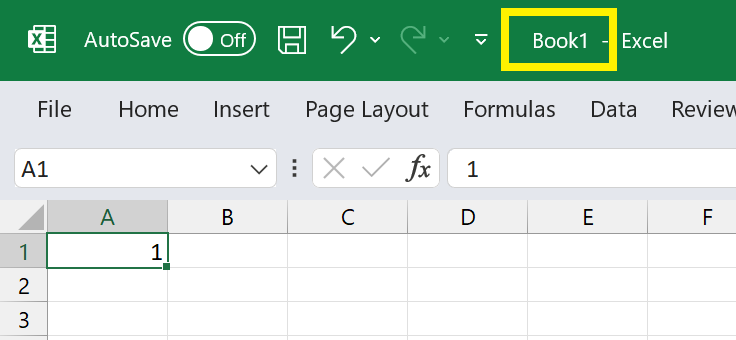
In cell A1 of Book1, we input the number 1:
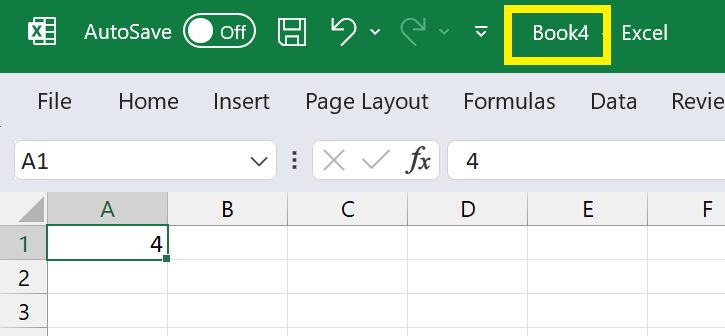
Then we input:
-
the number 2 in Book2
-
the number 3 in Book3
-
the number 4 in Book4
Now, let's switch back to Book1 and hover the mouse cursor over the UNDO button on the Excel title bar:
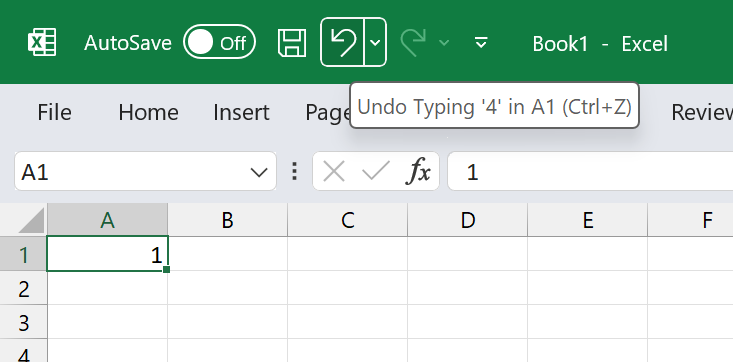
Excel is going to UNDO the change in Book4!
Even though Book1 is currently displayed, the feature will UNDO changes (starting with the most recent one) made across all open workbooks, regardless of the currently active workbook tab.