Overview
When executing SI.QUERY function, you may get an error with code DL02000001.

While you are sure you have specified the correct field names, the query does not work and returns the error.
Cause 1 - Naming issue
This error may point to a problem with the naming. Specifically, Sage Intacct cannot find the field you used in your query.
Another likely cause is an attempt to use the User Defined Dimensions (UDD) names instead of IDs in the query filter when specifying UDD value. The UDD name is visible in the Sage Intacct interface and seems to be a natural UDD identifier. However, unlike predefined dimensions, Sage Intacct does not allow the UDDs related to the queried object to be referred to by their names.
Resolution
In the beginning, ensure the query's fields are named correctly. Use the SI.OBJECTDEFINITION function to get a detailed object description and copy field names if necessary.
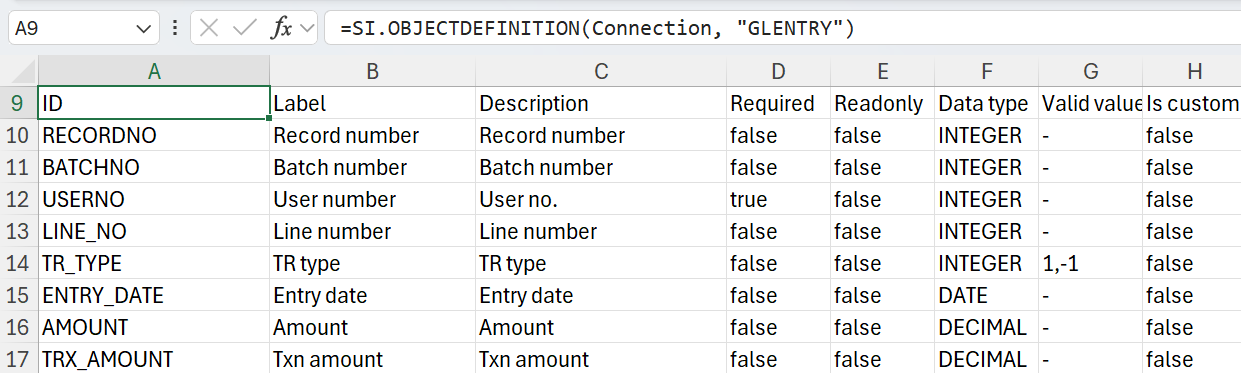
Double-check the fields specified with dot syntax. Their path should include the integration name of the relationship, not the name of the field on which the relationship relies.
In the example below, the path to the site name is RGLDIM14397_10177.NAME, not SITE.NAME.

If all field names are correct, check if you have UDDs in the filter. Ensure the values you specify are UDD IDs, not their names.
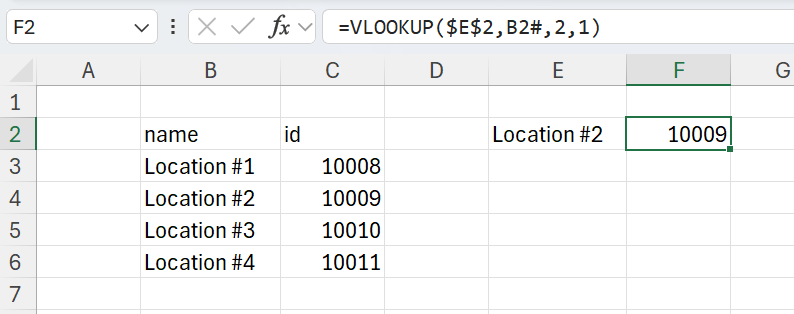
You can query UDD values using an auxiliary query like =SI.QUERY(ConnectionName, "SITE",,"NAME,ID") and then replace UDD names with their IDs in your original query, leveraging VLOOKUP over the auxiliary query result as simple as that:
If, for some reason, you do not like or cannot use the auxiliary query, you can find the UDD value ID in the Sage Intacct. Navigate to the object definition: Applictions → Platform Services → Objects
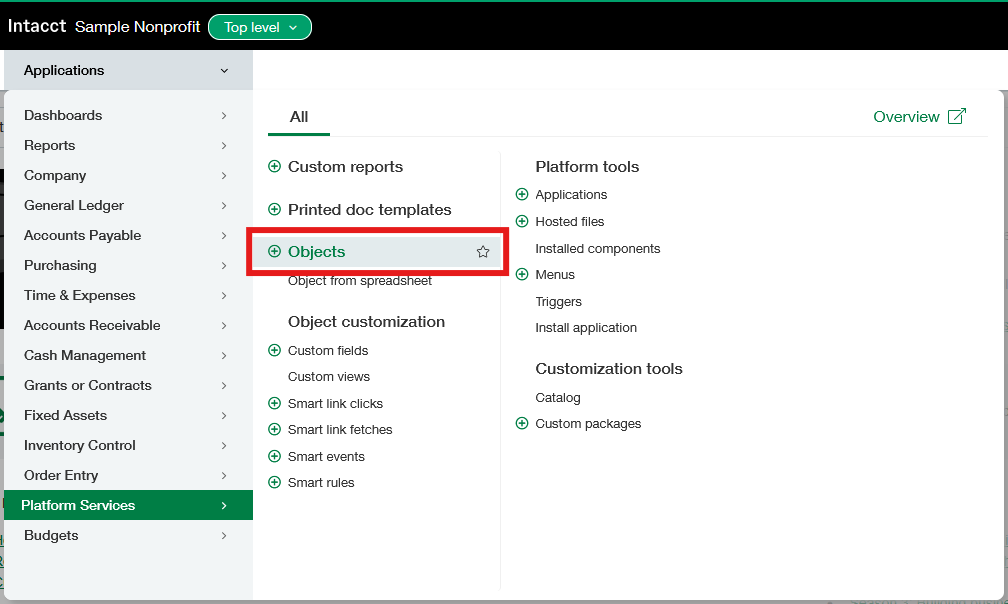
After that, select an object used in the SI.QUERY function. In the first place, make sure you use the integration name of the object field in your query, not the field label.

Then, find a relationship mentioned in the Data type column. Click the Relationships link or scroll down to the Relationships section.
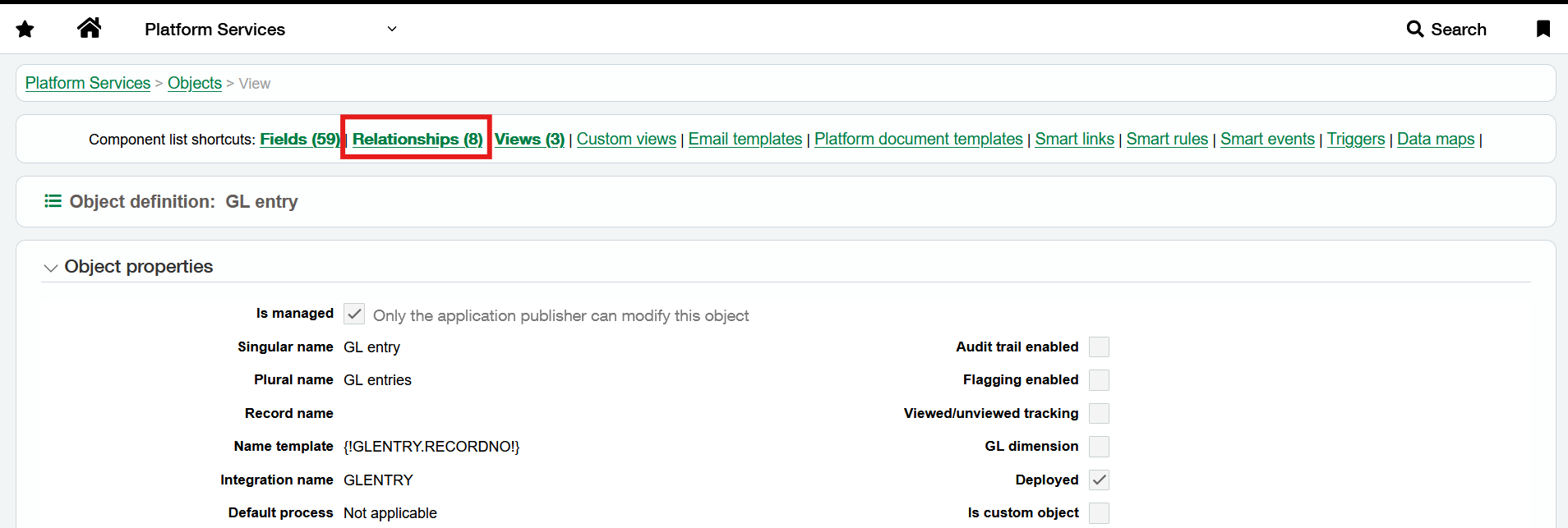
Find the relationship by the Object name.

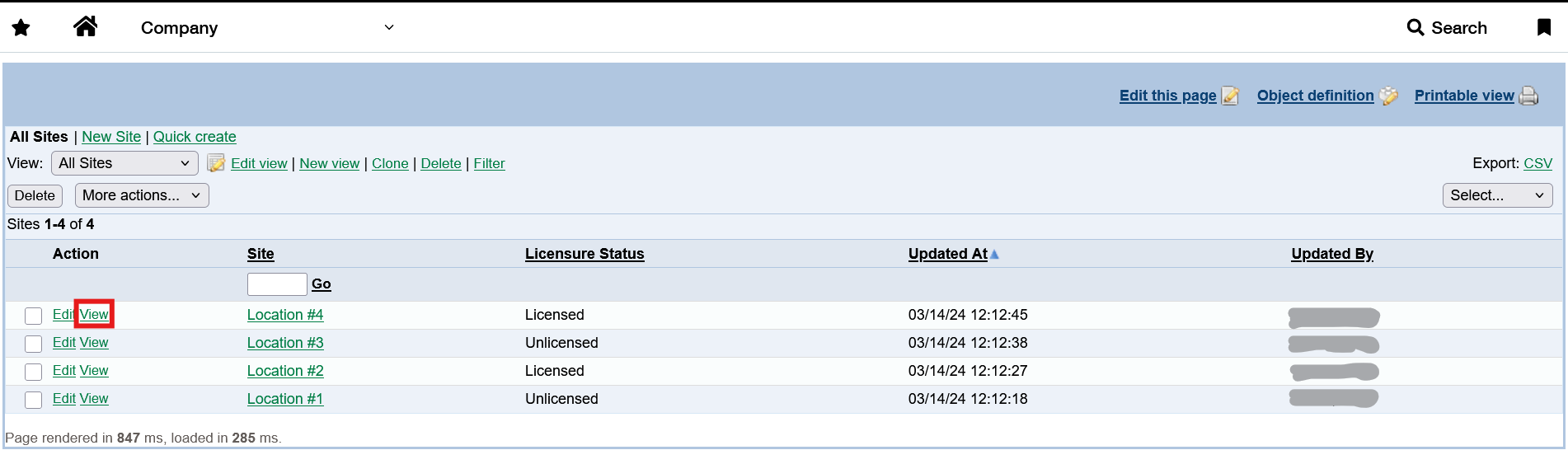
Find the object in the Sage Intacct and view a specific record.
Select the System info tab and find the ID field.
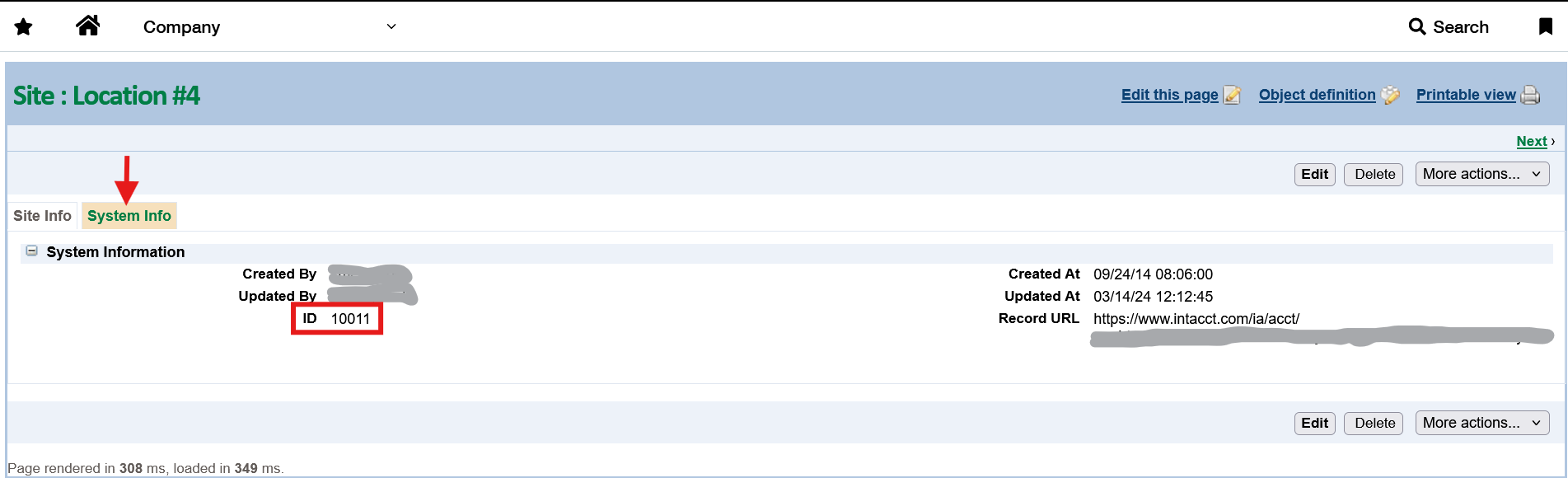
Use the found ID instead of the UDD name in your query.
Cause 2 - Including a custom field from a parent object
Due to a limitation in the Sage Intacct API, users can receive this error when including custom fields from parent objects in the Select argument in their SI.QUERY formula, or via the Insert → Query feature.
For instance, the formula below...
=SI.QUERY("Sage‑NFP","PROJECT",,"PROJECTID,NAME,PARENTID,PARENTNAME,REVENUE_RESTRICTION,PARENT.REVENUE_RESTRICTION",,,A2)
... will return the error when the PARENT.REVENUE_RESTRICTION is present in the formula, even though REVENUE_RESTRICTION is a valid custom field for the parent object.
Workaround
To work around this known issue in the case discussed above, first, remove the problematic PARENT.REVENUE_RESTRICTION field from the Select argument in your original formula.
Create a separate "helper" query to retrieve the record key and required custom field(s), in this case, PROJECTID and REVENUE_RESTRICTION field for all projects, for instance:
=SI.QUERY("Sage-NFP","PROJECT",,"PROJECTID,NAME,PARENTID,REVENUE_RESTRICTION",,,J2)
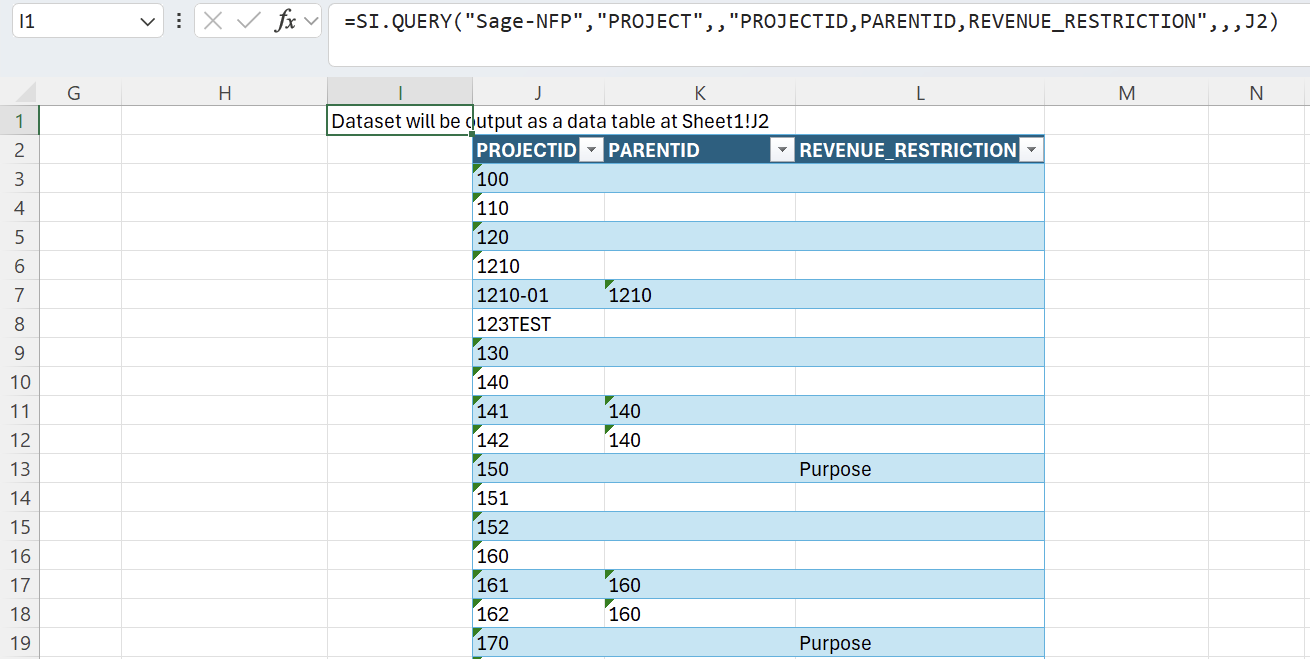
Now add a new column to the table with the results of your original query that you will use to perform a lookup of the REVENUE_RESTRICTION field for parent projects for each record in the original query.
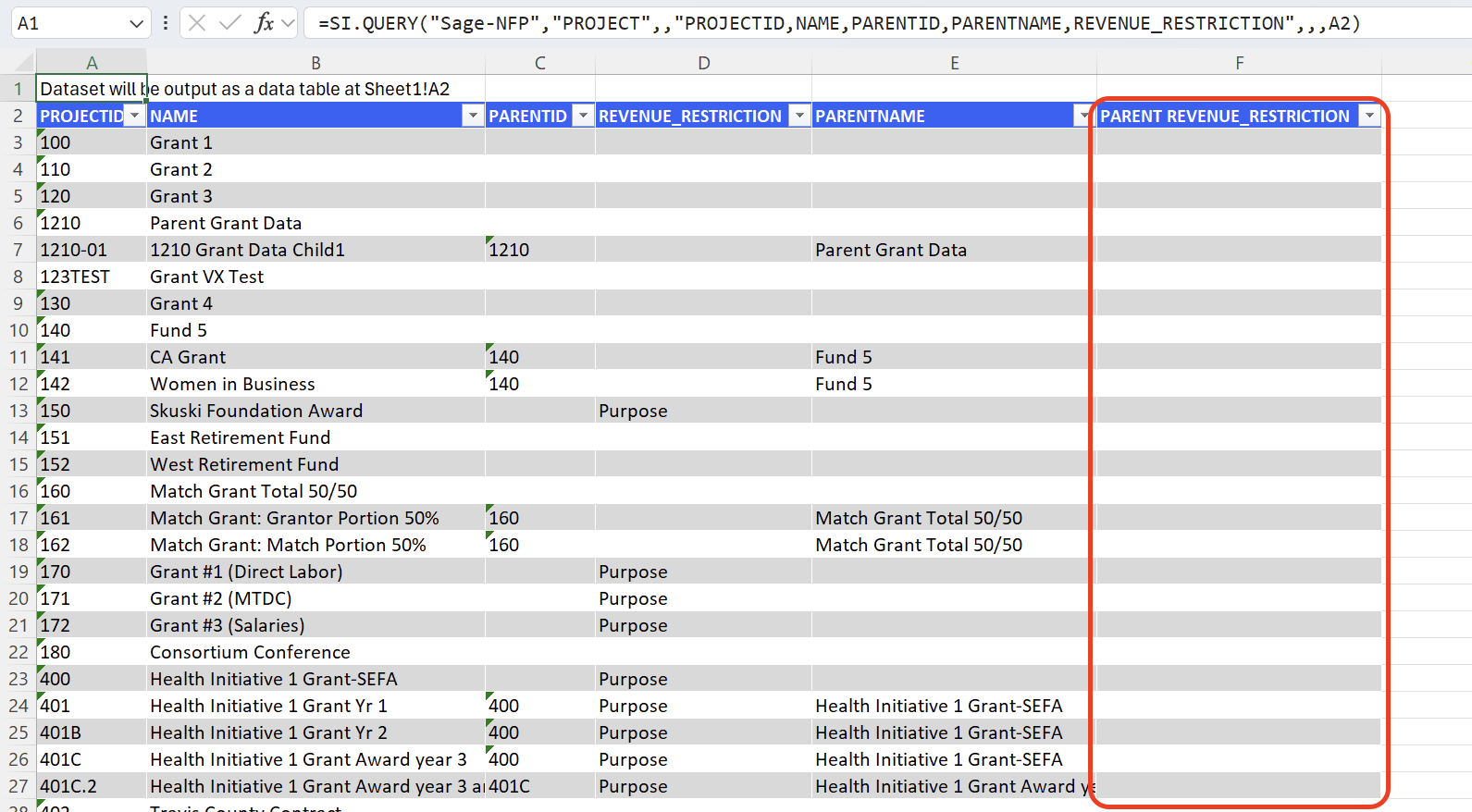
In the new column added to the initial table, create a lookup formula that will return the Revenue restriction for each parent project from the "helper" table, based on the parent project's PROJECTID, e.g.:
=XLOOKUP([@PARENTID],Table3[PROJECTID],Table3[REVENUE_RESTRICTION],"")
Make sure to only use the @ symbol for the first table reference in this formula.
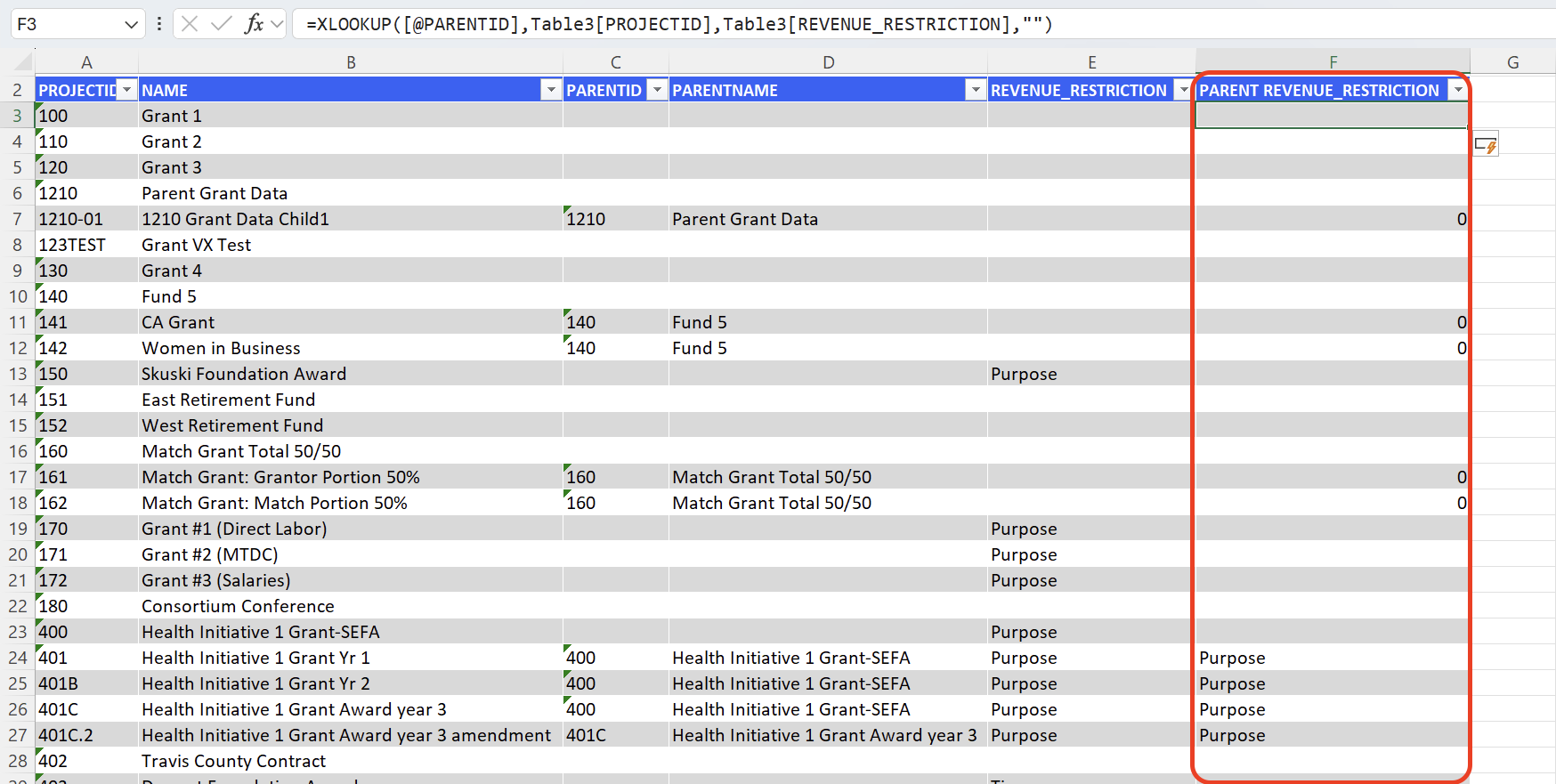
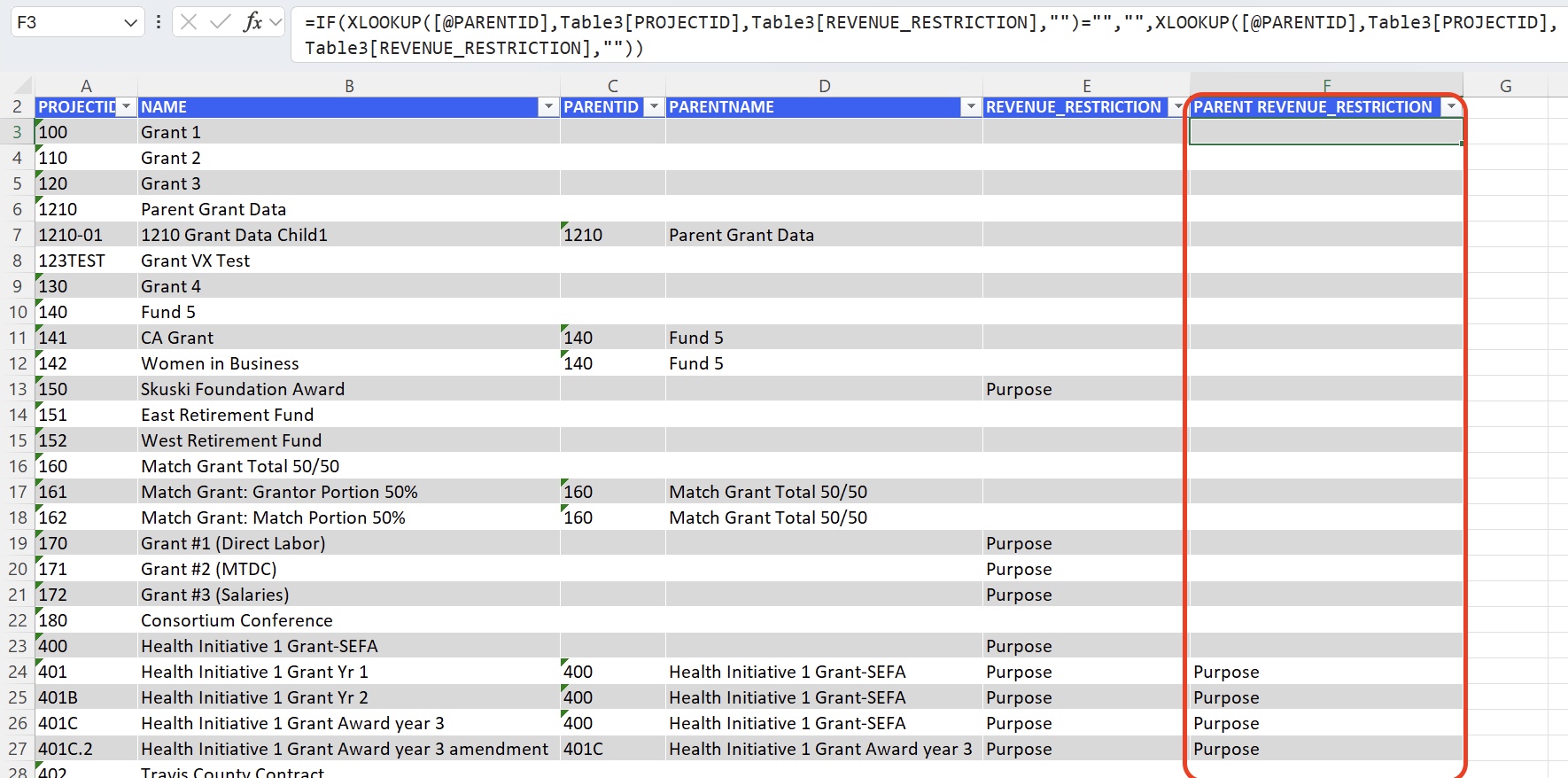
This method retrieves the desired data, however zeroes are displayed where a parent project is defined but its REVENUE_RESTRICTION field is empty. To display empty cells instead of zeroes, add a condition to the lookup query, using Excel's IF function, for instance:
=IF(XLOOKUP([@PARENTID],Table3[PROJECTID],Table3[REVENUE_RESTRICTION],"")="","",XLOOKUP([@PARENTID],Table3[PROJECTID],Table3[REVENUE_RESTRICTION],""))