
Overview
While installing Velixo NX in Excel for Mac, you may encounter an issue when Excel shows an error 'Error Loading Add-Ins' in the Status bar, and it doesn't go any further.

Clearing cache manually
Excel's add-ins are cached on Mac for performance reasons, and it needs to be cleared (either automatically or manually) from time to time.
The error above may indicate that the Excel cache needs to be cleared. The instruction below guides you through the process of manually clearing the Excel for Mac cache.
1. In your Finder on Mac, select Go -> Go to Folder…
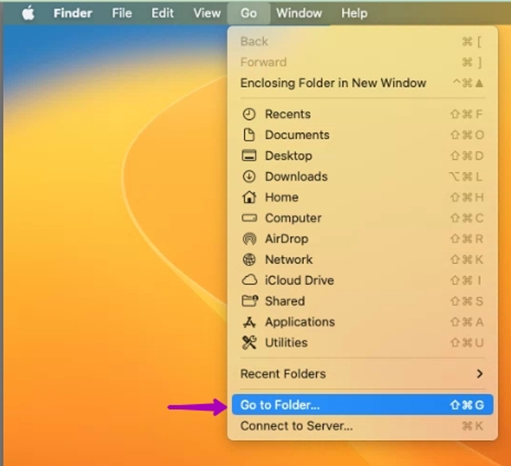
2. Type in the following path and select the match that is found
~/Library/Containers/com.microsoft.Excel/Data/Library/Caches/

3. Delete all the contents of the folder:
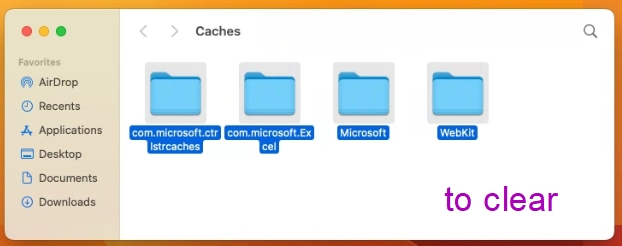
4. Search for another path
~/Library/Containers/com.microsoft.Excel/Data/Library/Application Support/Microsoft/Office/16.0/Wef/
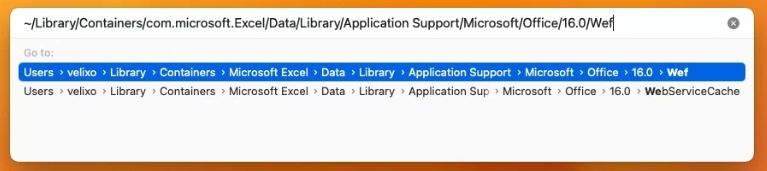
5. Delete this folder's contents, as well:
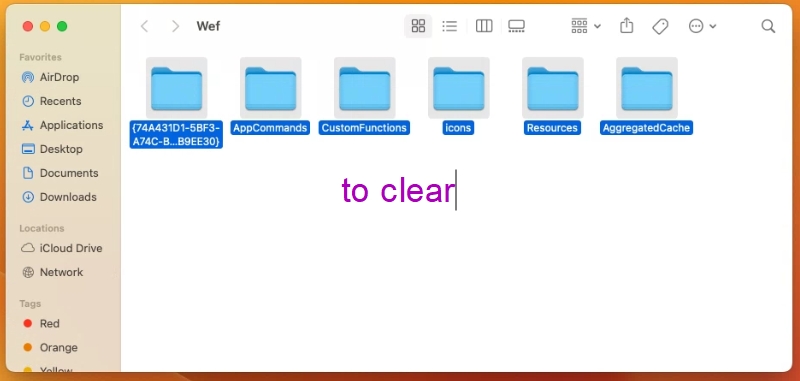
6. Search for a few other locations that might exist and should be cleared along with the previous locations.
~/Library/Containers/com.microsoft.Office365ServiceV2/Data/Caches/com.microsoft.Office365ServiceV2/

~/Library/Containers/com.microsoft.Office365ServiceV2/Data/Library/Caches/com.microsoft.Office365ServiceV2/

~/Library/Containers/com.Microsoft.OsfWebHost/Data/
After the Excel cache on Mac is cleared, you can try installing Velixo NX in the usual way and you should not experience that error.
To learn more about clearing the Office cache please visit the original Microsoft article - https://learn.microsoft.com/en-us/office/dev/add-ins/testing/clear-cache#clear-the-cache-manually