
Overview
The SI.QUERYFILTER function returns a string that can be used as input for the FILTER argument in the SI.QUERY function.
Syntax
=SI.QUERYFILTER(
    ConnectionName,
    Object,
    Column,
    Criteria,
    AnotherColumnOrCriteria1,
    AnotherColumnOrCriteria2,
    ...
)
Arguments
The SI.QUERYFILTER function uses the following arguments:
|
Argument |
Required/Optional |
Description |
|
|
Optional |
Provide one of the following values:
This function does not support the multiple connection functionality. If the argument is omitted, and there exists a connection that is compatible with the formula, this connection will be used. |
|
|
Required |
The name of the Sage Intacct object to filter (e.g., Use
|
|
|
Required |
The name of the first column to which the criteria is to be applied |
|
|
Required |
This can be:
|
|
|
Optional |
Second object used for filtering. |
|
|
Optional |
Criterion for the second filter. |
|
... |
|
|
Examples
Null values
=SI.QUERYFILTER(
    "Sage",
    "Employee",
    "Title",
    "null"
)
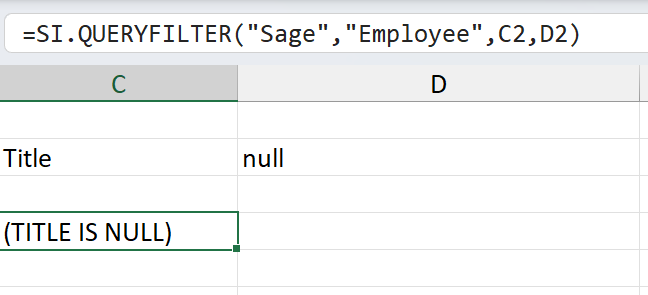
(example using cell references)
Result
(TITLE IS NULL)
Not null values
=SI.QUERYFILTER(
    "Sage",
    "Employee",
    "Title",
    "not null"
)
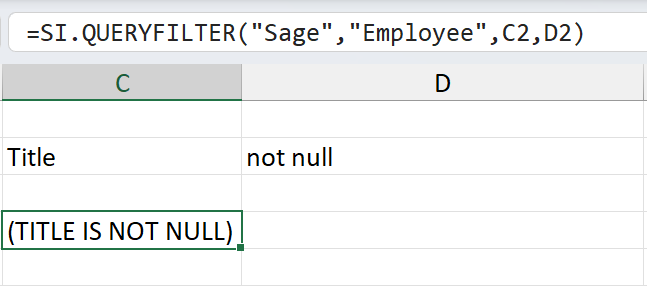
(example using cell references)
Result
(TITLE IS NOT NULL)
Multiple Values
When we want the data from an object where a field can be set to one of multiple values, we can use a reference to a range of cells containing those values:
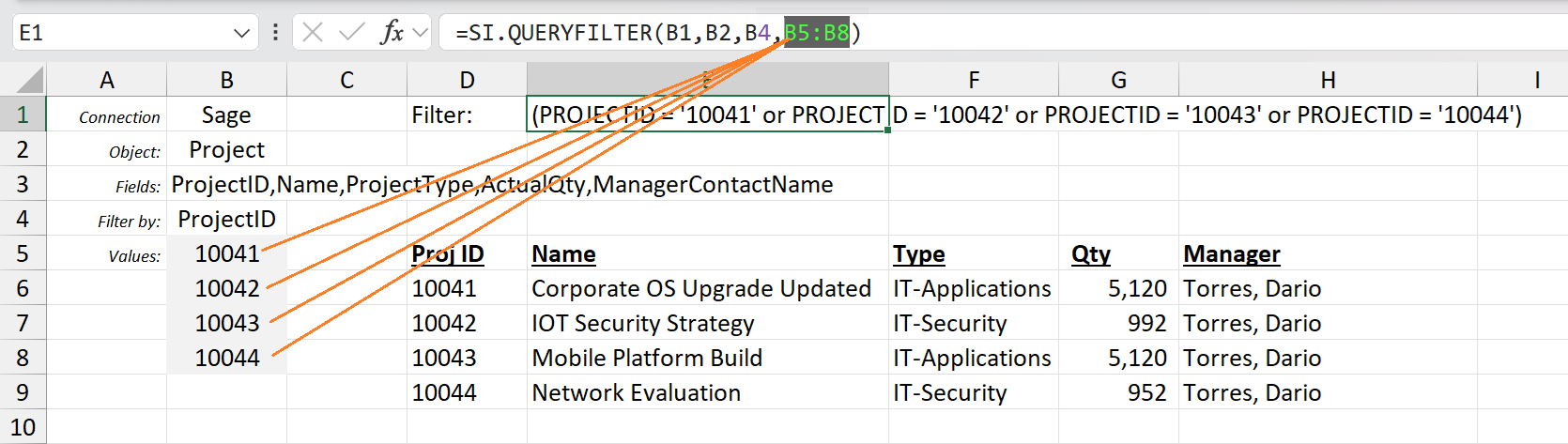
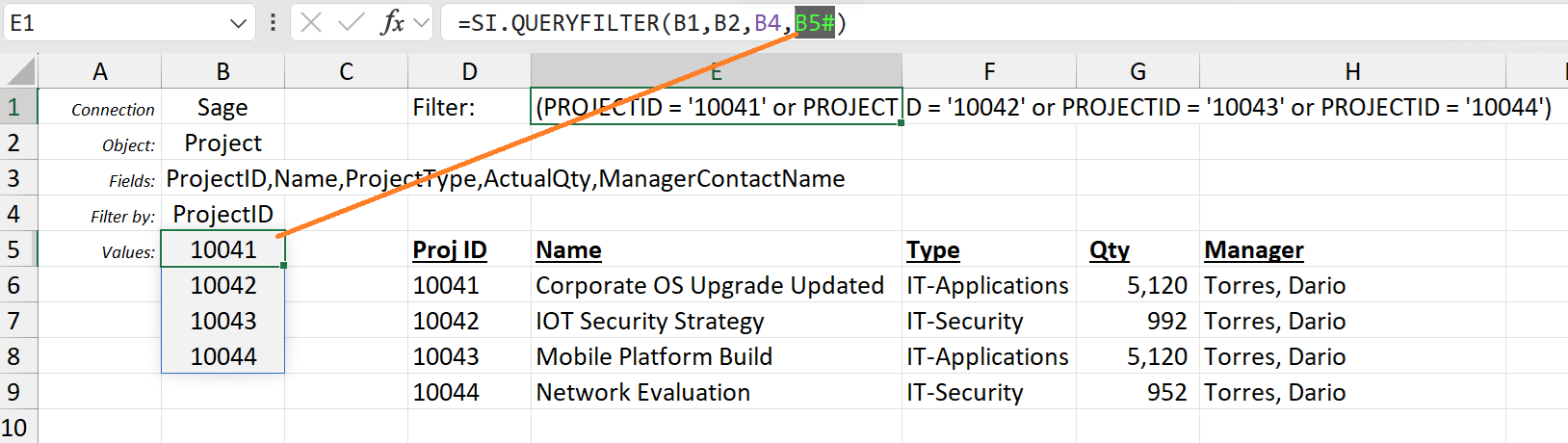
or, if the values are returned by an array function, we can use array referencing:
Wildcards
Sage supports two wildcard characters:
-
* - Matches anything up to, or after the characters
-
? - Matches a single character
If a value contains one of these characters, eg. "Name", "M?k*", we get:
(Name LIKE 'M_k%')
We can also use "Name", "not like Mi*", to get:
(Name NOT LIKE 'Mi%')
All Values
When used by itself, an asterisk (*) is interpreted to mean the same thing as "is not null".
For example:
=SI.QUERYFILTER(
    A1,
    "Location",
    "LocationID",
    "*"
)

Using the asterisk and question mark (*?) can be used to match and any and all values.
For example:
=SI.QUERYFILTER(
    A1,
    "Location",
    "LocationID",
    "*?"
)
In practice, this results in a non-filter (since nothing is really being filtered).
e.g.,

STATUS is not included in the resulting filter
Empty values
Excel treats empty cells as the value 0. As such:
-
If the user specifies for column name and criteria, respectively,
"ColumnName", A1 -
and A1 is an empty cell
-
The function will return
ColumnName='0'(orColumnName =0, depending on the data type)
In order to obtain a truly empty value, an apostrophe (') should be used in the criteria cell. Thus:
-
If the user specifies for column name and criteria, respectively,
"ColumnName", A1 -
And A1 contains the value '
-
The function will return
ColumnName=''
Similarly, when working with date columns, specifying an empty cell will result in:
(BIRTHDATE = '12/30/1899')
Which equates to 0 in the Excel date system.
Less Than or Greater Than comparisons
=SI.QUERYFILTER(
    "Sage",
    "Employee",
    "Birthdate",
    ">=01/01/2000"
)
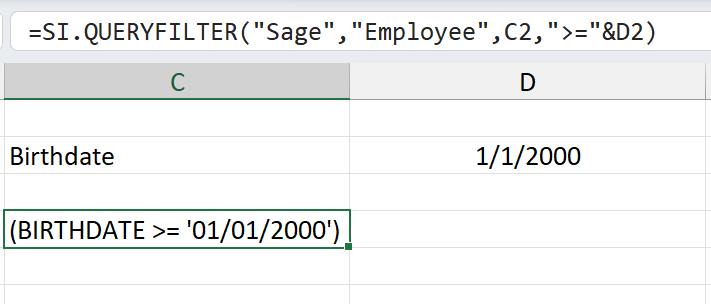
(example using cell references)
Result
(BIRTHDATE >="1/1/2000")
Specific Data Types
Percentages
Percentages must be passed as a decimal value between 0 and 1. An Excel cell formatted as % should return values like this.
Currency
Currency values should be passed as a number only, without any monetary symbols
Date and Timestamp
Support is provided for the following formats:
-
yyyy-MM-dd HH:mm:ss
-
yyyy-MM-dd
-
MM/dd/yyyy HH:mm:ss
-
MM/dd/yyyy
-
Excel dates
-
ISO format yyyy-MM-ddTHH:mm:ss
For example:
=SI.QUERYFILTER(
    A1,
    "GLENTRY",
    "WHENCREATED",
    "> 2020-04-27 23:19:10"
)
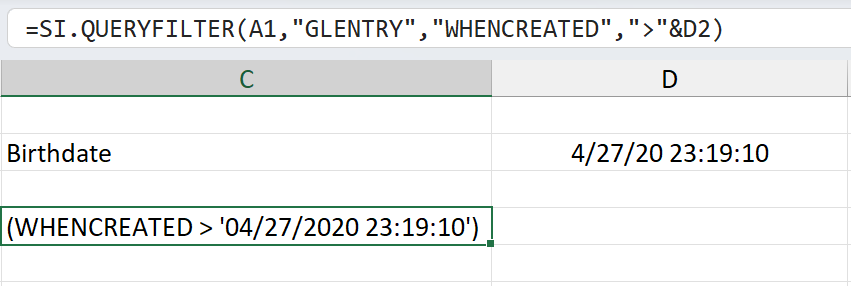
(example using a cell reference)
Results
(WHENCREATED > '04/27/2020 23:19:10')
Boolean values
Boolean (true/false) values can be specified as:
-
Excel native Booleans:
=SI.QUERYFILTER(
    $E$4,
    "Employee",
    "POSTACTUALCOST",
    TRUE
)
-
A string:
=SI.QUERYFILTER(
    $E$4,
    "Employee",
    "POSTACTUALCOST",
    "true"
)
-
A zero (false) or one (true):
=SI.QUERYFILTER(
    $E$4,
    "Employee",
    "POSTACTUALCOST",
    1
)
All the examples above should result in the same filter:
(POSTACTUALCOST = true)
Due to Excel treating empty cells as the value zero, specifying an empty cell will result in:
(POSTACTUALCOST = false)