Overview
A common question is...
"Which Velixo Refresh option should I choose?"
Let's look at the Velixo NX Refresh options and how they work
Velixo NX refresh features
Velixo NX is built using the latest extensibility technologies available in current versions of Excel and Microsoft 365 for Windows, Mac, and Web versions of Office.
Velixo NX is built on the modern official Microsoft Office extensibility framework (Office.js) available in current versions of Excel and Microsoft 365 for Windows, Mac, and Excel Online.
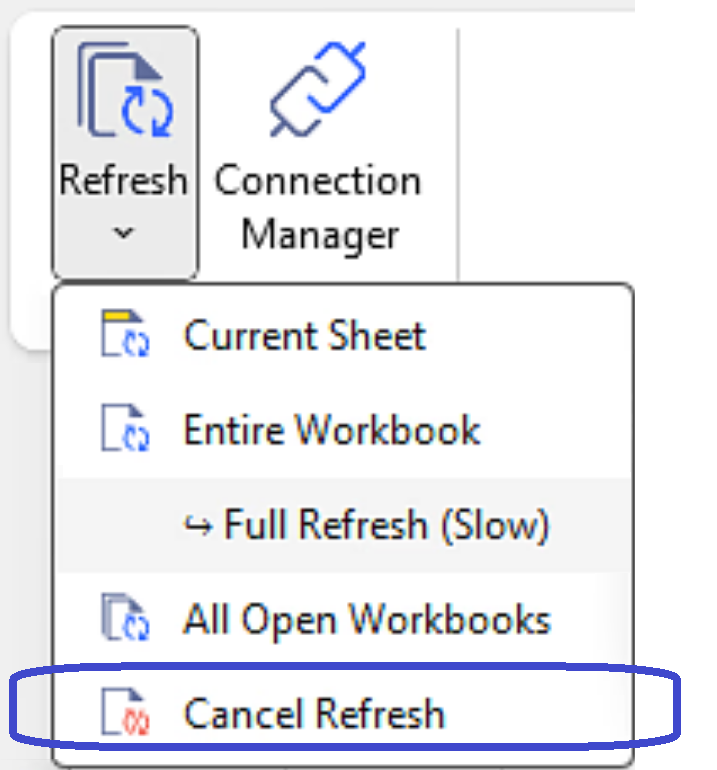
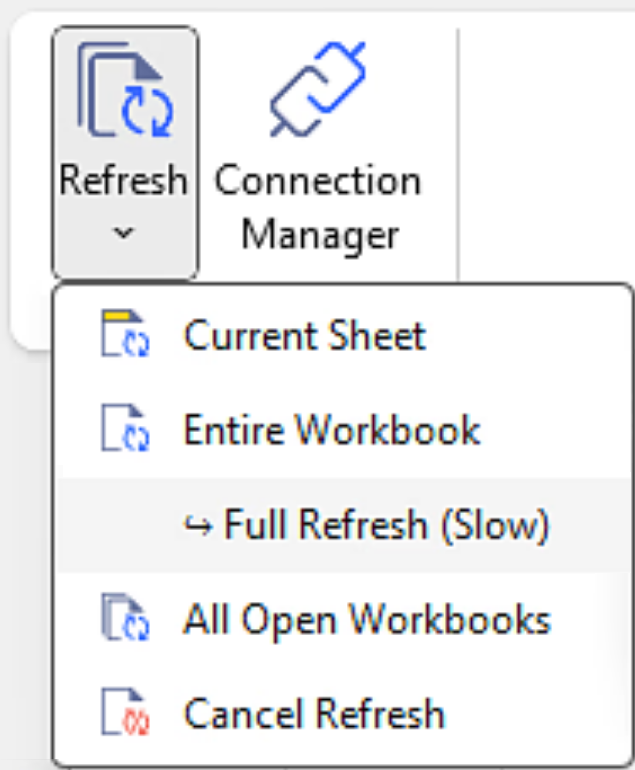
The Refresh options for Velixo NX are
-
Current Sheet
-
Entire Workbook
-
Full Refresh (Slow)
-
All Open Workbooks
The basics of refreshing a report
Refreshing a Velixo report will update the data of the Velixo functions and will cause Excel to recalculate the Excel functions and formulas.
The Velixo NX All Open Workbooks option will (as the name suggests) recalculate all open workbooks.
Velixo NX offers additional capabilities to refresh only the currently active worksheet or only the currently active workbook.
Smart Refresh
Most of the Refresh options for Velixo NX use the Velixo Smart Refresh capability. These include:
-
Current Sheet
-
Entire Workbook
-
All Open Workbooks
Smart Refresh will only load data that is new since the last refresh of your report. Any change to the Chart of Account or subaccounts will also be retrieved.
Whenever a Velixo function is used to retrieve data from the ERP, that data remembered or "cached".
Smart Refresh is incremental and is based on the question: "what has been added or updated in the ERP since we last refreshed the report?" Because only a subset of the data is being retrieved from the database, this can be done very quickly. The cache is updated with the new/updated data, and you are now working with up-to-date information.
Velixo NX automatically detects a "last modified" column for Smart Refresh in Generic Inquiries. It looks for columns with a data type of DateTime, DateTimeOffset, or Binary, and a name or caption containing modif or stamp (case-insensitive, spaces allowed). The Caption is checked first, then the Data Field name if Caption is empty. If no such column is found, Smart Refresh is not available for that inquiry.
Setting up Smart Refresh
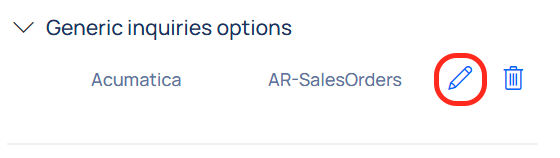
To set up a Smart Refresh, go to Options in the Velixo NX menu, and expand the Generic inquiries options section. The click the edit button next to the GI you wish to modify.
In the next screen, click the edit button in the Key columns section.
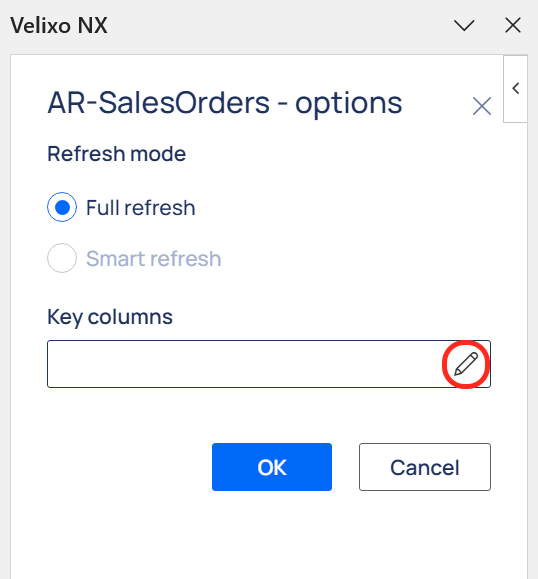
Then, select a set of fields whose combination will uniquely identify introduced changes. Suggested fields are marked with the key icon. To add a column to the key columns set, select it and use the down arrows icon to make it a key column, and click OK.
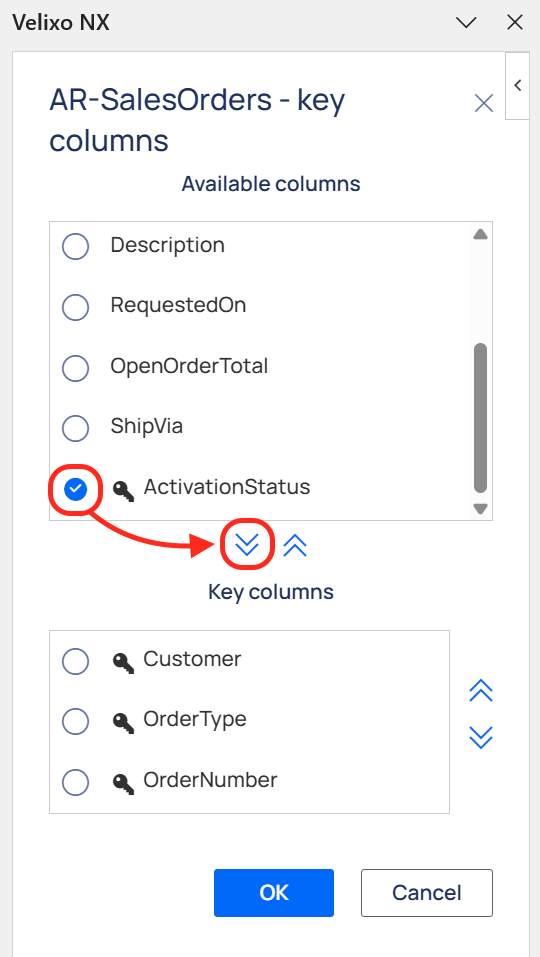
Key columns are those fields that uniquely identify each record in the Generic Inquiry. An example of a unique field for a list of GL accounts would be the AccountCode. Another example for invoice document lines would be the combination of Document Type, Invoice Number, and Line Number.
Typically, a Description field or an Account Class would not suffice as a key field (since many duplicate values in tables contain such fields). Doing so would result in an error message when using GI functions with that Generic Inquiry.
Also note that there is no universally applicable unique field, and a set of keys would typically differ across Generic Inquiries. For example, AccountCode can guarantee uniqueness in the chart of accounts but would not suffice as a key in a list of GL transactions, where multiple lines can contain the same account.
When used with Full Refresh, Velixo NX does not require the configuration of key fields for use with the GI function. Keys are necessary only if we want to use Smart Refresh and/or if we want to use the GILOOKUP function.
The ERP only supports the use of Smart Refresh with those generic inquiries that do not contain binary or date fields which include the words "modif" or "stamp" (e.g., LastModifiedDateTime, LastModified, tstamp, timestamp). For inquiries that do include such fields, only the option for Full Refresh will be available.
If a generic inquiry (which has been used within the report) subsequently becomes unavailable (by being removed from either the ERP or its OData feed), a notification icon will appear to the left and the edit icon will be removed from the right of the Generic Inquiries Options section...
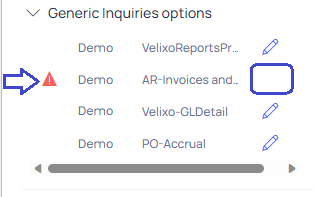
... and Excel will display a #VALUE! message wherever that inquiry is referenced within the workbook:

A Smart Refresh is most valuable when new or updated data is available or when new accounts or subaccounts have been added to your database.
Deleted Records
As discussed above, Smart Refresh is incremental and is based on the question: "what has been added or updated in your ERP since we last refreshed"? It does this by examining the timestamps applied to the records in the database and comparing those to the cached data.
By definition, Smart Refresh cannot adjust when data been DELETED from your database, or in a situation where a database script has been applied against the Acumatica instance, without modifying the timestamps of the records.
If it's simply deactivation as opposed to deletion (and it changes the records' timestamp) then smart refresh will pick it up.
As a result, in such situations, it is necessary to use one of the Full Refresh options.
Full Refresh
The other refresh option - Full Refresh (Slow) - will ignore any cached data and reload all data associated with the Velixo functions in the entire workbook. This includes all new transactions, any transactional data that was already loaded, and any new underlying information in your database (such as changes to the chart of accounts, subaccounts, branches, etc.).
Because all data associated with your Velixo functions is being retrieved, this will generally take longer than a Smart Refresh.
When the report is next Refreshed (using any of the Refresh options), all data associated with the Velixo functions in your report will be re-retrieved as through a Full Refresh were done.
Recommendations
-
Velixo recommends the use of the Smart Refresh options by default. Incremental refresh is substantially faster and handles the vast majority of usage scenarios with your ERP system.
-
Avoid hard-deleting records in your ERP system. Instead, deactivate records and revert transactions. If you hard-delete a record that was used in a report, the Smart Refresh options will not be able to pick up this fact and you'll need to use a Full Refresh option, which is typically much slower.
-
The Full Refresh may also be needed if you or an ERP administrator have altered the data structure of your ERP system, such as:
-
through an SQL script
-
via changes to data access classes (Acumatica)
-
publishing new customizations with data schema changes (Acumatica)
-
data schema updates, such as new dimensions (Sage Intacct), custom objects, or fields
-
There have been changes to your system's security configuration - such as branch access restrictions or row-level security (also known as restriction groups)
-
Changes have been made to segmented key configuration (such as the length of the account or subaccount structure)
The Cancel Refresh option allows you to cancel a Refresh operation you have already started. This can be handy if a problem occurs with the connection to your ERP system, and Velixo/Excel is having difficulty completing the process.