For Velixo Classic, see: Copy Workbook Without Formulas (Classic)
Overview
This feature (formerly known as Copy Workbook Without Formulas) is used to save a copy of the currently open worksheet or workbook with all Velixo function calls removed from that new workbook. This feature allows a workbook/worksheet to be distributed to non-Velixo users who may want to make adjustments and recalculate that workbook. You also have the option to remove all Excel functions as well.
Examples
Removing Velixo functions and formulas
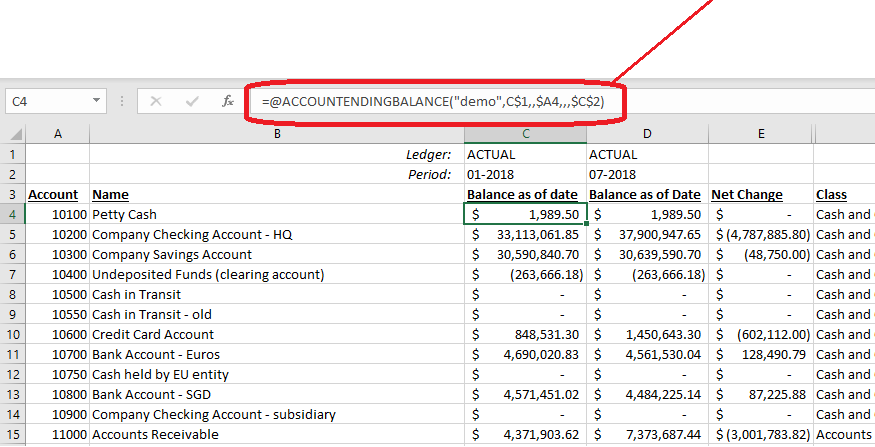
Here we have a simple Velixo report. Notice that the workbook includes both Velixo functions...
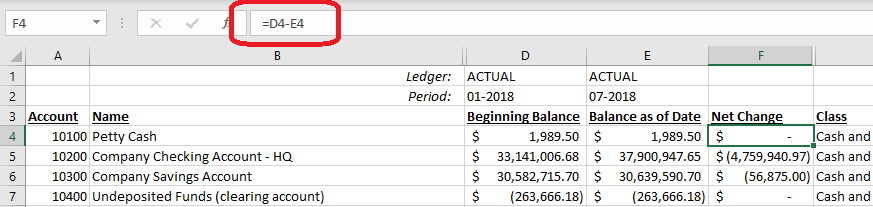
... as well as Excel calculations:
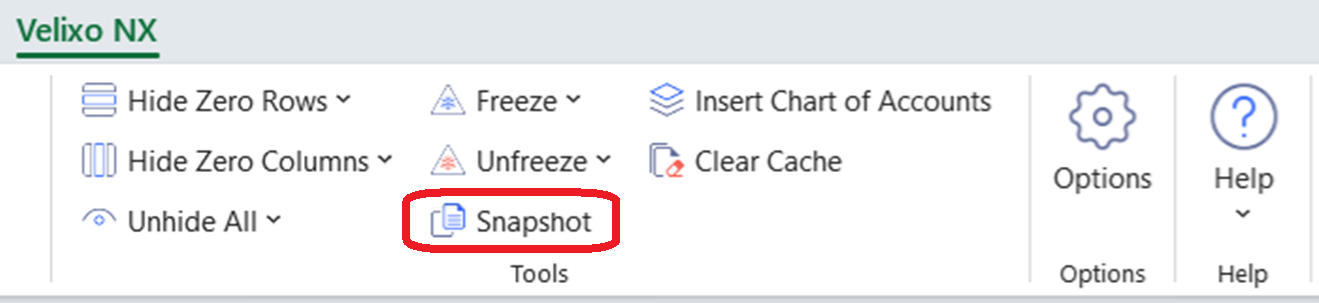
By selecting Snapshot from the Velixo NX ribbon:
... the Create a Snapshot side panel will open:
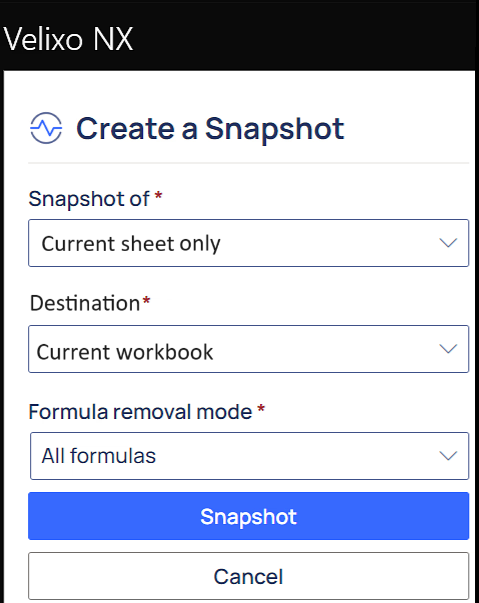
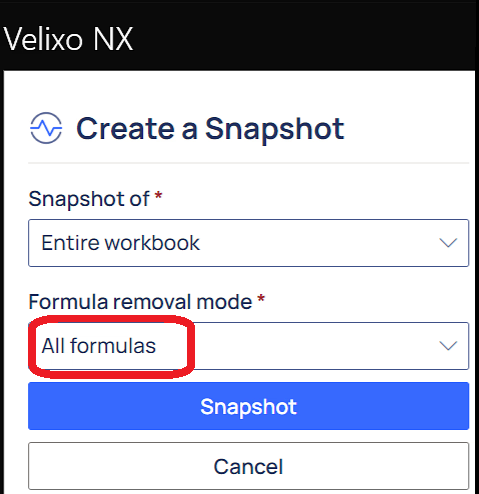
Here, we can select if we want to snapshot:
-
the entire workbook
-
only the current sheet (and if we want that sheet to be placed in the current workbook or a new workbook) and
-
All formulas
-
Only the Velixo formulas
Assuming we select to Snapshot the entire workbook and remove only the Velixo formulas:
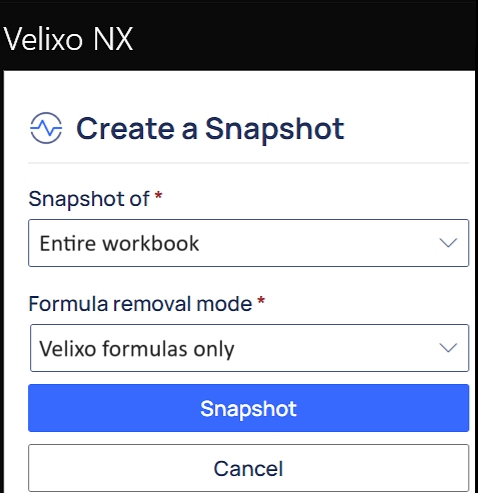
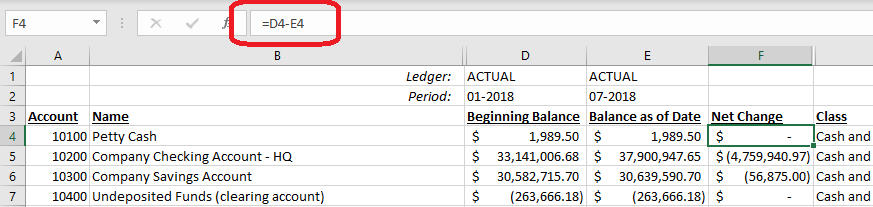
we can save the resulting workbook under a new name. That workbook still contains all the original Excel functions and calculations...
... but all the Velixo functions have been replaced with their respective values from the database:
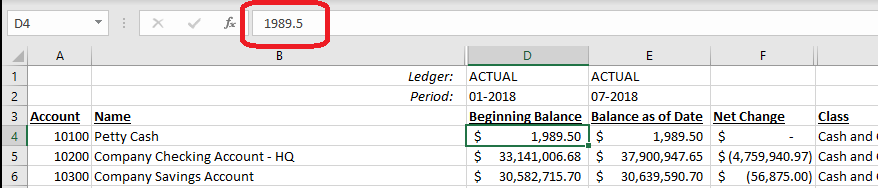
This new workbook can now be sent to non-Velixo users who may want to make changes and see how the values recalculate.
Removing ALL functions & formulas
If you wish to remove all of the Excel functions and formulas, as well as the Velixo functions and formula...
In Velixo NX, select Snapshot:
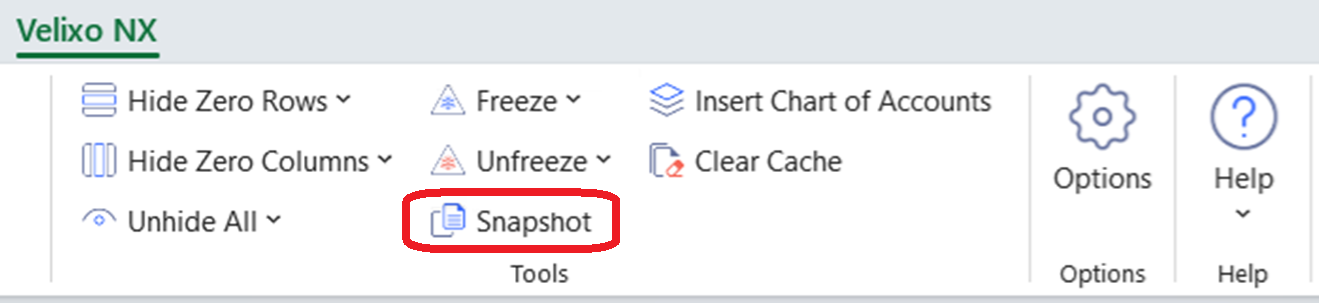
and select to remove All formulas:
Snapshot Workbooks with AutoFilters Enabled
When using Excel's AutoFilter feature:
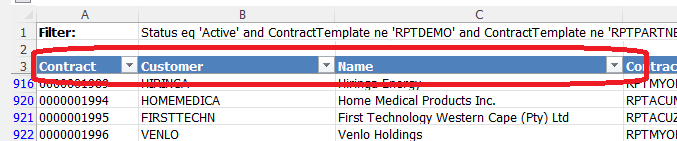
The Snapshot feature will make every effort to maintain those settings.
However, some AutoFilter settings cannot be preserved during the copy process. When that is the case, Velixo NX will remove the AutoFilters entirely, so as to avoid errors in your resulting file.
Important information regarding protected workbooks
If the workbook is protected WITHOUT A PASSWORD, the Snapshot process should create a workbook that is NOT protected.
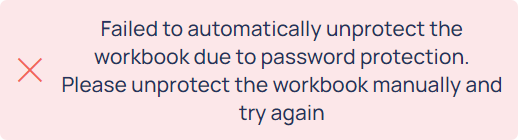
If the workbook is protected WITH A PASSWORD, the process will stop, and the following message will be displayed: