
Overview
Drilldown shows you a detailed view of the underlying data behind any value returned by a supported Velixo NX function. Instead of manually cross-referencing your ERP to verify a number, you can inspect it directly from Excel in one click.
This article covers:
-
How to start a Drilldown
-
The structure of the Drilldown sheet
-
Removing Drilldown worksheets
-
Supported functions
-
Tips and limitations
You can also use this functionality via the Velixo Intelligence assistant.
Supported functions
Starting a Drilldown
-
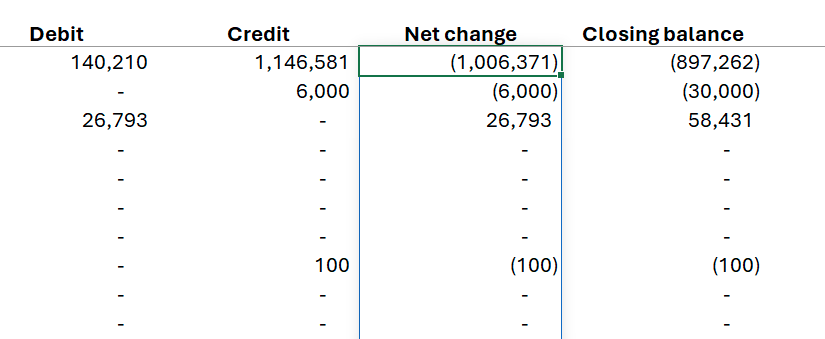
In your report, select the cell whose value you want to investigate.
-
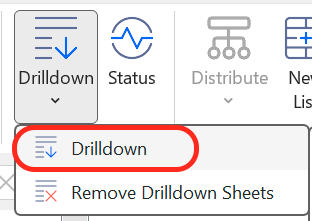
In the Velixo NX Excel menu, click Drilldown → Drilldown.
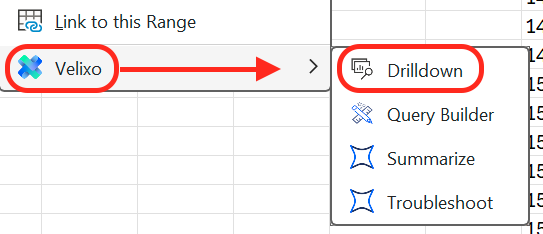
Alternatively, right-click the cell and select Velixo → Drilldown.
Velixo refreshes the workbook and opens a new worksheet tab containing the Drilldown results.
You can choose whether to add a Drilldown to the current workbook or open it in a new one in Velixo NX Options.
Starting a Drilldown always triggers a data refresh. Even if the cell shows a previously cached value, the Drilldown reflects the latest data from your ERP.
You can run multiple Drilldowns — each one opens in a separate worksheet tab.
The Drilldown worksheet
The Drilldown worksheet is a summary table. Each row represents an entry that contributed to the drilled-down value, and each column is a field relevant to the returned entry set.
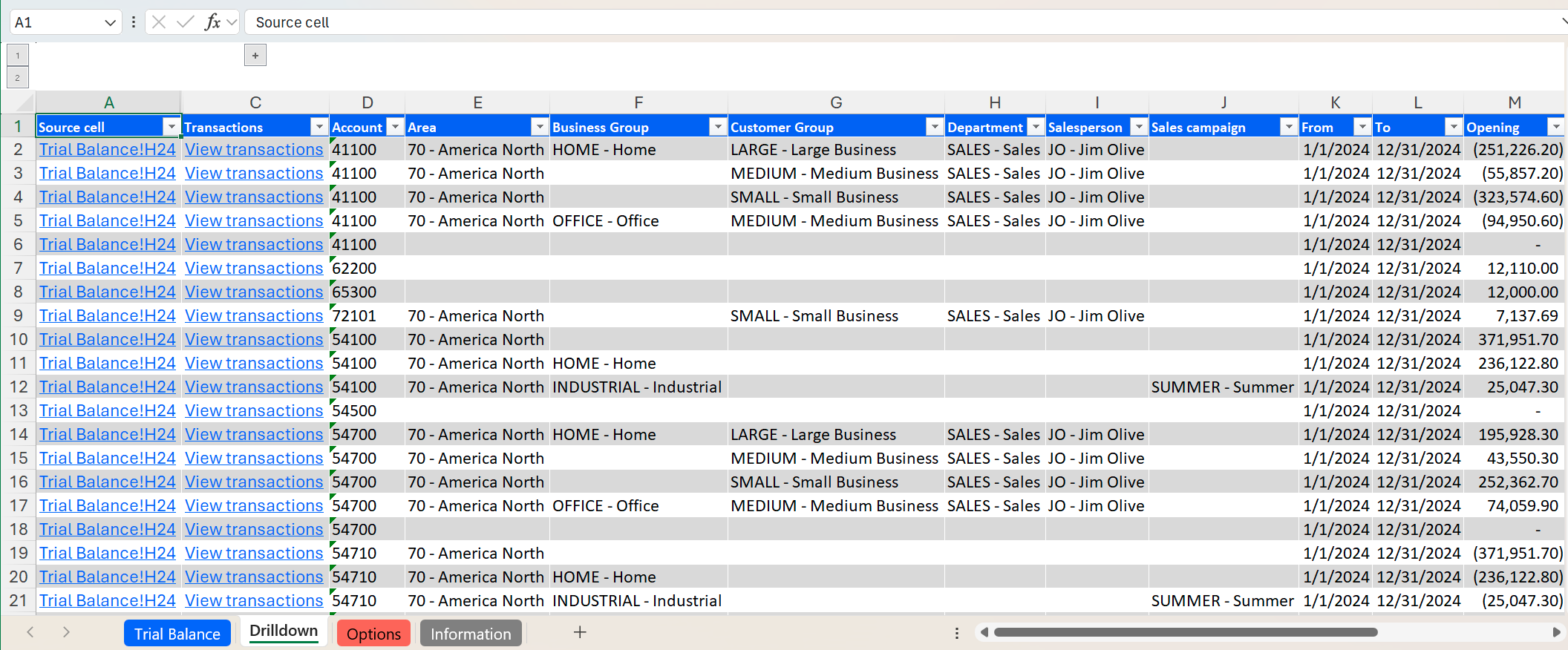
Dimension columns appear when the drilled-down data includes entries with different dimension values. Each column is named after the dimension it represents and displays the dimension value code and name.
You can use the links in the Source Cell column to return to the original report (not available in Excel for the Web).
To improve performance, minimize the number of cells included in the selection before triggering a Drilldown.
View transactions in the ERP interface
Click a View transactions link in the Transactions column to view the individual transactions behind a summary row.
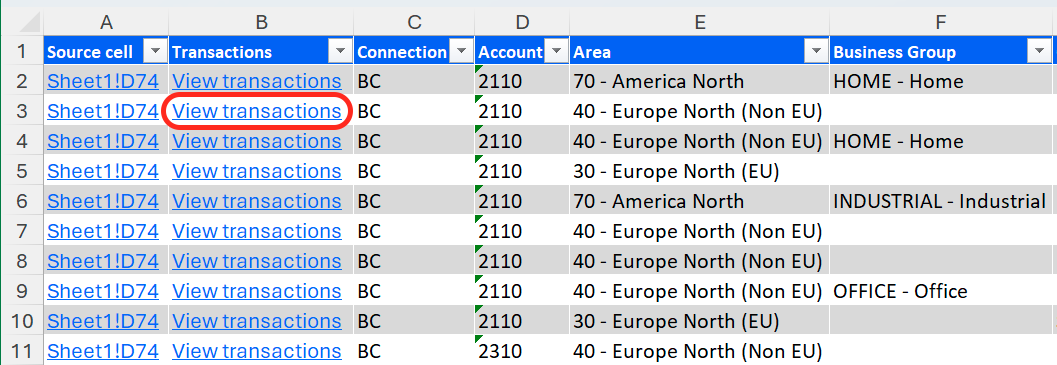
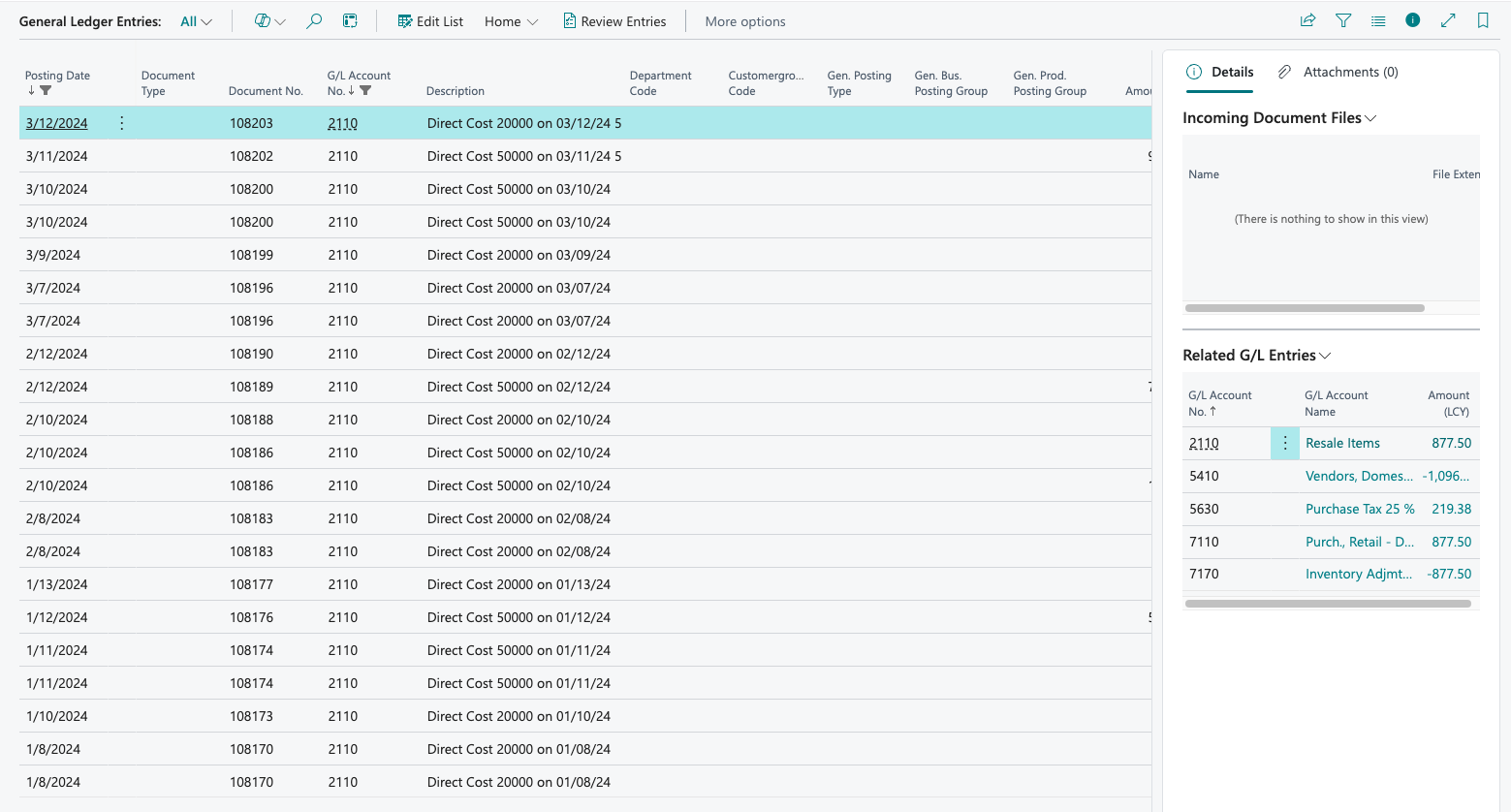
Doing so opens the General Ledger Entries screen in Business Central, filtered by the account code, date range, and dimension values for that row.
Drilldown with multi-connection formulas
Drilldown works with formulas that reference more than one connection, including:
-
A wildcard connection — for example,
=TURNOVER("Connection?") -
A formula aggregating results from multiple connections — for example,
=SUM(TURNOVER("Connection1"), TURNOVER("Connection2"))
Removing Drilldown worksheets
The Drilldown worksheet is static — it doesn't update when the underlying data changes. Once you've finished your analysis, remove it to keep your workbook tidy.
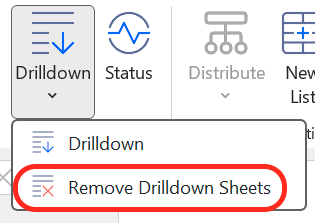
In the Velixo NX Excel menu, click Drilldown → Delete Drilldown Sheets.
Tips
-
Drilldown on aggregated cells: You can drill down on cells that combine supported Velixo functions with Excel functions such as
SUMorAVERAGE. -
Performance: Drilling down on a cell that aggregates many Velixo functions (for example, a
SUMspanning a large range) will be slower than drilling down on a single function cell. Where possible, drill down at the function level rather than on aggregate totals.
Limitations
-
Drilldown is not supported on cells using Excel's
SUMIF,VLOOKUP,HLOOKUP,MATCH, orINDEXfunctions. Because these functions reference entire source ranges, Velixo cannot determine which individual cells contributed to the value. -
Cells involving complex arithmetic on Velixo values cannot be fully represented in a Drilldown. The worksheet summarizes all relevant accounts, not a formula trace.