
Overview
Excel provides several options for securing your workbooks. These options can be found on both the Excel Review ribbon...
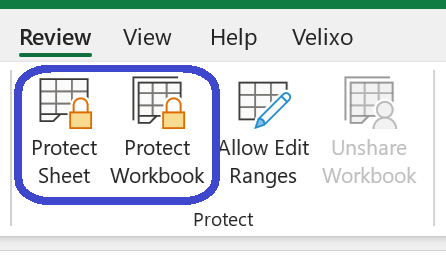
... and from the Protect Workbook button in Excel's File > Info area:
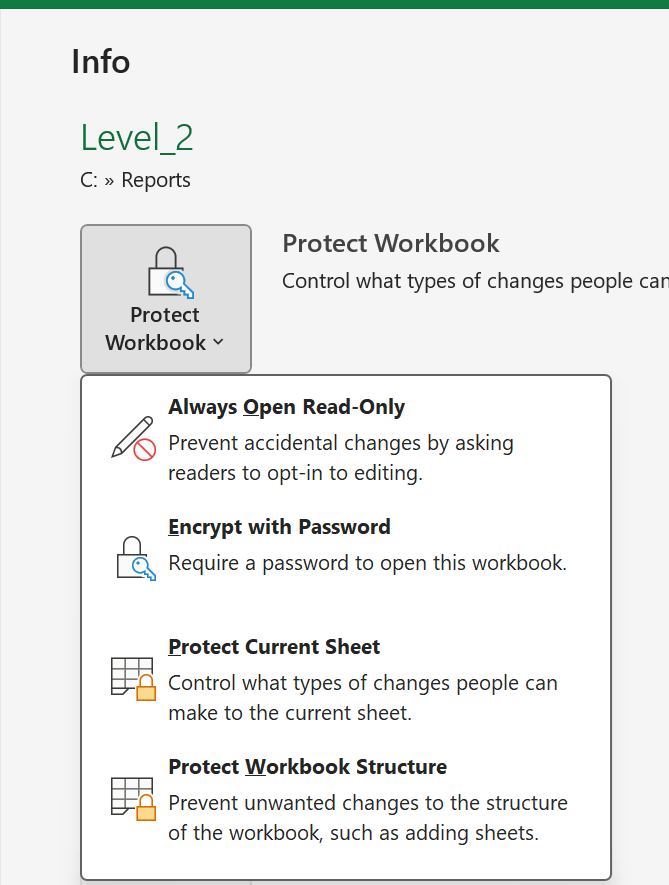
Let's take a brief look at each of these options and the effect each has on your workbook and on Velixo functionality.
Always Open Read-Only
The Always Open Read-Only option...
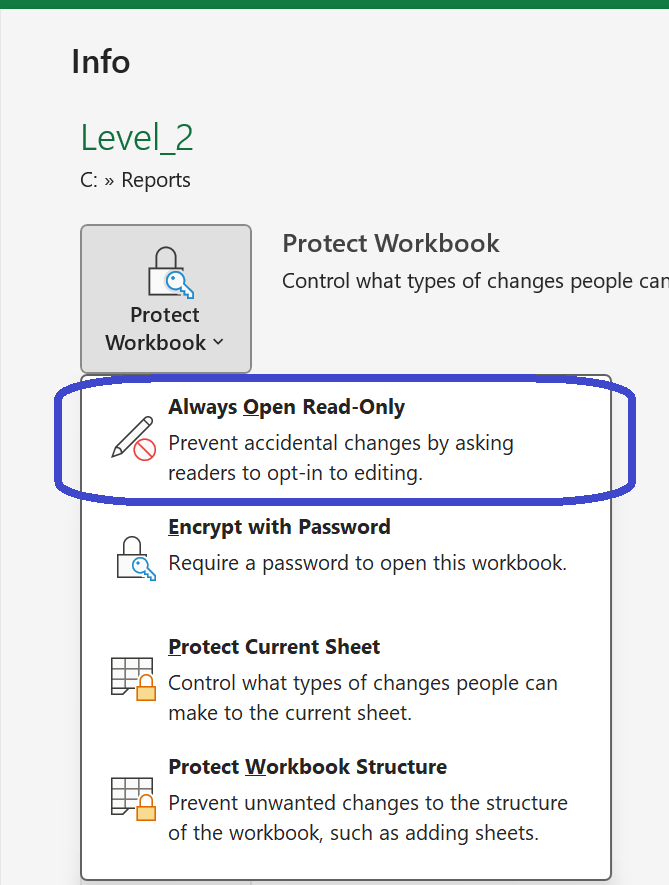
... encourages viewers of the workbook to open the file so that changes cannot be saved back to the original file.
When the file is opened, a dialog is presented asking the viewer to open the file as "read-only":
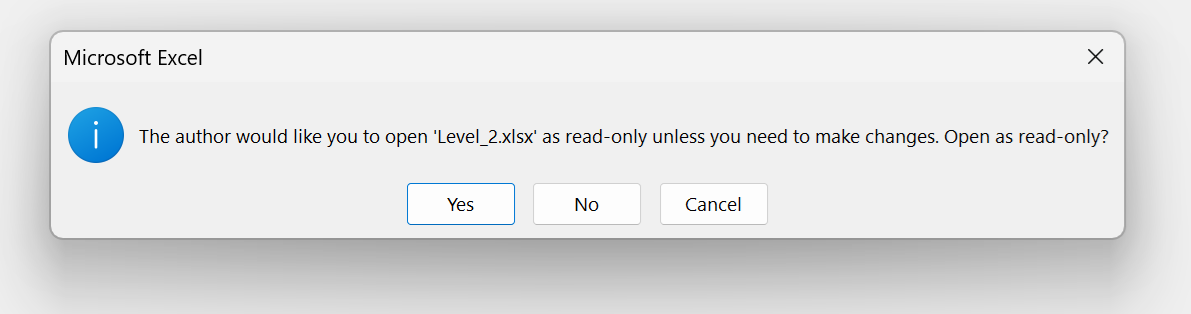
A workbook opened in read-only mode can be modified in any way - including refreshing of any Velixo functions - but the changes cannot be saved back to the original file (however, a copy can be made for saving any changes).
The viewer does have the choice to disregard the read-only suggest and open the file with the ability to save any changes.
Encrypt with Password
The Encrypt with Password option...
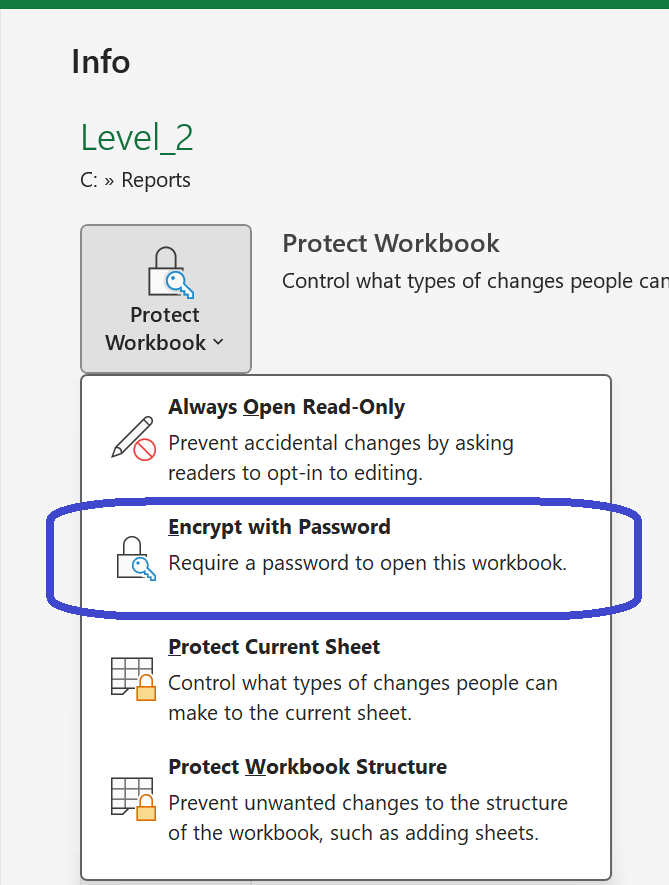
... requires that anyone opening the workbook supply the password that was used when saving the file.
After selecting the option from the Protect Workbook button, we are prompted for the password to be used:
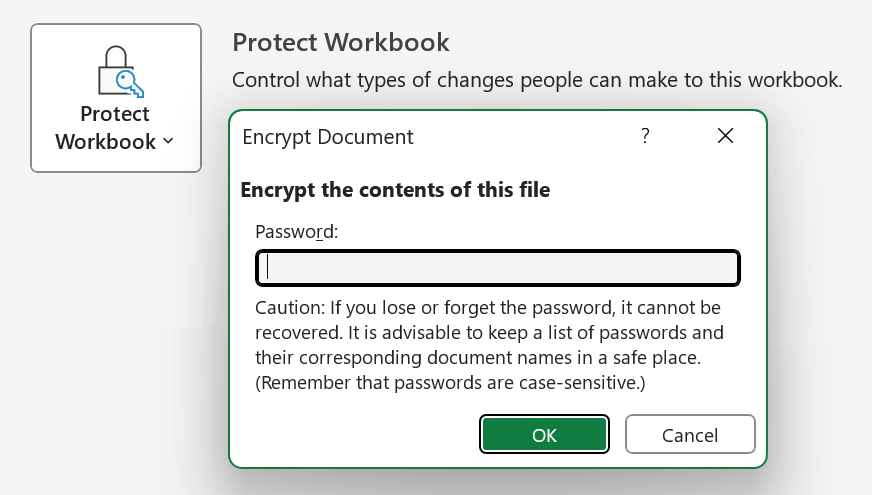
and the protection will be noted on the screen:

When someone attempts to open the workbook, Excel will prompt them for the necessary password:
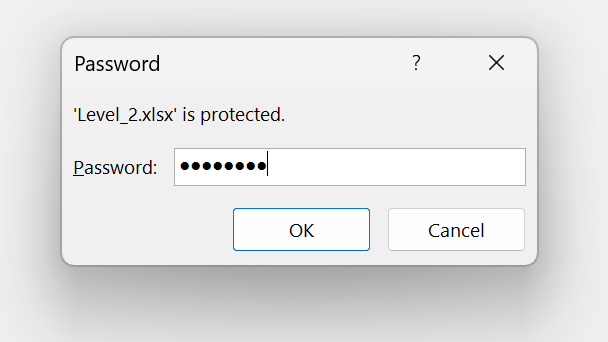
Once the workbook is opened with the required password, the file can be used as normal - including refreshing any Velixo functions as well as the ability to save the file.
Saving the file maintains the original password. When the file is next re-opened, the password will still be required.
Protect Current Sheet
The Protect Current Worksheet option can be accessed through either the Protect Workbook button or Excel's Review ribbon:
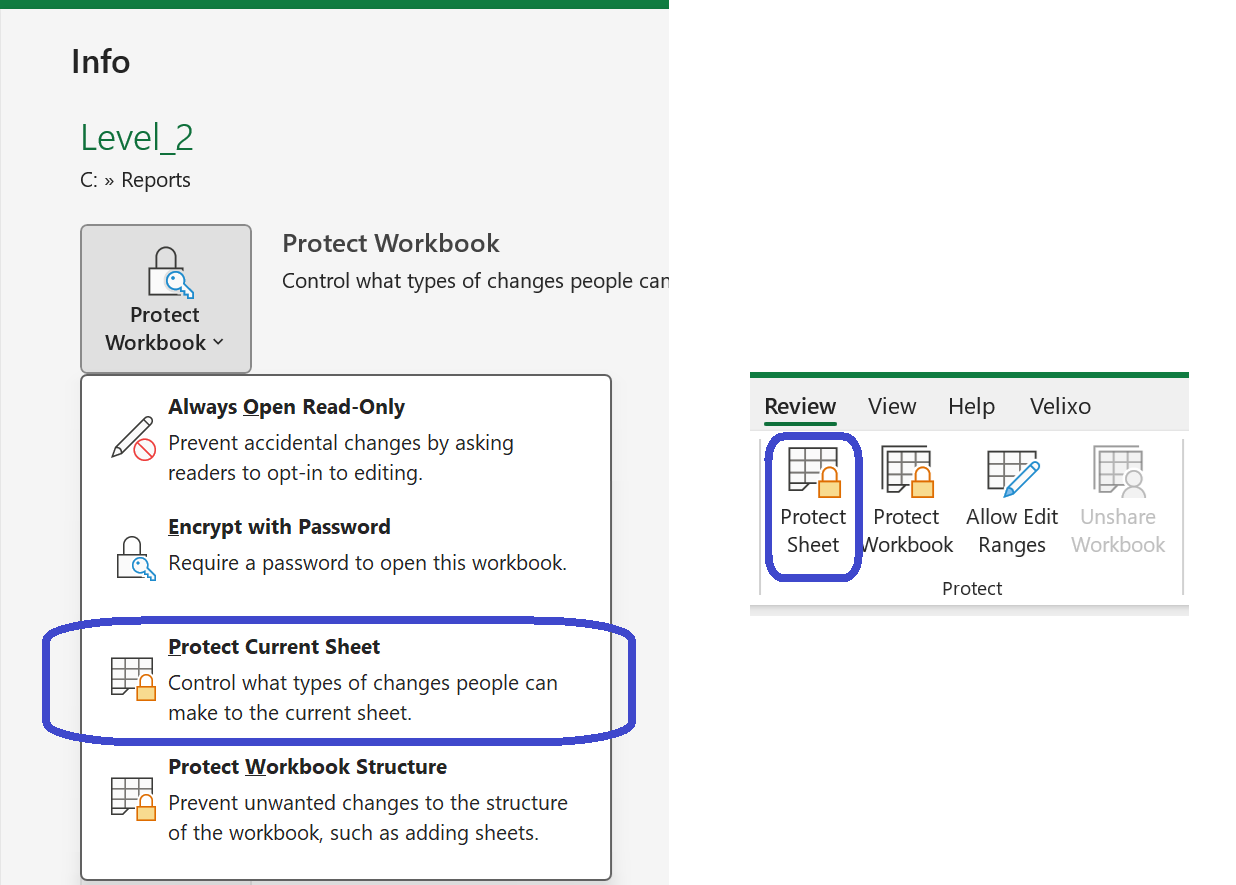
This option provides very fine control over what types of changes can be applied to the current worksheet of the workbook.
After selecting the option, we are prompted for the password to be used to protect the worksheet...
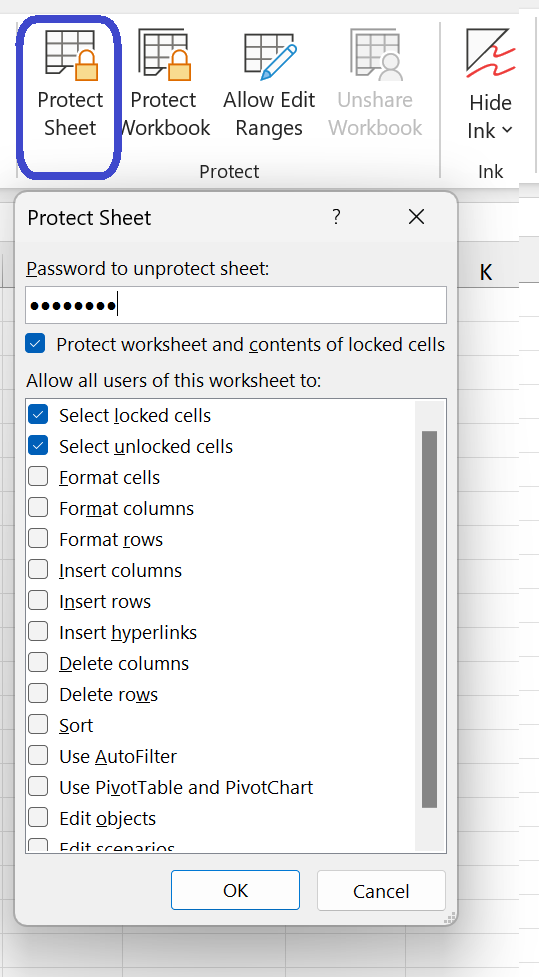
... and we can specify the exact capabilities that users of the worksheet will be able to do.
Using this Excel feature can have a profound impact on Velixo functionality.
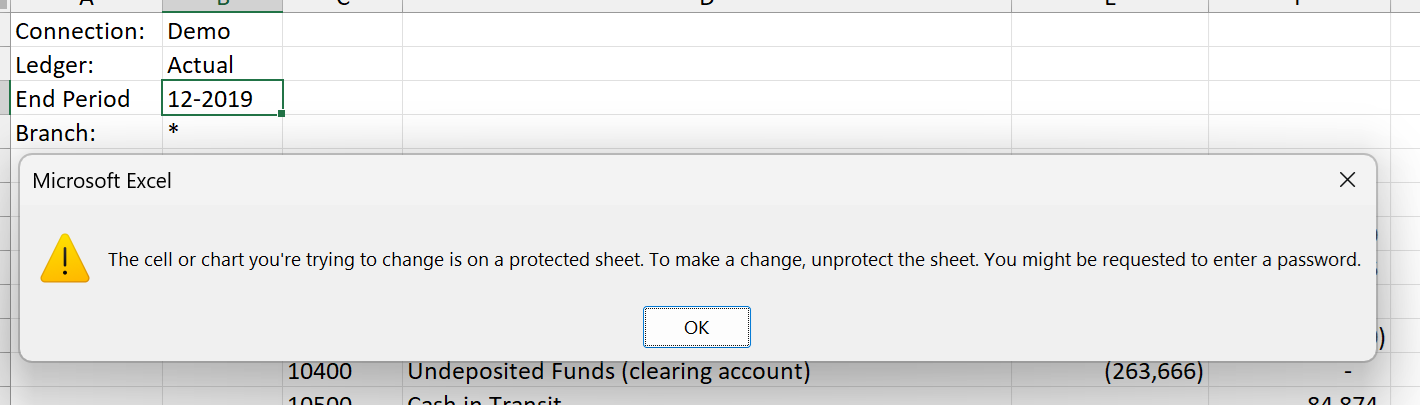
For example, protecting an entire Velixo report can make it so that the viewer cannot modify the parameters for that report:
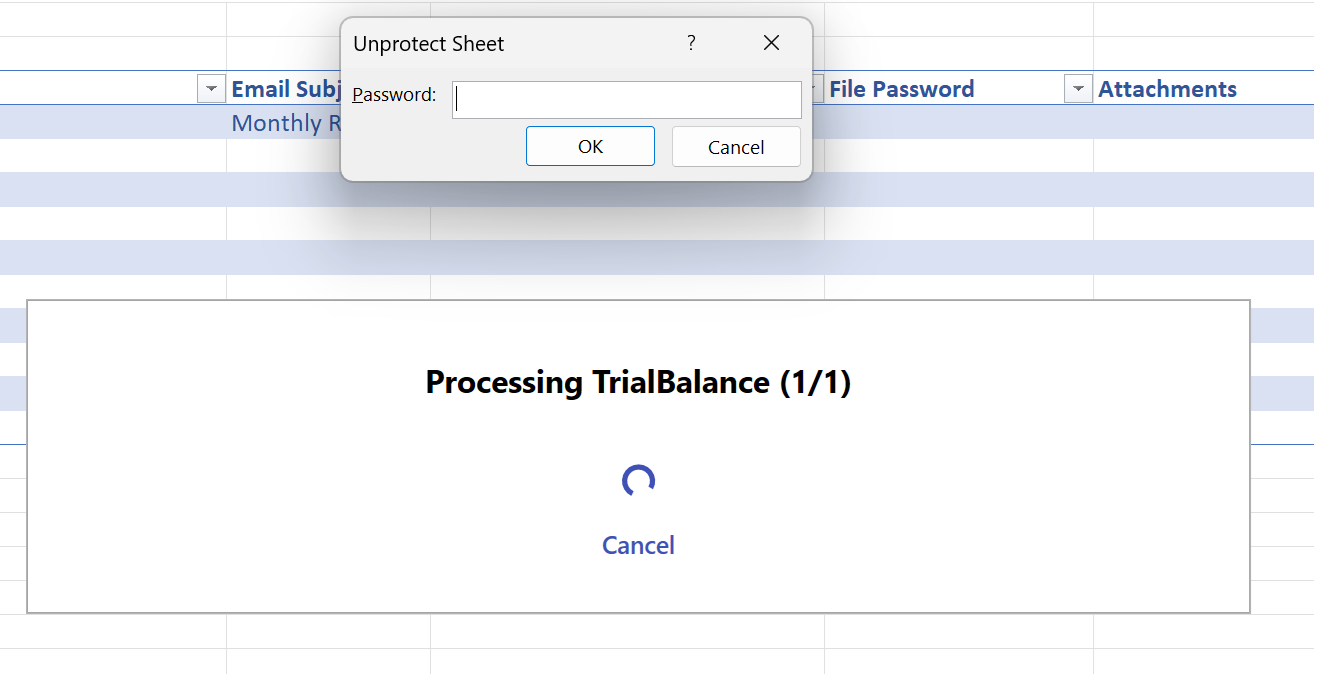
Likewise, when attempting to update parameters through the Distribution List feature, we would be prompted for the password required to unprotect the worksheet so as to make the requested changes:
Leaving cells unlocked in a protected worksheet
A common pattern is to protect all cells in a worksheet to prevent accidental modification of your formulas, while leaving specific parameter cells unlocked so that users can still interact with the report. This is particularly useful when you want to:
-
Protect all Velixo formulas and report layout from accidental edits
-
Allow users to change the report period, project, customer, or other parameters and refresh to see updated results
For example, you might lock down every cell in your P&L report except for the date range and entity parameter cells — so users can view the report for any period they choose without risking any changes to the underlying formulas.
Using Velixo report parameters with Protected Worksheets
With a few minor modifications, we can use Protected Worksheets and still allow viewers to manually modify report parameters:
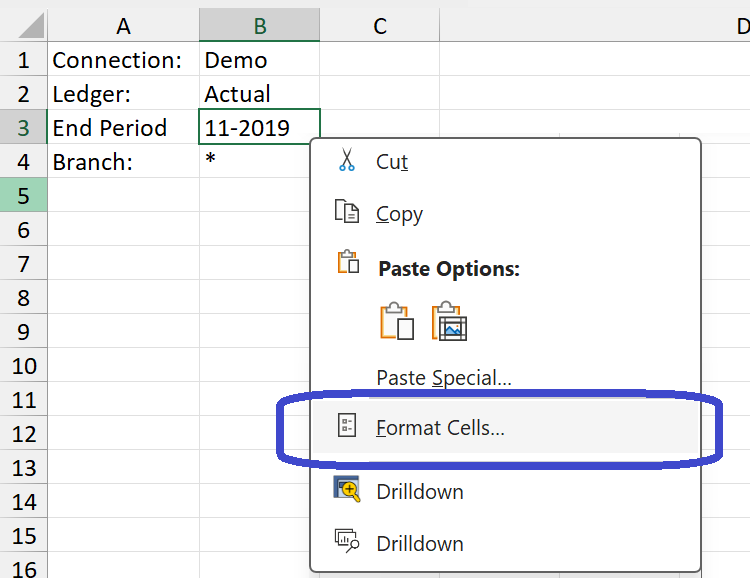
Prior to protecting the worksheet, any cells we want the viewer to be able to adjust can be configured to be Unlocked. This is done by right clicking on each cell we want to be unlocked, and selecting Format Cells... from Excel's context menu:
On the Format Cells dialog, we navigate to the Protection tab and ensure that the Locked box is unchecked:
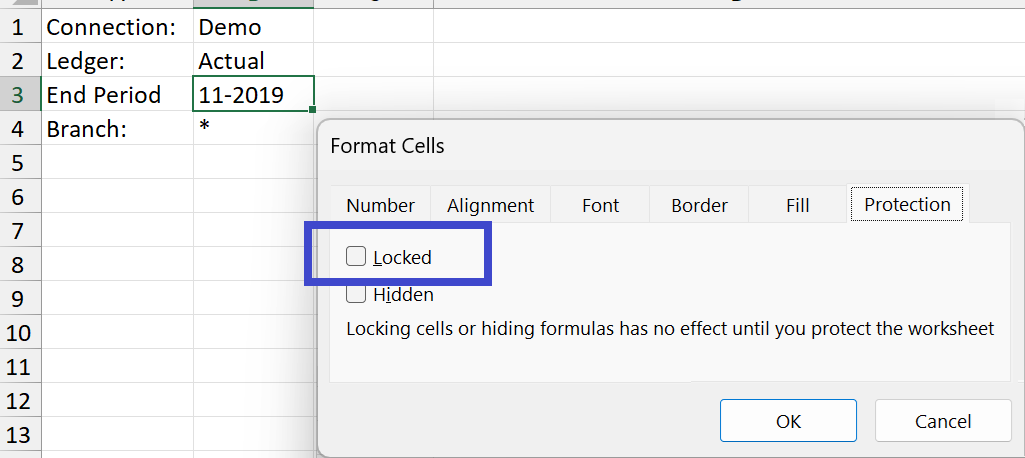
By default, all cells in Excel are marked as Locked. However, this setting only takes effect once the worksheet is protected. To allow users to edit specific cells (such as report parameters), you must uncheck Locked for those cells before applying worksheet protection.
Once that is done for each of the cells we want to be changeable, when the worksheet is protected, the viewer can manually modify those unlocked cells:
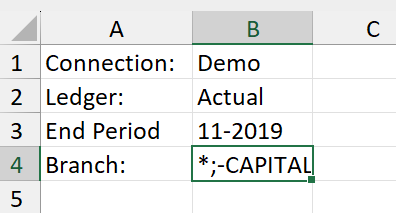
and the workbook can be updated accordingly.
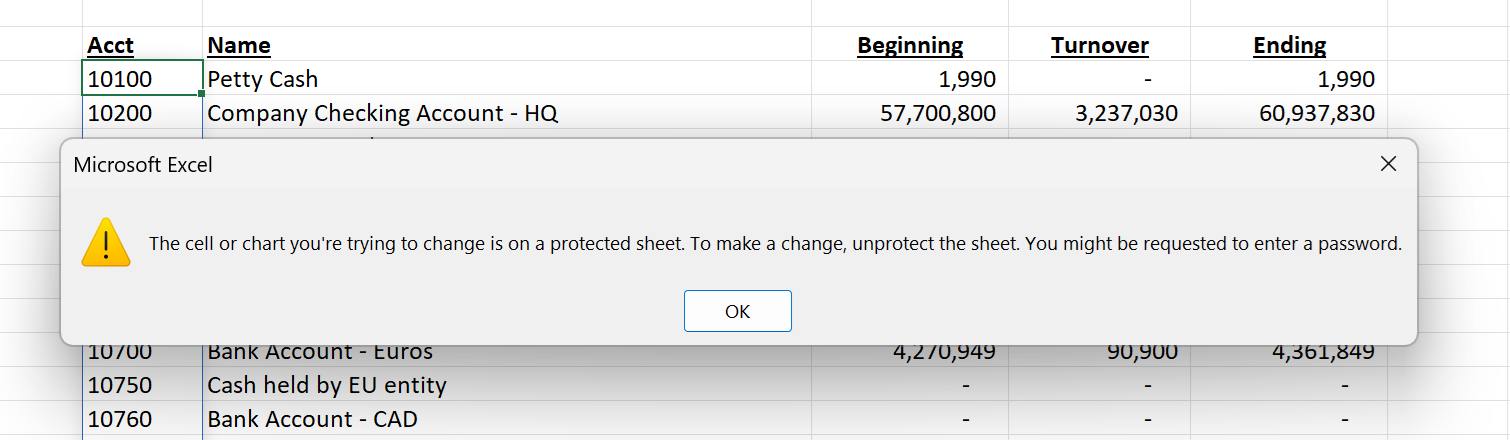
Other areas of the worksheet will still be fully protected:
Distribution Lists require Unprotect Worksheets
At the time of the creation of this article, the Distibution List feature requires that the worksheets be unprotected.
Protect Workbook Structure
The Protect Workbook Structure option...
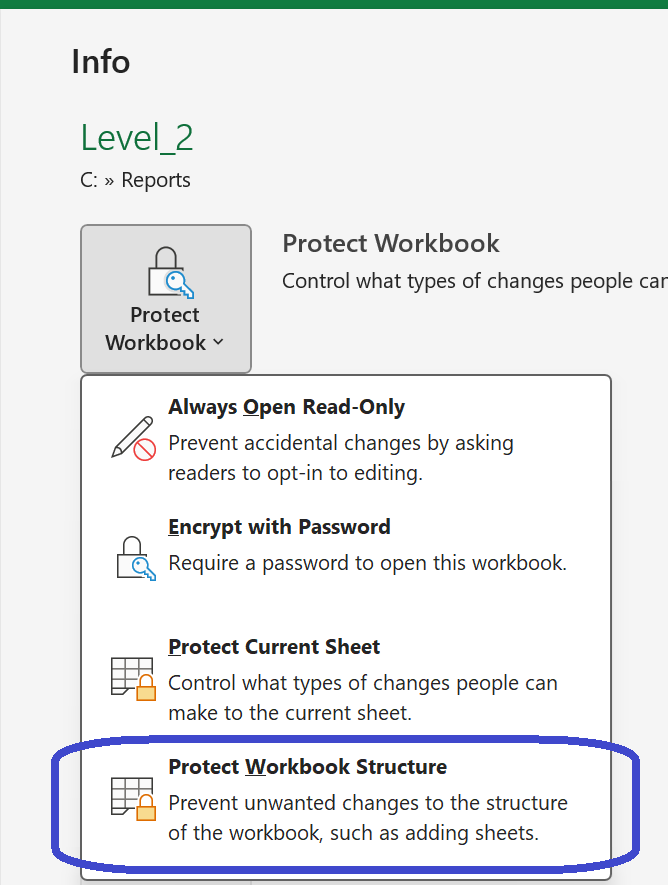
... is used to prevent unwanted changes to the structure of the workbook (e.g., moving, adding, or deleting worksheets).
After selecting this option, we are prompted for the password to be used for protecting the workbook. Then, the protection will be noted on the screen:

When using this feature, the viewer would be able to update parameters within the report and refresh any Velixo functions.
Unable to create Distribution List or Writeback worksheets
Certain Velixo features will not be available, however, because they require the ability to create new worksheets.
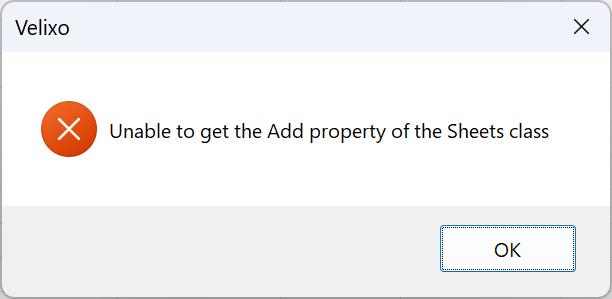
For example, we would not be able to create a New Distribution List or create Writeback worksheets from the New Sheet button. Attempting to use these features would result in an error being displayed, noting that we do not have access to Excel's ability to add sheets:
Advanced Protection Features
Excel also provides more advanced features for protecting workbooks:
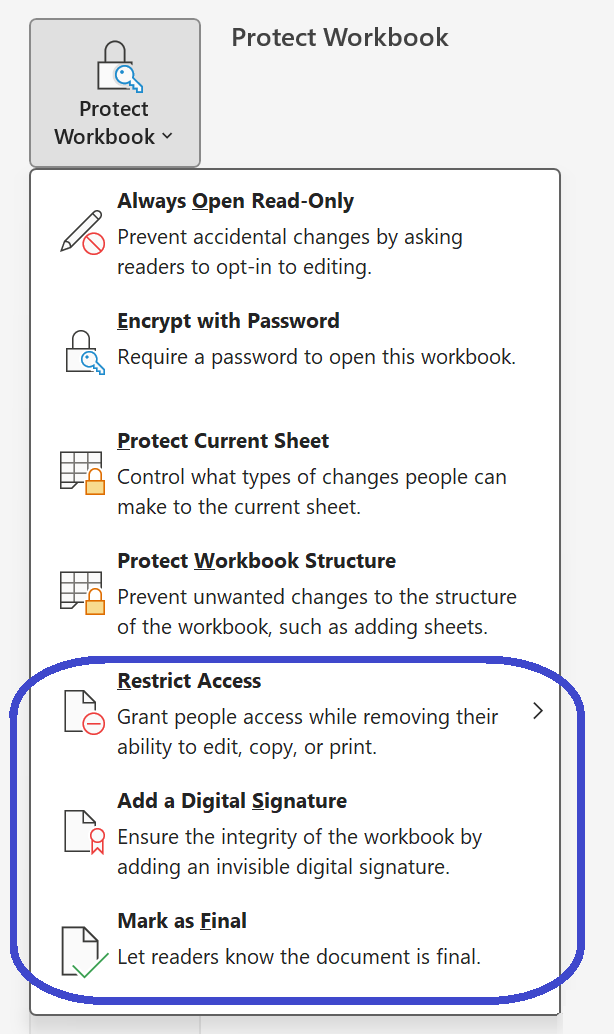
and Microsoft's Information Rights Management (IRM) provides more advanced security for companies that want to make sure files are only opened and viewed by authorized users on authorized machines:
These features can obviously impact an individual user's ability to access, print, or create copies of Velixo reports.