
Overview
In Business Central, dimension values are not stored as columns on a record. They are stored in a separate dimension set that the record points to through its Dimension Set ID field. To show dimension values as columns, or to filter by them, you would normally write an unpivot() expression against that related table.
The DIMENSION() expression does this for you. Write it inside the Select or Filter argument of BC.QUERYTABLE or BC.QUERYTABLELOOKUP, or in a Column argument of BC.QUERYTABLEFILTER, and Velixo translates it into the required dimension-set query.
This article covers:
-
Where you can use
DIMENSION()and how to write it -
Returning all or selected dimensions as columns
-
Filtering records by dimension value
-
Combining several dimension filters
-
Using
DIMENSION()in BC.QUERYTABLELOOKUP -
Limitations
The DIMENSION() expression requires the Velixo for Business Central extension version 2026.8 or later. On earlier versions, any formula that uses the expression returns an error instead of partial results. See Velixo for Business Central – Extension version requirements.
How DIMENSION() works
DIMENSION() takes one optional argument: a dimension code, enclosed in double quotes. Because the Select, Filter, and Column arguments are themselves text strings, you double those quotes inside a formula. All examples in this article show the expression as you type it in a formula.
|
Form |
In Select |
In Filter (and BC.QUERYTABLEFILTER Column) |
|---|---|---|
|
|
Adds one column for the |
Matches records whose |
|
|
Adds one column for every dimension found in the returned records |
Matches records where any dimension in the dimension set satisfies the criteria |
The following rules apply everywhere:
-
Use the dimension code (for example
AREA), not the dimension name. Use BC.EXPANDDIMENSIONRANGE to list the dimension codes in your company. -
Neither the keyword nor the code is case-sensitive:
DIMENSION(""AREA"")anddimension(""area"")are equivalent. -
One expression names one dimension. To work with several dimensions, use several expressions.
DIMENSION(""AREA"", ""DEPARTMENT"")returns an error. -
The code must be enclosed in doubled double quotes:
DIMENSION(""AREA""). An unquoted code (DIMENSION(AREA)), a single-quoted code (DIMENSION('AREA')), or an empty string as the code returns an error. -
The expression must be the whole item: it starts a comma-separated item in
Select, or the whole left-hand side of a clause inFilter. -
The table must have a
Dimension Set IDfield (for exampleG/L Entry,Sales Line,Cust. Ledger Entry). On a table without it, such asCustomer, the formula returns a field-not-found error.
Returning dimensions as columns
Use DIMENSION() in the Select argument of BC.QUERYTABLE. Each dimension becomes one column with the dimension code as the header and the dimension value code in each row. A record that does not carry that dimension shows an empty value.
Dimension columns are always placed after the regular columns, regardless of where you write the expression in Select. Their order among themselves follows the order in which the dimensions are first encountered in the data, not the order of your expressions.
All dimensions
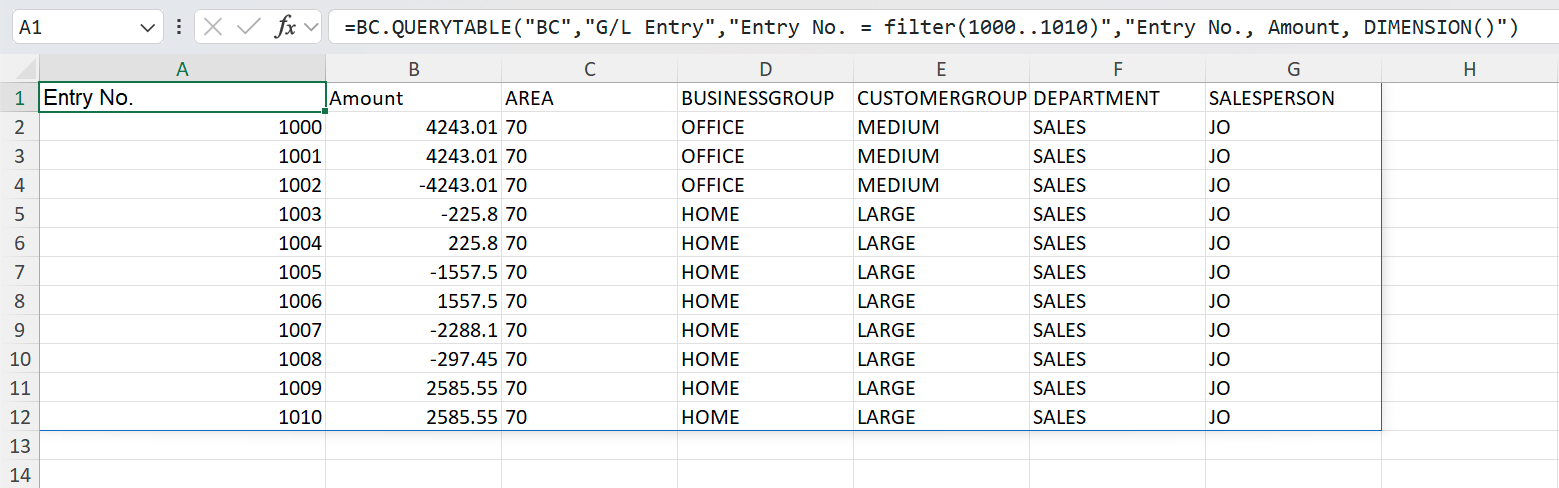
=BC.QUERYTABLE(
    "BC",
    "G/L Entry",
    "Entry No. = filter(1000..1010)",
    "Entry No., Amount, DIMENSION()"
)
Description: Returns G/L entries 1000 to 1010 with Entry No. and Amount, followed by one column for every dimension found in those entries' dimension sets. The set of columns depends on the returned records: a dimension that none of the returned entries carries does not produce a column.
Selected dimensions
=BC.QUERYTABLE(
    "BC",
    "G/L Entry",
    "Entry No. = filter(1000..1010)",
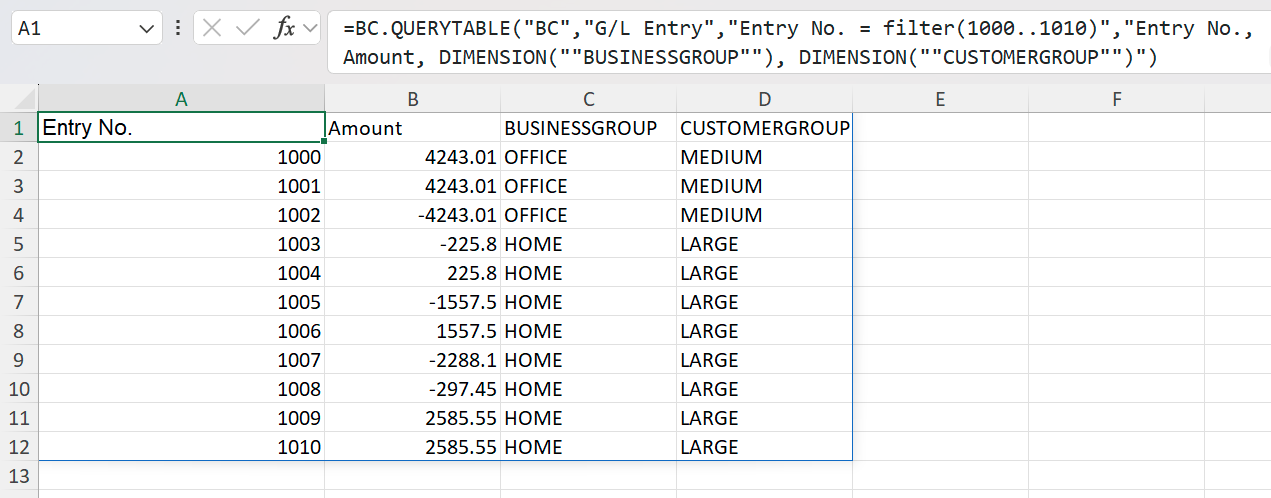
    "Entry No., Amount, DIMENSION(""BUSINESSGROUP""), DIMENSION(""CUSTOMERGROUP"")"
)
Description: Returns the same entries with only the BUSINESSGROUP and CUSTOMERGROUP dimension columns.
Include at least one regular table column alongside DIMENSION(). A Select argument that contains only DIMENSION() expressions is not supported.
Dimension columns and aggregation
When the Select argument contains aggregate functions such as SUM() or COUNT(), every dimension column acts as an additional grouping key, in the same way as any other non-aggregated column.
=BC.QUERYTABLE(
    "BC",
    "G/L Entry",
    ,
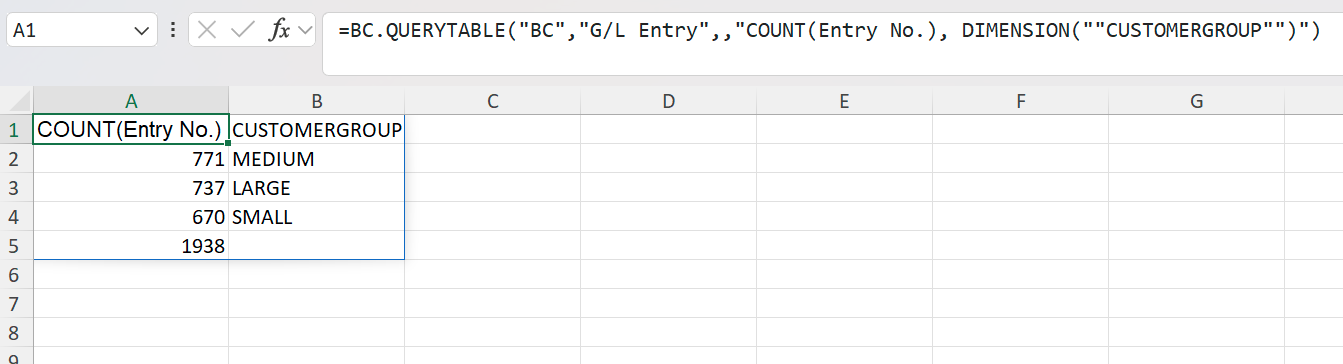
    "COUNT(Entry No.), DIMENSION(""CUSTOMERGROUP"")"
)
Description: Returns one row per distinct CUSTOMERGROUP value with the number of G/L entries in each group. Entries that do not carry the dimension are counted together in a row with an empty value.
DIMENSION(""AREA"") produces the same result as the following unpivot() expression:
unpivot(Dimension Set ID->Dimension Code(""AREA""), Dimension Set ID->Dimension Value Code)
DIMENSION() always returns the dimension value code. If you need the dimension value name instead, or a different lead field, write the unpivot() expression yourself as described in the BC.QUERYTABLE article.
Filtering by dimension value
In the Filter argument
Write DIMENSION(""<code>"") = filter(<criteria>) in the Filter argument of BC.QUERYTABLE or BC.QUERYTABLELOOKUP. The dimension does not need to appear in the Select argument.
The criteria are passed to Business Central unchanged, so standard Business Central filter syntax applies. Dimension values themselves need no quotes:
-
filter(40)– equals40 -
filter(40|70)– either value -
filter(40..70)– a range -
filter(LAR*)– a wildcard -
filter(<>SMALL)– any value exceptSMALL(records that do not carry the dimension at all are not returned)
=BC.QUERYTABLE(
    "BC",
    "G/L Entry",
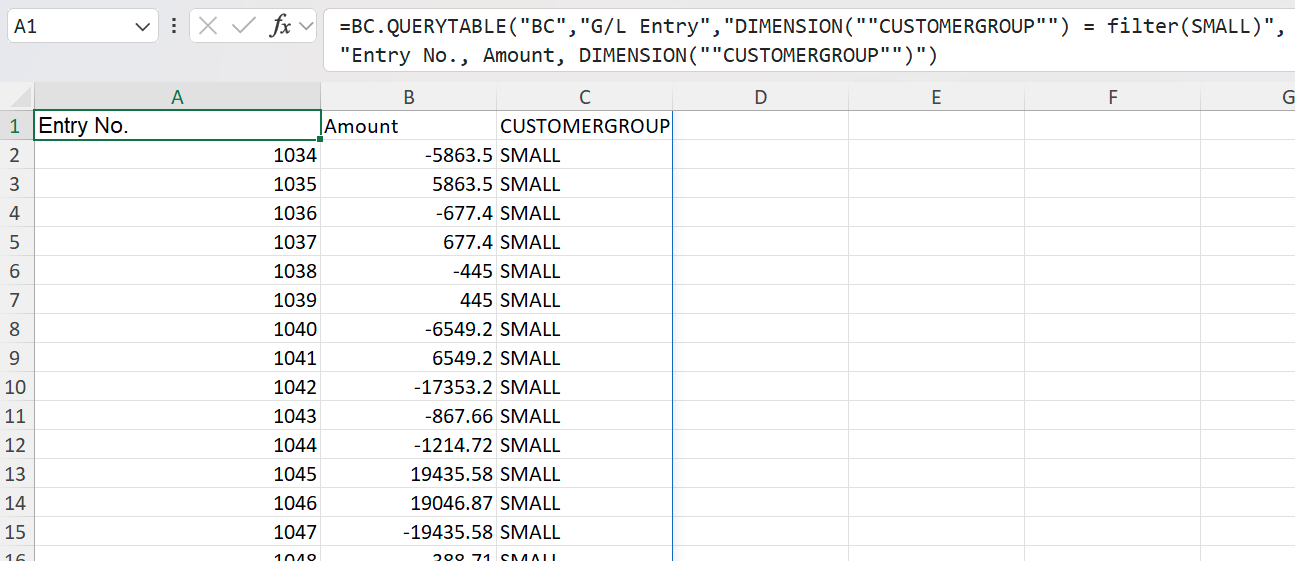
    "DIMENSION(""CUSTOMERGROUP"") = filter(SMALL)",
    "Entry No., Amount, DIMENSION(""CUSTOMERGROUP"")"
)
Description: Returns only the G/L entries whose CUSTOMERGROUP dimension value is SMALL.
A dimension filter narrows the records that are returned. It does not affect which dimension columns are returned or what they contain: if you filter on AREA and select DIMENSION(), every dimension of the matching records still appears.
The criteria cannot be empty. DIMENSION(""AREA"") = filter() returns an error. This matters when you build the filter from a cell reference: an empty cell produces exactly this shape.
With BC.QUERYTABLEFILTER
Pass "DIMENSION(""<code>"")" as a Column argument of BC.QUERYTABLEFILTER and the dimension value as the matching Criteria argument. The function returns a filter string that you pass to the Filter argument of BC.QUERYTABLE.
=BC.QUERYTABLEFILTER(
    "BC",
    "G/L Entry",
    "DIMENSION(""CUSTOMERGROUP"")",
    "LARGE",
    "DIMENSION(""BUSINESSGROUP"")",
    "HOME"
)
Description: Builds a filter that keeps records where CUSTOMERGROUP is LARGE and BUSINESSGROUP is HOME.
The returned string shows the quotes around each dimension code as single double quotes: DIMENSION("CUSTOMERGROUP") = filter(LARGE), DIMENSION("BUSINESSGROUP") = filter(HOME). That is correct: the doubling is only needed when you type the expression inside a formula, and a cell value is not formula text. Pass the returned string to BC.QUERYTABLE by cell reference.

BC.QUERYTABLEFILTER treats a | inside a single Criteria value as a literal character. To match several values of one dimension, pass them as separate values – an array, a cell range, or repeated Column/Criteria pairs. Comparison operators and wildcards (<>, .., *) work as expected.
Combining several dimension filters
Separate clauses with commas. How they combine depends on what they target:
|
Clauses |
Combined with |
Example |
Meaning |
|---|---|---|---|
|
Different dimensions |
AND |
|
Department is |
|
Same dimension, inclusive criteria |
OR |
|
Area is |
|
Same dimension, at least one clause uses |
AND |
|
Area is neither |
Exclusion clauses (<>) are never merged with OR, because <>70 OR <>40 would match every record. Identical clauses written twice count once. Dimension clauses combine with ordinary field clauses in the same Filter argument using AND, as usual.
The same rules apply to Column and Criteria pairs in BC.QUERYTABLEFILTER.
Using DIMENSION() in BC.QUERYTABLELOOKUP
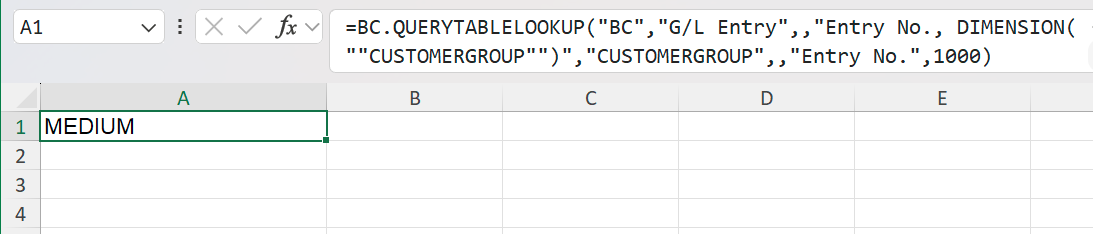
BC.QUERYTABLELOOKUP accepts DIMENSION() in its Select and Filter arguments in the same way as BC.QUERYTABLE. To return a dimension value as the lookup result, include the dimension in Select and pass the dimension code (not the DIMENSION() expression) as the FieldToReturn argument.
=BC.QUERYTABLELOOKUP(
    "BC",
    "G/L Entry",
    ,
    "Entry No., DIMENSION(""CUSTOMERGROUP"")",
    "CUSTOMERGROUP",
    ,
    "Entry No.",
    1000
)
Description: Returns the CUSTOMERGROUP dimension value of G/L entry number 1000. If the record does not carry that dimension, the function returns an empty value.
Limitations
-
Do not mix
DIMENSION()filters with dimension-set join filters. AFilterargument that contains bothDIMENSION(""AREA"") = filter(...)and a filter onDimension Set ID->Dimension CodeorDimension Set ID->Dimension Value Codereturns the errorThe filter combines Dimension() with a filter on '...'. Use one style or the other. -
Sorting by a dimension column is not supported. Using a dimension code in the
Sortsetting returns a field-not-found error. Sort the result in Excel instead. -
Unknown dimension codes and values do not return an error. In
Select, a dimension code that does not exist produces no column. InFilter, a code or value that does not exist matches no records, and the formula reports no results. Check the code with BC.EXPANDDIMENSIONRANGE if you get an unexpectedly empty result. -
Smart refresh is not applied.
DIMENSION()queries the dimension set as a related table, and BC.QUERYTABLE formulas that use related tables always perform a full refresh, as described in the Smart refresh article.
Related articles
-
BC.QUERYTABLE – full argument reference, including
unpivot()and related-table joins -
BC.EXPANDDIMENSIONRANGE and BC.EXPANDDIMENSIONVALUERANGE – list dimension codes and values
-
Velixo for Business Central – Extension version requirements