Overview
Use the BC.QUERYTABLE function to return data directly from queryable Business Central tables.
You can use the Query Builder functionality to construct formulas visually.
Syntax
=BC.QUERYTABLE(
  ConnectionName,
  Table,
  Filter,
  Select,
  IncludeHeader,
  Settings,
  TableOutputCell
)
Arguments
|
Argument |
Required / Optional |
Description |
|---|---|---|
|
|
Optional |
Provide one of the following values:
OR Omit the argument to return results for all compatible connections with default aggregation settings. |
|
|
Required |
Table name. Use the BC.EXPANDTABLERANGE function to retrieve a list of tables available for querying. |
|
|
Optional |
Filter expression. Use the BC.QUERYTABLEFILTER function to create ready-to-use filters. Flow fields are scoped with a flow filter rather than an ordinary column filter - see the dedicated guide for details. You can filter on fields from related tables (see the To filter by a dimension value, use the Excluding non-matching rows depends on the Velixo Extension for Business Central - see the requirements page for the minimum version. With older extension versions, all rows are returned instead, and the related field returns an empty value for non-matching rows. Filters on aggregated columns (for example, Filtering based on the |
|
|
Optional |
Comma-separated list of table columns to be included in the resulting dataset. If omitted, all table columns will be returned. To include a field from a related table, use the
Multiple joined fields can be included in the same When more than one field uniquely identifies each record in the related tables, provide additional field names using the To return dimension values as columns, use the When the related table contains multiple matching records (a one-to-many relationship), all matching values are returned in a single cell by default. The number of rows in the result always matches the main table - rows are not duplicated. Only one level of join is supported. You can join from a main table to a related table, but you cannot chain joins further (e.g., The join functionality depends on the Velixo Extension for Business Central. See the requirements page for the minimum version. See the dedicated article for update instructions. Use the Both plain column names and joined fields are accepted - for example, By default, every distinct value of the lead field becomes a column. To return only specific values, list them in parentheses after the lead field. Because the Only the listed values produce columns. The values must match those of the lead field you chose - dimension codes for List each value separately. Combining them into one quoted value - for example, Aggregate a column by wrapping it in an aggregate function: Aggregation works together with joins and Use aggregation when using a Flow Field is not an option, or when you need a more advanced query (e.g., one that combines multiple dimensions or joins). Flow fields offer superior performance to aggregation. When an aggregated column takes its values from a joined field that returns several values per row, those values are combined into a single number before the aggregate is applied. Filtering expressions such as |
|
|
Optional |
Indicates whether column headers are included in the dataset. Accepted values: |
|
|
Optional |
Two-column array, containing one or more of the following keys:
You can use the VX.SETTINGS function to construct the array for the argument. Using the |
|
|
Optional |
Specify the target cell address to return results in an Excel table. See the Table Mirroring article for details. |
Examples
Select fields from a table, output in Excel table
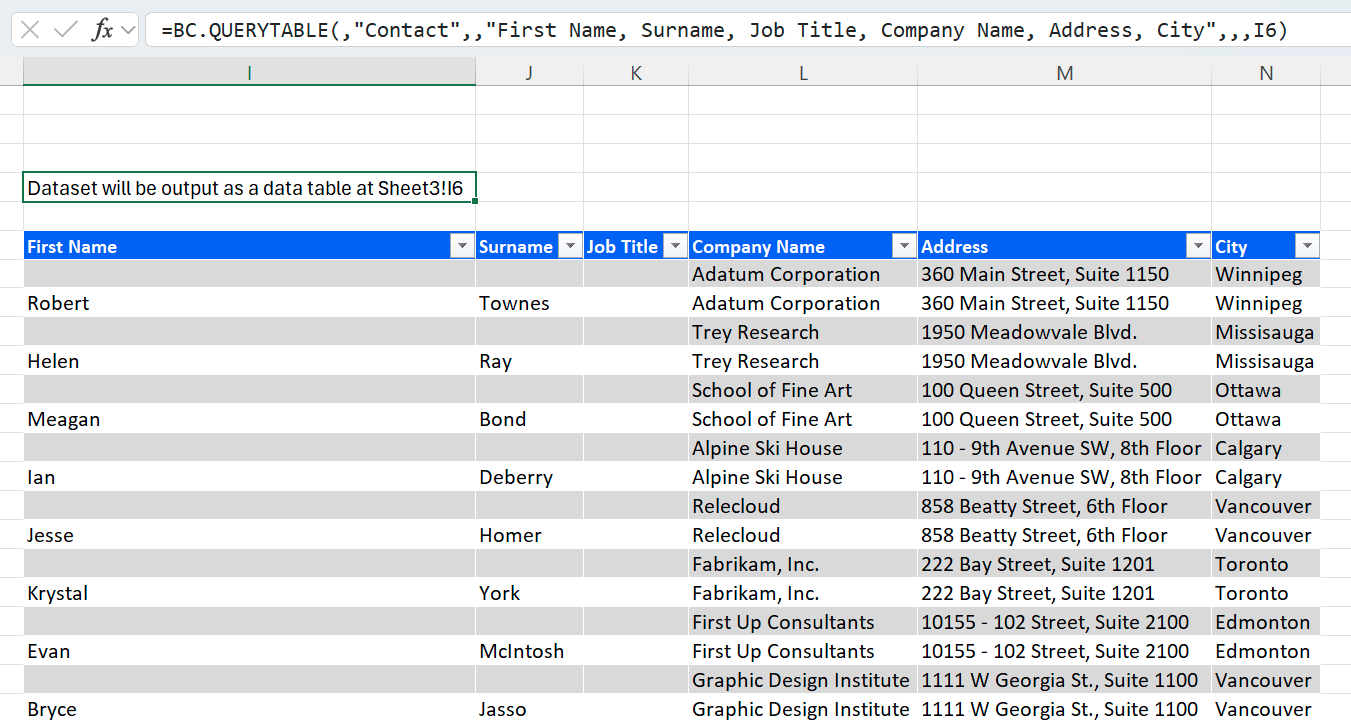
=BC.QUERYTABLE(,"Contact",,"First Name, Surname, Job Title, Company Name, Address, City",,,I6)
Description: Returns the contents of the table Contact found in the default connection. Columns First Name, Surname, Job Title, Company Name, Address, and City are selected. The results are output in an Excel table in cell I6.
Select fields, including related fields
=BC.QUERYTABLE("bc","Sales Line",,"Document No.,Bill-to Customer No.,Bill-to Customer No.->Name,Gen. Bus. Posting Group,Gen. Bus. Posting Group->Description")
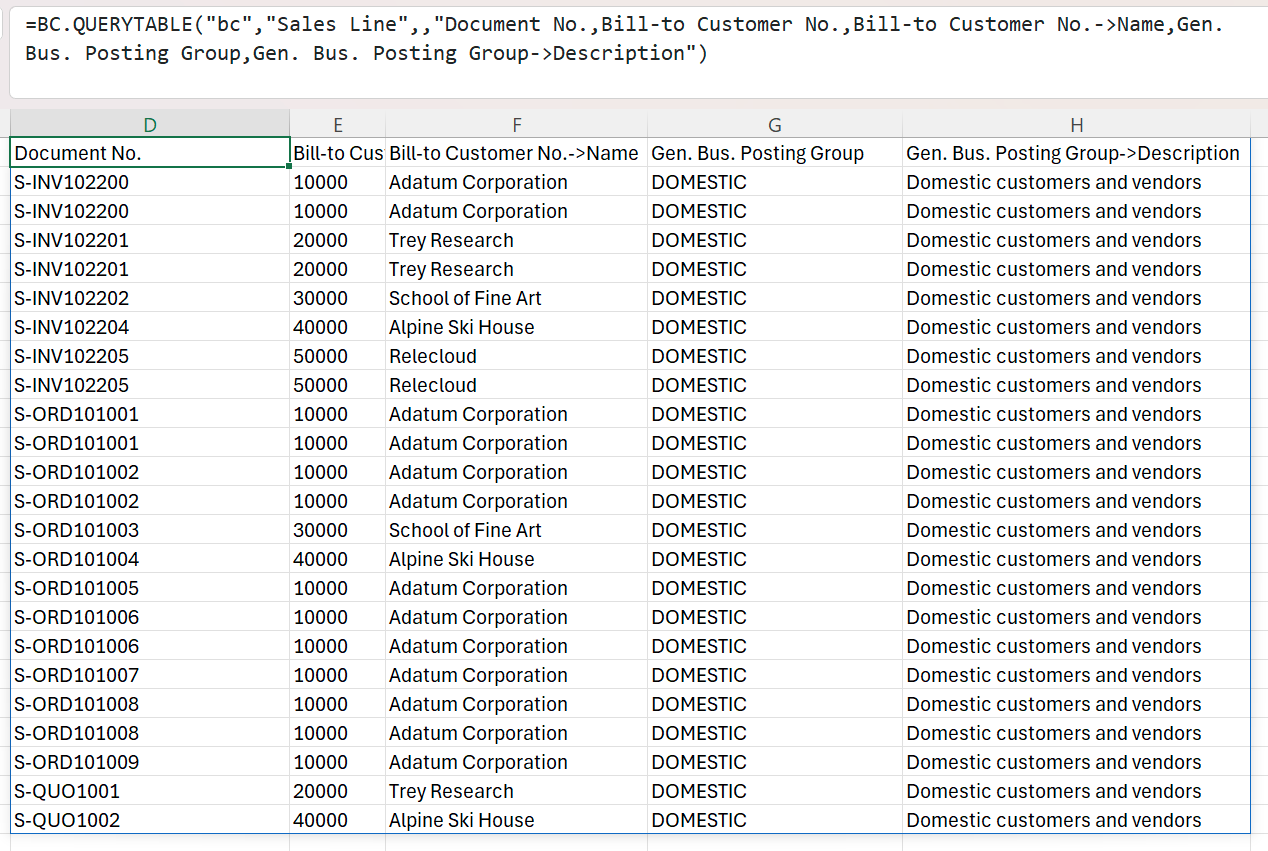
Description: Returns Sales Line records with customer names and posting group descriptions looked up from their respective related tables.
Use the ExtraJoinKeys argument to define key fields for a related table
=BC.QUERYTABLE("bc","Sales Line",,"Document Type,Document No.,Document No.->Amount",,{"ExtraJoinKeys","Document No.->Document Type= Document Type"})
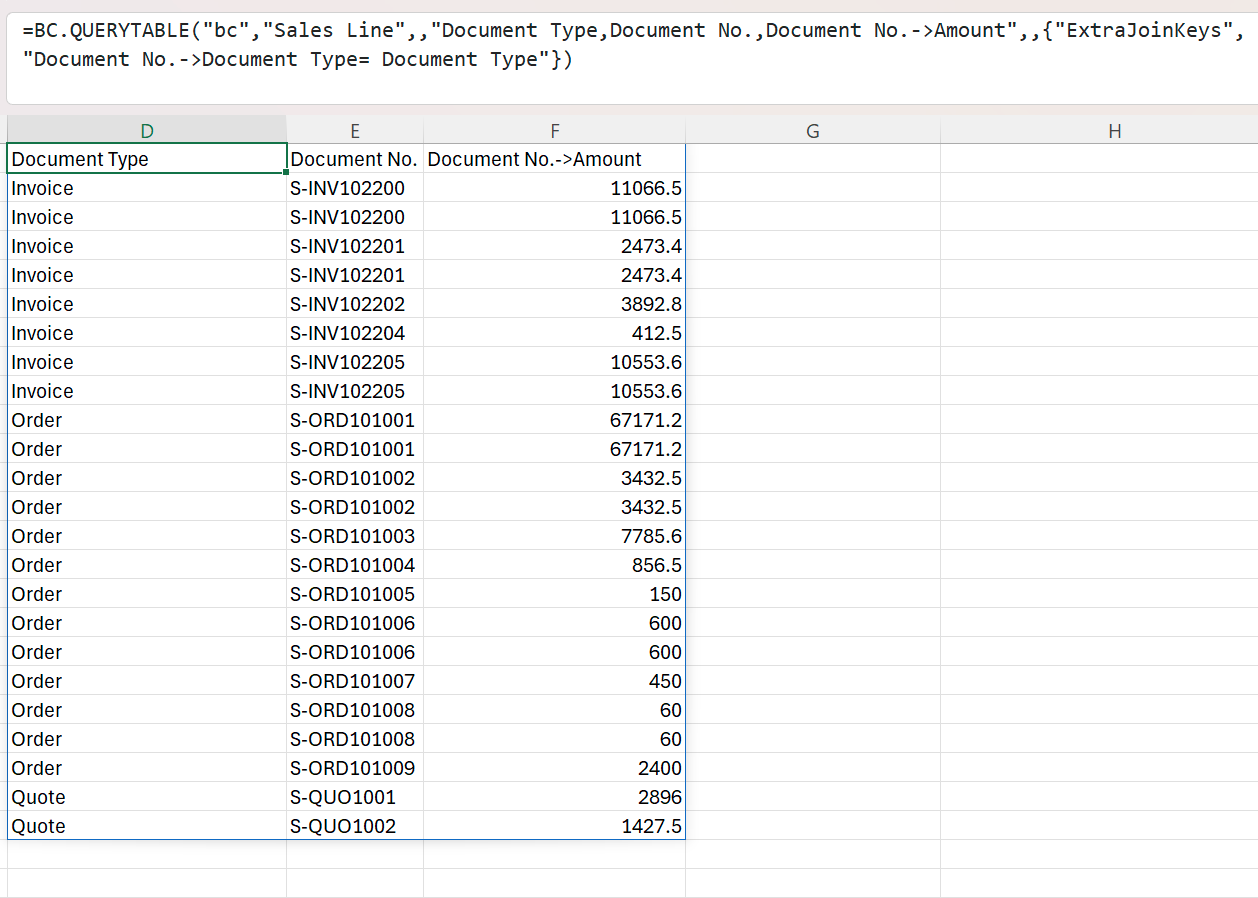
Description: Joins Sales Line to Sales Header using both Document No. and Document Type, ensuring records of different types with the same document number are not mixed up.
Use unpivot in the Select argument to use nested object attributes as columns
=BC.QUERYTABLE(,"Item Attribute Value",,"unpivot(Attribute Name, Value)")
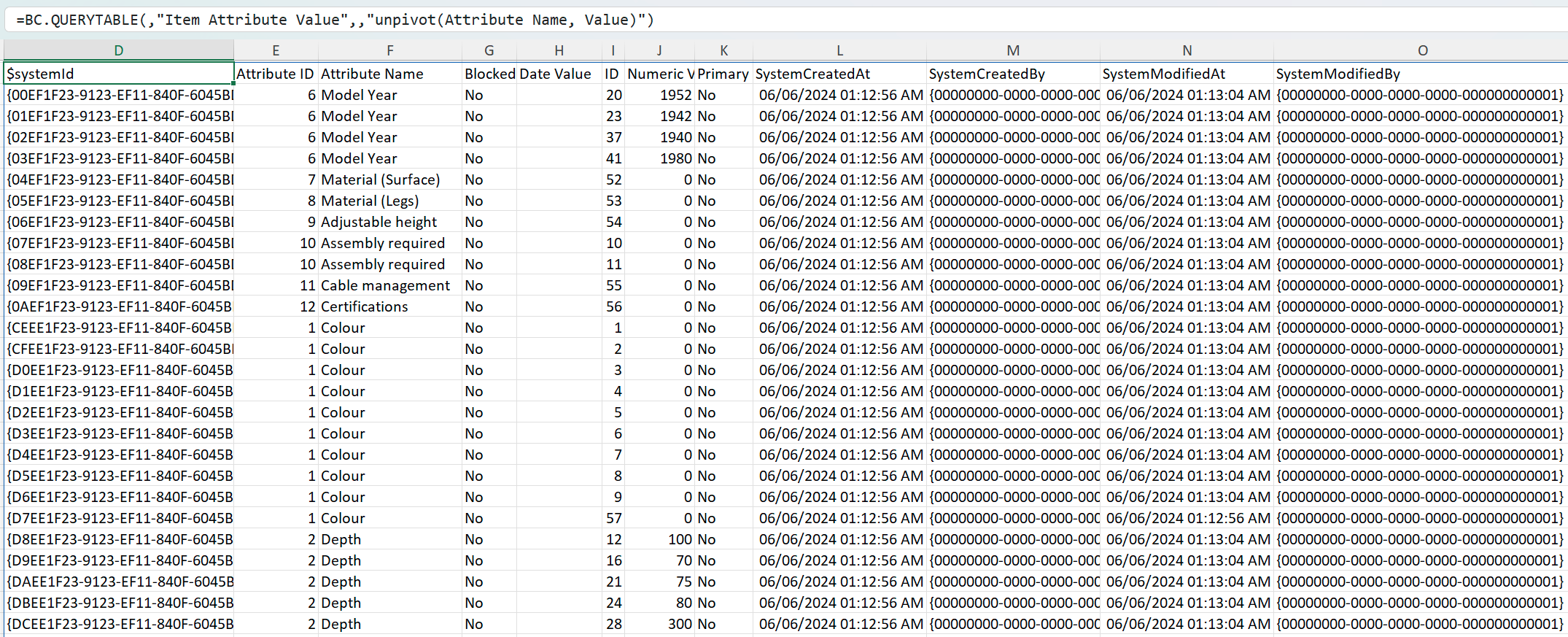
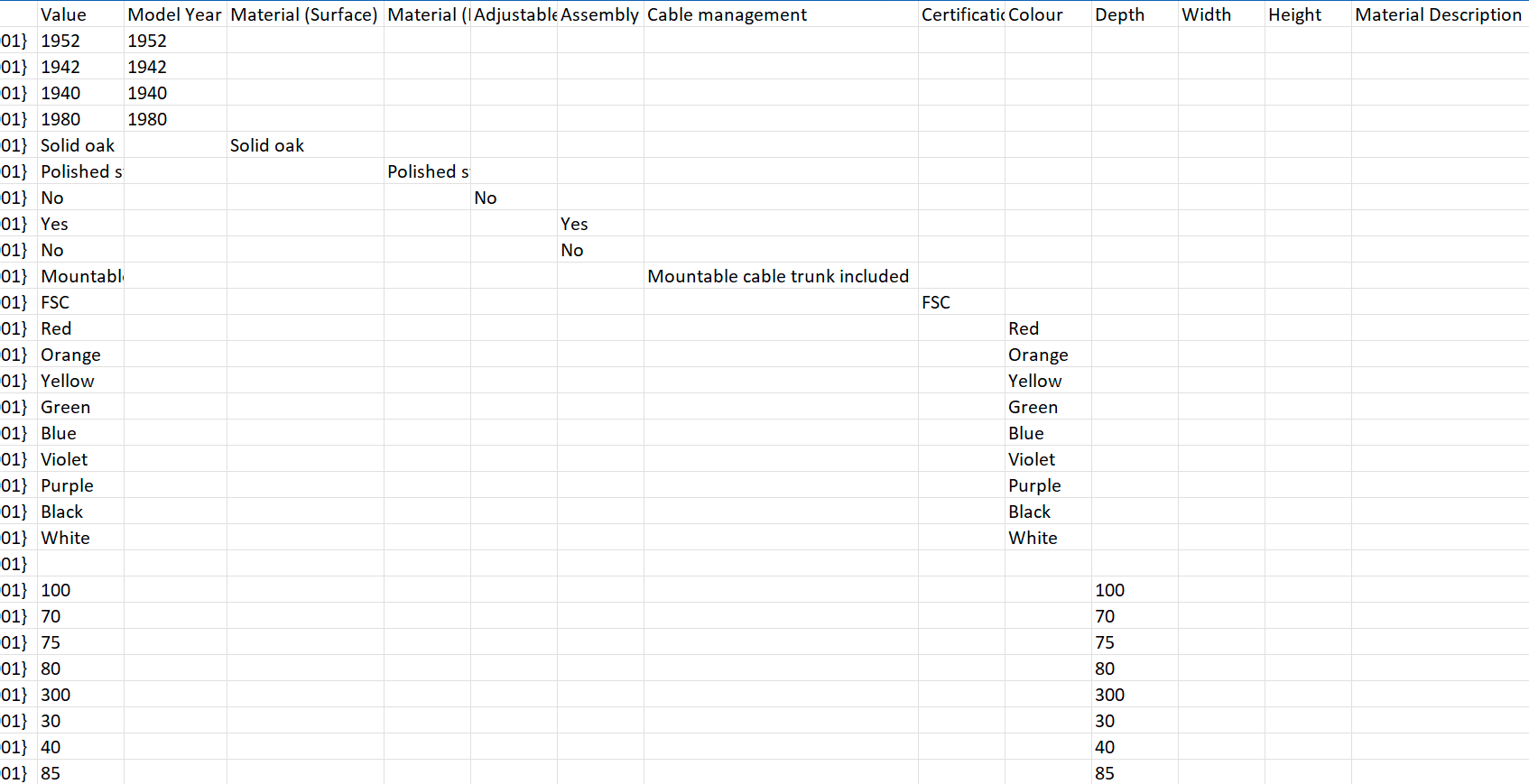
Description: Turns each distinct value of Attribute Name into its own column header, with the corresponding Value populating the cells, so that instead of multiple rows per item, you get one row with all attributes spread across columns.
Use aggregated values in columns
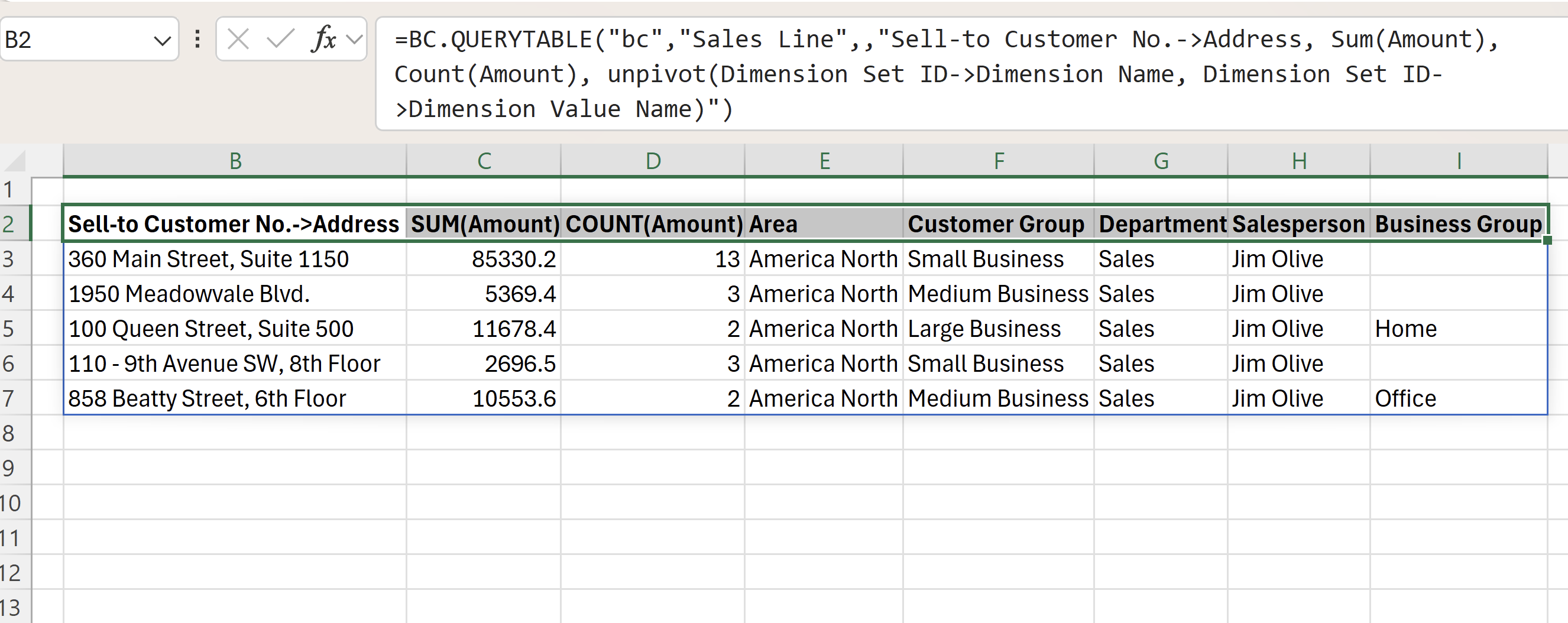
=BC.QUERYTABLE("bc","Sales Line",,"Sell-to Customer No.->Address, Sum(Amount), Count(Amount), unpivot(Dimension Set ID->Dimension Name, Dimension Set ID->Dimension Value Name)")
Description: Groups Sales Line records by the customer address joined from the Customer table, and for each address returns the total (SUM) and number (COUNT) of Amount values. The dimension set is unpivoted so each dimension (Area, Customer group, and so on) appears as its own column.
Result:
Return only selected dimensions as columns
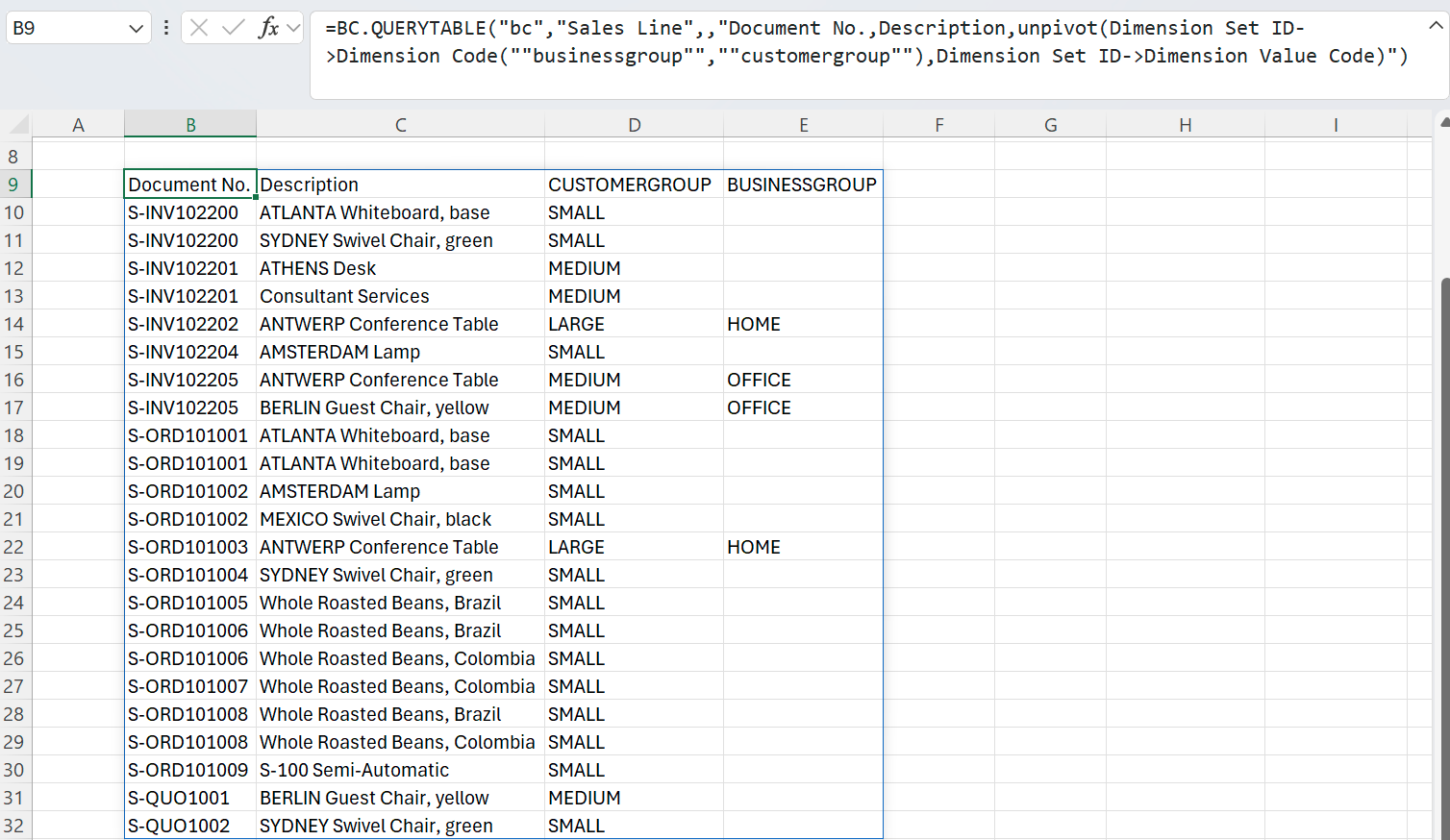
=BC.QUERYTABLE("bc","Sales Line",,"Document No.,Description,unpivot(Dimension Set ID->Dimension Code(""businessgroup"",""customergroup""),Dimension Set ID->Dimension Value Code)")
Description: Returns Sales Line records with only the BusinessGroup and CustomerGroup dimensions as columns, instead of every dimension in the line's dimension set.
Result: