
Applies to:
-
Product version: Velixo NX
-
ERP: Dynamic 365 Business Central
-
Functional area: Financials, Others
-
Plan: All
-
Template type: WIP Report template
Description
The BC-GL-RT16 Consolidated Balance Sheet summary report provides a snapshot of the company's financial position by aggregating the financial information of multiple entities within Dynamics 365 Business Central. It combines the assets, liabilities, and equities of all companies and locations to present a comprehensive view of the group's financial health.
Coverage
This workbook includes the following sheets:
-
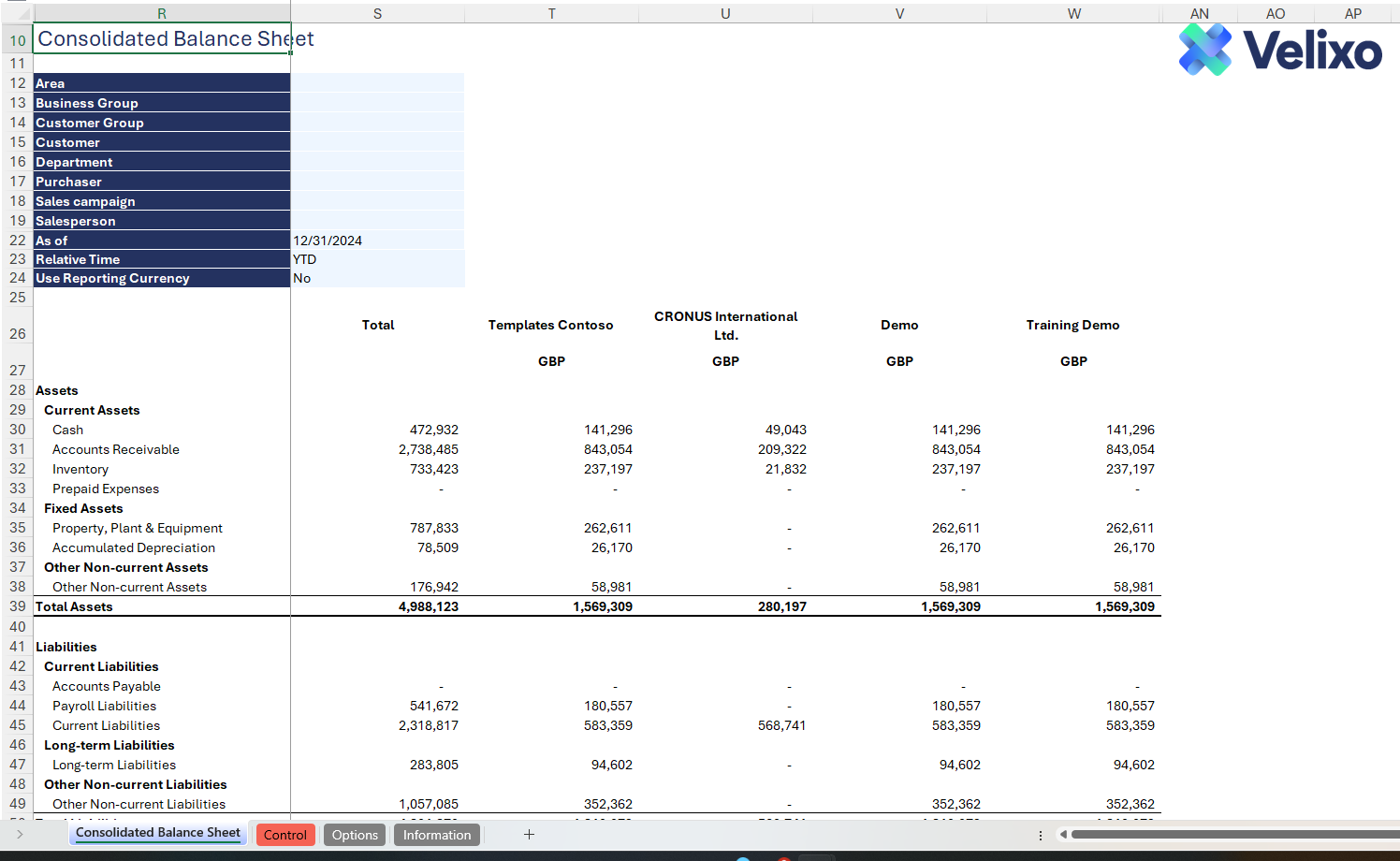
Consolidated Balance Sheet: The Consolidated Balance Sheet Report comprises Dynamics 365 Business Central account subcategories, assigned to various sections for a comprehensive financial overview.
-
Controls: a control report that can be used to confirm that the data is accurate and balances.
-
Options: the template’s settings sheet that used for data validation lists and various lookups and configurations.
-
Information: the information sheet of the report, used for storing useful details about the report such as: code, version, article link to keep track of the origin of the report.
Typical audience
The typical users of this type of report are Finance professionals: Accountants, CFOs, Controllers
Features
The following features are used by this report. To use this report, please ensure that your Velixo license includes all of them, (or contact Support or Sales):
-
Financial functions
-
List functions
-
Query functions
Preview
Download
Documentation
Navigating and utilizing the BC-GL-RT16 Consolidated Balance Sheet Summary report is a very straightforward process, designed for simplicity, genericity and efficiency. The template comes pre-configured with account subcategories, streamlining the reporting process with minimal user effort.
Filters
Located in the upper left of the sheet, the filters include:
-
Dimensions: lists all dimensions present in Dynamics 365 Business Central instance
-
As of (Period): a date field. Please use the last date of a financial period/month
-
Relative time: the relative time periods or intervals commonly used in financial reporting and analysis.
-
Use Reporting Currency: indicates whether amounts are converted to the reporting currency defined in Business Central. When set to Yes, values are converted to the reporting currency; when set to No or left blank, values are shown in the local (base) currency.
These filters are seamlessly linked to the data on the Options tab.
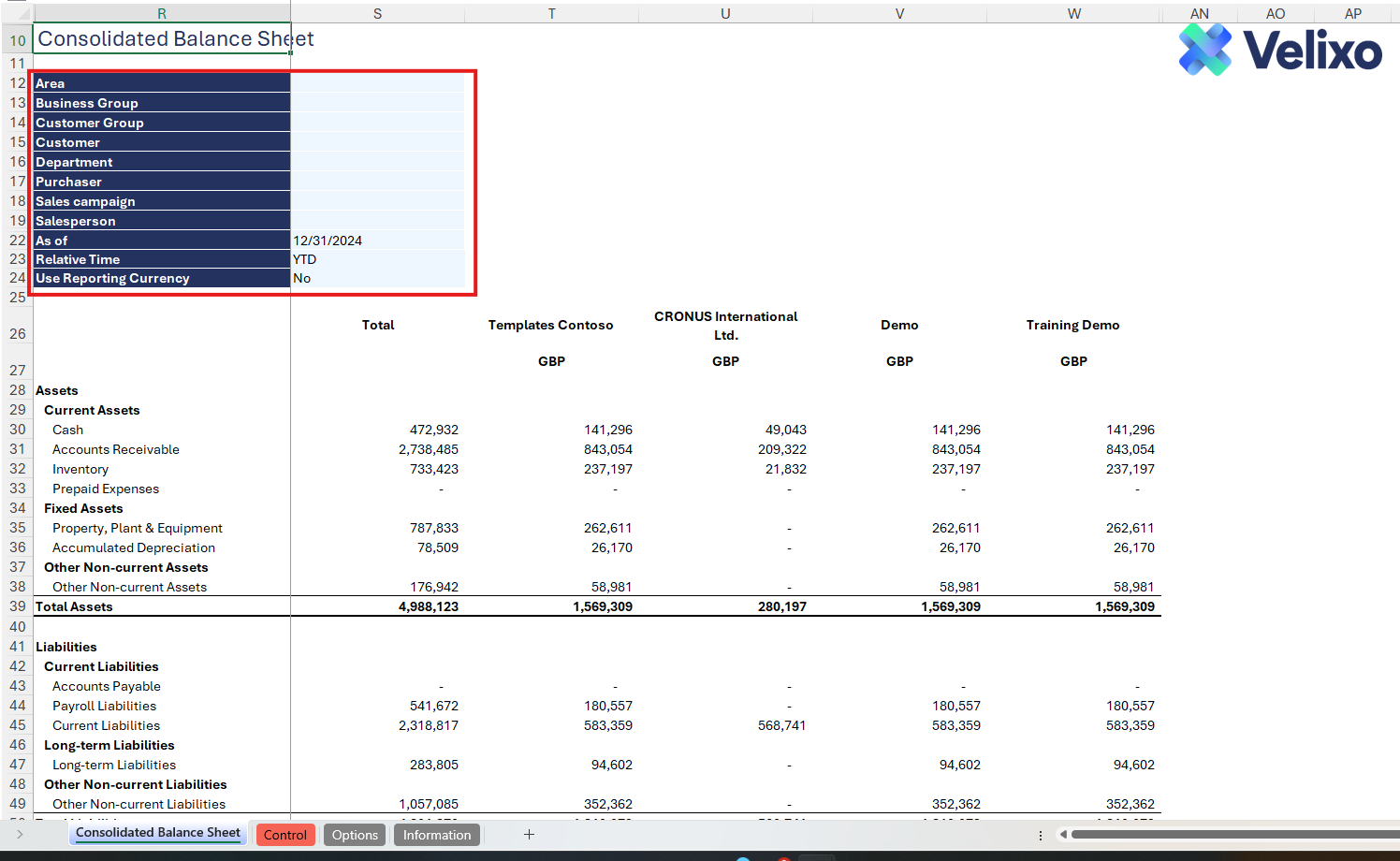
The dimension list updates dynamically based on the number of dimensions configured in your instance. However, the template can process a maximum of 10 dimensions per company. If your instance includes more than 10 dimensions, please contact Velixo Support for assistance.
Balance Sheet structure
Sections: Velixo has thoughtfully structured the BS using multiple common sections that should be generic, by default.
The following sections are used by default:
-
Current Assets
-
Fixed Assets
-
Other Non-current Assets
-
Current Liabilities
-
Long-term Liabilities
-
Other Non-current Liabilities
-
Equity
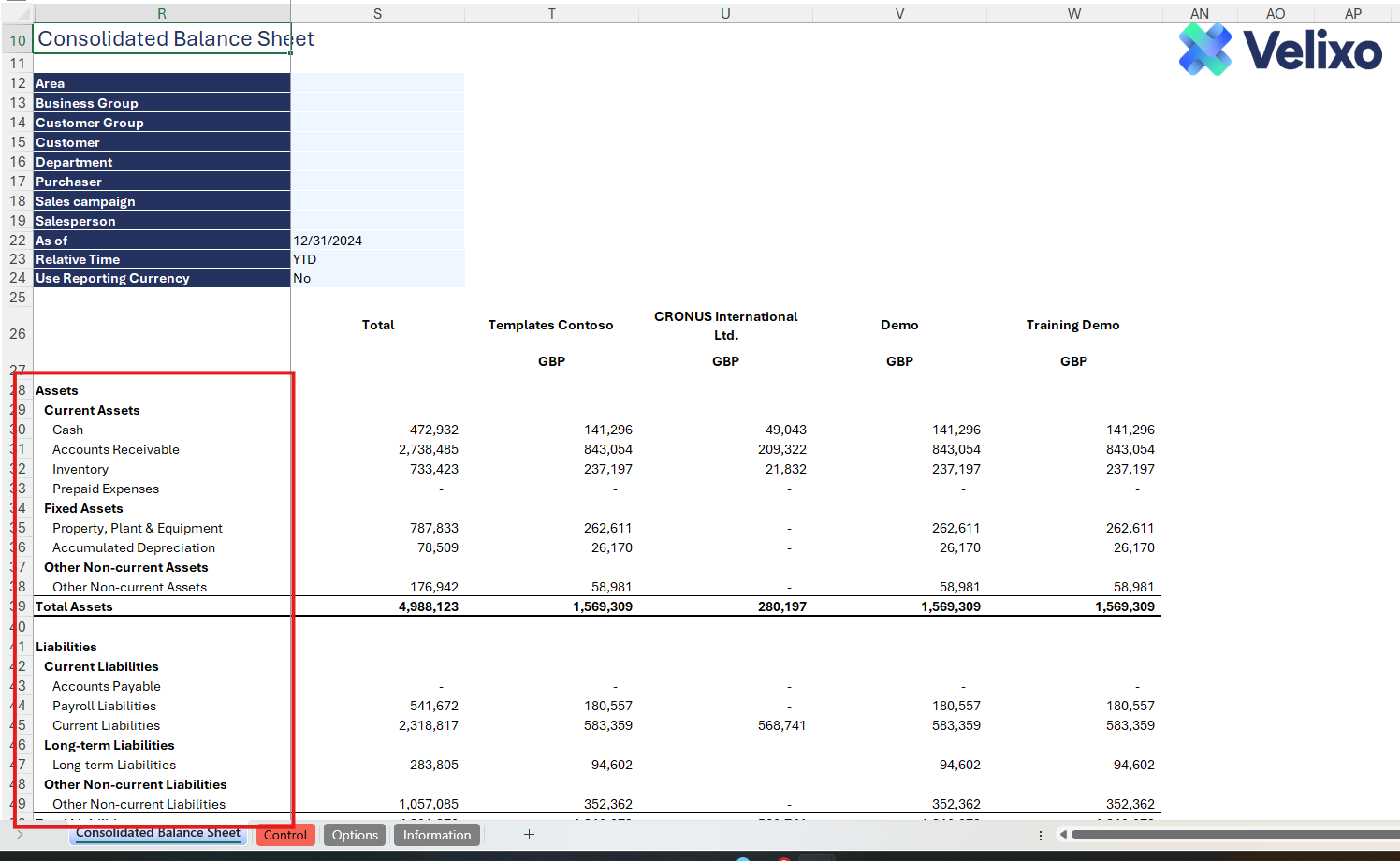
Auto Hide Zero Rows in Selected Range has been configured on the YTD Actuals columns. This means that even if some of Dynamics 365 Business Central Account subcategories are not mapped to any of your accounts or if there is no value in YTD Actuals column, then those account subcategories will remain hidden and the report will work as expected.
Company list: this section enhances the report's comprehensiveness by presenting individual Profit and Loss reports for each company, with consolidated totals conveniently displayed on the left side.
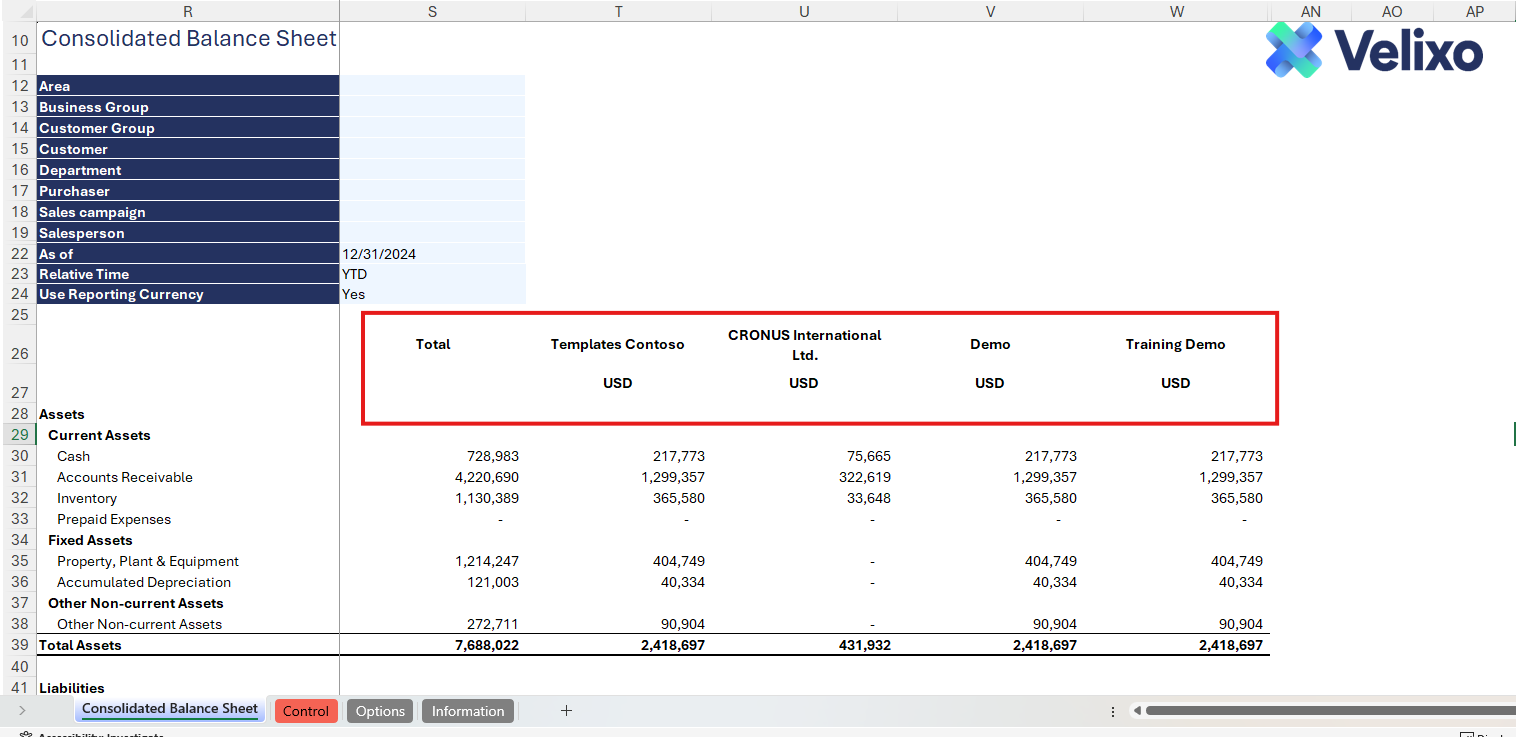
The companies displayed in the Consolidated Balance Sheet are based on all connections established with Business Central, or on the specific connection(s) defined in cell A2 of the Options sheet.
User Guide
Configuring the report
A quick setup is needed to get the most out of the report. These settings control how balances are pulled from the system and displayed in the report.
Setting Up Account Subcategories or Account Codes/Ranges
Each statement line in the report should be mapped to the corresponding account subcategories or account codes. This mapping defines how Velixo retrieves data from the system. To set this up
-
Expand the grouped columns on the leftmost side of the report
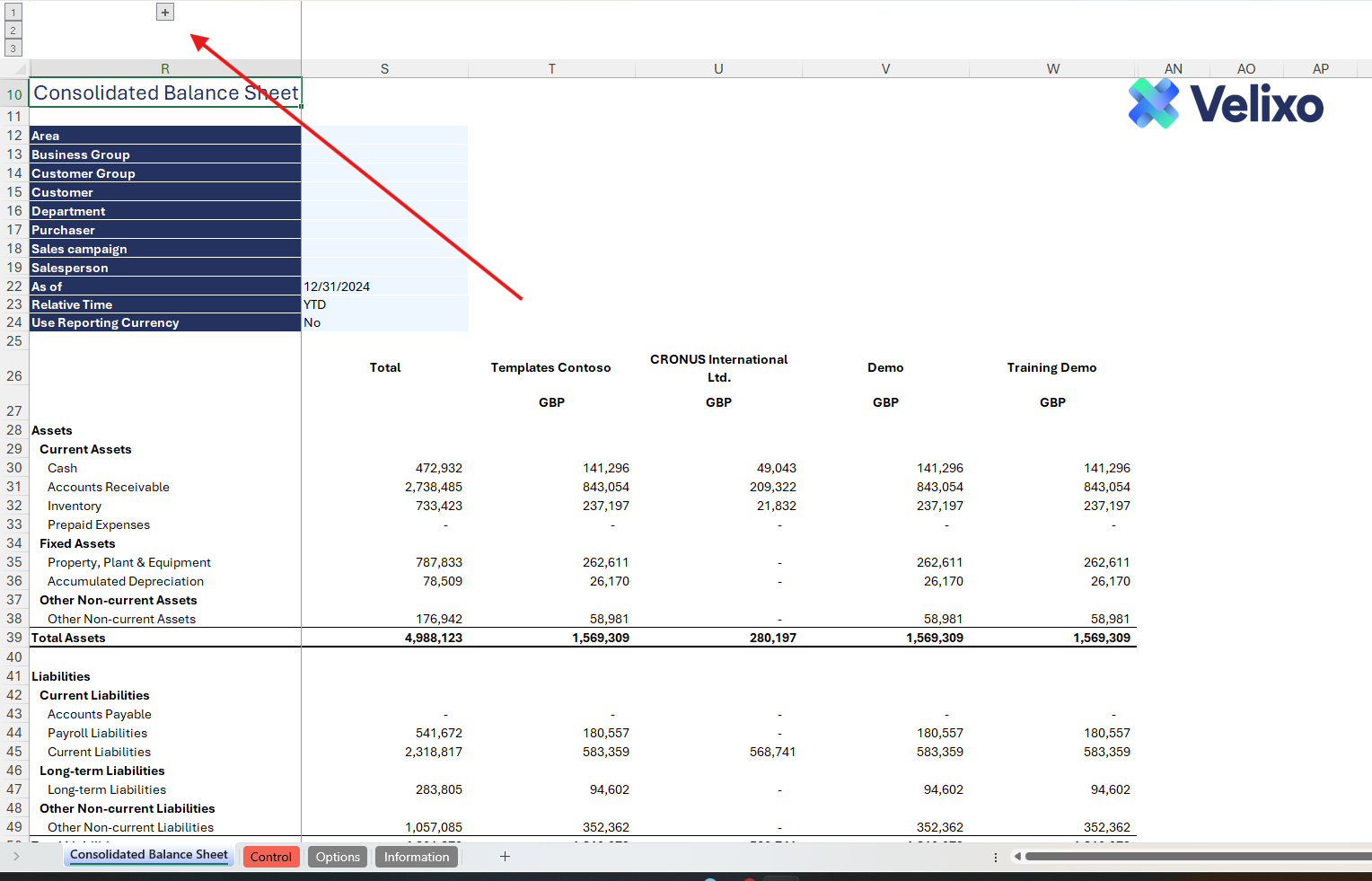
-
Doing so will display several configuration columns. The Account Subcategory and Account Code/Range columns can be found in columns D and E
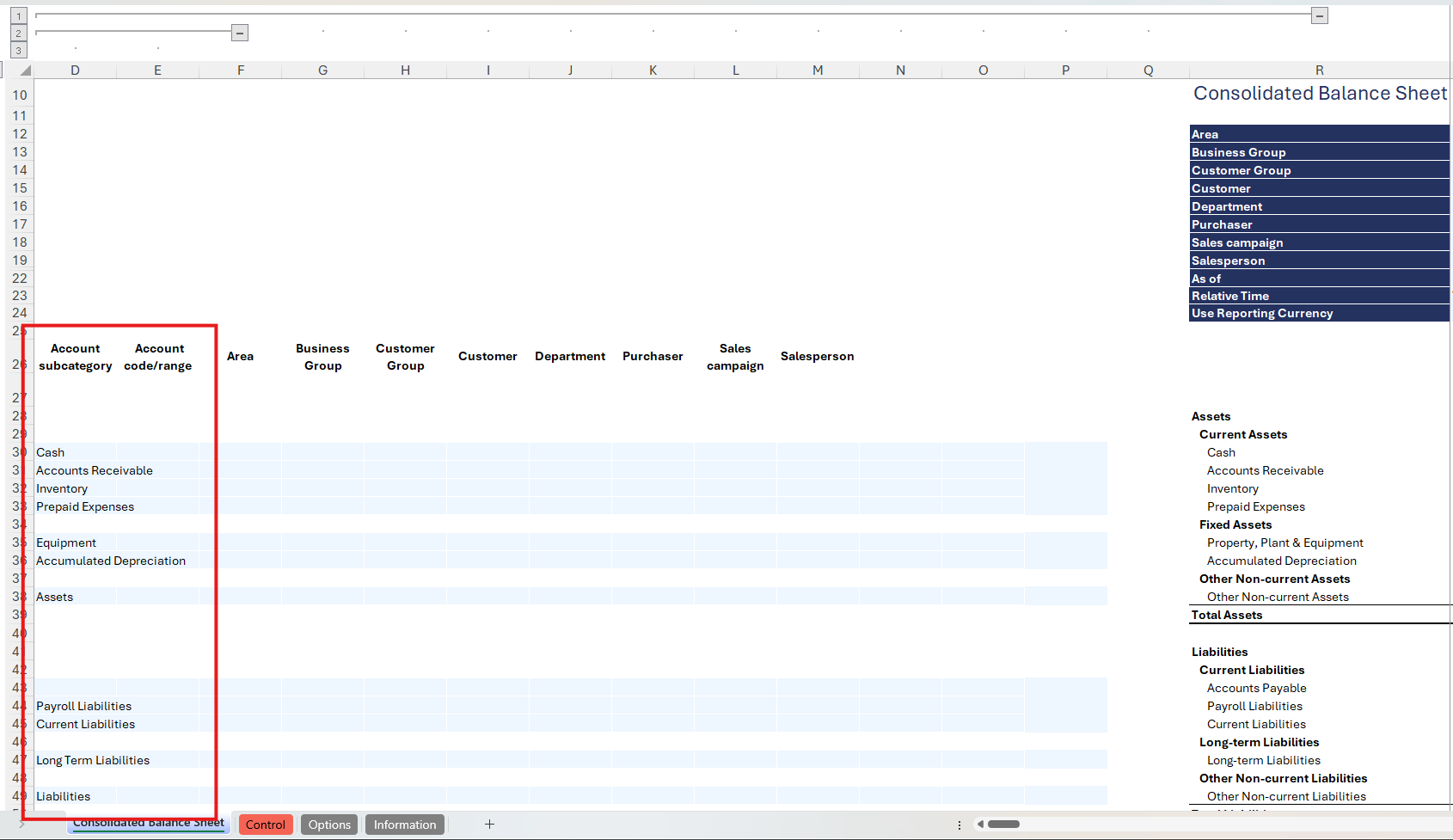
-
The report includes default subcategories based on the Velixo demo instance. These may not match your company’s configuration. Update the subcategories or account codes as needed to align with your instance setup.
By default, the Account Code takes priority over the Account Subcategory. If both are specified in the configuration, the template will ignore the subcategory and extract balances based solely on the account code.
Setting Up Dimensions per Statement Line (Optional)
To provide greater customization and flexibility, users can apply dimension filters at the statement line level. The dimension columns span from columns F to O.
The template can process up to a maximum of 10 dimensions per instance. If your system is configured with fewer than 10 dimensions, some columns in the template will remain blank - this is a current template UI limitation and does not affect how the report extracts balances.
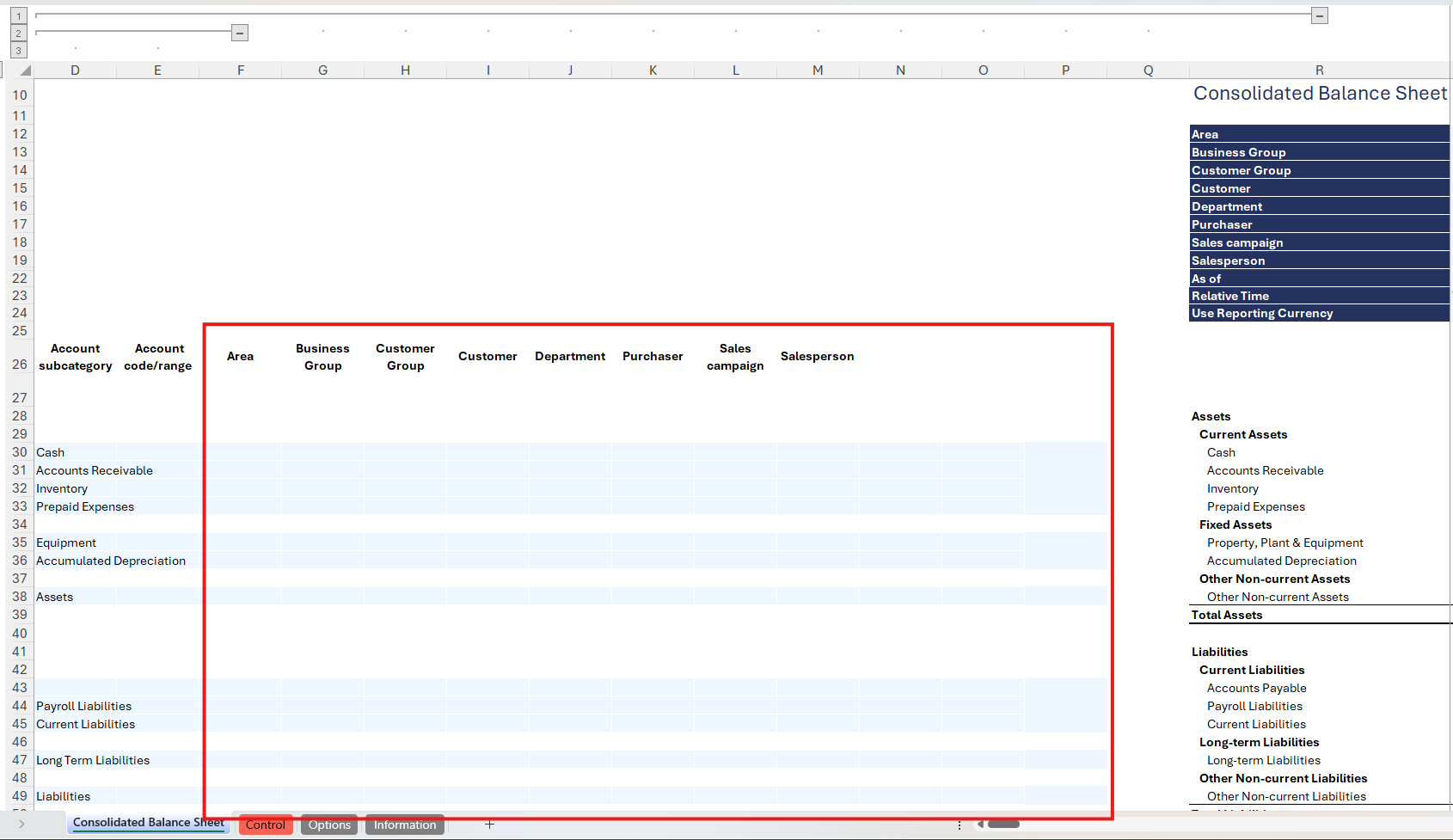
The global report filter setup takes priority over statement line level filters when the same dimension is used in both. For example, if the Area dimension is selected at both the global and statement line levels, the value specified in the global filter will take precedence and be used by the report when extracting data.
Using the report
Now that we've covered the report overview, let's dive into a step-by-step guide on effectively utilizing the report:
-
Set the Connection Name on the Options Sheet: crucial for all processes, set the Connection Name on the Options sheet by updating cell A2. Ensure it matches the name used during Velixo application login.
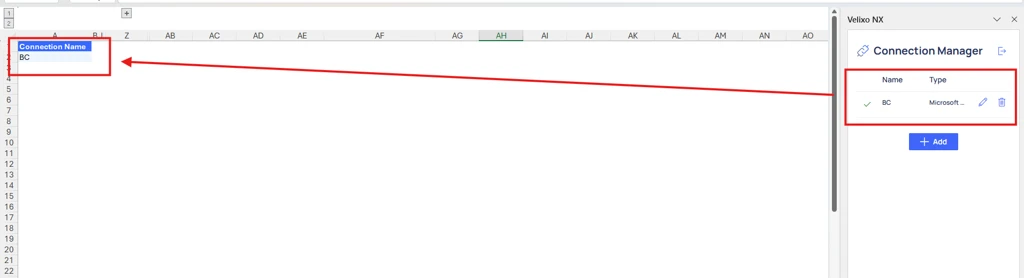
Note: This template supports both multi-connections and meta-connections. It will automatically detect if multiple connections are in use. To use a specific connection, enter its name in cell A2. You can also use multiple connections by separating their names with a semicolon (;) or comma (,). Leaving A2 blank will use all connections established in the template.
To learn more about connection, please refer to this link: Connection Manager
-
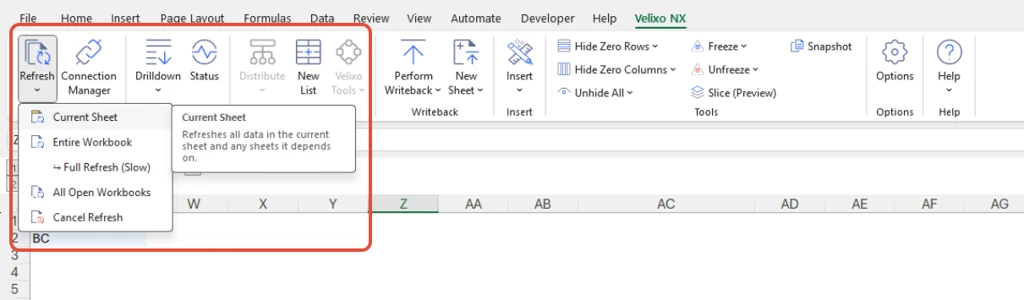
Update the Options Sheet: As the foundation for filters on the Balance sheet tab, keep the Options sheet up to date. It should always and automatically capture the latest dimensions and structures from your Dynamics 365 Business Central instance.
-
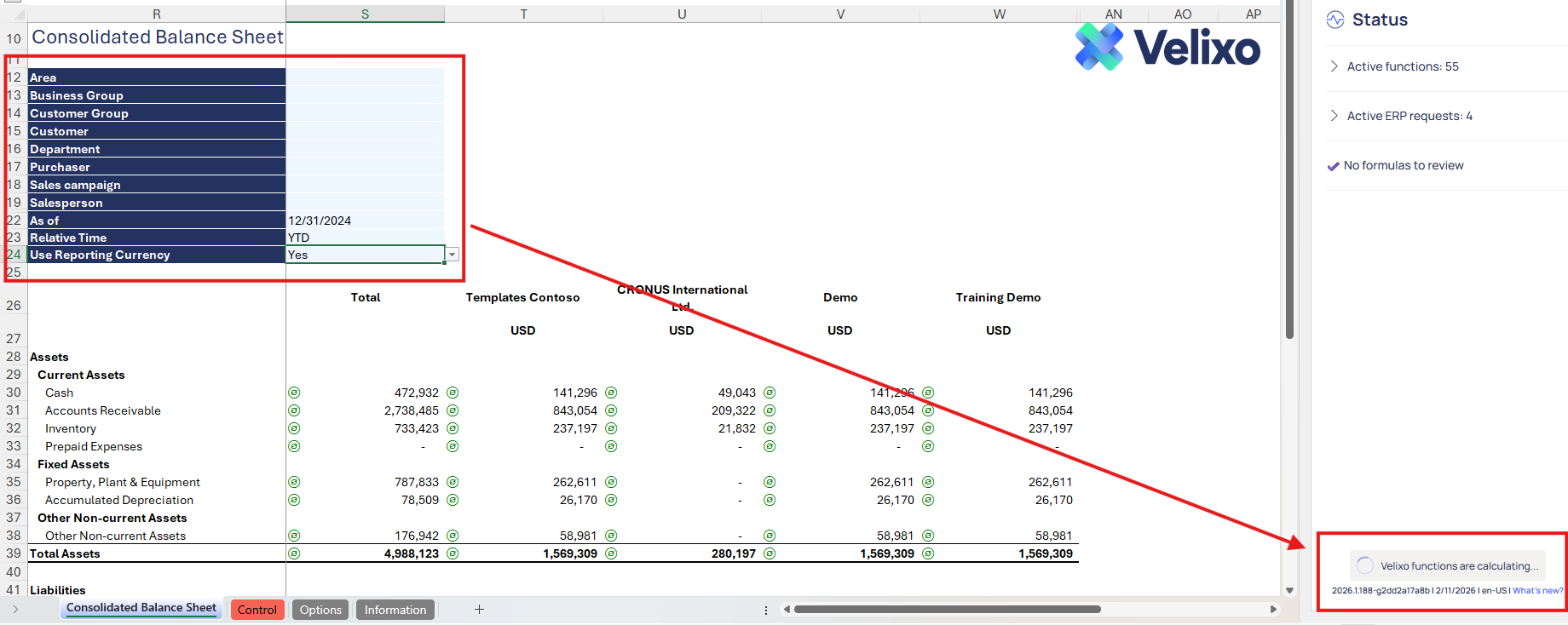
Choose Desired Filters: after updating the Options sheet, select desired global filters for the report:
-
Dimensions
-
As of (Period)
-
Relative Time
-
Use Reporting Currency
-
-
Automatic Report Update: selecting any filter will automatically update report balances. Begin analyzing the report with the latest data.
-
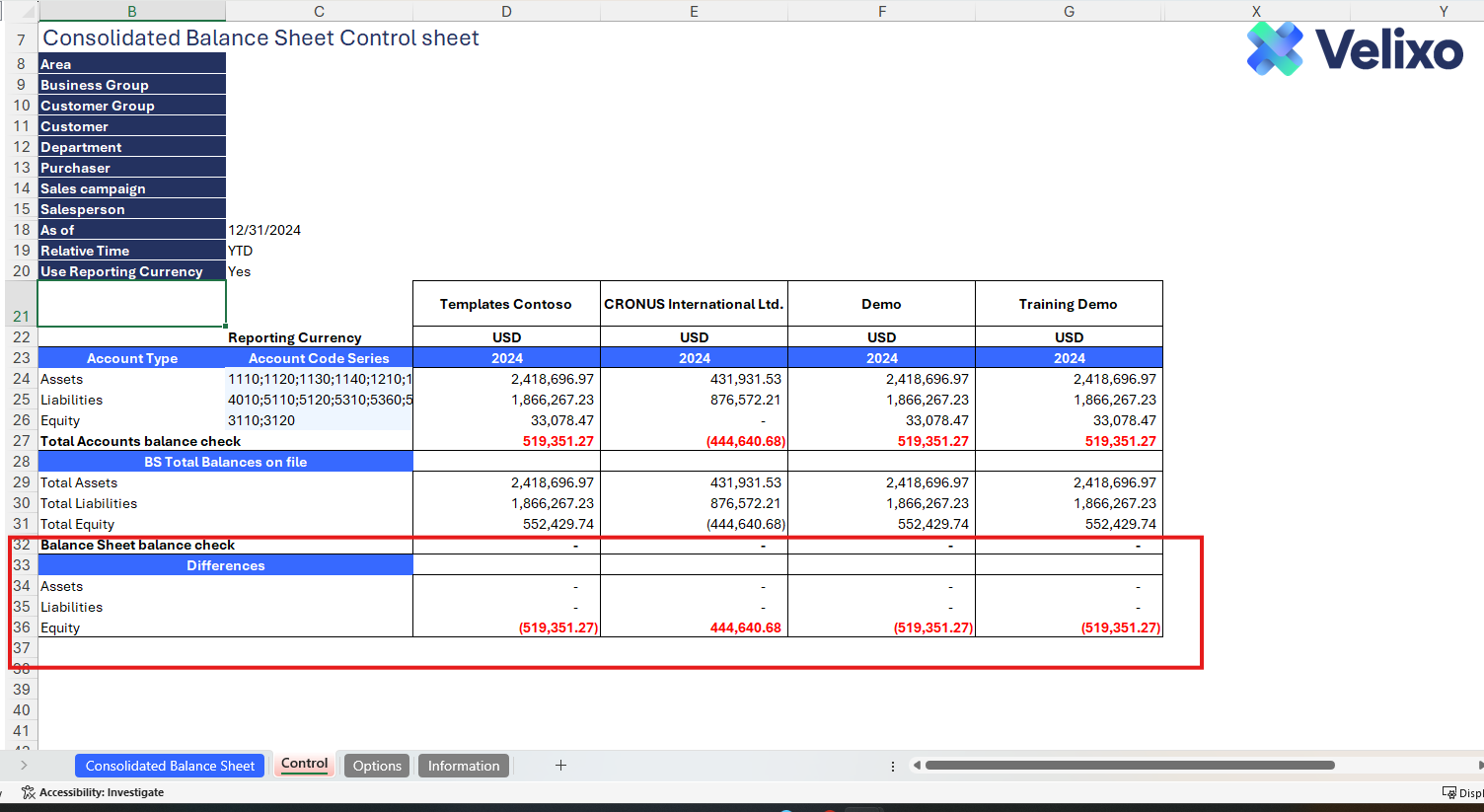
Validation and analysis: ensure accuracy by verifying balances in the Control sheet. Confirm that differences for each of the total are zero.
Using the Control report
Committed to upholding data integrity across the report and Dynamic 365 Business Central, the Control sheet serves as a supplementary component to the primary Balance sheet tab. Its purpose is to validate the data extracted by Velixo on an account category basis by cross-referencing it with the extracted balances at the account code level.
Given that the balances of the account codes aggregate to the account category, the Control sheet ensures the absence of discrepancies in the total for each account type. This verification process enhances the reliability and accuracy of the overall financial reporting template.
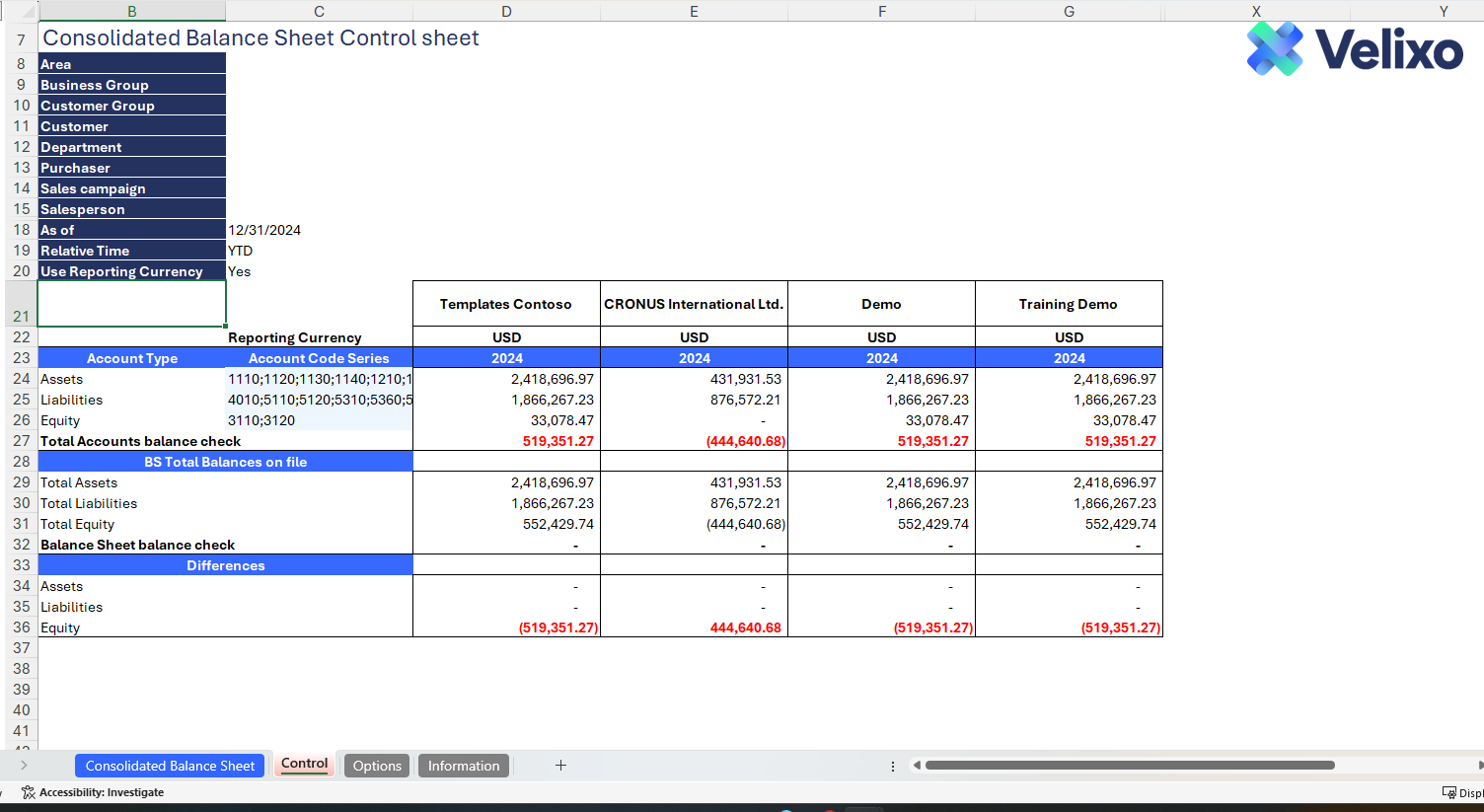
The Control sheet is divided into three sections:
-
Account Code Balance Check: Extracting balances at the account code level to guarantee accurate capture and reconciliation of BS balances with the account categories listed on the Balance Sheet tab. The Account code series is highly flexible, and users may adjust the settings to match their specific requirements at any time.
-
BS Balances: Displays total balances from the Balance Sheet tab for reconciliation with the Account Code balance section.
-
Differences: Highlights reconciliatory differences between the Account code and account category sections, marked in red font for investigation.
Managing Account Structures
The calculated transaction amounts are determined solely by the account codes mapped to the designated Account subcategory in Column D or the specified account code or range in Column E. This ensures the report is fully ready for use by anyone, 100% out-of-the-box.
However, as outlined earlier in this document, users have the flexibility to tailor this report to their specific needs. This is especially useful when the default subcategories don't quite fit the requirements.
Adding New Account Section
If users desire a structure beyond the provided account subcategories, they can leverage account groups set up in their ERP instance. However, caution is crucial to avoid overlap between account subcategories, preventing inaccuracies. Opting for a granular account subcategory list ensures data is accurate.
Users have two options when adding new account structure:
-
Re-purposing an existing Account subcategory:
-
Rename an existing account subcategory line, replacing it with the desired custom account group.
-
Ensure exact naming consistency with the ERP instance for Velixo to accurately return amounts.
-
Adding a Row in the Required P&L Section:
-
Use Excel functions to add a new row in the desired section.
-
Be cautious with formulas in newly added rows; copying from existing rows in the same section ensures accurate results.
Removing an Account category
While users have the freedom to remove an account category, it's strongly discouraged as the report makes use of Velixo’s automatic hiding of rows with zero values, which has been configured on the Year-to-Date (YTD) Actual values.
This feature eliminates the need for manual deletions of account category rows and ensures the report remains fully dynamic should usage of account subcategories change over years or transactions get created against new account subcategories.
However, if an account category should really be deleted:
-
Utilize Excel's delete row function for removal, followed by thorough data validation and reconciliation on the report.
-
Always validate data accuracy using the Control sheet.
Version History
|
Version |
Released on |
Remarks |
|
1 |
N/A. Initial version of this template. |
|
|
1.1 |
Revised the turnover calculation formula to be dynamic, eliminating the need to copy the formula across individual columns or cells. |