
Overview
The ACCOUNTBEGINNINGBALANCE function calculates the beginning or opening balance of one or more general ledger accounts, for a specific period.
Some organizations refer to this as the Period Beginning Balance or Period Opening Balance for an account.
Syntax
=ACCOUNTBEGINNINGBALANCE(
    ConnectionName,
    Ledger,
    AccountClass,
    Account,
    Subaccount,
    Branch,
    AsOf,
    IncludeUnposted,
    UseMasterFinancialCalendar,
    UseAccountCurrency
)
Arguments
The ACCOUNTBEGINNINGBALANCE function uses the following arguments
|
Argument |
Required/Optional |
Description |
|
|
Optional |
Provide one of the following values:
OR Omit the argument to return results for all compatible connections with default aggregation settings. |
|
|
Required |
Ledger ID. Leverage the ACU.EXPANDLEDGERRANGE function to obtain available values. Supports Velixo filtering techniques. |
|
|
Optional, though required if |
Account class ID. Leverage the EXPANDACCOUNTCLASSRANGE function to obtain available values. Supports Velixo filtering techniques. |
|
|
Optional, though required if |
General ledger account code(s). Leverage the EXPANDACCOUNTRANGE function to obtain available values. Supports Velixo filtering techniques. |
|
|
Optional |
Subaccount code(s). Leverage the EXPANDSUBACCOUNTRANGE function to obtain available values. Supports Velixo filtering techniques. |
|
|
Optional |
Branch ID(s). Leverage the EXPANDBRANCHRANGE function to obtain available values. Supports Velixo filtering techniques. |
|
|
Required |
The financial period, in MM-YYYY format
|
|
|
Optional |
1 - Include posted transactions only (default) 2 - Include Unposted transactions only 3 - Include Posted and Unposted transactions
|
|
|
Optional |
Use Acumatica's Master Financial Calendar instead of the financial calendar defined within the specific tenant associated with the connection being accessed (this can be useful for consolidation reports).
This feature requires that your ERP license include Multi-Calendar Support and that your ERP be configured for that feature |
|
|
Optional |
Set to Accepted values: Default value: |
(see our articles on Filtering Velixo Functions and using arrays or cell ranges as arguments)
Examples
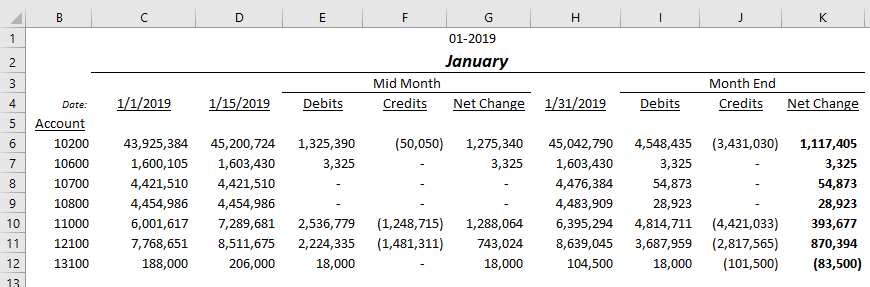
Based on this data:
Example 1
=ACCOUNTBEGINNINGBALANCE(
    "Demo",
    "ACTUAL",
    ,
    $B6,
    ,
    ,
    $G$1
)
Description: Calculates the beginning balance of posted transactions to General Ledger account # 10200 (as noted in cell B6) as of the beginning of Period 1 for the year 2019 (as noted in cell G1).
Result: 43,925,384
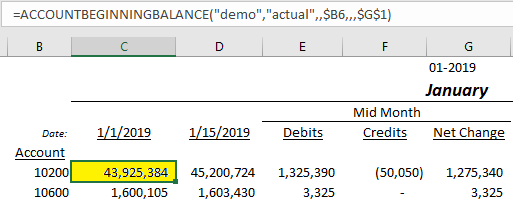
Example 2
=ACCOUNTBEGINNINGBALANCE(
    "Demo",
    "ACTUAL",
    ,
    $B9,
    ,
    ,
    C$4,
    3
)
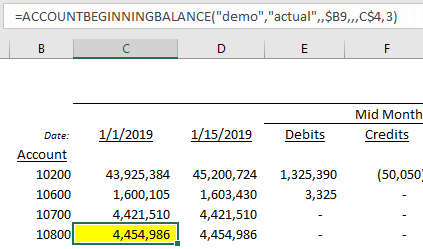
Description: Calculates the beginning balance of combined posted and unposted transactions to General Ledger account #10800 (as noted in cell B9) for as of January 1, 2019 (as noted in cell C4).
Result: 4,454,986
Limitations to filtering by date instead of the financial period
-
You can't filter the YTD Net Income account by date. This is the account set as YTD Net Income Account in Acumatica's General Ledger preferences. If the accounts selected by your formula include it, the function returns "Error! The balance of account 33000 can only be calculated by financial period since it is your net income account." Here,
33000stands for your YTD Net Income account. To calculate net income as of a date, use the workaround below.
Workaround: calculate net income as of a date
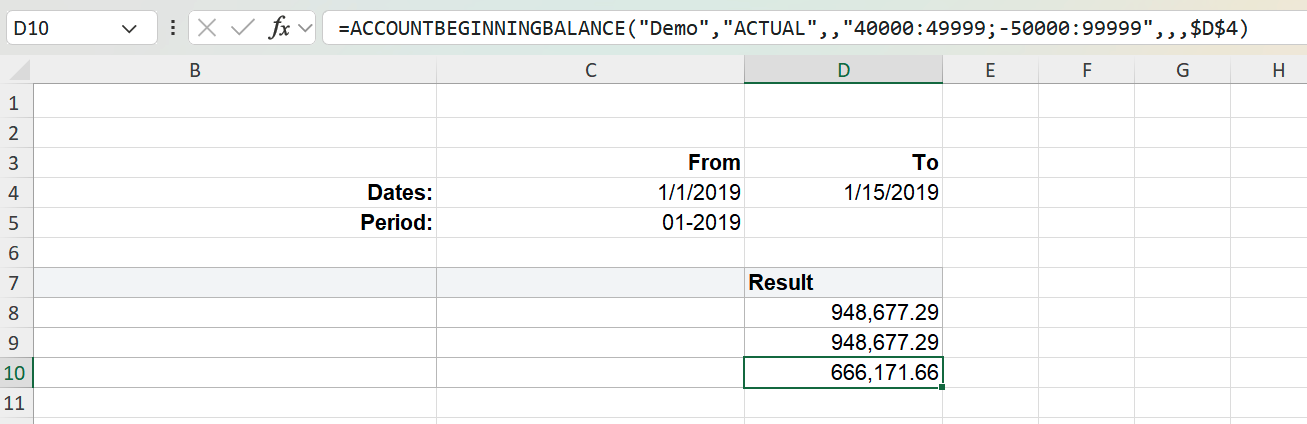
Instead of querying the YTD Net Income account, calculate net income as the total of your revenue accounts minus the total of your expense accounts. In the Account argument, enter your revenue account range, then your expense account range preceded by the subtraction operator (-). Because the two ranges don't overlap, Velixo subtracts the expense amounts from the revenue amounts. For more information, see Filtering using Velixo range expressions.
=ACCOUNTBEGINNINGBALANCE(
    "Demo",
    "ACTUAL",
    ,
    "40000:49999;-50000:99999",
    ,
    ,
    $D$4
)
Description: Calculates net income at the start of the date in cell D4 as the beginning balance of revenue accounts 40000 to 49999 minus the beginning balance of expense accounts 50000 to 99999.
-
The account ranges come from the Demo chart of accounts. Replace them with the revenue and expense ranges from your own chart of accounts.
-
Make sure neither range includes your YTD Net Income account. Otherwise the workaround doesn't give the correct result.
-
To check that your ranges are complete, run the formula for a full financial period and compare the result with the YTD Net Income account balance for the same period. The two values should match.
-
The same workaround works with ACCOUNTTURNOVER and ACCOUNTENDINGBALANCE. It doesn't apply to ACCOUNTTOTALDEBITS or ACCOUNTTOTALCREDITS.
If the Account balance sign option is set to Reversed, revenue amounts are returned as negative values, so subtracting expenses no longer gives net income. Instead, add both ranges without the subtraction operator, for example 40000:99999. If your ranges aren't contiguous, separate them with a semicolon, as in 40000:49999;50000:99999. For more information about this option, see Options (Classic).