
Symptom
When you run a WRITEBACK function that uses a custom import scenario, the writeback fails. The Velixo NX status panel displays the following message:
Something went wrong, please carefully check the function arguments. The ERP system's API returned the following error (note that it can sometimes be deeply technical, confusing, and/or not reflecting the real root cause of the failure):
The error details identify a specific field and record. For example:
Field: Customer, Value: ERPC00xxxx, Error: The usage of the ERPC00xxxx customer is restricted in the 401K branch.
The Writeback status cell for the affected line shows #N/A.
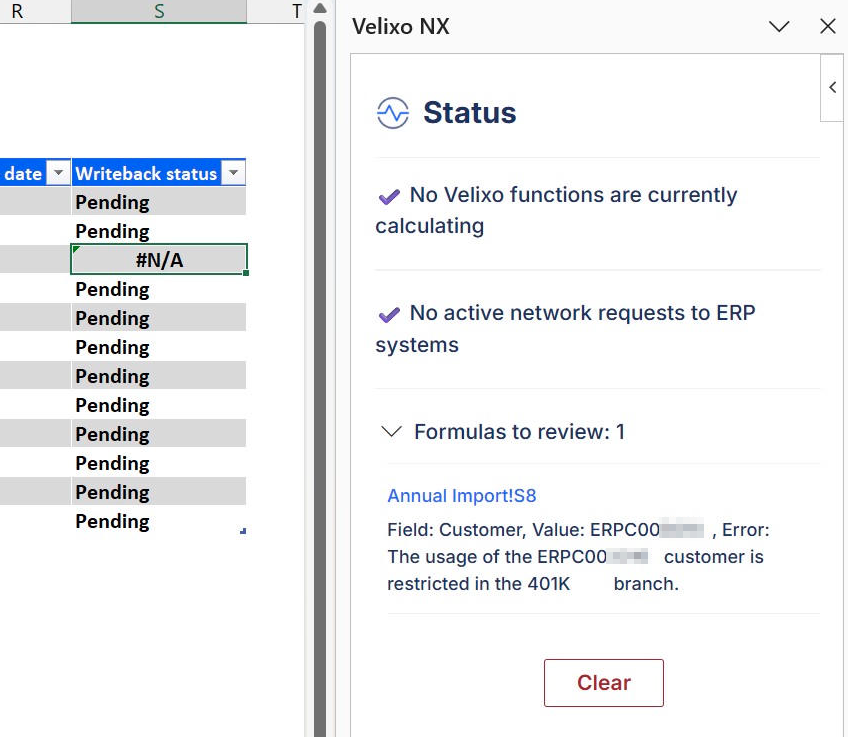
The branch named in the error is often different than branches referenced anywhere in your worksheet.
Cause
Acumatica processes the fields of an import scenario in the order they appear on the Mapping tab in a particular Import Scenario. When a field whose values are restricted by branch (such as Customer, when the customer record uses Restrict Visibility To) is mapped before the Branch field, Acumatica validates that field against the branch that is current at that point in the sequence, not against the branch your data specifies.
This scenario applies only when customer or vendor records can be restricted by branch, which requires the Customer and Vendor Visibility Restriction feature to be enabled on the Enable/Disable Features (CS100000) form in Acumatica. It also applies when Multiple Base Currencies is enabled, which makes the Restrict Visibility To field required for regular customers and vendors. If neither is enabled, the Restrict Visibility To field does not appear on the customer or vendor record and this error does not occur.
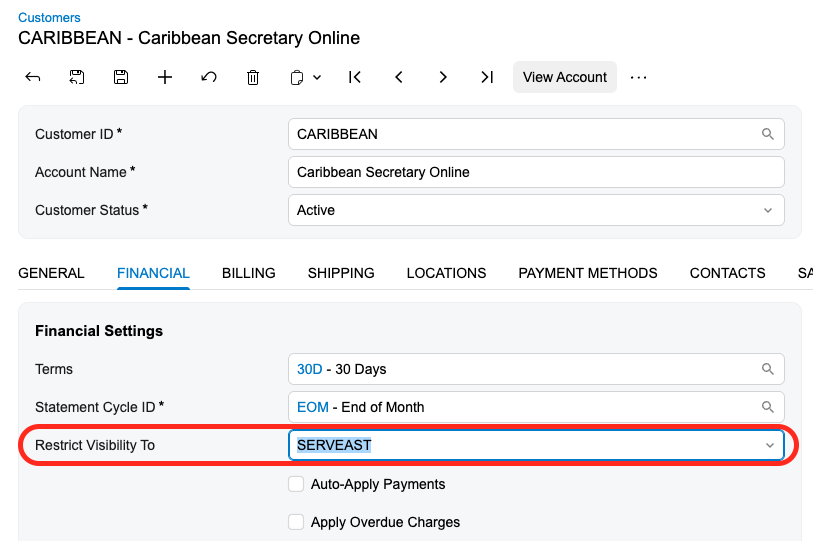
Because no branch from your data has been applied yet, Acumatica falls back to the user's Default Branch (if one is set), or the user's first active branch (if no Default Branch is set).
The record is then validated against that fallback branch. If the record is not visible in that branch, the writeback fails, and the error names the fallback branch. This is why the error can name a branch unrelated to the record's actual restriction and not referenced in your data. In the example above, customer ERPC00xxxx is restricted to the ERP branch, yet the error names 401K. The Branch value mapped later in the scenario is ignored during this validation.
This behavior originates in Acumatica's import scenario processing. It is not specific to Velixo. The same scenario produces the same result when run directly in Acumatica.
The same failure occurs for any branch-restricted object mapped before Branch, for example, vendors or cash accounts with branch-restricted visibility.
Resolution
Reorder the mapping in the import scenario so that Acumatica processes the Branch field before any branch-restricted field. Editing import scenarios requires administrative access in Acumatica.
-
In Acumatica, open the import scenario used by your WRITEBACK function.
-
On the Mapping tab, locate the row that maps the Branch field of the document. In the example scenario, the target is the field Branch in the Target Object Financial → Link to GL.
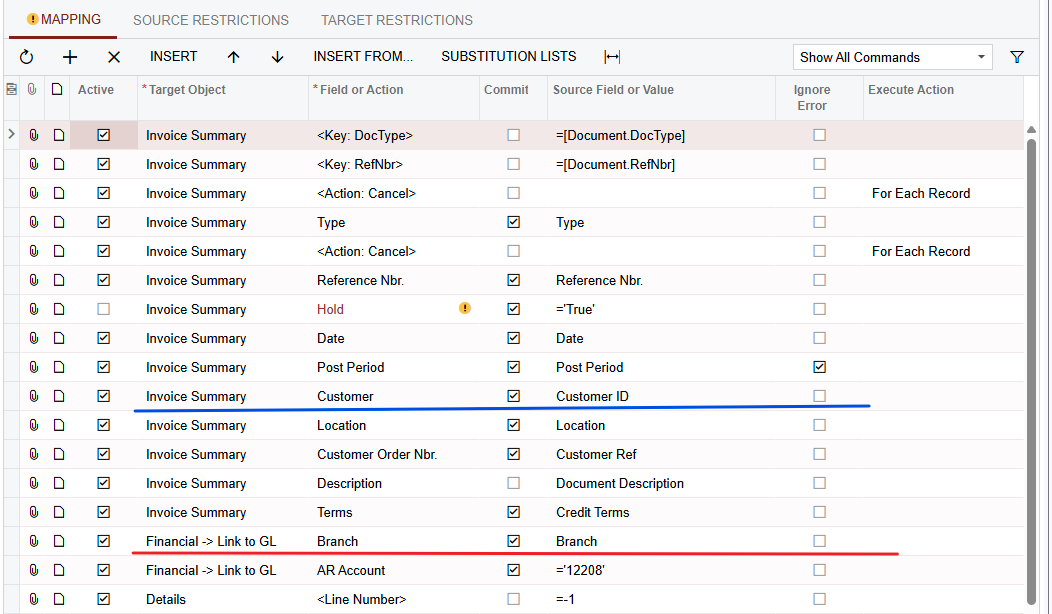
-
Move the row above the row that maps the branch-restricted field (in the example, Customer, mapped from the Customer ID source field).
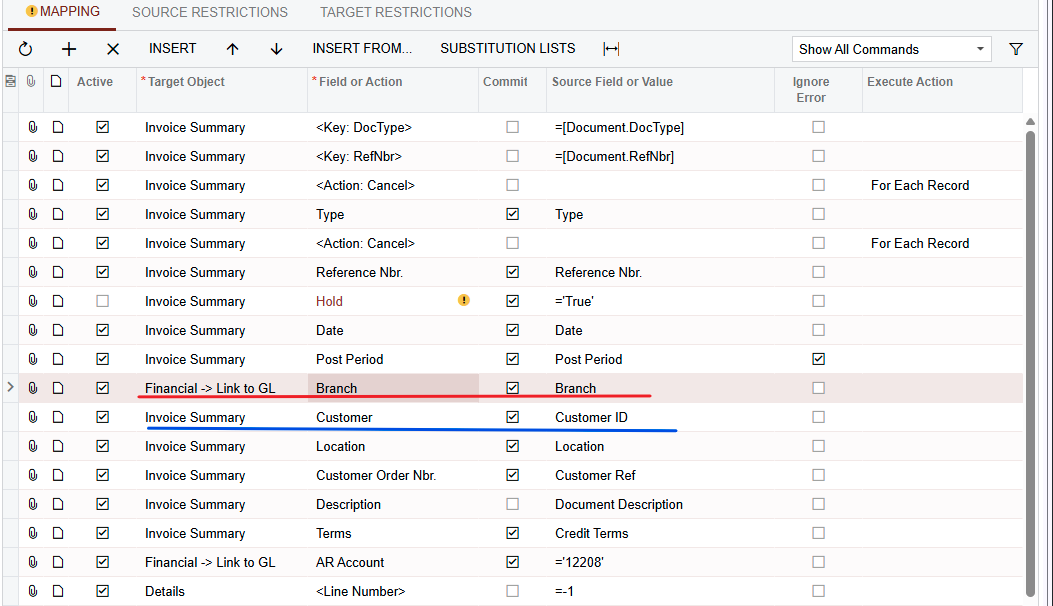
-
Save the scenario.
-
Run the writeback again.
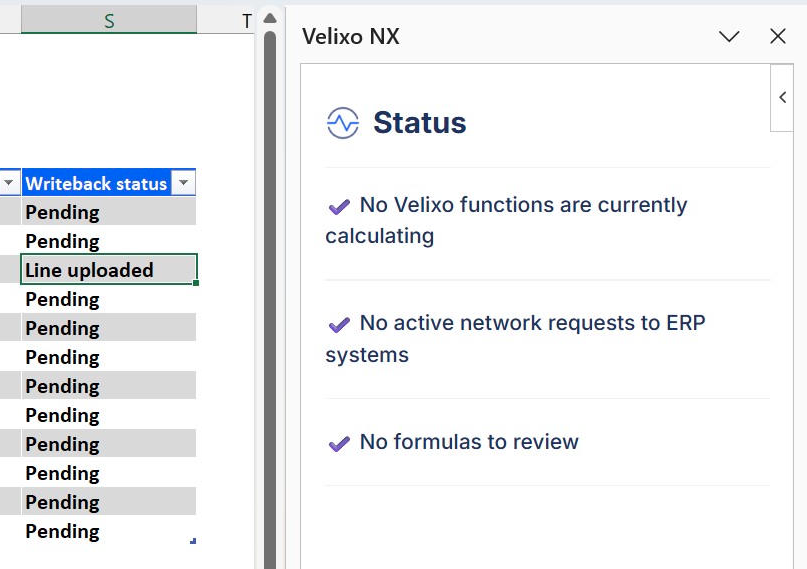
The writeback completes, and the Writeback status cell for the line shows Line uploaded.
Setting the user's Default Branch (Users → Personal Settings → Default Branch) to the branch the record is restricted to also allows the writeback to complete. However, this only masks the mapping problem: the Branch value in your data is still ignored during validation. Correct the field order instead.