Overview
The SI.XWRITEBACK function sends one or more rows of values from Excel to a Sage Intacct object through the Sage Intacct REST API.
SI.XWRITEBACK is the REST API counterpart of SI.WRITEBACK, which writes through the older XML API. Use SI.XWRITEBACK to write to objects that only the REST API supports, such as customer groups, which the XML API can't create. SI.XWRITEBACK relates to SI.WRITEBACK in the same way SI.XQUERY relates to SI.QUERY, and it uses the same object and field names as SI.XQUERY.
SI.XWRITEBACK takes the same arguments as SI.WRITEBACK, in the same order. The main differences are:
-
Object and field names use REST API naming, for example
accounts-payable/billandvendor.idinstead ofAPBILLandVENDORID. -
Draft and posted states are set through the
statefield. -
Lists of references and filters, such as a customer group's members, are writable.
-
The
FailureModesetting lets you save the valid rows when other rows fail. -
The
APIsetting isn't available.
When the workbook calculates, each SI.XWRITEBACK formula checks its arguments and shows the status Pending. To send the rows to Sage Intacct, select Perform Writeback on the Velixo ribbon, and then select Current Sheet, Selected Cells, or Selected Sheets. Rows that are saved show Line uploaded. Rows that fail show an error message. For the general workflow, see Getting started with Writeback.
SI.XWRITEBACK requires the Universal Writeback license module, the same module SI.WRITEBACK uses.
To find object names, use SI.XEXPANDOBJECTRANGE. To find field names, use SI.XOBJECTDEFINITION.
Syntax
=SI.XWRITEBACK(
    ConnectionName,
    Object,
    Settings,
    RecordNo,
    FieldNames,
    ParentRecordReference,
    ParentRecordGroupName,
    OutputFieldNames,
    OutputRange,
    RangeOrDataItem,
    ...
)
Arguments
|
Argument |
Required/Optional |
Description |
|||||||||||||||
|---|---|---|---|---|---|---|---|---|---|---|---|---|---|---|---|---|---|
|
|
Required |
The name of the connection as defined in Connection Manager. The function doesn't support multiple connections per formula. A child formula must use the same connection as its parent. |
|||||||||||||||
|
|
Required |
The Sage Intacct REST API object name, for example Object names are case-sensitive, so enter the name exactly as SI.XEXPANDOBJECTRANGE returns it. For a document of a specific type, such as a purchase order, add the document type after two colons, for example |
|||||||||||||||
|
|
Optional |
A writeback mode as text, or a two-column array of settings and their values. Setting names and values aren't case-sensitive, but don't add spaces around the mode. The following settings are available:
Child formulas use their parent's settings; their own |
|||||||||||||||
|
|
Required if |
The record number of an existing record. This is the record's The value must be a number. Leave the argument empty in To find a record number, add |
|||||||||||||||
|
|
Required in |
A comma-separated string or an Excel range containing the names of the fields to write. Field names aren't case-sensitive, and spaces around them are ignored. Enter custom fields with or without the For user-defined dimensions, enter the ID; Velixo looks up the key. Read-only fields can't be written. Use SI.XOBJECTDEFINITION to see which fields are required or read-only, and their valid values. |
|||||||||||||||
|
|
Optional |
A reference to a cell containing another SI.XWRITEBACK formula, the parent record. Use it to write child records, such as bill lines. The child formula names its own object, for example In The child formula must use the same connection and |
|||||||||||||||
|
|
Optional |
The REST API name of the parent's list that holds the child records, for example, If you omit it, Velixo uses the first list of the parent that holds records of the child's object. Use this argument only together with If the parent record has more than one list that holds the child's object, always specify For example, a GL account group ( |
|||||||||||||||
|
|
Optional |
A comma-separated string or an Excel range containing the names of fields to return from the saved record, for example, Use it together with Output isn't available for child formulas or in |
|||||||||||||||
|
|
Optional |
The range that receives the values of the fields in Velixo reads the values from Sage Intacct after the record is saved. |
|||||||||||||||
|
|
Required if |
The values to write, in the same order as the fields in Provide a range, or repeat the argument once per value; don't mix ranges and single values in one formula. Array constants and spilled ranges also work. In See Entering values below. |
|||||||||||||||
|
... |
|
|
Entering values
Velixo converts each value to the format Sage Intacct expects:
|
Field type |
What you can enter |
|---|---|
|
Date |
An Excel date, or text such as |
|
Values from a fixed list, such as a status |
Any accepted value, in any case. Spaces around the value are ignored. Velixo sends the Sage Intacct spelling. |
|
Yes/no |
|
|
Number, amount, or percentage |
A number |
|
Text |
Any text. The text is sent exactly as entered, including leading and trailing spaces. |
Clearing and keeping fields
An empty cell clears the field in Sage Intacct. To leave a field unchanged in an update, leave it out of FieldNames. Filter fields are an exception: an empty cell leaves the filter unchanged.
Saving a draft and submitting it. To save a new record as a draft, include the state field with the value draft. To create a record that isn't a draft, leave state out of FieldNames; an empty state cell and the value posted aren't accepted when you create a record. For example, a bill created without state is posted, or submitted for approval if your company uses bill approvals. The bill must be complete enough to post, as described in Complete and submit a draft bill. To submit an existing draft, update the record and set state to posted; Velixo runs the Sage Intacct submit workflow for the record. In an update, posted is the only value you can set state to. If the object doesn't support submitting, the formula returns "Records of {object} cannot be submitted in Sage Intacct, so 'state' cannot be set to 'posted'".
The row shows Line uploaded both when the record is posted and when it's submitted for approval. To see which, add state to OutputFieldNames.
Lists of references
For a field that holds a list of references, such as a customer group's groupMembers, enter the IDs as comma-separated values in one cell. Spaces and empty entries are ignored. An update replaces the whole list; to keep the list, leave the field out of FieldNames. Sage Intacct rejects a list that is empty or that contains an ID that doesn't exist.
A customer group at the top level can't include customers that are private to an entity. If you build the member list with SI.XQUERY, set ShowPrivate to FALSE to leave those customers out, as in the example below.
After a writeback, SI.EXPANDCUSTOMERSINGROUP shows the previous members until you refresh the sheet with Refresh → Current Sheet.
Filters
For a field that holds a filter, such as a customer group's memberFilter, enter the filter in the syntax of the SI.XQUERY Filter argument, for example status = 'active'. Sage Intacct can store only these operators: =, !=, <, >, IN, NOT IN, CONTAINS, IS NULL, and IS NOT NULL, combined with AND and OR. Filters that use <=, >=, STARTSWITH, ENDSWITH, NOT CONTAINS, NOT STARTSWITH, or NOT ENDSWITH return "The filter in {cell} uses '{operator}', which Sage Intacct cannot store as written". BETWEEN isn't supported. You can also use the output of SI.XQUERYFILTER as the filter, as long as it uses only the operators that Sage Intacct can store.
Records that can't be deleted
The recreate mode deletes a record and creates it again. It isn't available for objects whose records Sage Intacct can't delete, or for groups used as dimension structures. Deleting such a record returns the Sage Intacct error.
Projects, tasks, and cost types on bill lines
Before it writes a bill line, SI.XWRITEBACK checks the line's project, task, cost type, and work order. If a value isn't valid for the line, the line shows an error that names the value and its field, for example dimensions.project.id, and the bill isn't saved. A value isn't valid in these cases:
-
No record has that ID.
-
The project belongs to an entity other than the one the bill is written in. A bill written at the top level accepts only projects that don't belong to an entity.
-
The task doesn't belong to the line's project, or the cost type doesn't belong to the line's project and task.
-
The line has a task or cost type but no project. The error is "Please specify 'dimensions.project.id' when 'dimensions.task.id' is specified".
Task and cost type IDs aren't case-sensitive. For example, g16-100 is saved as G16-100.
How rows are uploaded
Velixo uploads the rows in batches. Each batch contains rows for one object, mode, and entity, even when the rows are in different parts of the sheet, and holds up to BatchSize records. Batches are uploaded one after another, in sheet order. Deletes are processed before creates and updates.
FailureMode decides what happens when some rows fail:
-
allOrNothing(default): If any row fails Velixo's checks, no SI.XWRITEBACK rows are uploaded. The failing rows show an error, and the other rows stayPending. If Sage Intacct rejects a record during upload, no record in that batch is saved, and the other rows of the batch show "This record was not saved because the record in {cell} failed. No record of its batch was saved". Batches that were already saved stay saved. -
perRow: Valid rows are saved, and each invalid row shows its own error.
For example, this settings array updates records and saves every valid row:
=HSTACK({"Mode";"FailureMode"}, {"update";"perRow"})
A parent record and its lines are sent in one request, so they're saved or rejected together. If a line fails, its error appears in the parent's cell, and the line's cell shows "One of the source values for this formula contains an error".
When a bill line names a project or task that exists in Sage Intacct but isn't valid for the bill, Sage Intacct saves the line without the project, task, or cost type, and the row shows Line uploaded. For example, this happens with a project that belongs to another entity, written at the top level, or with a task that belongs to another project. To check the saved values, query the lines with SI.XQUERY, for example accounts-payable/bill-line filtered on bill.key.
To use a value that one formula returns in another formula of the same writeback, such as the ID of a new parent class, place a WRITEBACKCOMMIT formula between them. Velixo finishes the rows before the WRITEBACKCOMMIT formula before it starts the rows after it.
When you write back with Selected Cells, select a parent record and its lines as one block. If you select them as separate areas, the parent is sent withid by wire.
Result:

Create a draft bill with a line
Header in cell A2:
=SI.XWRITEBACK(
    "Sage",
    "accounts-payable/bill",
    "create",
    ,
    "vendor.id,createdDate,dueDate,state",
    ,
    ,
    ,
    ,
    B2:E2
)

Line in cell A3:
=SI.XWRITEBACK(
    "Sage",
    "accounts-payable/bill-line",
    "create",
    ,
    "glAccount.id,txnAmount",
    A2,
    "lines",
    ,
    ,
    B3:C3
)

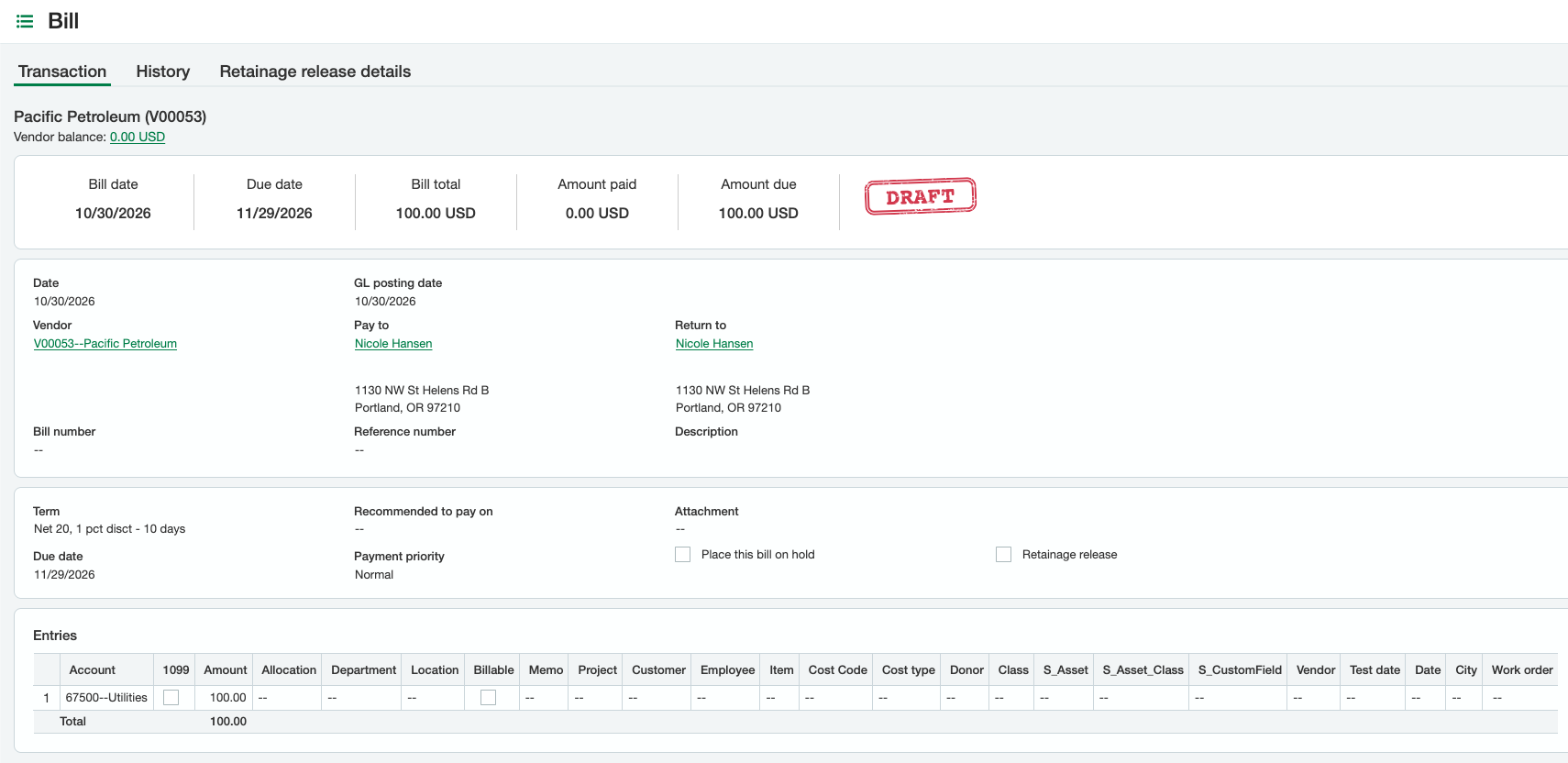
Description: The header formula creates a bill from the values in B2:E2: the vendor ID V00053, the created date, the due date, and draft. Because cell E2 contains draft, the bill is saved as a draft. The line formula creates a bill line from the values in B3:C3, the GL account 67500 and the amount, and links it to the header in A2. The header and the line are sent to Sage Intacct in one request.
The line formula's mode is ignored: a child formula always uses its parent's settings.
Result:
Complete and submit a draft bill
Bill in cell A2:
=SI.XWRITEBACK(
    "Sage",
    "accounts-payable/bill",
    "update",
    2066,
    "billNumber,state",
    ,
    ,
    ,
    ,
    "XWB-EX-0002",
    "posted"
)

Line in cell A3:
=SI.XWRITEBACK(
    "Sage",
    "accounts-payable/bill-line",
    "update",
    9349,
    "dimensions.location.id,dimensions.department.id",
    A2,
    "lines",
    ,
    ,
    "BEAVERTON",
    "OPERATIONS"
)
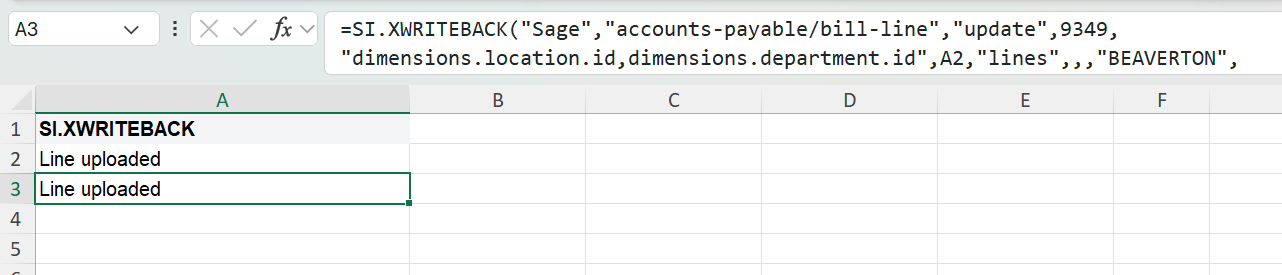
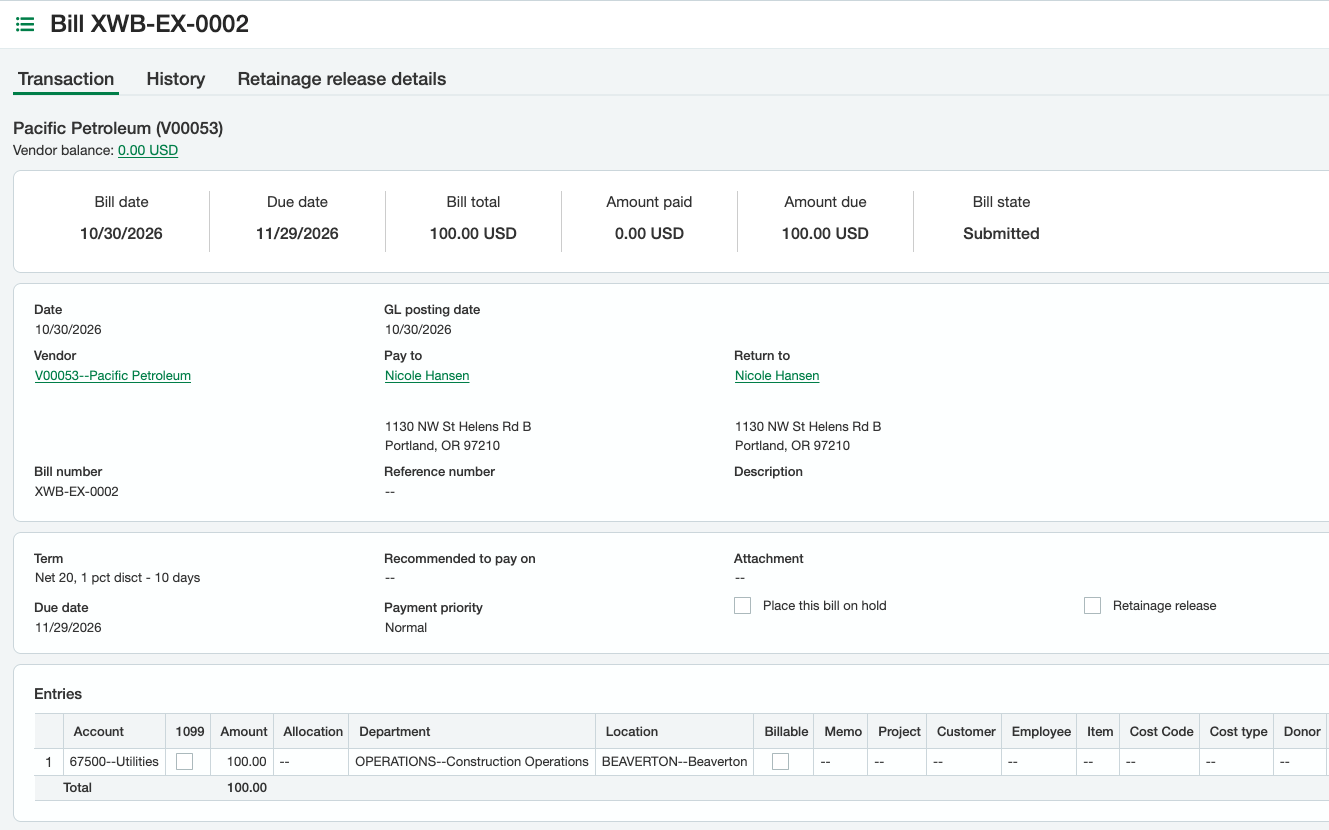
Description: Completes the draft bill created in the previous example, record number 2066, and submits it. The bill formula gives the bill the bill number XWB-EX-0002 and sets state to posted. The line formula updates the bill's line, record number 9349, with the location BEAVERTON and the department OPERATIONS, which GL account 67500 requires. The changes and the submit are sent to Sage Intacct in one request.
Depending on your Sage Intacct approval settings, the bill is posted or submitted for approval. In both cases, both rows show Line uploaded.
Sage Intacct submits a bill only when it's complete enough to post: it needs a bill number that's unique for the vendor, and the dimensions its GL accounts require. Otherwise, the formula shows the Sage Intacct error and says that the field changes were saved but the record wasn't submitted.
Result:
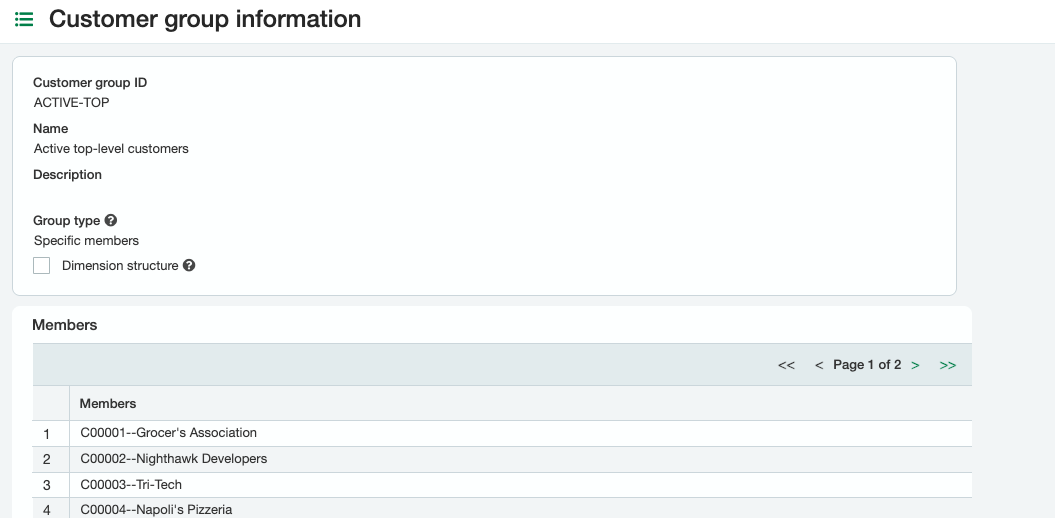
Create a customer group from a query
=SI.XWRITEBACK(
    "Sage",
    "accounts-receivable/customer-group",
    "create",
    ,
    "id,name,groupType,groupMembers",
    ,
    ,
    ,
    ,
    "ACTIVE-TOP",
    "Active top-level customers",
    "specific",
    TEXTJOIN(",", TRUE, SI.XQUERY("Sage", "accounts-receivable/customer", "status = 'active'", "id", FALSE, {"ShowPrivate", FALSE}))
)

Description: Creates the customer group ACTIVE-TOP, whose members are all active customers at the top level. SI.XQUERY returns the customer IDs, with ShowPrivate set to FALSE to leave out customers that are private to an entity. TEXTJOIN combines the IDs into the comma-separated list that groupMembers expects.
Result:
Create a customer group from a filter
=SI.XWRITEBACK(
    "Sage",
    "accounts-receivable/customer-group",
    "create",
    ,
    "id,name,groupType,memberFilter",
    ,
    ,
    ,
    ,
    "ACTIVE",
    "Active customers",
    "all",
    "status = 'active'"
)

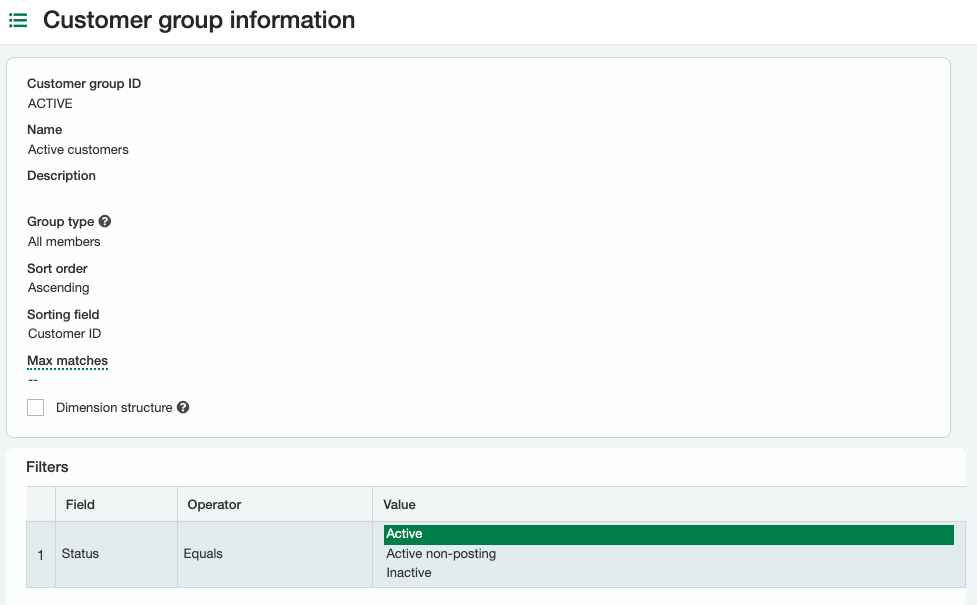
Description: Creates the customer group ACTIVE, whose members are all customers with an active status.
Result: