
Overview
Dimensions in Business Central are customizable tags (for example, a department, project, or customer group) you can attach to ledger entries to filter, group, and analyze financial data across multiple perspectives without needing separate accounts for each breakdown.
To filter Velixo function results by dimensions, use the Dimensions argument of the function. The argument is available in balance and budget functions, for example, BC.TURNOVER, BC.OPENINGBALANCE, BC.CLOSINGBALANCE, or BC.BUDGETTURNOVER.
This article describes the following aspects of working with Business Central dimensions in Velixo NX:
-
How to find dimension information via Velixo NX and the Business Central interface.
-
How Velixo uses Business Central dimension structures.
-
How to filter results using the
Dimensionsargument, common filtering scenarios (including empty, excluding empty, etc.). -
How to write back data with dimensions using BC.WRITEBACKJOURNAL and BC.WRITEBACKBUDGET.
-
How to use the
unpivotfunctionality in BC.QUERY to retrieve dimension codes and values as columns in queries.
Finding information about dimensions
Business Central web interface
To check available dimensions and their values in Business Central, open the Dimensions page (via the search bar), select a dimension, and then click Dimension Values in the action bar.
For more information about dimensions in Business Central, refer to Microsoft's documentation:
https://learn.microsoft.com/en-us/dynamics365/business-central/finance-dimensions
Velixo NX
To discover information about dimensions using Velixo NX:
-
Use BC.EXPANDDIMENSIONRANGE to list dimensions.
-
Use BC.EXPANDDIMENSIONVALUERANGE to list values for a dimension.
-
Use BC.DIMENSIONNAME to retrieve the dimension name for a dimension code.
How Velixo uses Business Central dimension structures
Velixo supports all Business Central dimension types via the Dimensions argument.
Global and Shortcut dimensions, and Dimension sets
Business Central stores dimension values in two places:
-
Global Dimension columns: The 2 Global Dimensions are stored directly on G/L Entry rows (
Global Dimension 1 Code,Global Dimension 2 Code). This is a legacy mechanism. -
Dimension Set Entries: All dimensions — including Global and Shortcut — are stored in a separate Dimension Set Entry table, referenced by a Dimension Set ID on each G/L Entry. This is the modern mechanism.
Shortcut Dimensions (up to 6, in addition to the 2 Global Dimensions) appear as quick-entry fields on journals and document lines but are stored only in Dimension Set Entries, not as columns on the G/L Entry table.
If Global Dimensions were reassigned at any point (via the Change Global Dimensions page), the legacy columns on older entries might not match the Dimension Set Entry table. Reports that read from Global Dimension columns can return different results than those that read from Dimension Sets.
Velixo balance functions filter by Dimension Set ID, not by Global Dimension columns. This means the Dimensions argument works the same way regardless of whether a dimension is Global, Shortcut, or neither.
Budget dimensions
Budget dimensions are the dimensions defined on the General Ledger Budget. Each GL Budget defines which dimensions it uses (a subset of your company's dimensions). These dimensions are used and referenced by Velixo NX budget functions.
Budget Dimensions argument syntax is the same as for Actuals (non-budget).
Dimension value types (Standard, Total, End‑Total)
Business Central supports several dimension value types (Standard, Heading, Total, Begin‑Total, End‑Total).
For Total and End‑Total dimension value types in balance functions, when specified, Velixo expands them to include the underlying dimension values. If a Total / End‑Total value has an empty "Totaling" expression, it is not expanded and is treated as a regular value code.
Building the Dimensions argument
The Dimensions argument is available across several balance and budget functions. It is a two‑column Excel range where:
-
the first column contains the Business Central dimension code, and
-
the second column contains a delimiter-separated list of dimension value codes for that dimension.
To configure the delimiter character, head to the Velixo NX Excel menu -> Options → Search and filtering. See the Options reference article.
Method 1 – Two‑column Excel range (recommended)
The recommended way to specify dimensions is to pass a two‑column range to the Dimensions argument.
-
Column 1: Dimension code.
-
Column 2: One or more dimension value codes, separated by semicolons (
;).
Example
Assume the following range A3:B5:
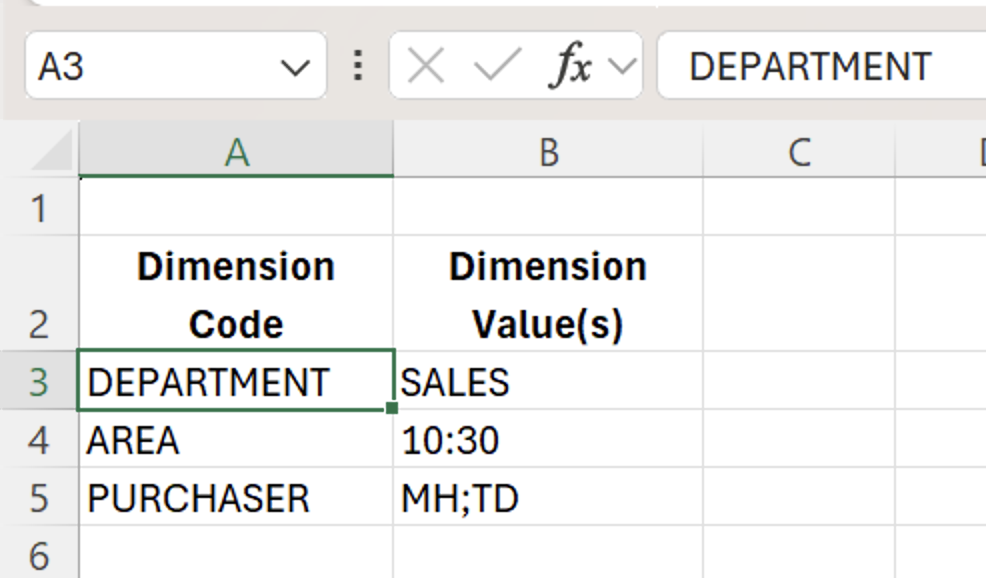
You can use it in BC.TURNOVER:
=BC.TURNOVER(
  "BC",
  "61100",
  ,
  ,
  "2025-01-01",
  "2025-01-31",
  A3:B5
)
This formula returns turnover for account 61100 for:
-
Department =
SALES -
Area = all values between
10and30(inclusive) -
Purchaser =
MHandTD
Use dimension codes and dimension value codes, not descriptions.
The same syntax applies to all functions that use the Dimensions argument.
Method 2 – Inline array
For quick tests and simple filters, you can pass a small inline array instead of a cell range:
=BC.TURNOVER(
  "BC",
  "61100",
  ,
  ,
  "2025-01-01",
  "2025-01-31",
  {"DEPARTMENT","SALES";"AREA","10"}
)
Method 3 - the VX.SETTINGS function
Leverage the VX.SETTINGS function to create a 2D Excel array you can use as the Dimensions argument, making it easier to build dimension filters that are dynamic, easy to edit, and reusable.
Example
Create a VX.SETTINGS formula:
=VX.SETTINGS(
  "DEPARTMENT",
  "SALES",
  "AREA",
  "10"
)
Use the resulting array as the Dimensions argument:
=BC.TURNOVER(
  "BC",
  "61100",
  ,
  ,
  "2025-01-01",
  "2025-01-31",
  K1#
)
Dimension filtering scenarios
You can combine dimension values with Velixo range expressions and wildcards. For full syntax, see the article dedicated to Velixo filtering techniques.
Below are the most common scenarios involving dimensions.
How multi-value expressions are evaluated
When a dimension filter contains multiple parts (for example, HOME;OFFICE;-INDUSTRIAL), Velixo resolves each part to its own set of entries, computes the balance of each set, and sums the balances — adding positive parts and subtracting subtracted ones. The expression is not evaluated as set logic.
As a consequence, a subtracted part subtracts its full balance even if its entries are not included by the positive parts. Only subtract values that are actually covered by the positive parts of the filter.
Include all values, including empty (*?)
Use *? to include any dimension value, including empty.
=BC.TURNOVER(
  "BC",
  "61100",
  ,
  ,
  "2025-01-01",
  "2025-01-31",
  {"AREA","*?"}
)
This formula includes all transactions that have any AREA value AND transactions where AREA is empty.
*? cannot be combined with positive values or intersections (^). Combining *? with subtractive expressions (for example, *?;-HOME) may currently return an incorrect result.
To include empty values while excluding specific values, combine null with * and a subtractive expression instead. For example, null;*;-HOME returns all values (including empty) except HOME.
In current versions, some expressions that combine *? with other values return an incorrect result instead of an error. Do not combine *? with other segments.
Exclude empty values only (*)
Use * to include only non‑empty dimension values.
=BC.TURNOVER(
  "BC",
  "61100",
  ,
  ,
  "2025-01-01",
  "2025-01-31",
  {"DEPARTMENT","*"}
)
This formula includes only transactions with a non‑empty DEPARTMENT value.
Include ONLY empty values (null)
Use null to include only transactions where the dimension value is empty.
=BC.TURNOVER(
  "BC",
  "61100",
  ,
  ,
  "2025-01-01",
  "2025-01-31",
  {"DEPARTMENT","null"}
)
This formula includes only transactions with an empty DEPARTMENT value.
A dimension value is considered empty both when the entry's dimension set does not include the dimension and when the entry has no dimension set at all.
The null filter requires Velixo NX 2026.6 or later.
You can combine null with specific values using the delimiter. For example, null;HOME includes transactions where the dimension is empty, plus transactions with the value HOME.
Combining null with *?, or using null in an intersection (^), is not supported — the formula returns a #VALUE! error stating that no value matches the Velixo range expression.
Exclude specific values (-)
Use the subtractor operator (-) to remove values from the result.
Examples for the second column (dimension values):
-
*;-HOME– all non‑empty values exceptHOME. -
10:75;-55– range10to75, excluding55.
Querying dimensions with BC.QUERY and unpivot
The BC.QUERY function can retrieve data from Business Central objects, including dimension information attached to records. Using the unpivot syntax in the Select argument, you can turn dimension codes into column headers and populate them with the corresponding dimension values — all within a single formula.
Many Business Central objects contain nested sub-objects that hold dimension data. For example, generalLedgerEntries has a nested dimensionSetLines object with properties such as code (the dimension code) and valueCode (the dimension value code).
The unpivot(key, value) syntax instructs BC.QUERY to take the distinct values of the key property (e.g. dimensionSetLines.code) and create a separate column for each one. It then populates each column with the matching value property (e.g. dimensionSetLines.valueCode) for each row.
This transforms the nested, row-based dimension data into a flat, column-based layout that is easier to work with in Excel.
Columns returned via the unpivot syntax cannot be filtered.
For a formula example, see the dedicated section in the BC.QUERY article.
Using Writeback with dimensions
The BC.WRITEBACKJOURNAL and BC.WRITEBACKBUDGET functions both accept an optional Dimensions argument that lets you tag each Writeback line with one or more dimension values in Business Central.
The Dimensions argument in Writeback functions works similarly to the one used in balance functions: it is a two‑column Excel range where the first column contains the dimension code (e.g. DEPARTMENT, AREA, PROJECT) and the second column contains the dimension value code for that dimension.
Unlike the Dimensions argument in balance functions (which supports filtering expressions such as ranges and wildcards), the writeback Dimensions argument expects a single dimension value code per dimension — you are assigning a specific value, not filtering.
All journal lines in the same General Journal batch can use different dimension values — each BC.WRITEBACKJOURNAL formula independently assigns dimensions to its own line.
BC.WRITEBACKBUDGET uses two dimension-related arguments: BudgetDimensions (defines which dimensions a new budget tracks) and Dimensions (assigns values to each entry). For details and an example, see the dedicated section in the BC.WRITEBACKBUDGET article.
For general information about setting up and using writeback functions, see Getting started with Writeback.
For formula examples, see the dedicated sections in the BC.WRITEBACKJOURNAL and BC.WRITEBACKBUDGET articles.
Using dimensions with the BudgetUpdateMode argument
When BudgetUpdateMode is set to by-natural-key (the default), the dimension values you specify are part of the natural key used to determine whether to update an existing budget entry or create a new one. This means that two budget entries for the same account and date but with different dimension values will be treated as separate entries.
If you include Dimensions in a custom natural key (e.g., dimensions, description), Velixo will consider the dimension values when matching entries.