
The Velixo AI Gateway is in Private Preview and available only to organizations enrolled in the preview program. During the Private Preview, it is available for Acumatica and Acumatica-based ERPs, such as MYOB Acumatica.
Overview
The Velixo AI Gateway is a remote MCP server, so you add it to Claude as a custom connector. It works in Claude on the web, Claude Desktop, and Cowork. On Claude mobile apps, you can use a connector that was already added, but you cannot add one.
Before you start, make sure your organization has completed the prerequisites in Getting started with the Velixo AI Gateway.
Velixo AI Gateway address: https://app.velixo.com/mcp
Admin steps (Team and Enterprise)
An Owner or Primary Owner adds the connector once for the organization, as described in Anthropic’s Get started with custom connectors using remote MCP. When you add it:
-
Add it as a custom web connector in Organization settings → Connectors.
-
Enter the Velixo AI Gateway address.
-
Leave Advanced settings empty. Velixo does not need an OAuth client ID or client secret.
From the same page, Owners can also turn off individual Velixo tools for the organization.
User steps
-
Connect Velixo in Claude, as described in Anthropic’s custom connectors article:
-
Team and Enterprise: find the Velixo connector (it has a Custom label) and select Connect.
-
Free, Pro, and Max: add a custom connector with the Velixo AI Gateway address.
-
-
Sign in to Velixo with your Microsoft account, or select Sign In With Email.
-
In a conversation, turn on the Velixo connector from the + menu.
To check the connection, ask Claude to list your Velixo connections.
Approving Velixo connector tools
Before Claude uses each of Velixo’s tools, it asks for your permission, for example: Claude wants to use Execute screen commands from Velixo. Select Allow once to approve that use, Always allow to let Claude use that tool without asking again, or Deny. Each Velixo tool is approved separately, so you may see this prompt several times while Claude works on one request.
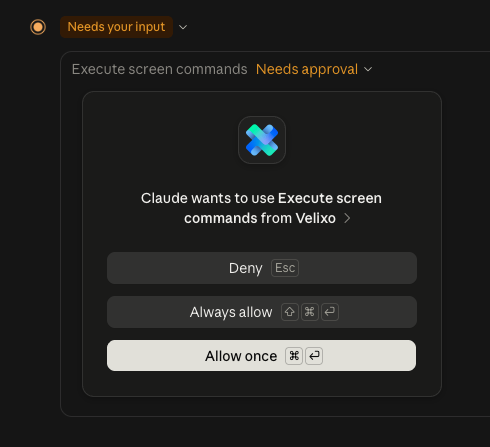
For tools that change data in your ERP, Execute screen commands and Execute import scenario, consider keeping Allow once so you can approve each change before it happens.
Related articles
-
Velixo AI Gateway: permissions and privacy (coming soon)