The Velixo AI Gateway is in Private Preview and available only to organizations enrolled in the preview program. During the Private Preview, it is available for Acumatica and Acumatica-based ERPs, such as MYOB Acumatica.
Overview
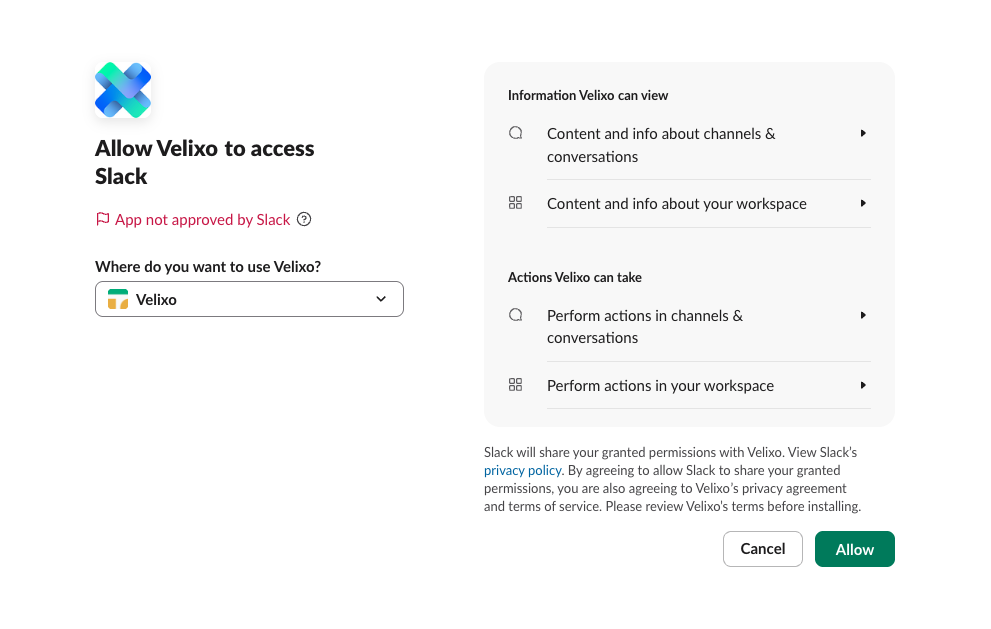
Velixo for Slack connects Slack to the Velixo AI Gateway. You install it from the Applications page of the Velixo Portal. It isn’t listed in the Slack Marketplace, so Slack shows App not approved by Slack during the installation.
Before you start, make sure your organization has completed the prerequisites in Getting started with the Velixo AI Gateway.
Admin steps
Whether the admin steps are required depends on your workspace’s app settings. See Slack’s Add apps to your Slack workspace and Manage app approval for your workspace.
-
App approval off: any member can install Velixo from the Velixo Portal.
-
App approval on: a member starts the installation from the Velixo Portal and requests approval. A Workspace Owner, or a member with permission to manage apps, approves it. In an Enterprise organization, app approval is on automatically if an Org Owner has set an app management policy.
-
Only Slack Marketplace apps allowed: a Workspace Owner can still install Velixo; other members can’t.
-
Enterprise Grid: install Velixo in each workspace. Organization-wide installation is not supported.
When you approve the installation, you grant Velixo these permissions:
-
reading messages in the channels, private channels, direct messages, and group messages it is part of,
-
reading files shared with it,
-
posting and updating messages,
-
showing a status and suggested prompts,
-
reading basic workspace and user information.
Installing Velixo in Slack
-
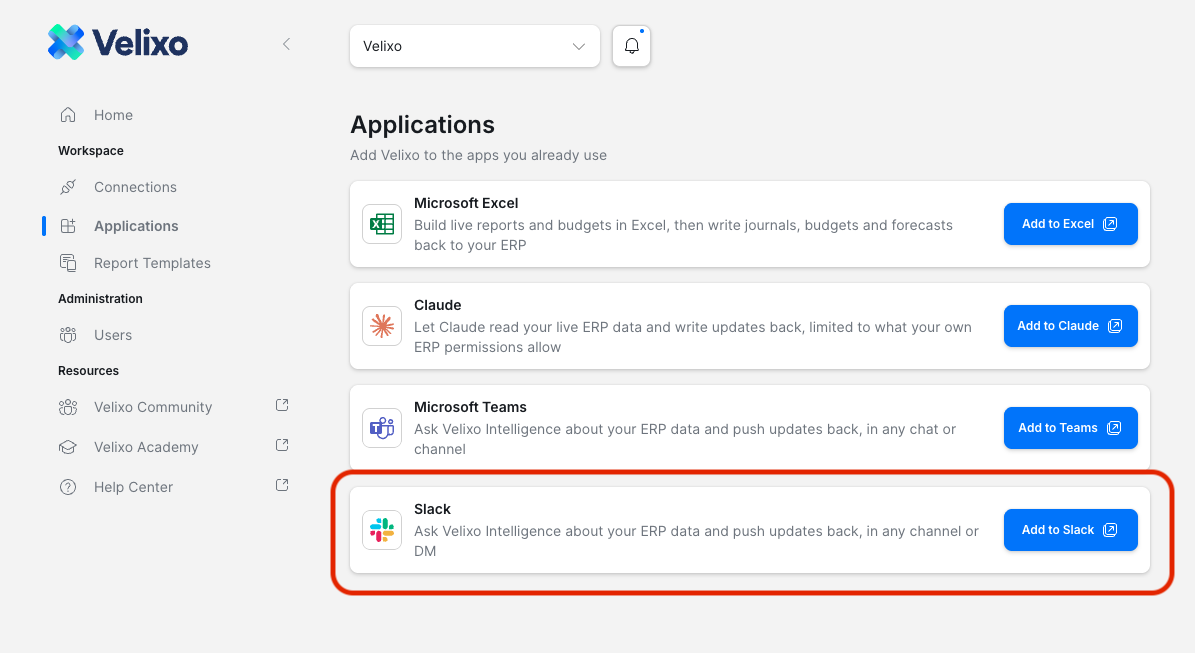
In the Velixo Portal, select Applications.
-
Next to Slack, select Add to Slack. Slack opens in a new browser tab.
-
Under Where do you want to use Velixo?, select your Slack workspace. Slack shows App not approved by Slack because Velixo isn’t listed in the Slack Marketplace.
-
Review the information Velixo can view and the actions it can take in your workspace, and select Allow. If your workspace requires app approval, Slack asks you to request approval instead.
-
When the Velixo is installed page appears, open Slack and send Velixo a message. Velixo asks you to sign in the first time you ask a question.
User steps
-
In Slack, open Velixo from the apps area, or mention
@Velixoin a channel. -
The first time, sign in to Velixo with your Microsoft account, or select Sign In With Email.
Velixo replies in a thread and reads up to 30 earlier messages in that thread for context. In a direct message with Velixo, you never need to mention it. In a channel, after Velixo answers you, you can keep replying in that thread without mentioning it for 30 minutes after your last message that Velixo answered. Colleagues in the thread mention Velixo once to join the conversation.
What’s different in Slack
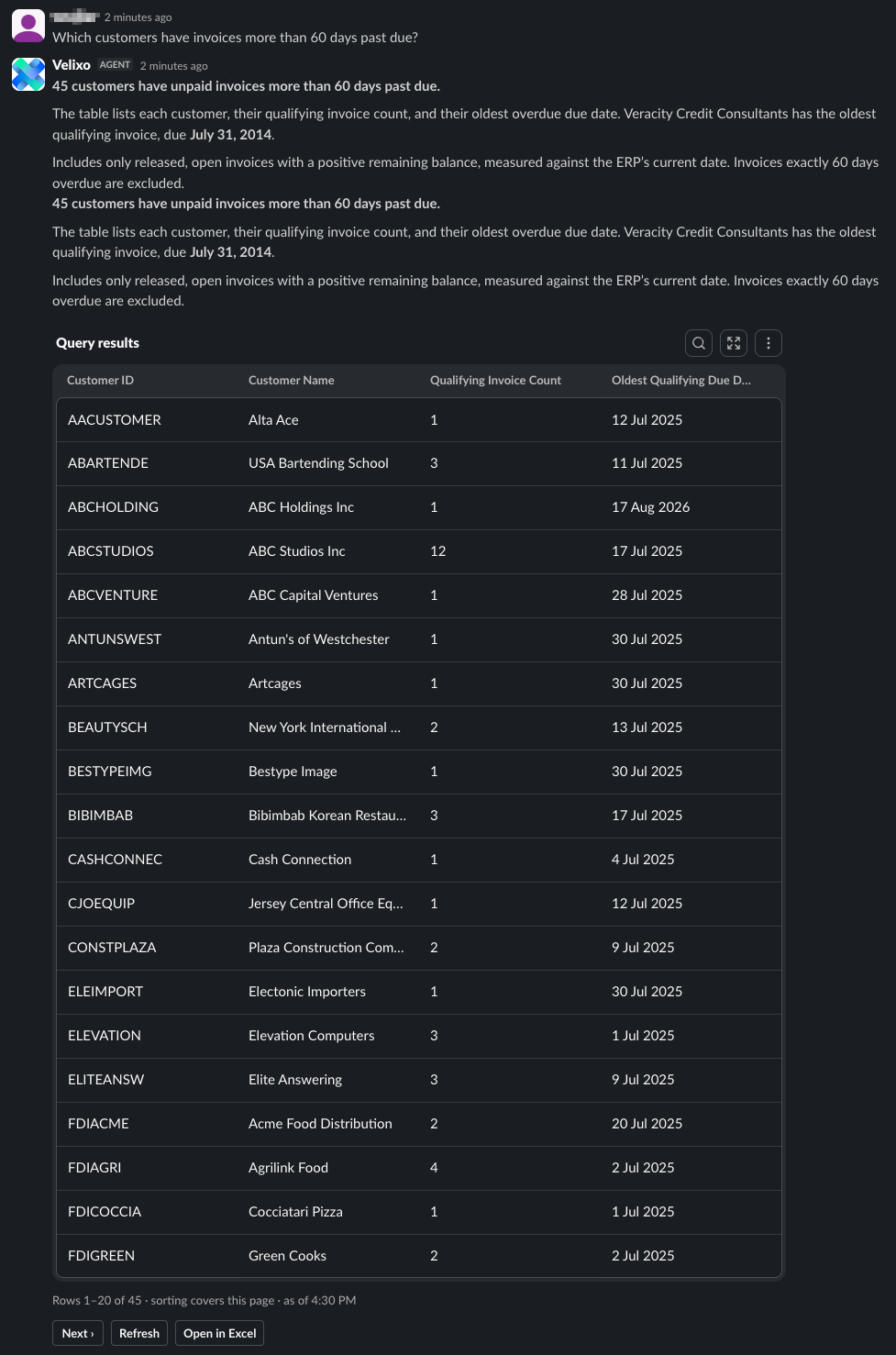
Results include a Refresh button that updates the figures and an Open in Excel button. When Velixo is about to change data in your ERP, it asks you to approve the change in the conversation. Velixo sends reports and files as download links. It cannot open records, navigate Acumatica screens, or write to an Excel worksheet.
Velixo notifications can reach you in Slack as a direct message once you have sent Velixo a message in Slack and signed in. Notifications can also be posted to a Slack channel.
Example: @Velixo Which customers have invoices more than 60 days past due?