
The Velixo AI Gateway is in Private Preview and available only to organizations enrolled in the preview program. During the Private Preview, it is available for Acumatica and Acumatica-based ERPs, such as MYOB Acumatica.
Overview
Velixo for Teams is a custom Teams app that connects Microsoft Teams to the Velixo AI Gateway. A Teams administrator uploads it for your organization.
Before you start, make sure your organization has completed the prerequisites in Getting started with the Velixo AI Gateway.
Admin steps
To complete the steps below, request the Velixo app package for Microsoft Teams from your Velixo Customer Success Manager.
A Global administrator or Teams administrator:
-
Uploads the Velixo Teams app package in the Teams admin center, and checks that the org-wide setting allowing interaction with custom apps is on. See Microsoft’s Manage custom apps in Microsoft Teams admin center.
-
Makes Velixo available to the users who need it with app permission policies, and optionally installs or pins it for them with an app setup policy. See Microsoft’s Manage access to and install Teams apps.
Users without permission to upload custom apps see only Submit an app to your org in Teams. The app must then be uploaded by a Teams administrator.
Channel threads
To let Velixo follow a channel thread without being mentioned in every message, the team owner approves Velixo’s permission to read that team’s channel messages when adding it. Team owners can do this by default. If your organization restricts group owner consent in Microsoft Entra, allow it for the owners of teams that use Velixo. See Microsoft’s Resource-specific consent in Teams.
Sign-in consent
Signing in to Velixo inside Teams requests only basic permissions that users can normally consent to themselves. If your organization blocks user consent in Microsoft Entra, an administrator must grant consent for the Velixo app.
User steps
-
In Teams, open Apps, find Velixo, and add it. You can chat with Velixo one-to-one, or add it to a team or group chat.
-
Ask your question. In a team channel, or in a chat with other people such as a group chat or a chat with a colleague, mention Velixo. In a one-to-one chat with Velixo, you do not need to mention it.
-
The first time, sign in to Velixo when prompted.
After Velixo replies to you in a channel thread, you can send your next message in that thread without mentioning it, as long as Velixo answered a message from you there less than 30 minutes ago. Colleagues in the thread can do the same after they mention Velixo once. In a chat with other people, mention Velixo in every message. Velixo reads files you send only in a one-to-one chat. For the full rules, see When Velixo replies in Microsoft Teams (coming soon).
What’s different in Teams
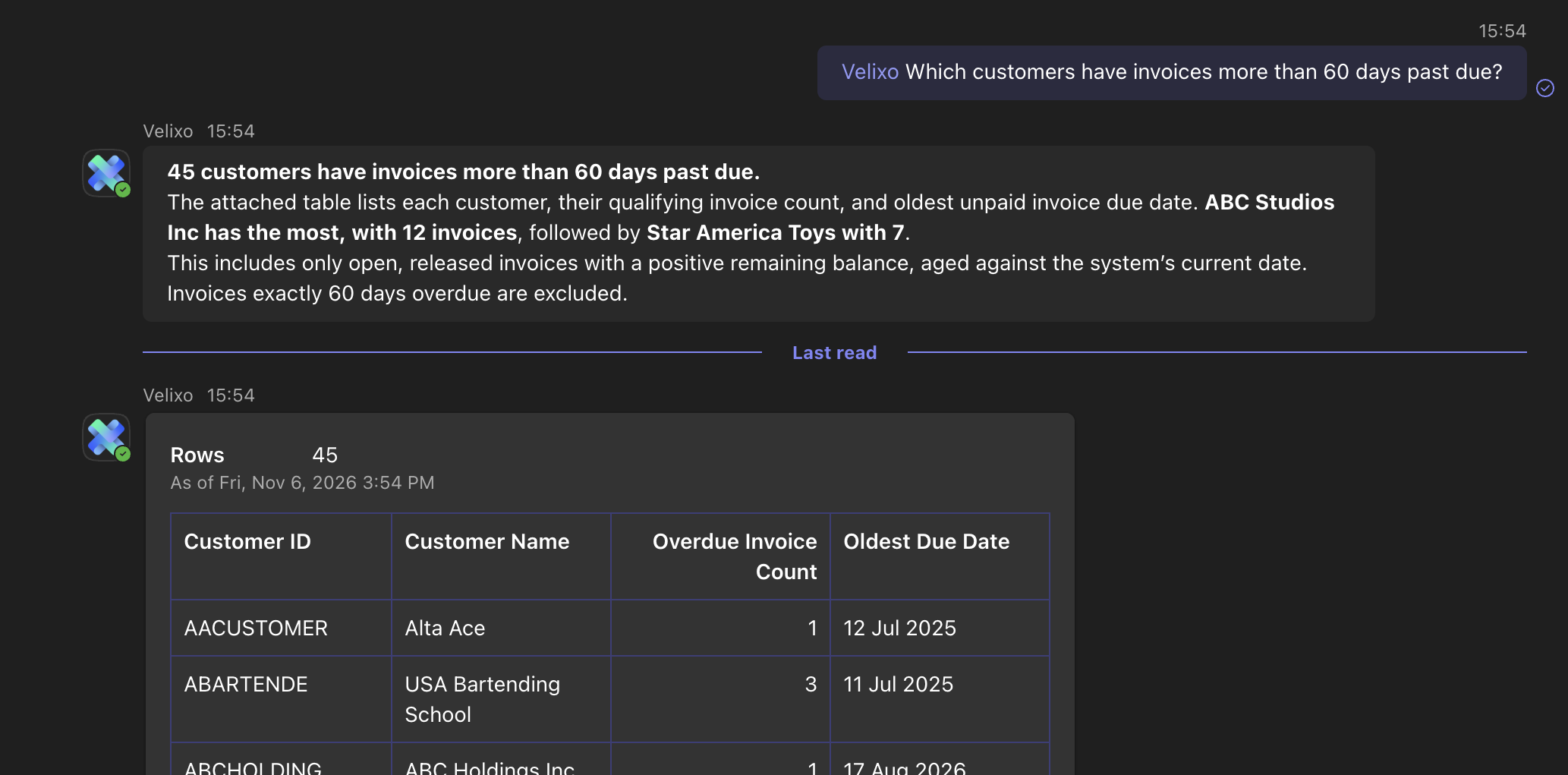
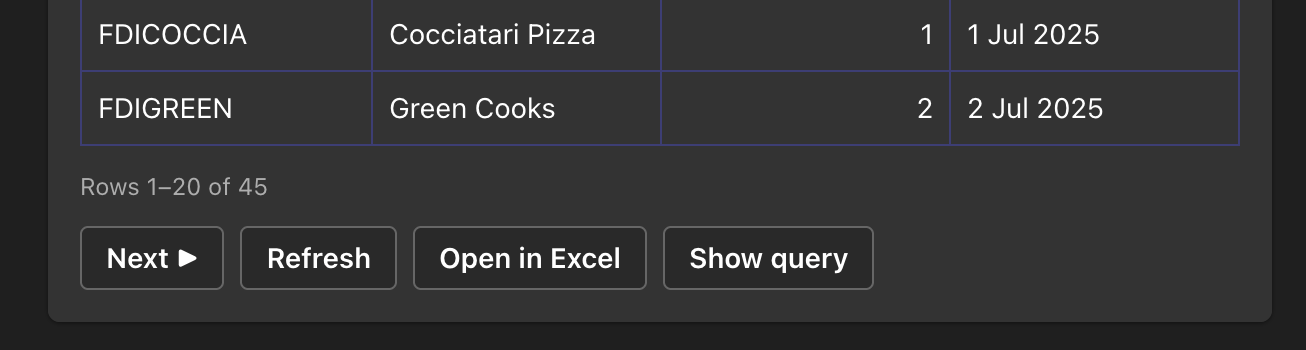
Results include a Refresh button that updates the figures and an Open in Excel button. When Velixo is about to change data in your ERP, it asks you to approve the change in the conversation. Velixo can attach to a record only the files you send it in a one-to-one chat. It cannot open records, navigate Acumatica screens, or write to an Excel worksheet.
Example: @Velixo Which customers have invoices more than 60 days past due?
Related articles
-
When Velixo replies in Microsoft Teams (coming soon)
-
Velixo doesn’t answer in Microsoft Teams (coming soon)
-
Velixo AI Gateway: permissions and privacy (coming soon)