
The Velixo AI Gateway is in Private Preview and available only to organizations enrolled in the preview program. During the Private Preview, it is available for Acumatica and Acumatica-based ERPs, such as MYOB Acumatica.
Overview
With the Velixo AI Gateway, you ask for what you need in plain language, and Velixo answers from your ERP within the Acumatica permissions of your connection. Velixo works with any Acumatica module, not only financials and projects: for example, you can analyze open support cases or build a manufacturing report.
The examples in this article are from Claude. You can make the same requests in Microsoft Teams. Support for ChatGPT and Slack is coming soon.
In Claude, the model you select affects how well Velixo handles multi-step requests. For the best results, use one of the more capable models.
Asking questions about your data
Velixo turns your question into a query against your ERP and returns the answer as a table. Each answer lists what the figures include, such as the accounts, the ledger, and whether figures are grouped by transaction date or by financial period.
When you ask Velixo to analyze or break down a figure, it asks how to group it, for example by company, branch, subaccount segment, or customer or vendor, rather than choosing for you. Name the grouping in your question to skip that step.
Example: Break down our travel expenses for 2025 by branch.
Example: What were our travel expenses by branch in Q2 2025, compared with the same quarter in 2024?
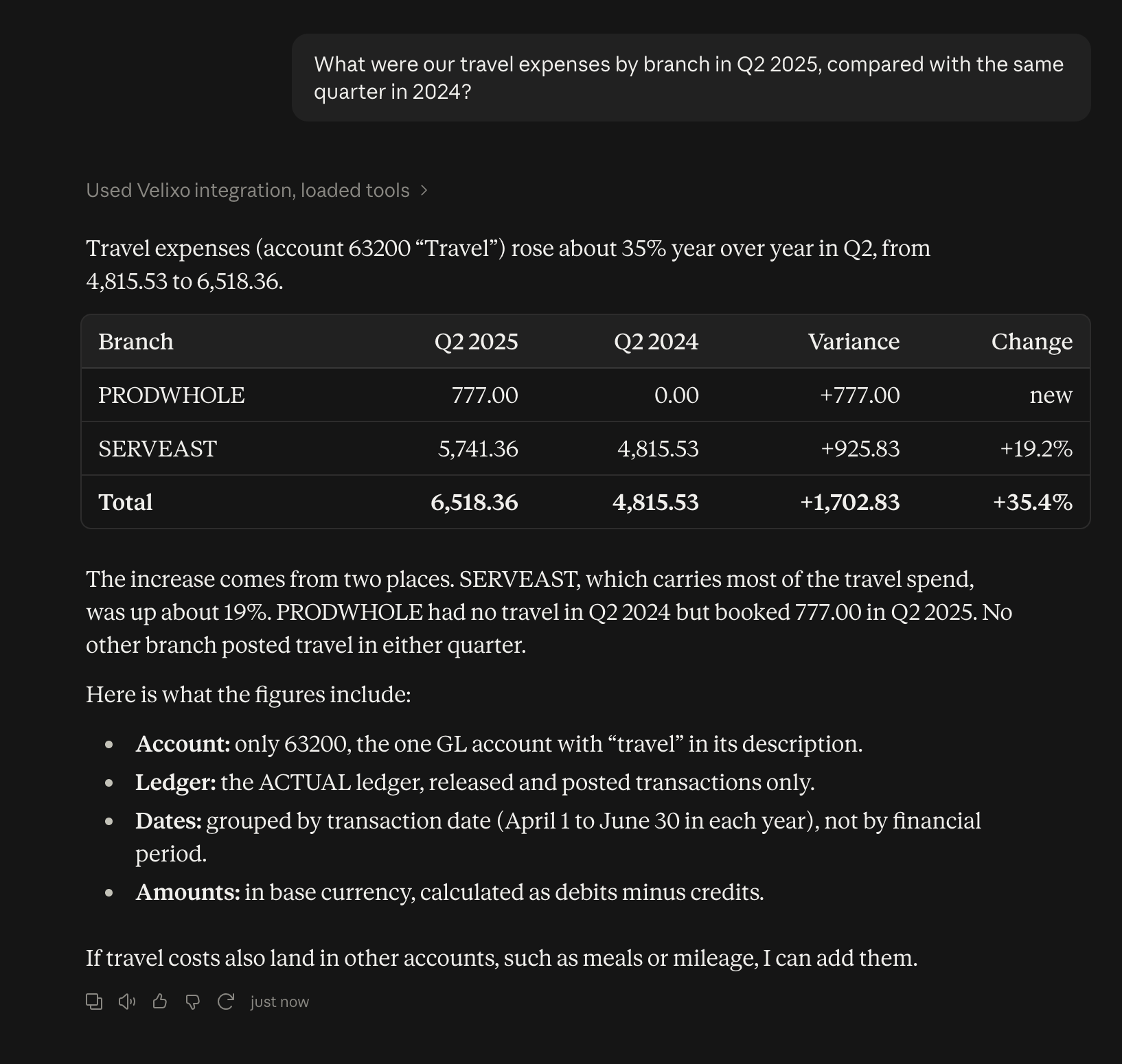
Be specific in your questions. Name the accounts you mean, and say “financial period” when you mean periods rather than dates, for example by financial period 04-2025 to 06-2025. Velixo reads a span such as “Q2 2025” as a date range, and may choose accounts by their description, as in the example above. Check the assumptions listed with each answer before you rely on the figures.
Opening results in Excel
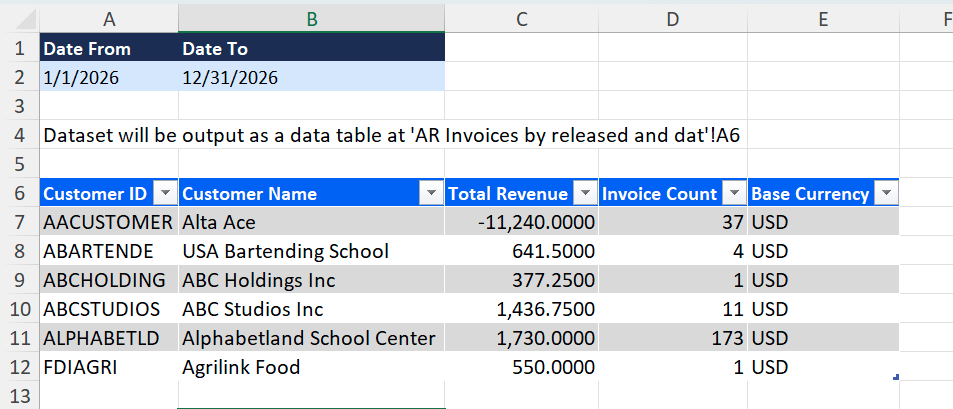
You can get any result as an Excel workbook. Velixo creates one only when you ask for it. The workbook contains a live Velixo query instead of a static copy, so it refreshes from your ERP. Inputs such as the start and end dates are editable cells, so you can reuse the workbook for other periods.
For large results, a workbook is also easier to work with than a table in the conversation. When a result has more than about 250 rows, Velixo shows part of it, says how many rows there are in total, and offers to page through the rest or to create a workbook.
Example: Show revenue by customer for 2026 and open it in Excel.
Velixo answers in the conversation and adds a link to download the workbook. In Claude, the link expires after about an hour.
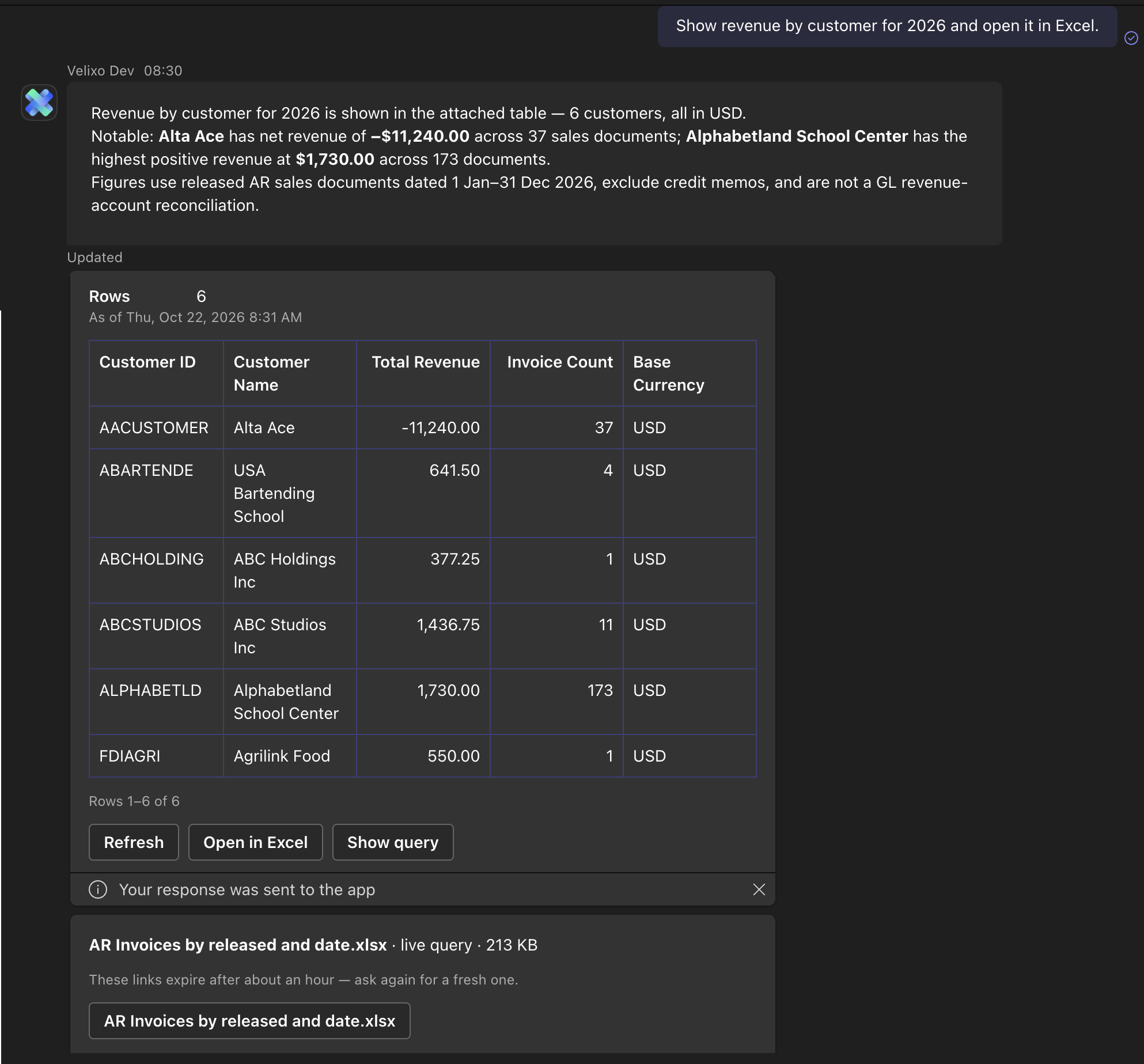
To use the workbook, you need the Velixo NX add-in in Excel with access to the same connection. When you open the file, select Enable Editing if Excel asks. Velixo NX then sets up the workbook on the same connection, fills in the data, and shows the query’s inputs as editable cells above the results. If the Velixo panel does not open by itself, select Velixo on the Home tab.
Related articles
-
Velixo AI Gateway: permissions and privacy (coming soon)