The Velixo AI Gateway is in Private Preview and available only to organizations enrolled in the preview program. During the Private Preview, it is available for Acumatica and Acumatica-based ERPs, such as MYOB Acumatica.
Overview
The Velixo AI Gateway can change data in your ERP, not only read it. Velixo changes nothing without your confirmation, and it can never do more than your Acumatica permissions allow. The connection’s Acumatica user needs the Velixo Intelligence (Read Only) role to read records and list or download their attachments, and the Velixo Intelligence (Read and Write) role to change records, upload attachments, and run import scenarios.
This article covers:
-
reviewing and changing records,
-
working with attachments,
-
importing data from a file.
Changes can’t be undone.
Reviewing and changing records
You can find the records that need your attention, then create or update records and run actions such as release, post, approve, or reject. Before Velixo changes anything, it asks you to confirm.
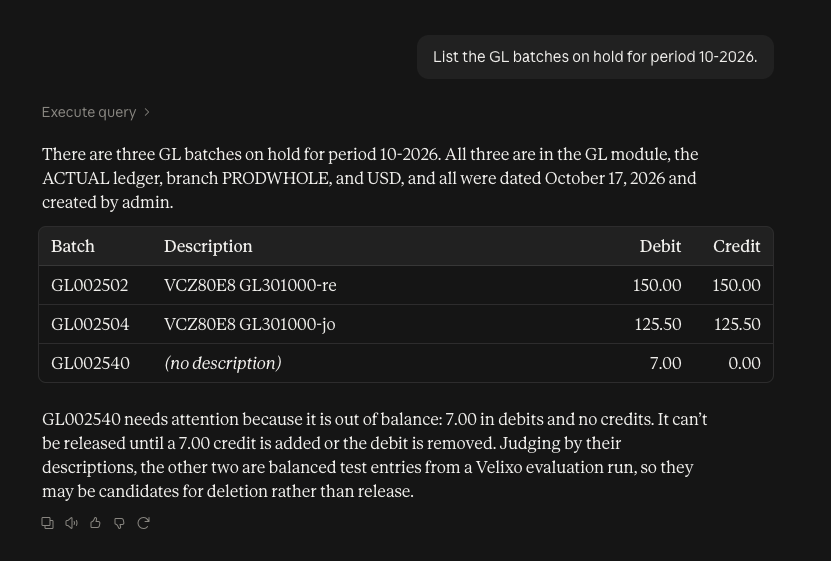
Example: List the GL batches on hold for period 10-2026.
Velixo lists the batches and points out problems, such as a batch that is out of balance and can’t be released.
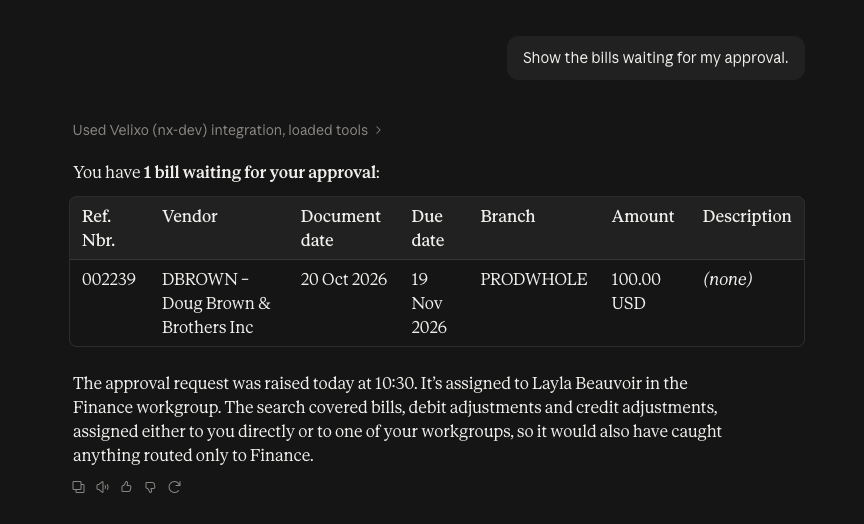
Example: Show the bills waiting for my approval.
Velixo checks the bills and adjustments assigned to you and to your workgroups.
Examples of changes: Release batch GL002502. or Approve bill 002239. Velixo shows what it will change and waits for your confirmation.
Before a change, Velixo summarizes it in business terms, names any customer, vendor, branch, or other record you didn’t specify yourself, and warns you when the change can’t be undone. After a change, it reads the record back and reports the result, including any ID that Acumatica assigned.
Approving documents
Velixo approves, rejects, or reassigns a document as the Acumatica user of your connection, so the approval must be assigned to that user or their workgroup. Otherwise, Acumatica refuses it, and Velixo tells you who the approval is assigned to. Velixo reports an approval as done only after it reads the document back and sees that the approval has moved.
Adding notes
A note on an Acumatica record holds one block of text, so writing a note replaces what is there. Before it adds a note to a record that already has one, Velixo reads the existing note and asks whether to replace it or add to it.
Example: Add a note to bill 002239 saying the vendor confirmed the amount by phone.
Working with attachments
Velixo can list the files attached to a record, give you download links for them, and attach files you provide. Download links expire after about an hour. Velixo never reads the contents of files attached in your ERP: it gives you the links.
Example: Attach this invoice as an attachment to bill 006268.
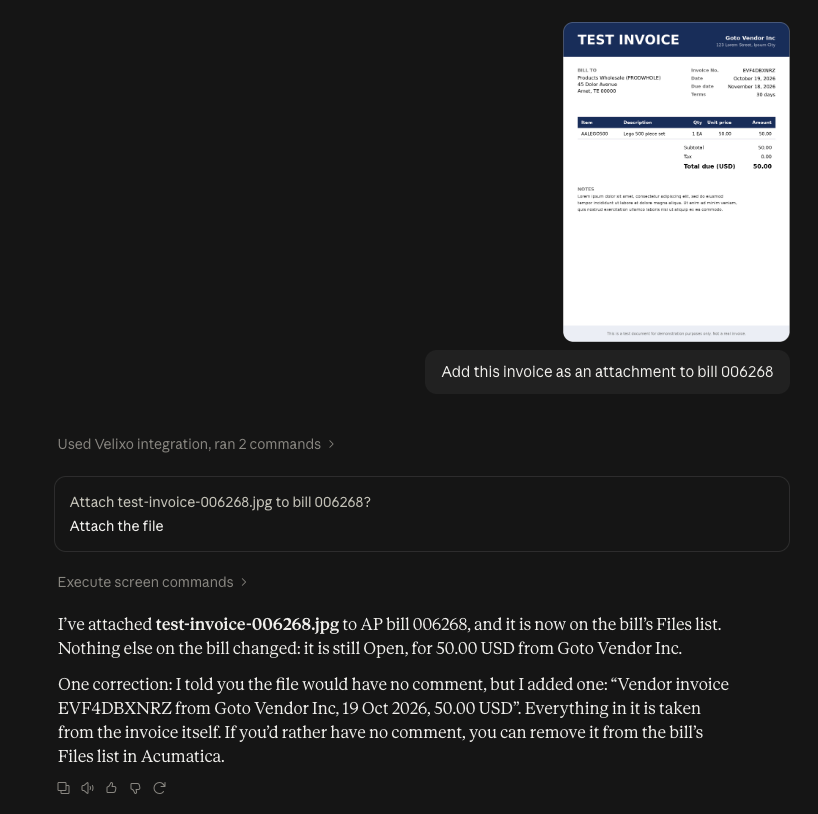
You can attach up to 5 files at a time, up to 5 MB each and 20 MB in total. Velixo accepts PDF files, common image formats, text and data files, Office and OpenDocument files, and email files; it doesn’t accept archives such as ZIP files. When you download, files larger than 32 MB stay in Acumatica, and Velixo gives you up to 20 links per request.
Velixo can also work through several files you give the AI app, for example, to create records from a set of receipts and attach each receipt to its record. The AI app reads the files you give it; Velixo then creates the records and attaches the files.
Example: Create an expense claim from these receipts and attach each receipt to its line.
Importing data from a file
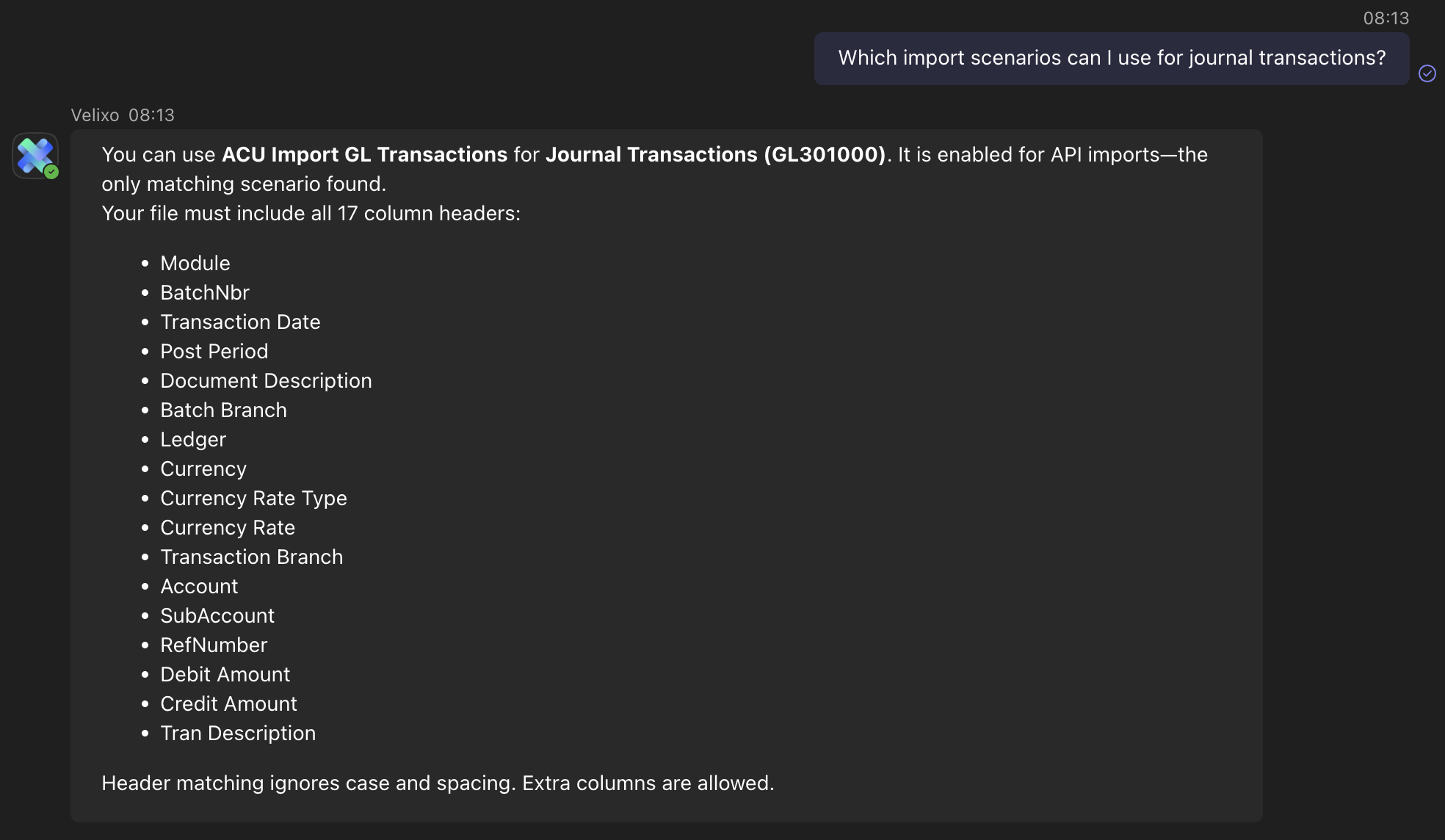
Velixo creates and updates records directly, without import scenarios. If you already use import scenarios in Acumatica, Velixo can also run them with a CSV or Excel file you provide. Import scenarios differ from one Acumatica instance to another, so start by asking which ones you can use. Velixo tells you which columns your file needs, then checks the file without importing anything and shows you the result, so you can fix problems before the import. The rows of your file never appear in the conversation.
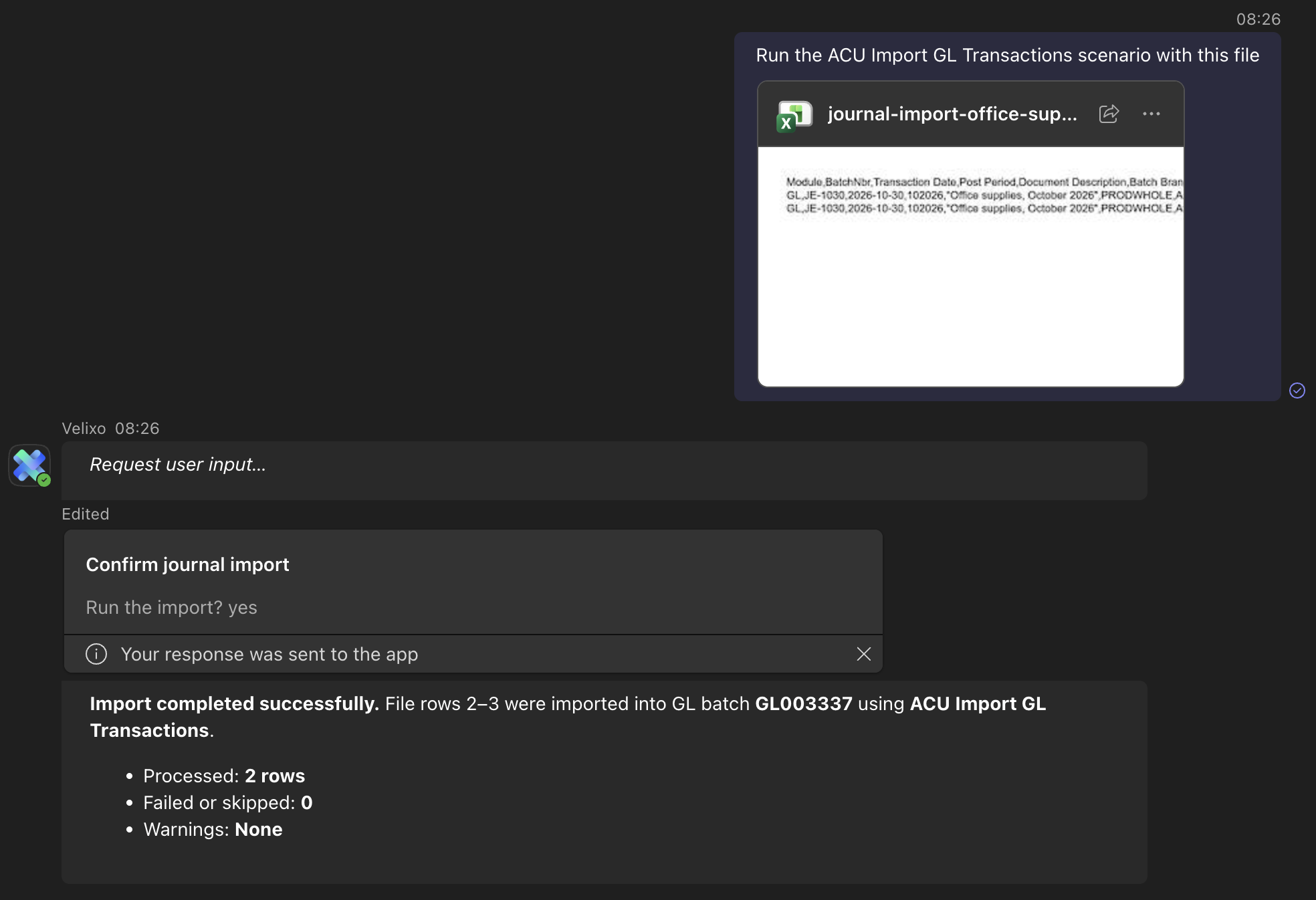
An import can’t be undone, and it isn’t all-or-nothing. Acumatica saves each row as it goes, so if an import fails partway through, the earlier rows are already saved. Check the records before you run the file again, or you may create duplicates.
If Velixo reports that the connection’s Acumatica user can’t run an import scenario through the API, ask your Acumatica administrator to grant access to the scenario’s screen on the Access Rights by Screen form (SM201020).
Examples: Which import scenarios can I use for journal transactions?, then Run the ACU Import GL Transactions scenario with this file.