Overview
Velixo includes multiple functions for accessing Project Module data.
Sometimes it can be convenient to know where the data resides within the ERP.
Here are several of the Velixo functions and where to find the data within the ERP.
Data sources
Below, you can see the source of the data for each Velixo function.
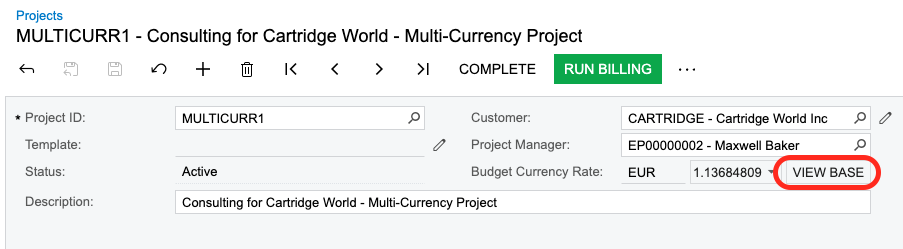
When the UseProjectCurrency argument is set to TRUE for the functions listed below, their formulas return values in the project currency. To find these amount in the base currency in Acumatica, click VIEW BASE in the header area of the Projects form.
PROJECTENDINGAMOUNT
Returns the data that is displayed in the Acutal Amount column of the balances.
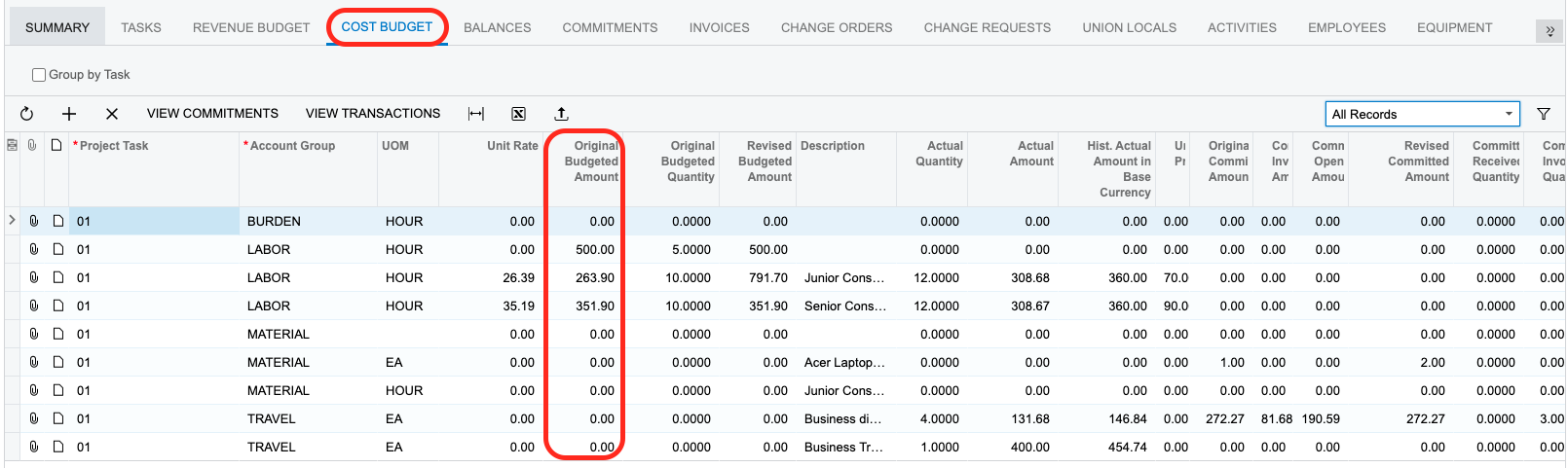
PROJECTBUDGETAMOUNT
The function returns the summary of the Original Budgeted Amount column values from the Revenue Budget and Cost Budget tabs of the Projects (PM301000) form.

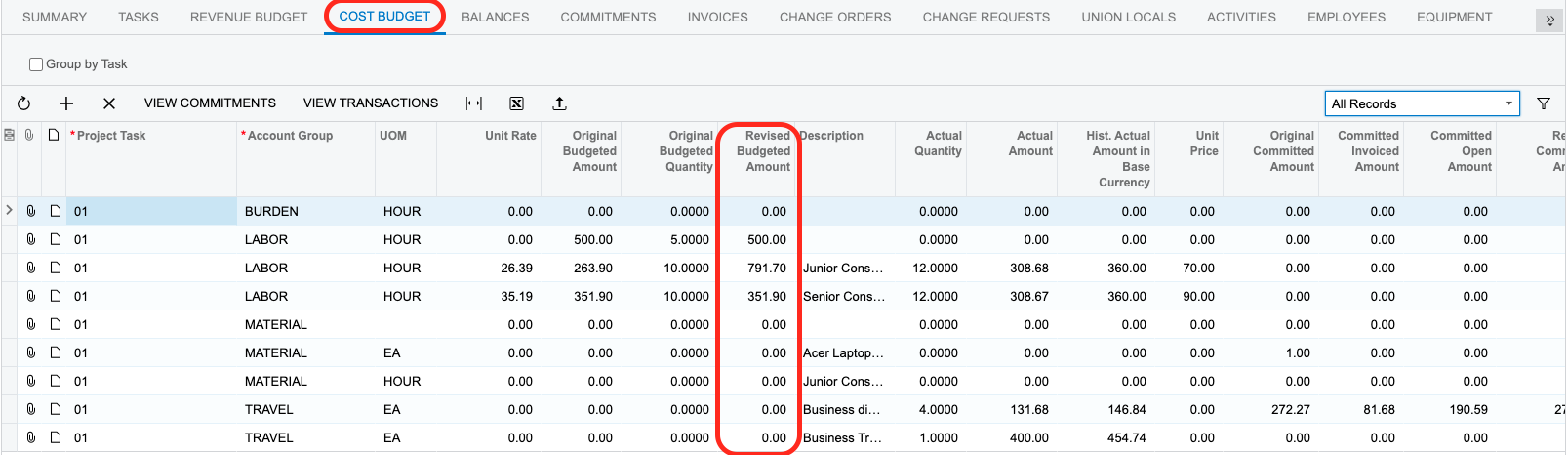
PROJECTREVISEDBUDGETAMOUNT
The function returns the summary of the Revised Budgeted Amount column values from the Revenue Budget and Cost Budget tabs of the Projects (PM301000) form.

PROJECTREVISEDCOMMITTEDAMOUNT
The function returns the summary of the Committed Amount column values from the Cost Budget tab of the Projects (PM301000) form.
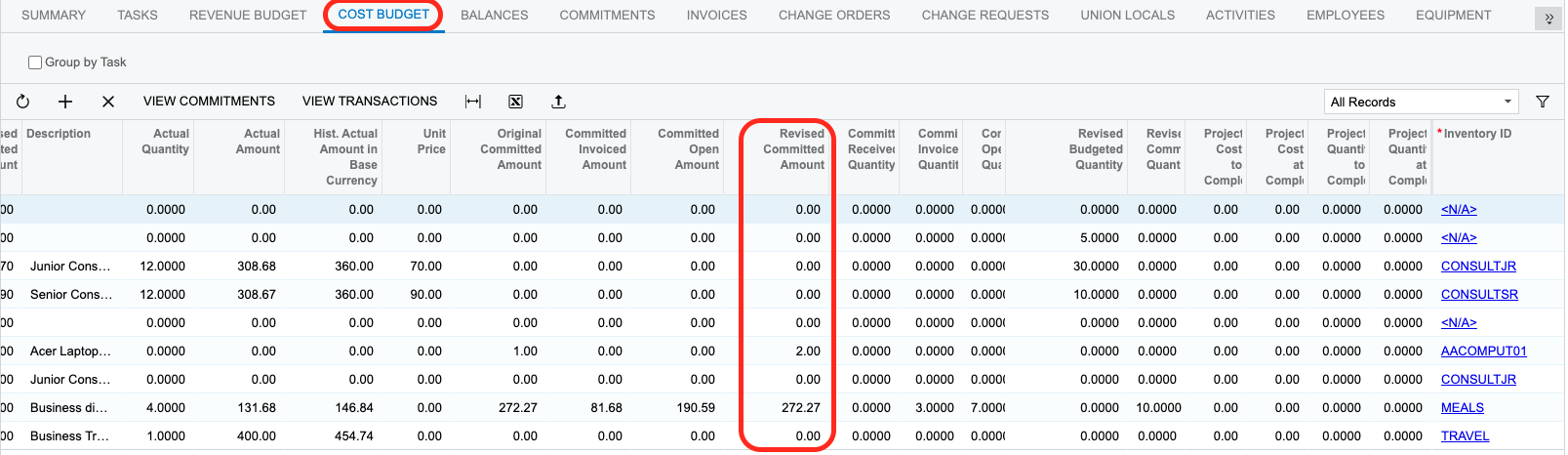
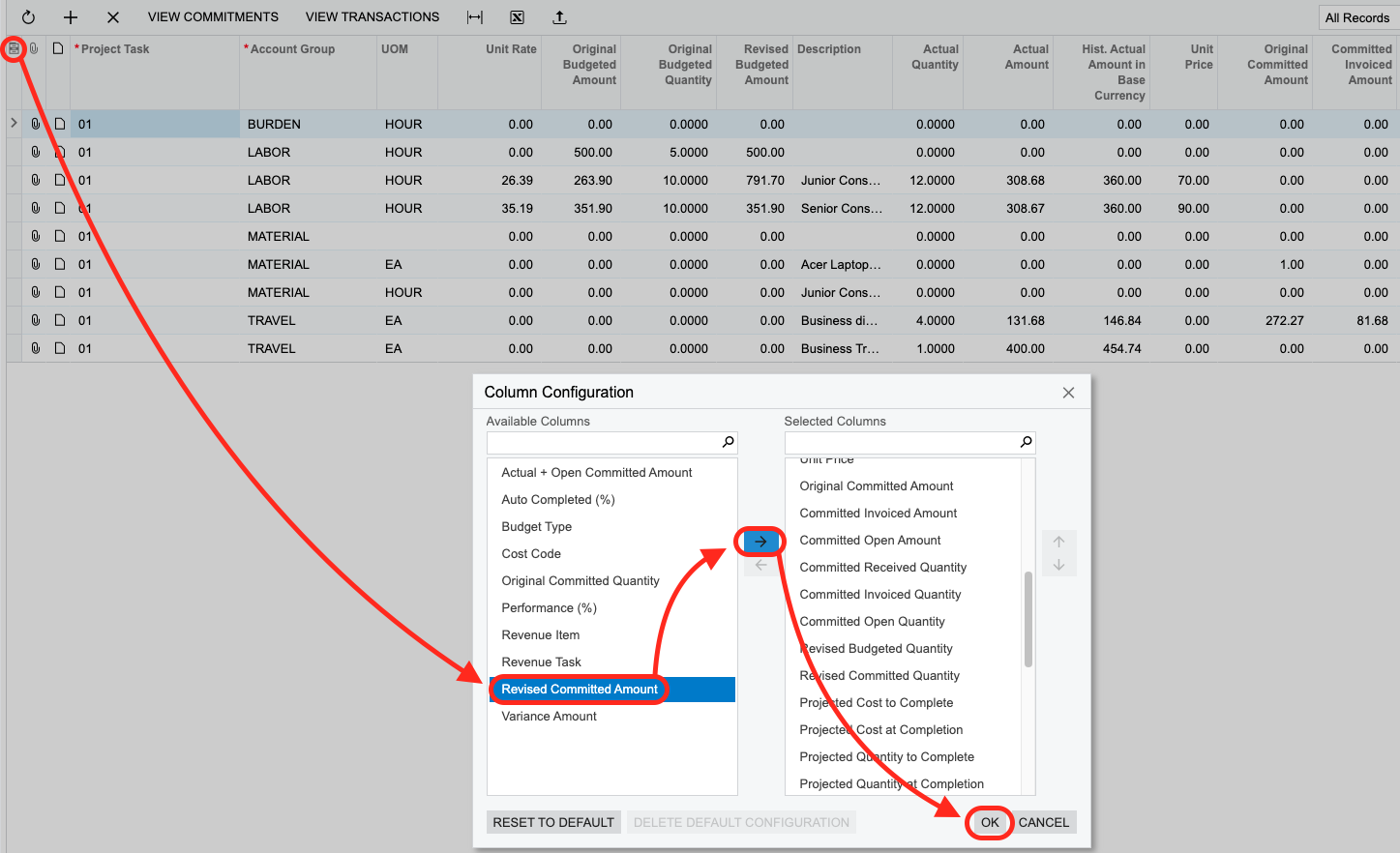
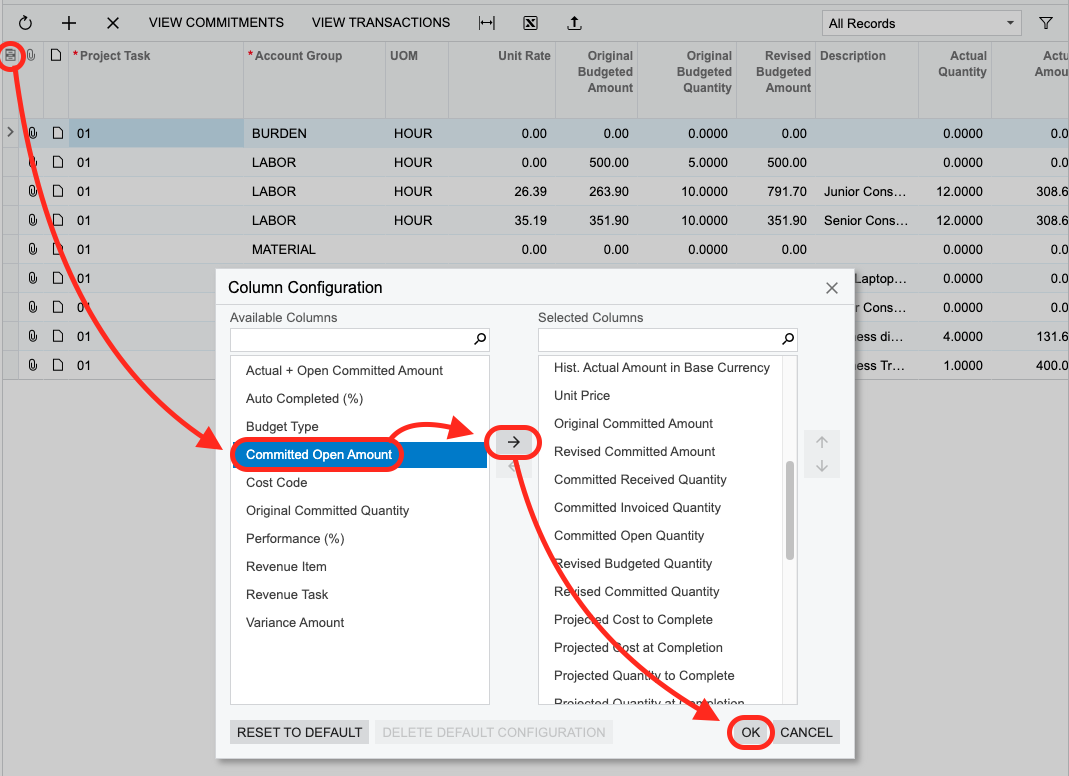
By default, the Revised Committed Amount column is hidden from the Cost Budget tab in Acumatica. To make it visible, use the column configuration menu:
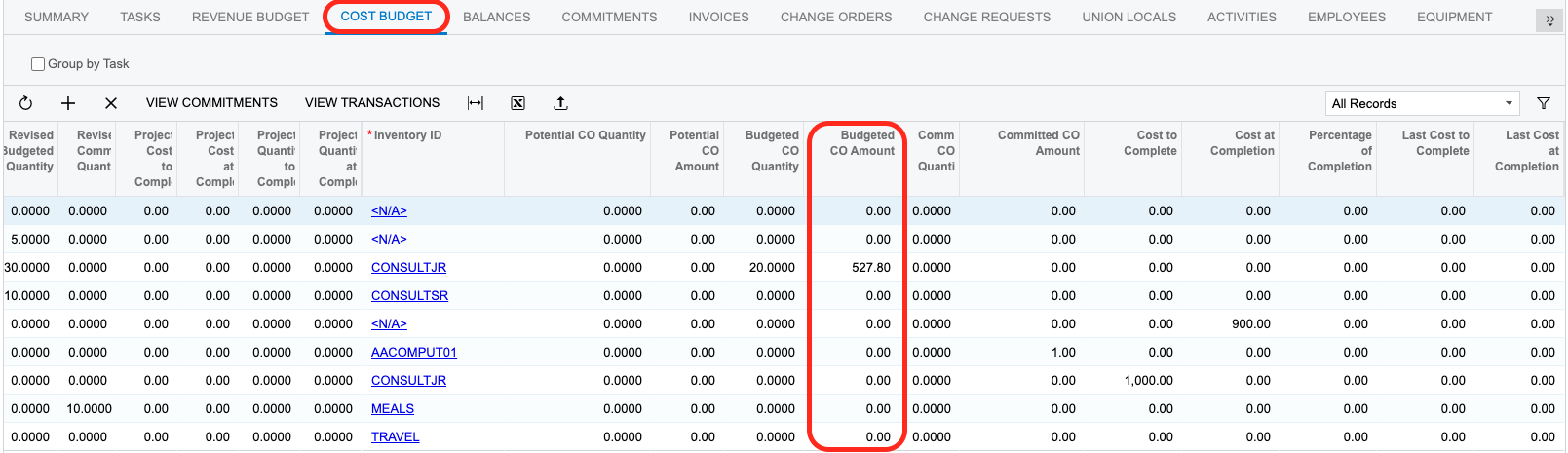
PROJECTCHANGEORDERAMOUNT
The function returns the summary of the Budgeted CO Amount column values from the Revenue Budget and Cost Budget tabs of the Projects (PM301000) form.

PROJECTCOMMITTEDAMOUNT
The function returns the summary of the Original Committed Amount column values from the Cost Budget tab of the Projects (PM301000) form.
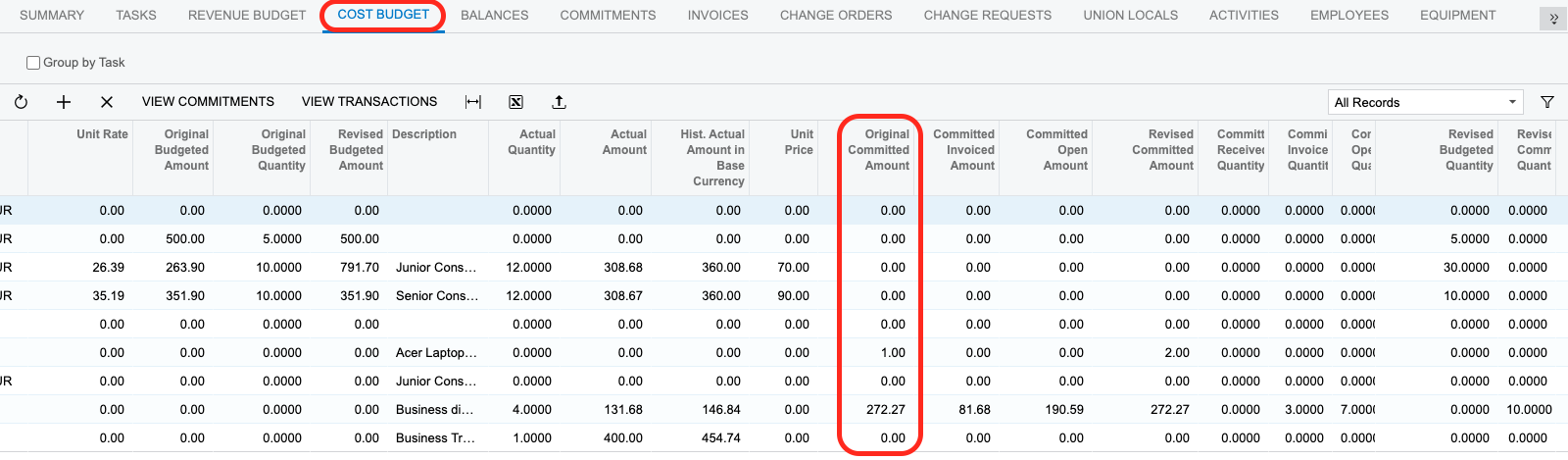
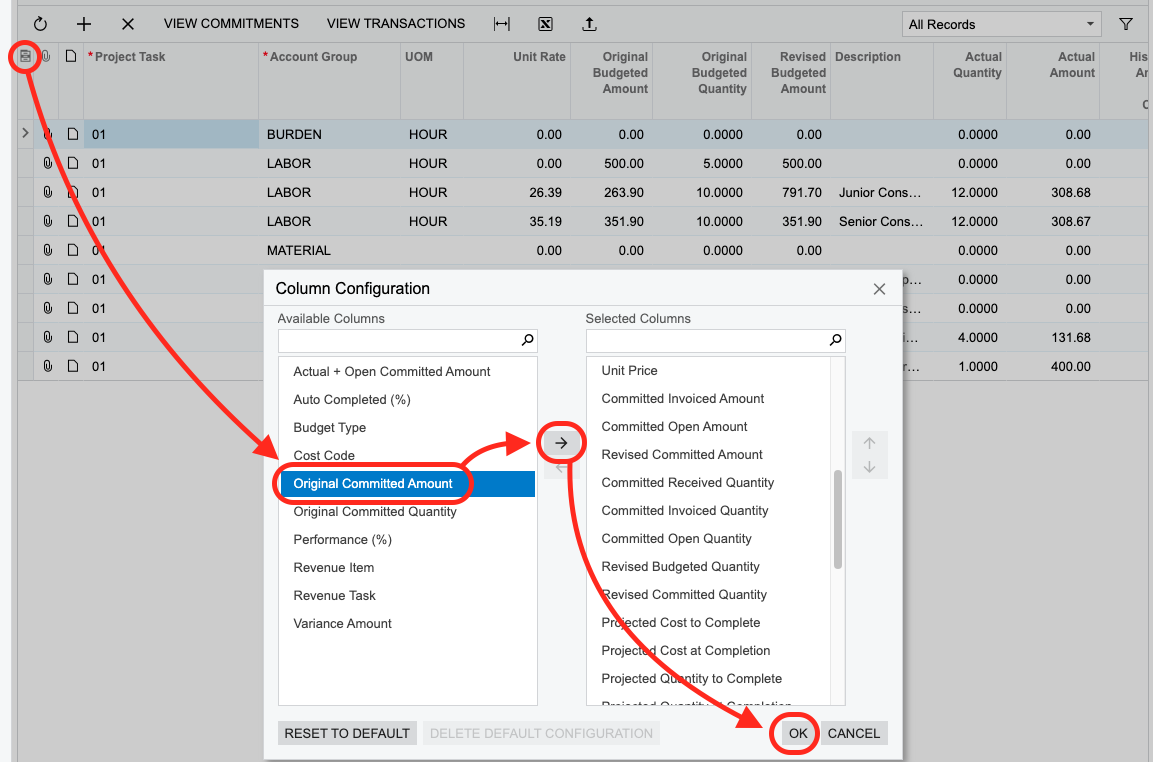
By default, the Original Committed Amount column is hidden from the Cost Budget tab in Acumatica. To make it visible, use the column configuration menu:
PROJECTCOMMITTEDINVOICEDAMOUNT
The function returns the summary of the Committed Invoiced Amount column values from the Cost Budget tab of the Projects (PM301000) form.
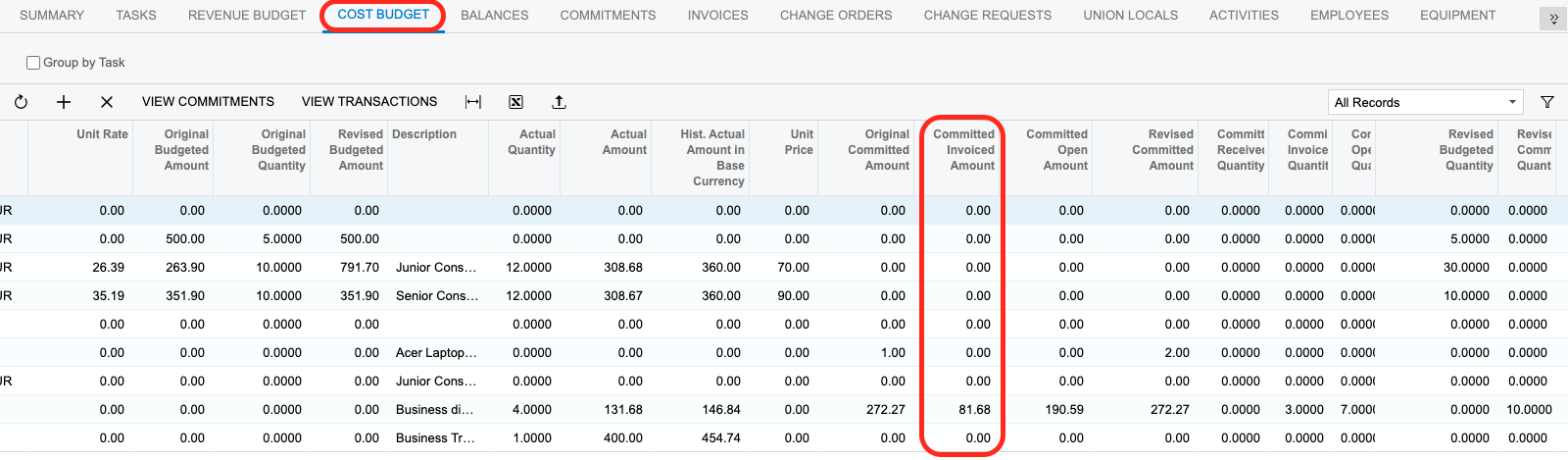
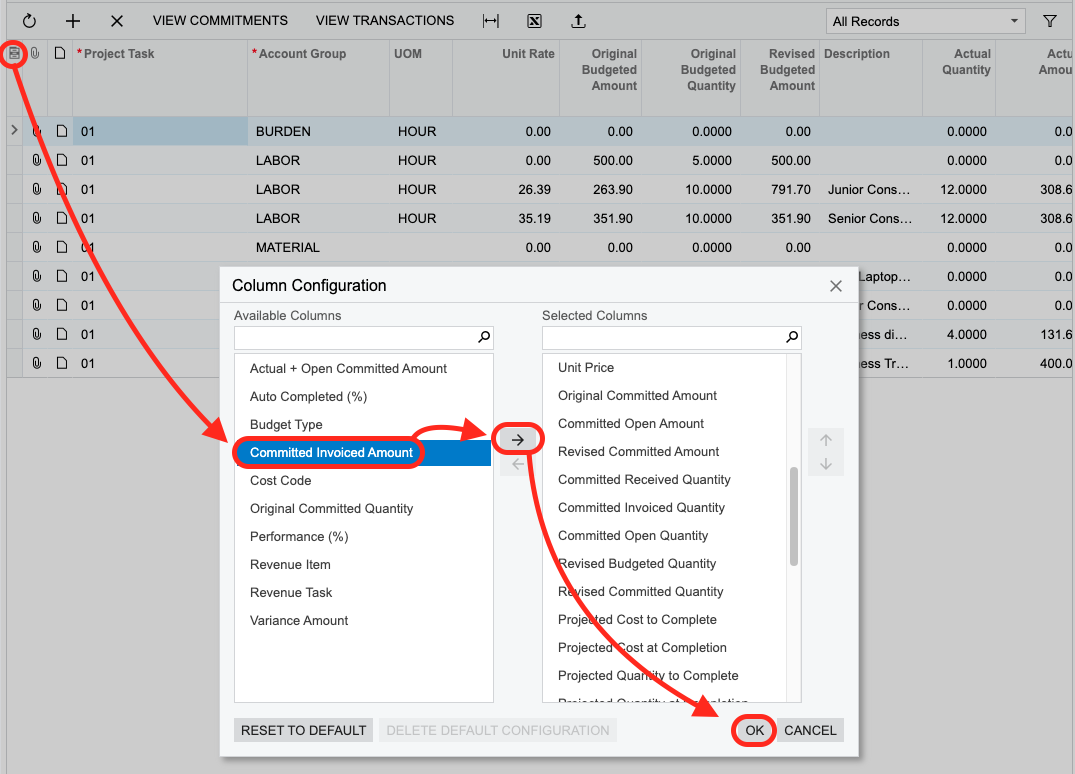
By default, the Committed Invoiced Amount column is hidden from the Cost Budget tab in Acumatica. To make it visible, use the column configuration menu:
PROJECTCOMMITTEDOPENAMOUNT
The function returns the summary of the Committed Open Amount column values from the Cost Budget tab of the Projects (PM301000) form.
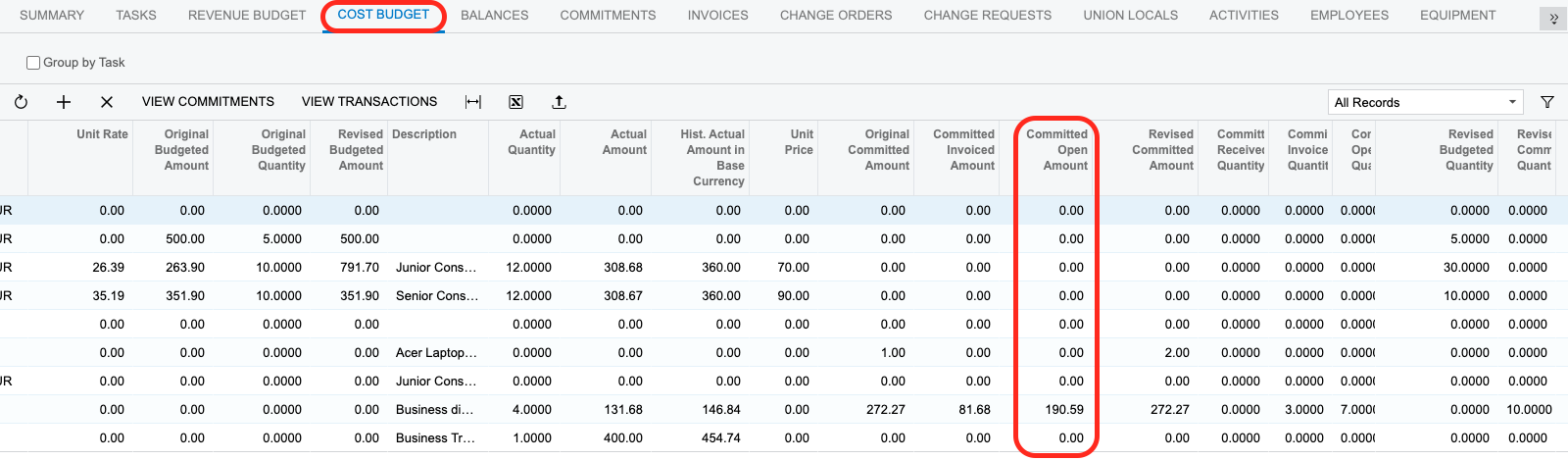
By default, the Committed Open Amount column is hidden from the Cost Budget tab in Acumatica. To make it visible, use the column configuration menu:
PROJECTPENDINGINVOICEAMOUNT
The function returns the summary of the Pending Invoice Amount column values from the Revenue Budget tab of the Projects (PM301000) form.

PROJECTCOSTATCOMPLETION
The function returns the summary of the Cost at Completion column values from the Cost Budget tab of the Projects (PM301000) form.
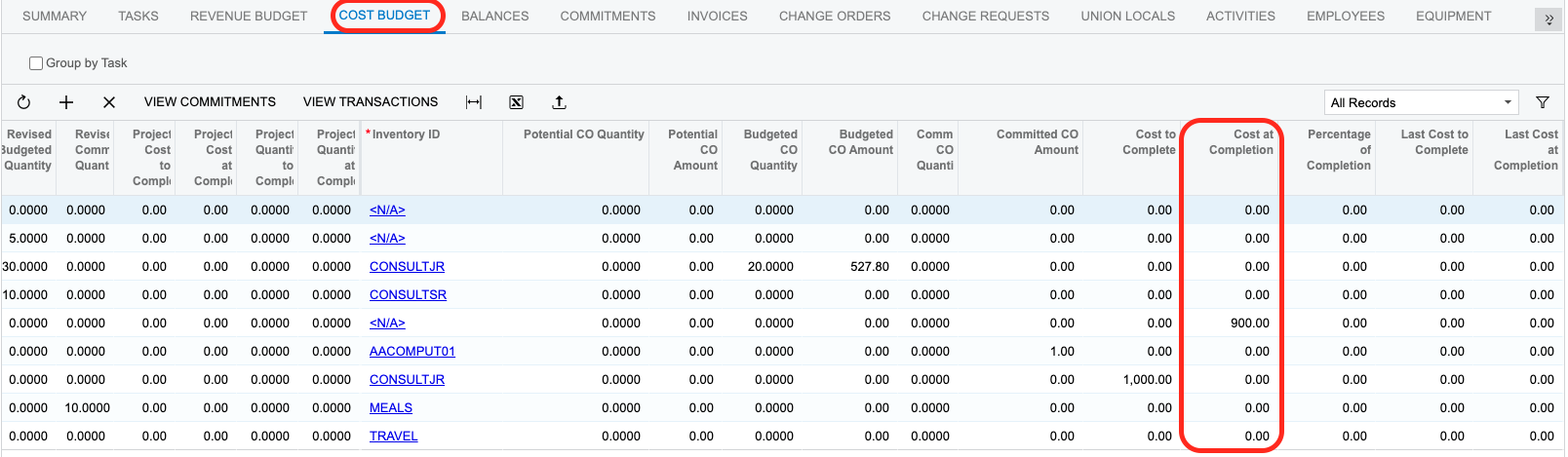
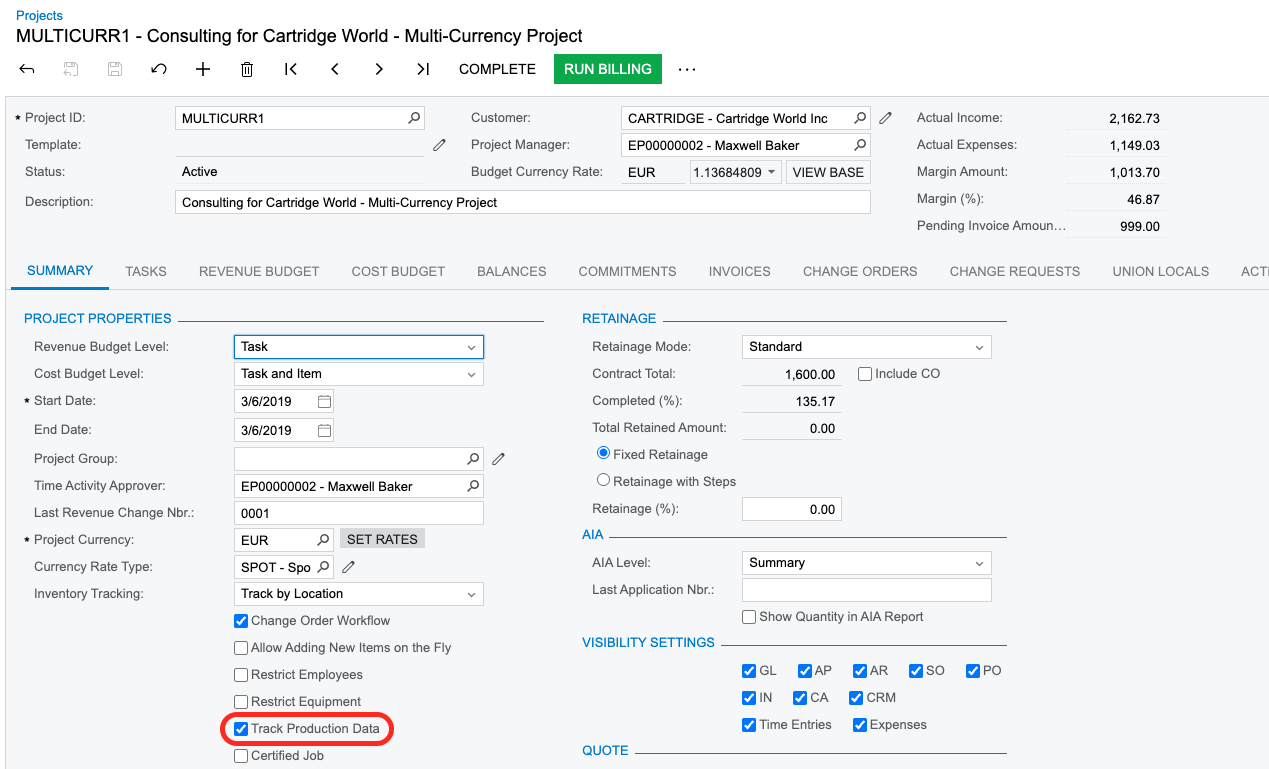
To enable the Cost at Completion column in the Cost Budget tab in the Projects form, check the Track Production Data box in the Summary tab.
PROJECTCOSTTOCOMPLETE
The function returns the summary of the Cost to Complete column values from the Cost Budget tab of the Projects (PM301000) form.
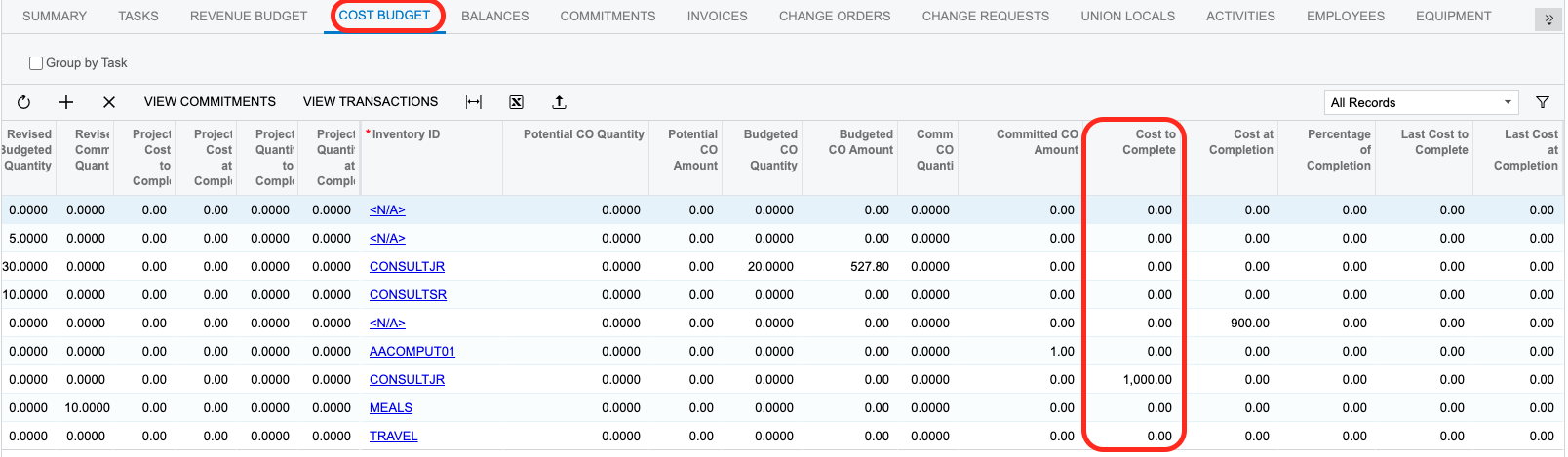
To enable the Cost to Complete column in the Cost Budget tab in the Projects form, check the Track Production Data box in the Summary tab.
PROJECTCOMMITTEDCHANGEORDERAMOUNT
The function returns the Commited CO Amount column value from the Cost Budget tab of the Projects (PM301000) form.
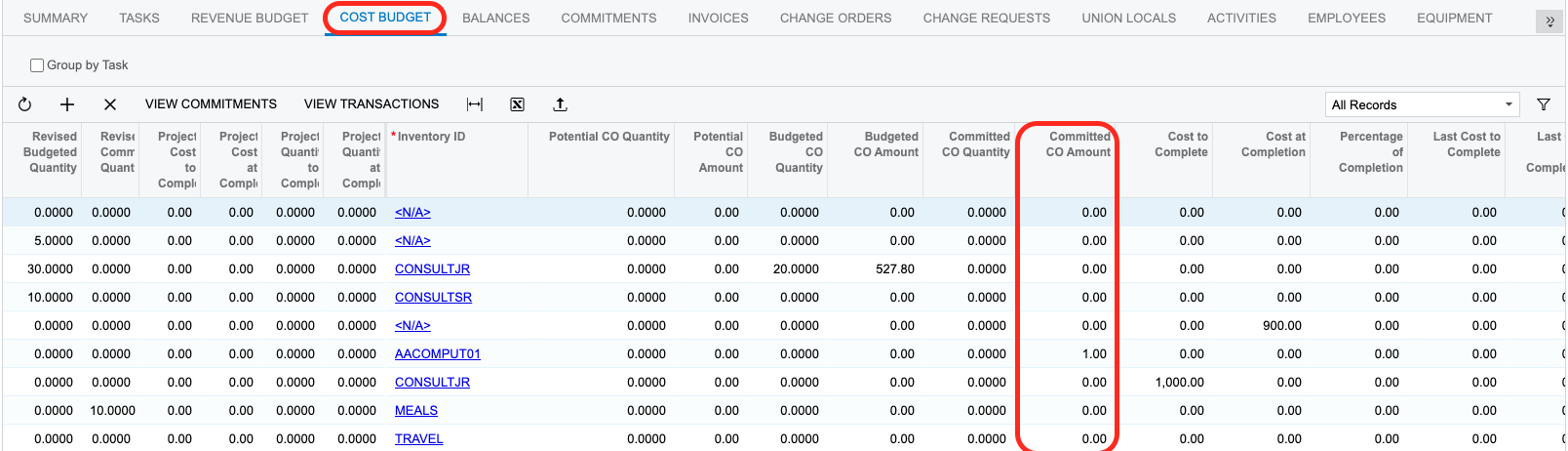
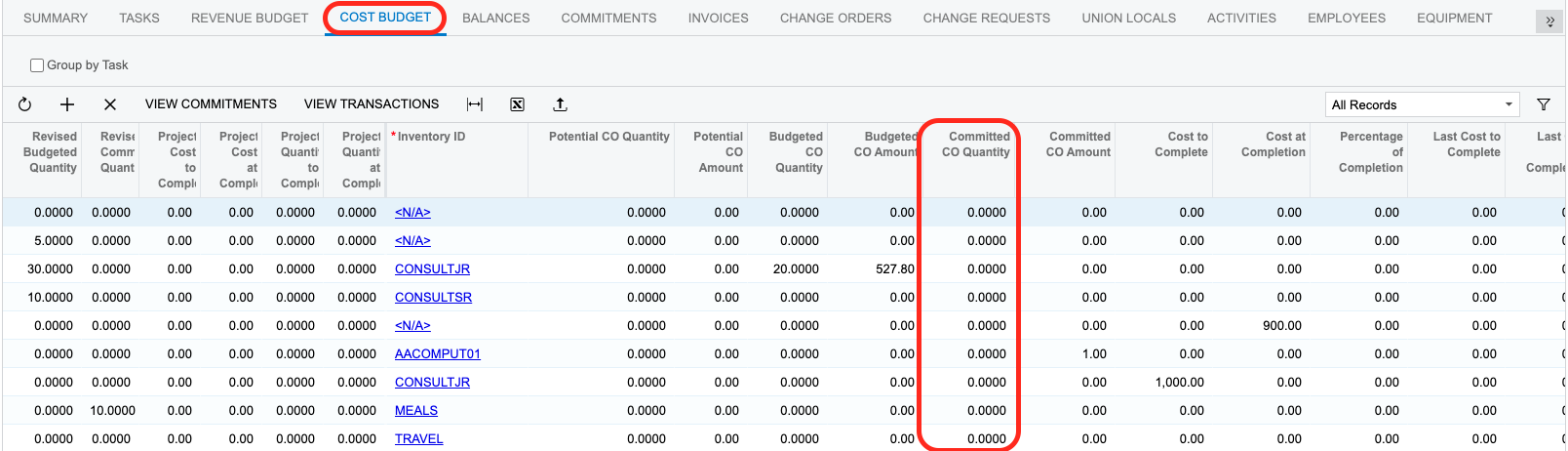
PROJECTCOMMITTEDCHANGEORDERQUANTITY
The function returns the Commited CO Quantity column value from the Cost Budget tab of the Projects (PM301000) form in Acumatica ERP.
Reconciling actual amount and quantity functions against Acumatica
The following functions draw their values from posted project transactions rather than from the budget tabs of the Projects (PM301000) form: PROJECTBEGINNINGAMOUNT, PROJECTENDINGAMOUNT, PROJECTTURNOVERAMOUNT, PROJECTBEGINNINGQUANTITY, PROJECTENDINGQUANTITY, and PROJECTTURNOVERQUANTITY. Each returns one value per account group. To verify a result, total the matching transactions on the Project Transaction Details (PM401000) form.
Reconciliation steps
-
Open the Project Transaction Details (PM401000) form in Acumatica.
-
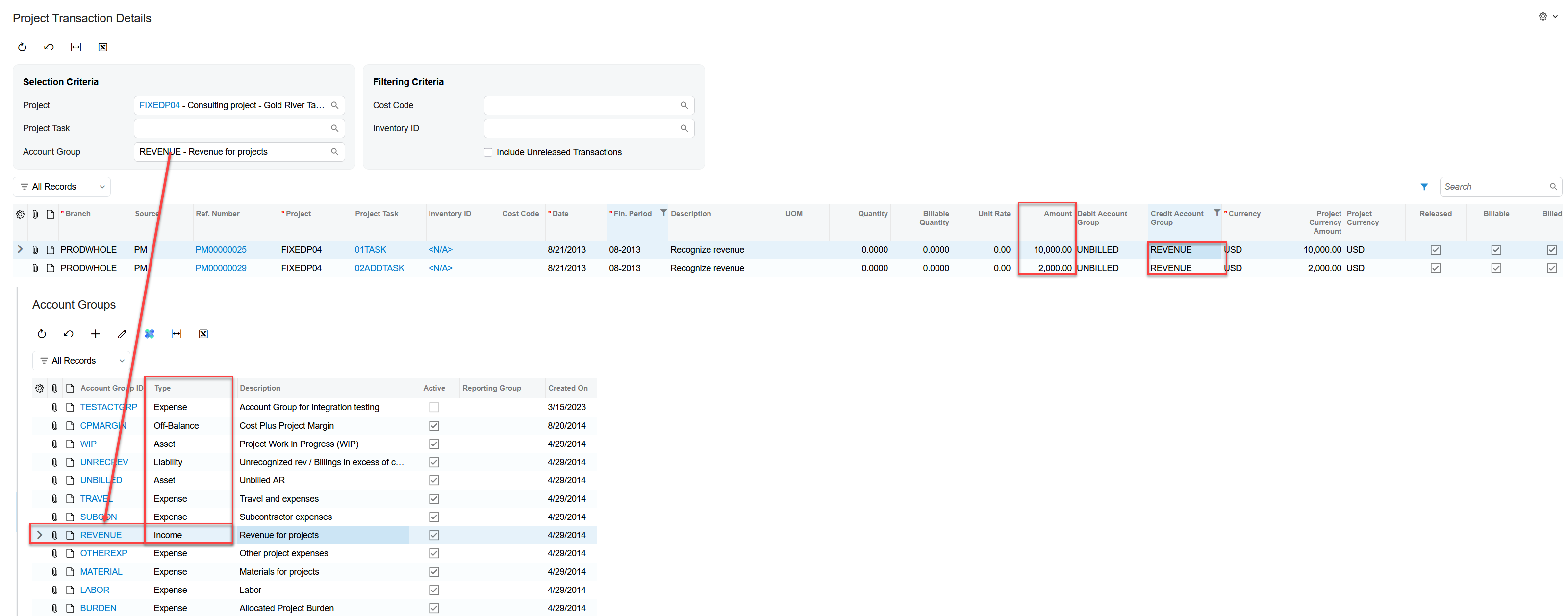
Under Selection Criteria, select the Project and Account Group the function targets.
-
Leave Include Unreleased Transactions cleared, so that only released transactions are counted.
-
Restrict the rows to the financial periods the function covers: through the as-of period for the ending functions, through the period before it for the beginning functions, and the
FromPeriodOrDatetoToPeriodOrDaterange for the turnover functions. -
Total the Amount column (for the amount functions) or the Quantity column (for the quantity functions).
-
Apply the sign convention below. The signed total equals the function result.
Sign convention
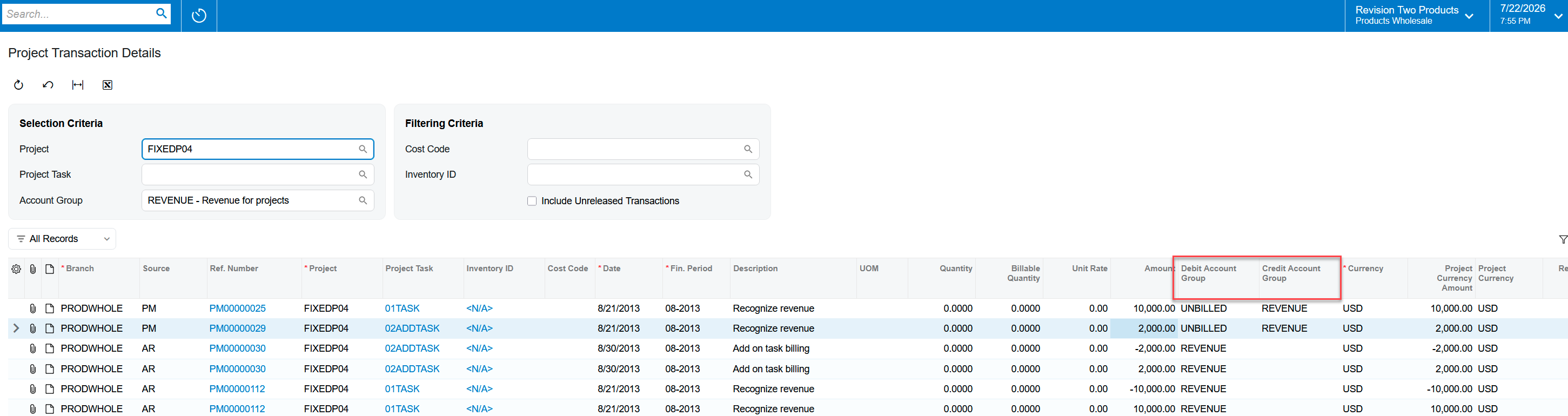
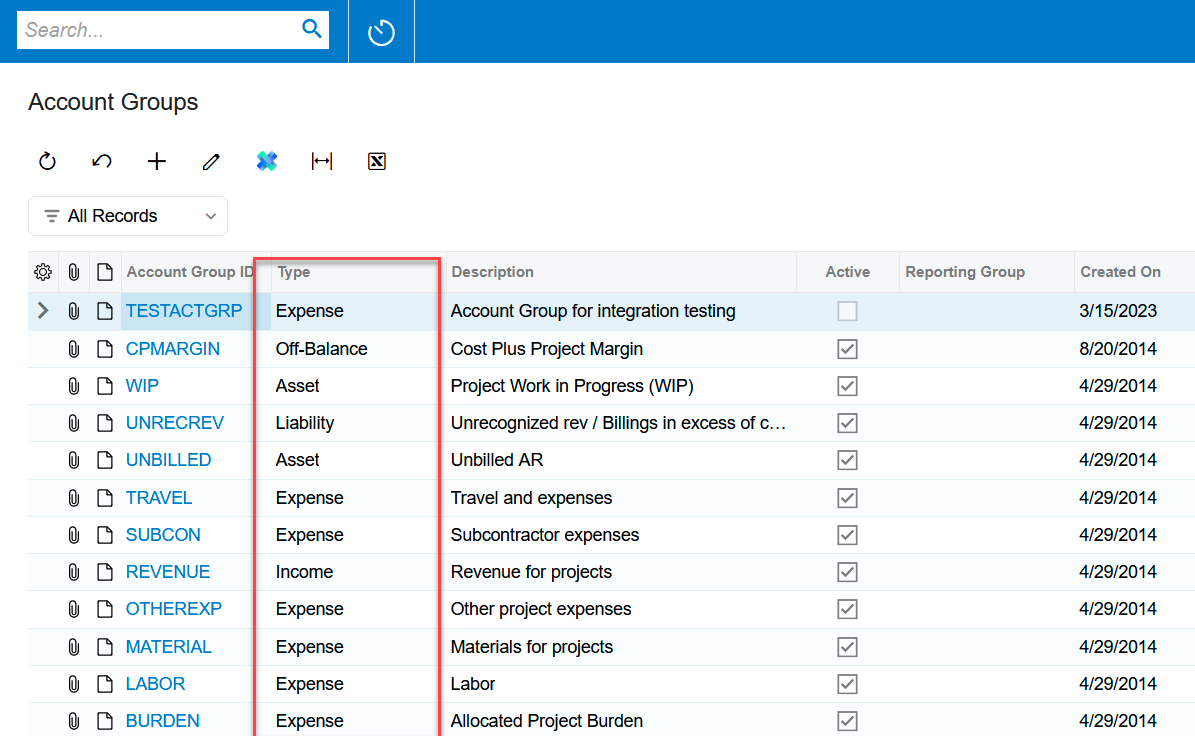
Each function inherits its sign directly from Acumatica: a value follows the natural sign (positive or negative) of the account group's type, depending on whether the group is the debit or credit account group on the line. The Debit Account Group and Credit Account Group columns on the PM401000 form show the role; the group's Type is shown on the PM2010PL Account Groups form.
|
Account group's role on the transaction |
Expense / Asset groups |
Income / Liability groups |
|---|---|---|
|
Debit account group |
Same sign as the Amount / Quantity column |
Reversed sign |
|
Credit account group |
Reversed sign |
Same sign as the Amount / Quantity column |
Quantity functions and the UOM column
The quantity functions total the Quantity column only for rows where the UOM field is populated. Rows with an empty UOM value are excluded from the total.
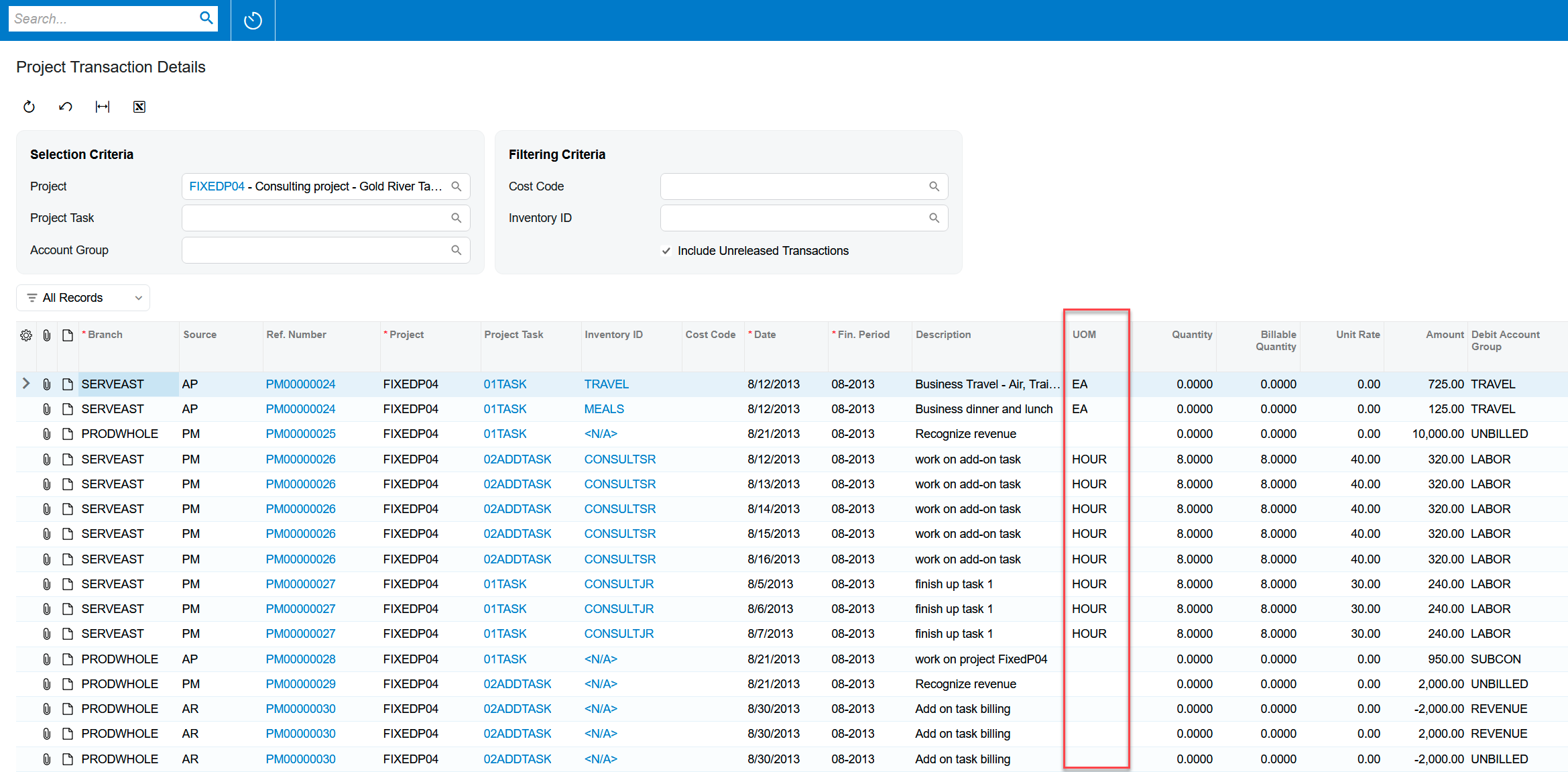
For a related scenario where project quantities differ from the Cost Budget tab, see Project Quantity does not match Cost Budget tab.
Examples
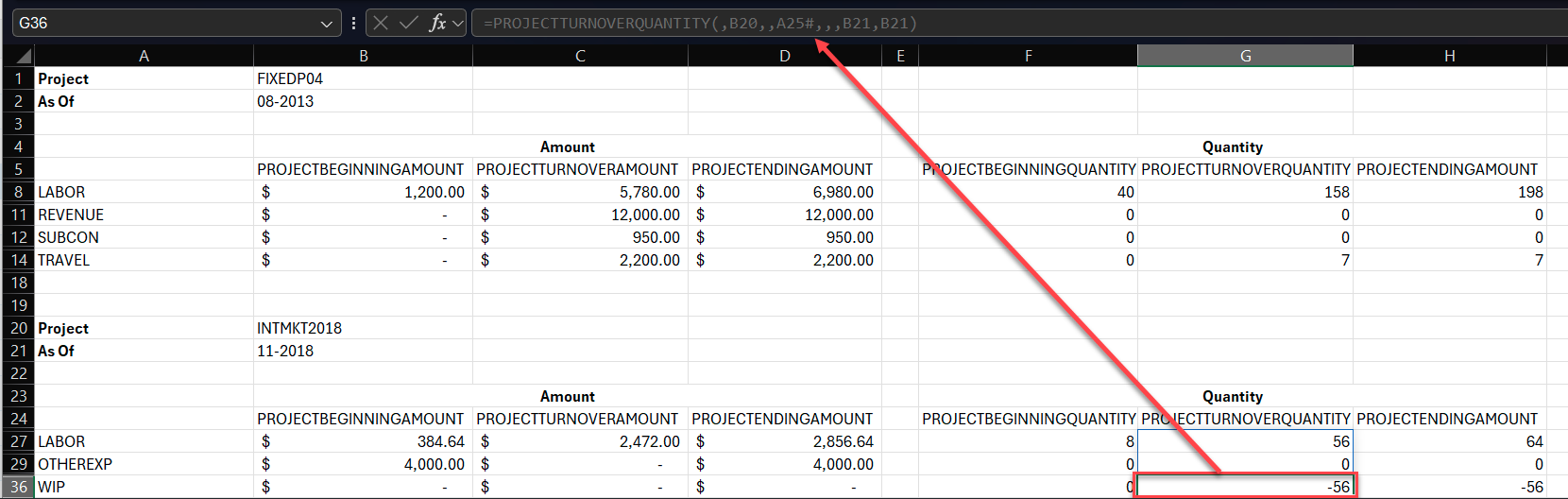
PROJECTTURNOVERAMOUNT for the REVENUE account group
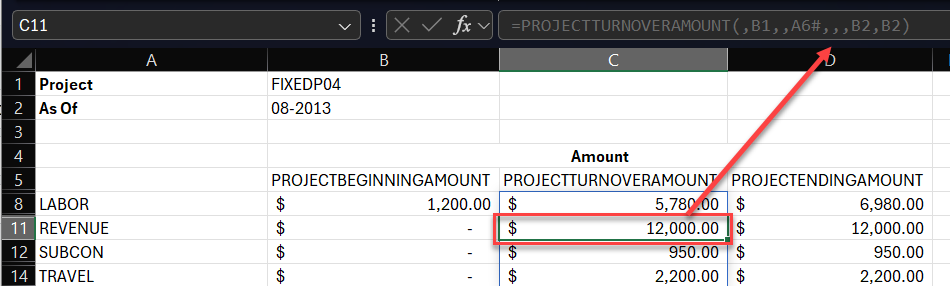
=PROJECTTURNOVERAMOUNT(,"FIXEDP04",,"REVENUE",,,"08-2013","08-2013")
Returns 12,000. REVENUE is an Income-type group and the credit account group on both transactions, so the sign is kept: 10,000 + 2,000 = 12,000.
PROJECTTURNOVERQUANTITY for the WIP account group
=PROJECTTURNOVERQUANTITY(,"INTMKT2018",,"WIP",,,"11-2018","11-2018")
Returns -56. WIP is an Asset-type group. On the seven lines with a populated UOM (8 hours each, total 56), WIP is the credit account group, so the sign reverses to -56. On the last two lines WIP is the debit account group, but their UOM field is empty, so they are excluded.