
Overview
As is common if many reports, your report may contain Financial Periods.
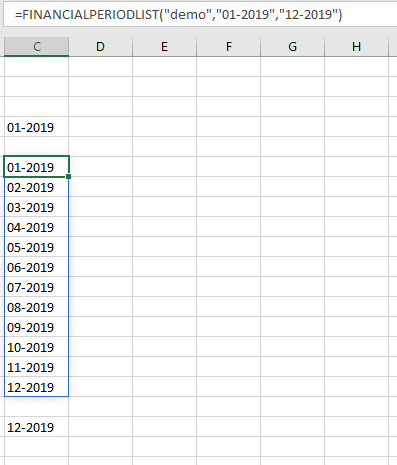
Known Issue
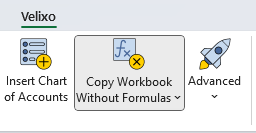
When using the Velixo Copy Workbook Without Formulas feature:
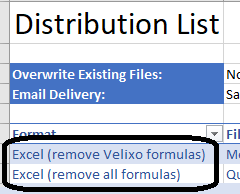
Or either of the Distribution List options which remove Velixo functions from the resulting file:
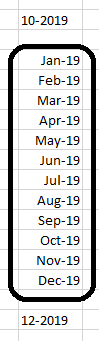
Excel can reformat certain results (such as those from the FinancialPeriodList function) as either numbers or Excel dates:
Resolution
This is due to Excel behavior that looks to convert what looks like a date into a date when no other formatting is set in a cell.
To resolve this in the original report, highlight any cell(s) that Excel is re-formatting, select the Format pulldown from the Home ribbon on the Excel toolbar...
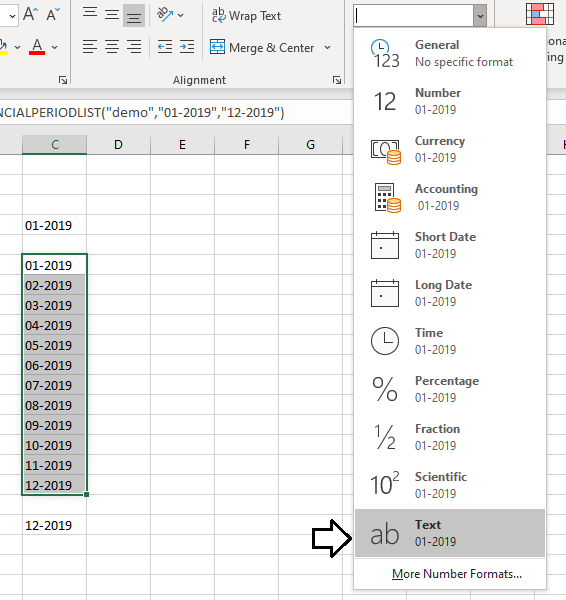
... and select Text
Now, when using Velixo features to create a workbook without Velixo functions, there will be a specific format associated with the Financial Period cells and that format will be maintained in the resulting workbook: