
Overview
Upon opening Microsoft Excel, Velixo NX prompts for an update, but clicking Update now results in an error, preventing the add-in from being used. This issue affects all users and occurs consistently during an update.
%20(1).png?cb=959aeebb7375db40c48417a4f627729d)
Cause
Due to a known Microsoft Excel issue, the update process can leave the add-in in a broken state. This is typically caused by a conflict between the newly installed version of the add-in and the previously cached version in Excel, preventing the add-in from loading correctly.
Resolution
Step 1: Restart Excel and install Office updates
On Windows (On Mac, proceed to Step 2), before re-installing the add-in, try the following — this is sufficient to resolve the issue in many cases:
-
Completely close all Excel windows and reopen Excel.
-
Install all available Microsoft Office updates:
-
In Excel, go to File > Account.
-
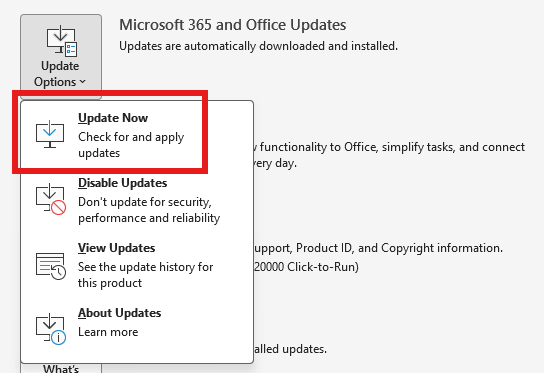
Under Product Information, click Update Options > Update Now.
-
Once updates are installed, restart Excel and check whether the add-in is working.
-
Step 2: Reinstall the add-in
If the issue persists after Step 1, re-install the add-in in Excel:
-
In Excel, go to File > Options > Add-ins.
-
Locate the Velixo add-in and remove it.
-
If the add-in is deployed centrally, and you cannot remove it, contact your company administrator.
-
Otherwise, please refer to this page: Uninstalling Velixo NX.
-
-
Re-add the Velixo add-in.
-
If the issue persists, restart your computer and verify that the add-in is working.