
Overview
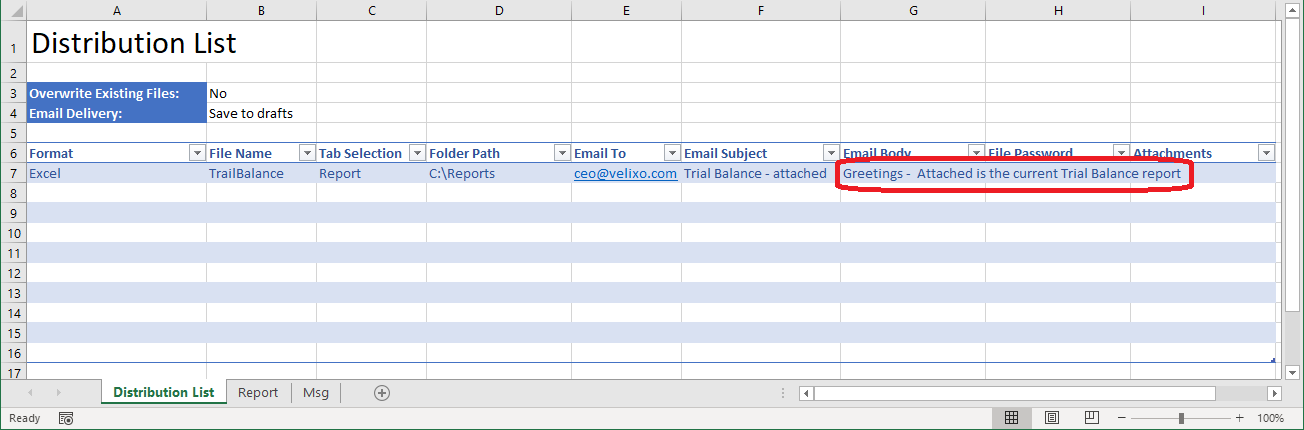
When creating a new Distribution List for which you want to send an email, you have the option to type in the text you want to use for the body of your email:
Sometimes, however, you may want a somewhat more complete email body - one that you place in the report itself, so that you can review it:
Velixo allows you to do that and then reference that in the Email Body column of the Distribution List.
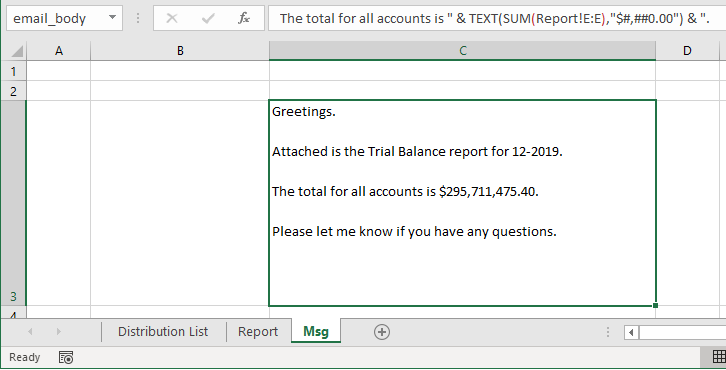
As shown in this example, line breaks can be included using alt-enter within the cell being referenced.
Method #1 - Cell or Named Range Reference
We can use a cell reference or, if the email body is in a named cell...
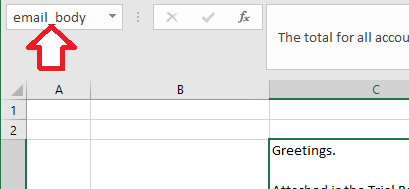
... we can use that.
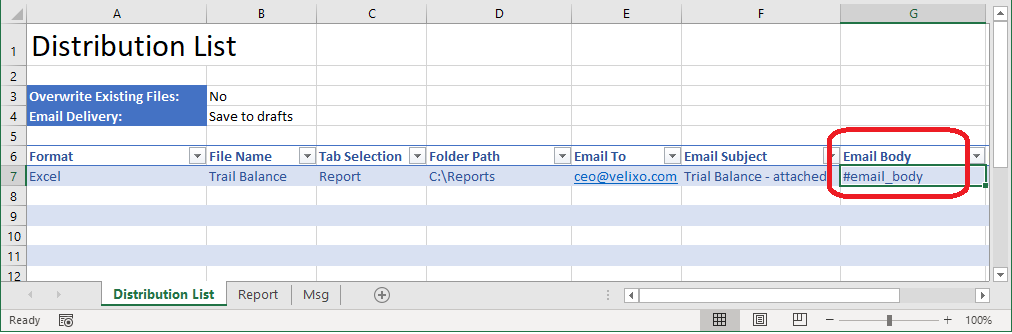
On the Distribution List tab, we enter a # symbol in the Email Body column and then specify the cell or range reference of the text we want to use:
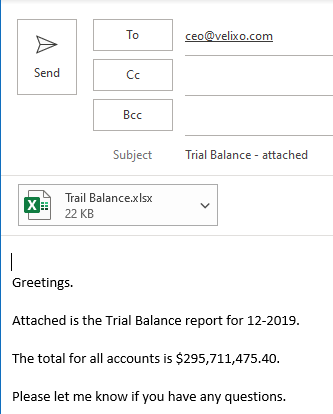
When we distribute, our email is created with the text we placed in our report, and the specified report is attached:
*** Troubleshooting ***
In order to maintain the line spacing in your email body, you MUST use the # symbol when referencing the cell or range. Using an equal sign (=), for example, will result in all line spacing being removed:

Method #2 - Use the report as the email body (with no attachment)
Sometimes, we may want to use the report itself as the body of our email and not even include an attachment.
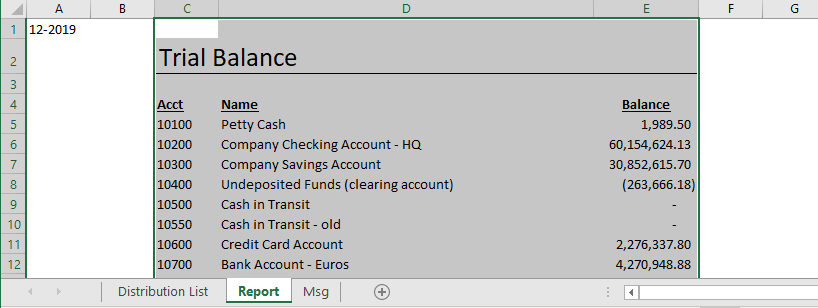
Our data is on the Report sheet in columns C through E:
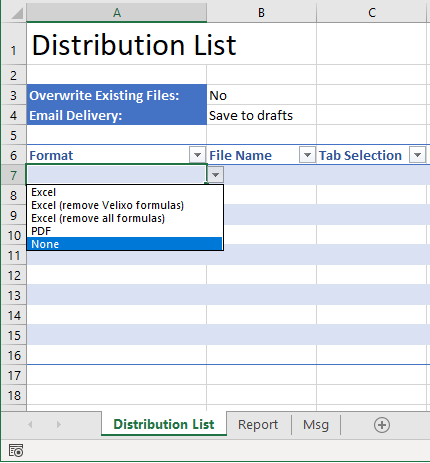
To accomplish this, Velixo includes the None distribution format:
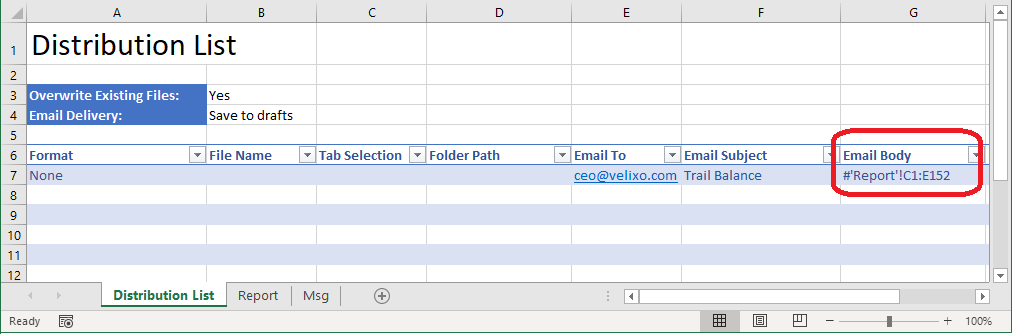
By selecting None and then leaving the File Name, Tab Selection, and Folder Path blank, we can then use a reference (to a cell, cell range, or named range) in the Email Body column to point to our report data:
Now, when we distribute the report, no file is created. Instead, our report becomes the body of the email.
For more information, see Using Distibution Lists