
Overview
Business Central calculates some field values on demand instead of storing them on the record — for example, a customer's total invoiced amount. These flow fields and the flow filters that scope how they are calculated behave differently from ordinary columns when you query a table with BC.QUERYTABLE.
This article explains what flow fields and flow filters are, and how BC.QUERYTABLE handles each, and how to filter a flow field.
How flow fields and flow filters work
Flow fields and flow filters are concepts on the Business Central platform. For the underlying definitions, see Microsoft's FlowFields overview and FlowFilters overview.
Flow fields
A flow field is a field that Business Central calculates at read time by aggregating related records (for example, Inv. Amounts (LCY) on the Customer table, or Budgeted Amount on the G/L Account table). BC.QUERYTABLE returns the calculated value which depends on the flow filter applied to it – change the flow filter, and the calculated value changes. Because their value depends on the flow filter, flow fields are often time-sensitive.
Filtering flow fields behaves like other filters, i.e., it reduces the number of returned rows.
For performance, prefer a flow field over aggregating a column in BC.QUERYTABLE (for example, a SUM in the Select argument) whenever a flow field already provides the value. Business Central maintains flow-field totals and returns them more efficiently than a query-side aggregation over the underlying records.
Flow filters
A flow filter is a special field (such as Date Filter or Budget Filter) that scopes how a linked flow field is calculated. Setting a flow filter specifies which records to include when Business Central calculates the flow field.
A flow filter does not reduce the number of rows in the result. If you filter only on a flow filter, BC.QUERYTABLE returns every row – only the calculated flow field values change. If the flow filter matches no records (for example, a date range with no postings, or a budget name that does not exist), the linked flow field returns 0 for those rows.
Filtering a flow field
To scope a flow field, you need to filter its flow filter. The recommended way is the BC.QUERYTABLEFILTER function – provide the function with the flow filter name and the value or range, and it returns a correctly formatted Filter string. Then place it in the Filter argument of BC.QUERYTABLE, as shown below.
Typically, a BC.QUERYTABLEFILTER formula would reside in a separate cell and be referenced by the BC.QUERYTABLE function. For the sake of visibility in the examples below, the filters are included within the query formulas.
Example – Scope a flow field to a date range
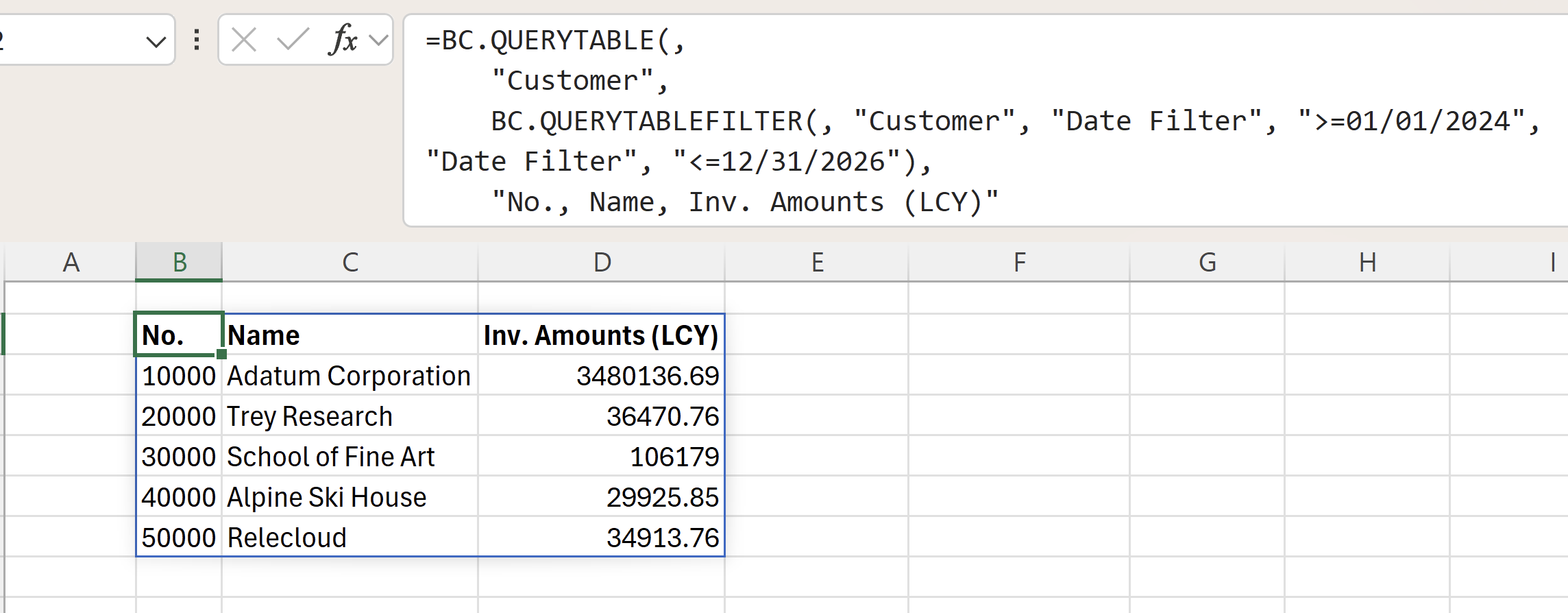
This formula returns every Customer row with Inv. Amounts (LCY) calculated only from invoices dated in 2024–2026:
=BC.QUERYTABLE(,
    "Customer",
    BC.QUERYTABLEFILTER(, "Customer", "Date Filter", ">=01/01/2024", "Date Filter", "<=12/31/2026"),
    "No., Name, Inv. Amounts (LCY)"
)
Description: The Date Filter flow filter scopes the Inv. Amounts (LCY) calculation to the given date range. Repeat the Date Filter column with >= and <= to set the two ends of the range (filters also accept BC range syntax: start..end); BC.QUERYTABLEFILTER combines them into one condition. Every customer is still returned; only the calculated amounts reflect the range.
Result:
Writing the filter by hand
If you do not wish to use BC.QUERYTABLEFILTER, you need to create the Filter argument manually within the formula. Because the filter is passed as an Excel text string, enclose each field name in doubled double quotes (""), and express the filtering condition as ""Field Name"" = filter(value).
The filter is therefore typed as follows within the formula:
=BC.QUERYTABLE("BC", "G/L Account", """Budget Filter"" = filter('MY BUDGET')", "No., Budgeted Amount")
Velixo automatically repairs two common mistakes before sending the filter to Business Central:
-
Smart (curly) quotes become straight quotes.
-
Single-quoted field names become double-quoted —
'Account Category' = filter(Assets)becomes"Account Category" = filter(Assets).
Related functions
-
BC.QUERYTABLE — returns data from queryable Business Central tables.
-
BC.QUERYTABLEFILTER — builds ready-to-use filter strings.
-
BC.TABLEDEFINITION — lists the columns available for a table.