
Overview
Microsoft Dynamics 365 Business Central is an ERP built on an extensible platform, strong of hundreds of partner or ISV integrations available on the AppSource Extension store within Business Central. Any user can also customize Business Central for their organization by designing their own objects, APIs, or by customizing screens; however, this is a developer experience.
Velixo’s query features can extract data from API v2, web services, and also directly from tables using BC.QUERYTABLE (or the Query Builder) - this includes any API endpoint, custom Business Central Pages or Queries, or custom columns.
This article describes how one could create such custom objects if needed. Velixo’s features are designed to be self-service and not require any ERP extension; however, some scenarios might benefit from customizing Business Central.
This article covers:
-
When a custom web service is the right approach
-
What the Velixo sample extension project contains
-
Setting up the development environment
-
Configuring, building, and deploying the extension
-
Using the new web services from Velixo
This article provides a ready-made AL sample extension project as-is, with no maintenance and support commitment from Velixo. It serves as an educational resource or as a starting point for a customization project.
We highly recommend contacting your VAR partner prior to working with extensions.
When you need a custom web service
BC.QUERYTABLE reads Business Central tables directly and covers most reporting needs, including querying custom objects/columns, supporting FlowFields and FlowFilters, column lookups from related tables, aggregation (e.g. Sum, Count, Min, Max), table relationships with composite keys, unpivotting dimension values, etc.
Velixo is optimized for flexibility and simplicity, yet Velixo fully supports more advanced concepts. Some of the scenarios that may benefit from custom extension objects are:
-
aggregating data by calculated fields, for example, using
MONTH(Posting Date)orYEAR(Posting Date)to sum an amount by month. -
looking up a column from a multi-level table relationship (Velixo only supports one level today, e.g.
G/L Account No.->Account Subcategory Descript.). -
complex query requirements, involving for example: multiple transaction tables, exotic joins, complex filters, creating indexes.
-
when an existing web service is either read-only or missing, or there are missing columns in an existing web service that limit the use of Universal Writeback.
-
In some cases, requiring a custom object to optimize query performance.
Custom web services are exposed through the Business Central web services API. This means you read them with BC.QUERY (not BC.QUERYTABLE) or by selecting the Web Service API in Query Builder.
What the Velixo extension project contains
The extension project registers:
-
Velixo G/L Entry Job Balance (query object
79500) - G/L Entry aggregated by job number and G/L account, with posting date grouped by month and year and summed amount, debit, and credit columns. This is an example demonstrating the use of a few column methods (including MONTH and SUM) for a custom query object. -
Writeback web services (page objects starting at
79303) - web services that let you write to a number of Business Central objects with BC.WRITEBACK, such as master data tables (accounts, items), dimensions or various posting groups -
Two codeunits to register these custom objects as webservices - one handles creating them, the other one updating them once they have been created.
The objects use IDs in the range 79300-79999, a publicly shared range, meaning that these object ids are not reserved.
Before you begin
-
Verify that your Business Central instance has no existing objects with IDs in the range
79300-79999. This range falls inside the range Microsoft reserves for per-tenant customizations, so another customization already deployed to the instance may be using it - see Microsoft's Object ranges. If the range is in use, you must renumber the objects in every AL file and in the install and update codeunits before deploying. -
You can only build and deploy the extension against a Sandbox environment, but you can manually upload the generated .app file into a Production environment through the Extension Management screen.
-
To deploy Extensions, you must have the required user access in Business Central.
Setting up the development environment
Microsoft documents how to set up an AL development environment in full. The steps below cover what you need for this extension; for the complete walkthrough, see Get started with AL.
-
Download and install Visual Studio Code from the Microsoft website.
-
In Visual Studio Code, open the Extensions view and install the AL Language extension for Microsoft Dynamics 365 Business Central (alternatively, install by following this link).
-
Restart Visual Studio Code.
-
Download and unzip the sample Velixo extension project: Velixo.zip
-
In Visual Studio Code, Select File → Open Folder and open the unzipped Velixo folder.
Configuring the project
-
In
launch.json, setenvironmentNameto the name of the target Business Central environment and confirm thatenvironmentTypeisSandbox.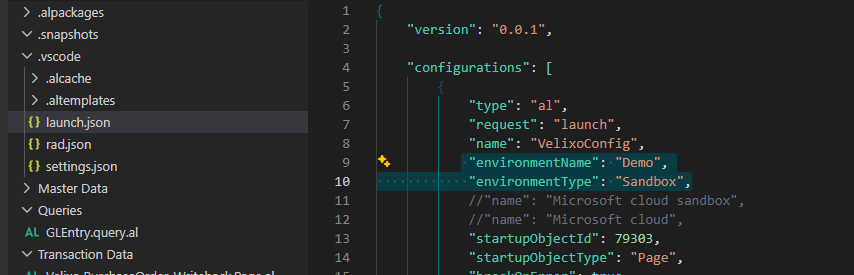
-
In
app.json, review the project metadata and remove or change anything not relevant to your deployment. Check that the platform and application version and the Business Central version match your instance. You can find your Business Central version in the Help menu in Business Central. -
Download symbols: select View → Command Palette → AL: Download Symbols (authenticate if prompted).

-
If your instance already uses object IDs in the
79300-79999range, change the object numbers in each AL file and in the install codeunit that registers the web services. Keep the updated numbers within50000-99999, the public range Microsoft allocates to per-tenant extensions, and updateidRangesinapp.jsonto match. Object IDs outside the declared range fail the build.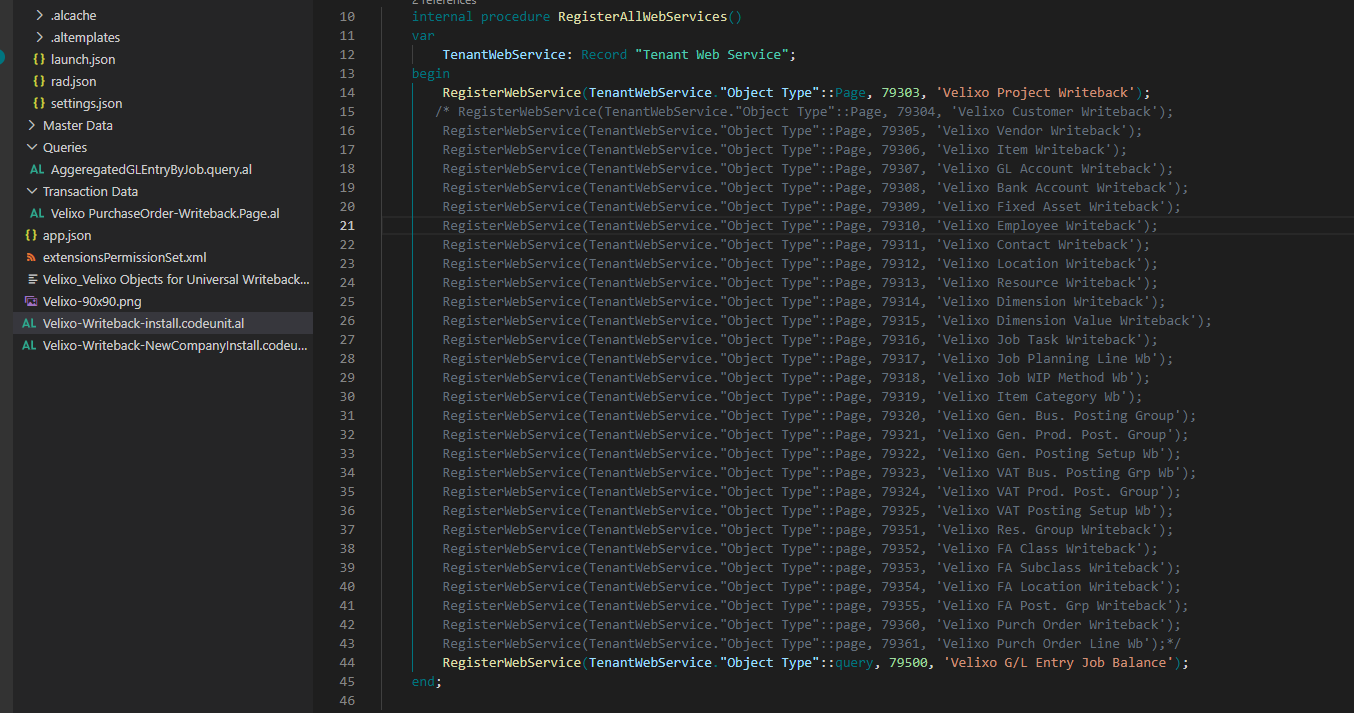
Building and deploying the extension
-
Select Run → Start Debugging. This builds the project and deploys it to your Sandbox as a custom Velixo extension.
-
Authenticate when prompted.
The new web services are now available in your Sandbox and you can query them from Velixo.
Alternatively, take the generated .app file and install and publish it in Business Central on the Extension Management page.
Using the web services from Velixo
Read the deployed web services with BC.QUERY using the web-service API setting, or select the Web Service API in Query Builder and pick the web service by name - for example, Velixo G/L Entry Job Balance.
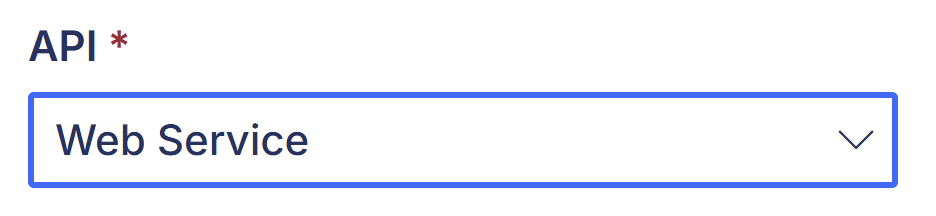
The BC.WRITEBACK function works with the Common and Web service API endpoints (declared in the Settings argument).
Many standard Business Central web services are read-only.
Learning more about AL development
To modify the provided query or build your own web services, work with AL objects directly. Microsoft documents this in full:
-
Developing extensions in AL - how the object-based extension model works.
-
AL development environment reference - reference for objects, properties, and triggers.
-
Query object - the object type used by the provided G/L Entry query.
-
Aggregating data in query objects - the
Methodproperty and theSum,Average,Min,Max, andCountaggregates. -
Retrieving date data in queries - grouping by
Day,Month, orYear, which is what makes the month and year aggregation possible. -
Query objects and performance - how to design a query that performs well on large tables.