Overview
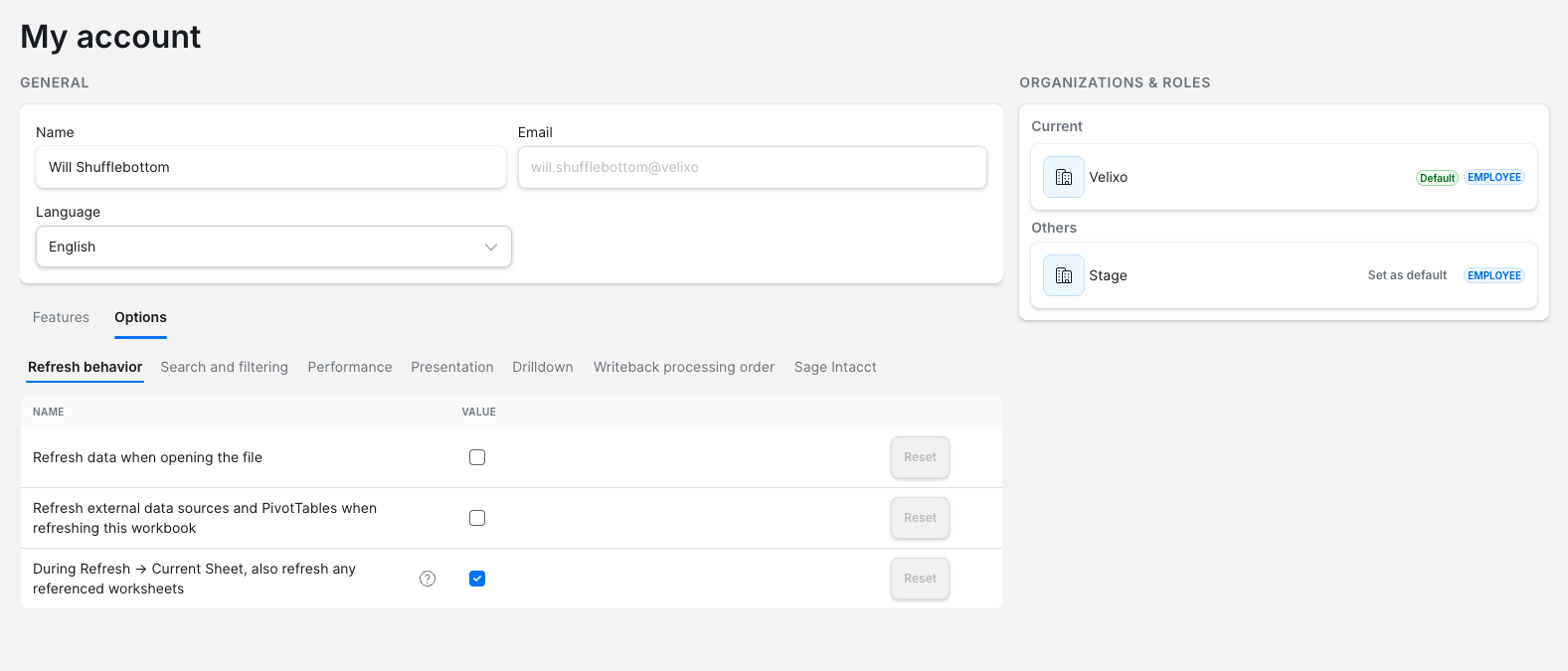
The My account page shows your personal details, the organizations you belong to, and the Velixo features and workbook options that apply to your account.
This article covers:
-
opening My account,
-
updating your name and language,
-
reviewing your organizations and roles,
-
adjusting your features and options.
Open My account
-
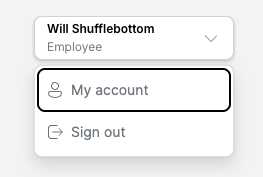
Select your name in the top-right corner of the Portal.
-
Select My account.
Update your name and language
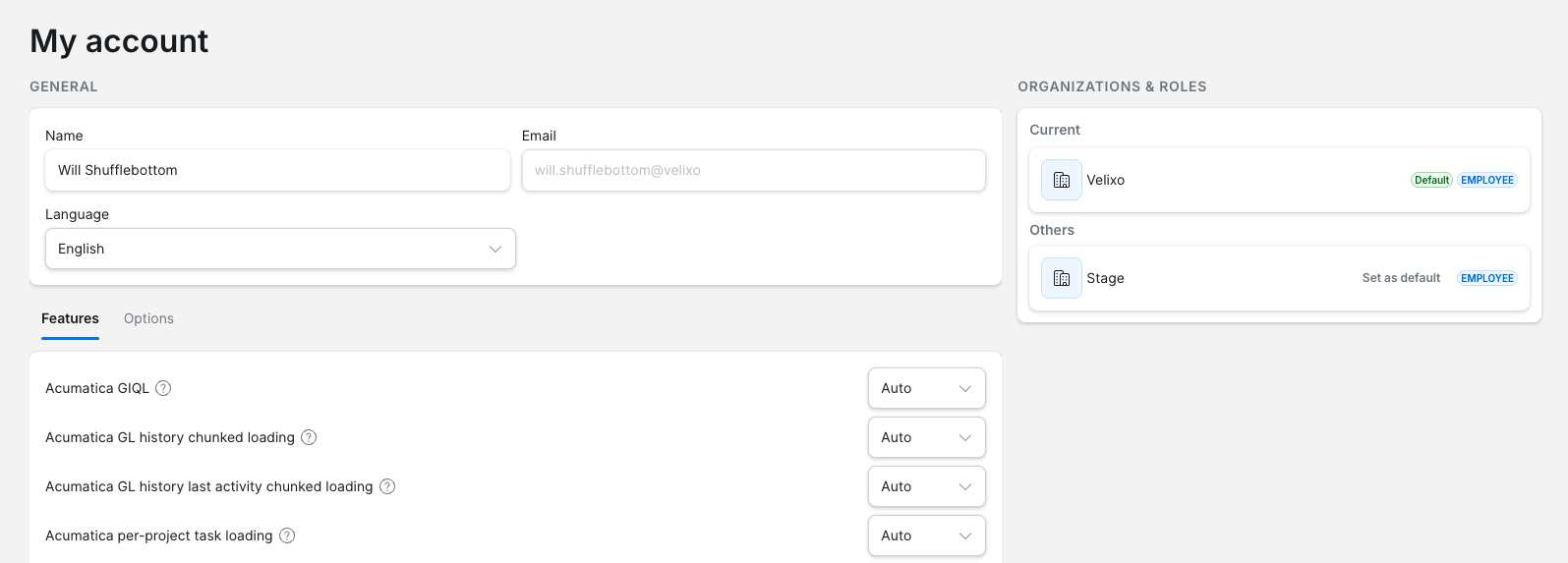
The General section contains:
-
Name – your display name. Enter a new name to change it.
-
Email – the email address you sign in with.
-
Language – the language of the Portal. Select a language from the list. This setting only applies to the Portal – it does not change the language of Velixo NX.
Review your organizations and roles
The Organizations & roles section lists every organization you belong to:
-
Current – the organization selected in the Portal.
-
Others – the other organizations you belong to.
Each organization shows your role in it, for example, Employee. Your default organization is marked Default; the others show Set as default. To switch organizations or change your default, see Working with multiple organizations (coming soon).
Adjust your features and options
Below the General section, two tabs control how Velixo behaves for your account:
-
Features – Velixo features you can turn on or off for your account. Each feature has a list of values. Auto applies the default setting. Your setting overrides your organization's setting, unless the feature is locked for your account.
-
Options – your personal defaults for Velixo workbook options, grouped into categories. Your values override your organization's defaults for new workbooks you create. See Managing workbook options in the Portal.
Changes on these tabs save automatically; there are no Save or Cancel buttons. On the Options tab, to go back to the inherited value for an option, select Reset on its row. A Changes saved confirmation appears in the bottom-right corner.
Some settings may be locked by your Organization admin. A locked setting's value and Reset button are unavailable, and you cannot change it.